
1. Product Overview
The NETGEAR Nighthawk MK73S is a Tri-Band Whole Home Mesh WiFi 6 System designed to provide extensive and reliable wireless coverage. This system includes one router and two satellite extenders, offering up to 3Gbps speed and covering areas up to 4,500 square feet for up to 25 devices. It utilizes 802.11ax (WiFi 6) technology for enhanced performance and includes a 1-year NETGEAR Armor subscription for network security.

Image: The NETGEAR Nighthawk MK73S system, showing the router and two satellite units from various angles.

Image: An overview of the Nighthawk MK73S system highlighting its key features: Tri-band Mesh WiFi 6, up to 3Gbps streaming speed, up to 4,500 sq. ft. WiFi coverage, up to 25 concurrent devices, and 1-year NETGEAR Armor included.
2. Package Contents
The NETGEAR Nighthawk MK73S system typically includes the following components:
- One Nighthawk MK73S Router
- Two Nighthawk MK73S Satellite Extenders
- Power Adapters for each unit
- Ethernet Cable
- Quick Start Guide

Image: A visual representation of the Nighthawk MK73S system, showing one router and two satellite units.
3. Setup Instructions
Follow these steps to set up your NETGEAR Nighthawk MK73S Mesh WiFi 6 System:
- Prepare for Installation: Disconnect your existing router from your modem. If you are replacing an ISP-provided router, ensure it is properly deactivated or returned as per your ISP's instructions to avoid conflicts.
- Download the Nighthawk App: On your mobile device, download the NETGEAR Nighthawk app from the Apple App Store or Google Play Store. This app will guide you through the setup process.
- Connect the Router:
- Power off your modem.
- Connect one end of the provided Ethernet cable to the Internet port (usually yellow) on the Nighthawk router.
- Connect the other end of the Ethernet cable to your modem's Ethernet port.
- Power on your modem and wait for it to fully boot up (usually indicated by stable lights).
- Connect the power adapter to the Nighthawk router and plug it into a power outlet. Wait for the router's LED to turn solid white.
- Place Satellites: Position the satellite extenders in locations that provide optimal coverage throughout your home. Ensure they are within range of the router and each other. Plug in the power adapters for the satellites.
- Complete Setup via App: Open the Nighthawk app on your mobile device. Follow the on-screen instructions to detect and configure your router and satellites, set up your WiFi network name (SSID) and password, and activate NETGEAR Armor.

Image: Visual guide for easy setup, showing steps to download the Nighthawk app and connect the MK73S router to the modem and power.

Image: Diagram illustrating the rear ports of the Nighthawk router and satellites, including Ethernet, Internet, DC power, Reset, and Sync buttons.
4. Operating Your Mesh WiFi System
4.1. Network Coverage and Performance
The Nighthawk MK73S system provides up to 4,500 square feet of WiFi coverage, supporting up to 25 devices simultaneously. The Tri-Band WiFi 6 technology ensures high-speed connectivity for streaming, gaming, and video conferencing.
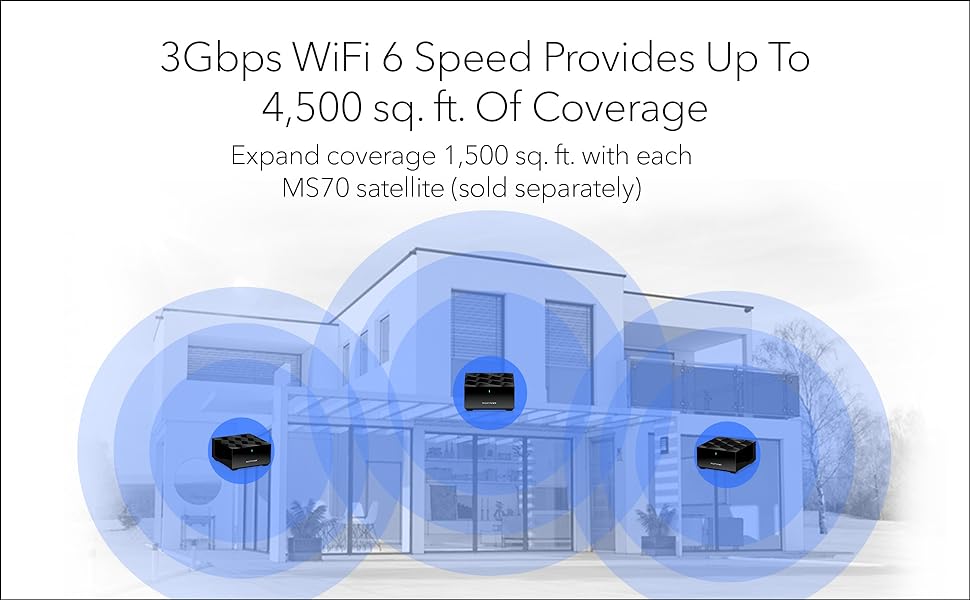
Image: An illustration depicting the Nighthawk MK73S system providing WiFi coverage across a multi-story home, with the router and satellites strategically placed.
4.2. Wired Connections
Each unit (router and satellites) includes Gigabit Ethernet ports for wired connections. The router has one 1G WAN port and one 1G LAN port. Each satellite has two 1G LAN ports. These ports can be used to connect devices such as computers, game consoles, smart TVs, or network-attached storage (NAS) for stable, high-speed connections.
4.3. NETGEAR Armor Security
The system includes a 1-year subscription to NETGEAR Armor, powered by Bitdefender. This security suite provides comprehensive protection for all connected devices against online threats, including malware, phishing, and ransomware. It also offers parental controls and vulnerability assessments.

Image: A visual representation of NETGEAR Armor features, including cybersecurity, VPN, extended warranty, and priority support, with a smartphone displaying the Armor app interface.
5. Maintenance
Regular maintenance ensures optimal performance and security for your mesh WiFi system:
- Firmware Updates: Periodically check for and install firmware updates through the Nighthawk app. Updates often include performance improvements, security patches, and new features.
- Physical Cleaning: Keep the router and satellites free from dust and obstructions. Use a soft, dry cloth to clean the exterior. Ensure ventilation openings are clear.
- Restarting Devices: If you experience network issues, try restarting your modem, router, and satellites. Power them off, wait 30 seconds, then power them back on in sequence (modem first, then router, then satellites).
- Network Monitoring: Use the Nighthawk app to monitor connected devices, network traffic, and security alerts provided by NETGEAR Armor.
6. Troubleshooting
If you encounter issues with your Nighthawk MK73S system, consider the following troubleshooting steps:
- No Internet Connection:
- Verify your modem is working correctly.
- Ensure all Ethernet cables are securely connected.
- Restart your modem, router, and satellites.
- Check your ISP's status for outages.
- Weak WiFi Signal or Dead Zones:
- Adjust the placement of your satellites to optimize coverage. Avoid placing them near large metal objects or appliances that emit electromagnetic interference.
- Ensure satellites are within effective range of the router and each other.
- Devices Not Connecting:
- Confirm you are using the correct WiFi network name (SSID) and password.
- Restart the problematic device.
- Temporarily disable any VPN or firewall on the device to test connectivity.
- Slow Speeds:
- Run a speed test using the Nighthawk app or a reliable online tool.
- Ensure your internet plan supports the speeds you expect.
- Check for excessive network activity from other devices.
- Consider moving devices closer to the nearest WiFi unit.
- Nighthawk App Issues:
- Ensure your app is updated to the latest version.
- Clear the app's cache or reinstall it.
- Verify your mobile device is connected to the Nighthawk WiFi network.
- Factory Reset: As a last resort, you can perform a factory reset on the router. This will erase all custom settings and return the device to its default configuration. Refer to the quick start guide or the Nighthawk app for specific instructions on performing a factory reset.
7. Specifications
Detailed technical specifications for the NETGEAR Nighthawk MK73S Mesh WiFi 6 System:

Image: A detailed graphic outlining the technical specifications of the Nighthawk MK73S, including WiFi speed, coverage, internet plan compatibility, expandable mesh, wired connectivity, processor, memory, and security features.
| Feature | Specification |
|---|---|
| Model Name | MK73S-100NAS |
| Wireless Type | 802.11ax (WiFi 6) |
| Frequency Band Class | Tri-Band |
| WiFi Speed | Up to 3Gbps (AX3000) |
| WiFi Coverage | Up to 4,500 sq. ft. |
| Connected Devices | Up to 25+ devices |
| Router Ethernet Ports | 1x 1G WAN, 1x 1G LAN |
| Satellite Ethernet Ports | 2x 1G LAN per satellite |
| Processor | Quad-core 1.5GHz |
| Memory | 128MB Flash, 256MB RAM (Router and Satellites) |
| Security Features | NETGEAR Armor (1-year subscription included), WPS, Internet Security, Parental Controls |
| Dimensions (Router/Satellite) | Approximately 4.8 x 4.8 x 2.5 inches (each unit) |
| Weight (each unit) | Approximately 1 pound |
| Operating System | Netgear OS |

Image: A comparison chart showing the Nighthawk MK73S alongside other models (MK83, MK93S) with differences in coverage, speed, and device support.
8. Warranty and Support
Your NETGEAR Nighthawk MK73S system comes with a standard manufacturer's warranty. Additionally, the purchase includes a 1-year subscription to NETGEAR Armor, which provides enhanced security features and may include priority support.
- NETGEAR Armor: Includes cybersecurity, VPN, and potentially extended warranty and priority support as part of the subscription.
- Technical Support: For technical assistance, visit the official NETGEAR support website or use the Nighthawk app's support features.
- Protection Plans: Optional extended protection plans are available for purchase separately to extend coverage beyond the standard warranty period.
For the most current warranty information and support resources, please refer to the official NETGEAR website or the documentation included with your product.


