
1. Product Overview
The WiZ Connected Portable LED Light Bar is designed to enhance your home's lighting with smart features and customizable ambiance. This device offers millions of colors, dimming capabilities, and smart home integration for convenient control.

Image 1.1: WiZ Connected Portable LED Light Bar packaging and product view.
Key Features:
- Smart Dimming: Adjust brightness via the WiZ V2 app or voice commands.
- 16 Million Colors: Create custom lighting scenes with a wide spectrum of colors.
- Easy Setup: Connects directly to 2.4GHz Wi-Fi without requiring a separate hub.
- Multiple Control Options: Use smartphone app, voice assistants (Google Home, Alexa, Siri Shortcuts), or existing wall switches.
- Automation: Schedule lights to turn on/off, dim, or change color based on routines.
- Energy Monitoring: Track energy consumption through the WiZ V2 app.
- SpaceSense Technology: Motion detection feature to automatically activate lights.
2. Setup Instructions
Follow these steps to set up your WiZ Connected Portable LED Light Bar.
2.1 Package Contents and Physical Setup
The product includes two light bars and one power adapter. The light bars are designed to be daisy-chained together using the provided 2ft extension cord if you wish to place them further apart, or connected directly to the single power adapter.

Image 2.1: Dimensions of the WiZ Light Bars.
- Unpack: Carefully remove all components from the packaging.
- Connect: Connect the light bars to the power adapter. If using both bars, they can be connected in series.
- Position: Place the light bars in your desired location.
- Power On: Plug the power adapter into a standard electrical outlet. The lights should illuminate.

Image 2.2: Easy Plug & Play setup process.
2.2 Wi-Fi and App Setup
The WiZ Light Bar connects directly to your home Wi-Fi network. No additional hub is required.
- Ensure your Wi-Fi network is operating on the 2.4GHz frequency band. The WiZ system is compatible with 2.4GHz Wi-Fi.
- Have your Wi-Fi network name (SSID) and password ready.
Image 2.3: Wi-Fi Certified for easy integration.
- Download the WiZ App: Search for "WiZ V2" in the Apple App Store or Google Play Store and install it on your smartphone or tablet.
Image 2.4: Step 1 - Download the WiZ Connected App.
- Install and Power On: Ensure your light bar is physically installed and powered on.
Image 2.5: Step 2 - Install light and power on.
- Connect to 2.4GHz Wi-Fi: Open the WiZ app and follow the on-screen instructions to connect your light bar to your 2.4GHz Wi-Fi network. Grant necessary app permissions (location, local network, Bluetooth).
Image 2.6: Step 3 - Ensure 2.4GHz Wi-Fi for pairing.
- Customize Settings: Once connected, you can choose your light settings for each room within the app.
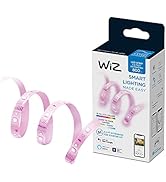
Image 2.7: Step 4 - Choose light settings for each room.
3. Operating Instructions
The WiZ Light Bar offers various methods for control and customization.
3.1 App Control
The WiZ V2 app is the primary interface for controlling your light bar. Through the app, you can:
- Adjust Brightness: Dim or brighten the lights to your preferred level.
- Change Colors: Select from 16 million colors to create specific moods or match decor.

Image 3.1: Example of millions of colors available.
- Set White Light Tones: Adjust white light from warm to cool temperatures.
Image 3.2: Tunable white light from warm to cool.
- Create and Save Scenes: Combine colors and brightness levels into custom scenes for quick activation.
- Schedule Routines: Automate lighting to turn on/off, dim, or change color at specific times.
- Control Remotely: Manage your lights from anywhere with an internet connection.
3.2 Voice Control
The WiZ Light Bar is compatible with popular voice assistants.

Image 3.3: Voice control compatibility with smart assistants.
- Google Home: Link your WiZ account to Google Home and use commands like "Hey Google, turn on the living room lights."
- Amazon Alexa: Enable the WiZ skill in the Alexa app and use commands like "Alexa, dim the lights to 50%."
- Siri Shortcuts: Configure custom shortcuts for quick actions with Siri.
3.3 SpaceSense Technology
SpaceSense enables your light bars to detect motion and turn on automatically, providing convenience and energy efficiency.

Image 3.4: SpaceSense technology detecting motion and activating lights.
- Enable SpaceSense within the WiZ app for specific rooms or devices.
- Adjust sensitivity and duration settings as needed.
4. Maintenance
The WiZ Light Bar requires minimal maintenance.
- Cleaning: Gently wipe the surface of the light bars with a soft, dry cloth. Do not use abrasive cleaners or solvents.
- Energy Monitoring: Regularly check the energy consumption overview in the WiZ V2 app to monitor usage and optimize settings for efficiency.
- Firmware Updates: Ensure your WiZ app and light bar firmware are up to date for optimal performance and new features. The app will typically notify you of available updates.
5. Troubleshooting
If you encounter issues with your WiZ Light Bar, refer to the following common solutions.
5.1 Connectivity Issues
- Light Not Connecting:
- Ensure your Wi-Fi router is powered on and functioning correctly.
- Verify that your smartphone is connected to the 2.4GHz Wi-Fi network during setup.
- Move the light bar closer to your Wi-Fi router to improve signal strength.
- Restart the light bar by unplugging it from the power outlet for 10 seconds, then plugging it back in.
- Perform a factory reset (refer to the WiZ app for specific instructions on resetting your device).
- App Not Responding:
- Close and reopen the WiZ V2 app.
- Check your internet connection.
- Ensure your phone's operating system and the WiZ app are updated to the latest versions.
5.2 Light Functionality
- Light Not Turning On:
- Check if the power adapter is securely plugged into both the light bar and the wall outlet.
- Verify that the wall outlet is receiving power.
- If using both light bars, ensure they are properly daisy-chained or connected to the single power adapter. The product includes two light bars but one power adapter, designed for series connection.
- Incorrect Colors or Brightness:
- Ensure the correct scene or mode is selected in the WiZ app.
- Check for any active schedules or automations that might be overriding manual settings.
6. Specifications
| Feature | Detail |
|---|---|
| Brand | WiZ Connected |
| Model Number | 604330 |
| Color | 16 Million Colors |
| Material | Synthetic Polymer (PMMA), Plastic |
| Finish Type | Lacquered |
| Light Source Type | LED |
| Power Source | Corded Electric |
| Item Weight | 0.7 Kilograms (1.54 pounds) |
| Voltage | 120 Volts |
| Brightness | 800 Lumen |
| Light Source Wattage | 3 Watts (per bar, total 10.5 watts for two) |
| Mounting Type | Wall Mount (optional) |
| Bulb Features | Color-changing, Dimmable, Automatable, Wi-Fi Connectivity, Voice Control, Motion Activation (SpaceSense) |
| Number of Light Sources | 1 (per bar) |
| Product Dimensions | 11.81"L x 23.62"W x 1.77"H (for two bars connected) |
| Item Package Quantity | 1 (containing two bars) |
| Special Features | Dimmable |
| Included Components | Two light bars |
| UPC | 046677604332 |
7. Warranty Information
The WiZ Connected Portable LED Light Bar comes with a manufacturer's warranty.
- Warranty Period: 2 years from the date of purchase.
- For detailed warranty terms and conditions, please refer to the official WiZ Connected website or contact customer support.
8. Support
For further assistance or inquiries, please utilize the following resources:
- WiZ V2 App: The app often contains help sections, FAQs, and direct links to support.
- Online Support: Visit the official WiZ Connected website for comprehensive support documentation, FAQs, and contact options.
- Customer Service: Refer to your product packaging or the WiZ Connected website for customer service contact information.