
Introduction
This manual provides instructions for setting up and using your X9 Performance X9 Wireless Keyboard and Mouse Combo. This combo offers a full-size keyboard with 110 keys and a compact mouse, both connecting wirelessly via a single USB receiver. It is designed for compatibility with various operating systems including Windows, Chrome OS, and Mac OS.

Image: The X9 Performance Pink Wireless Keyboard and Mouse Combo, showcasing its design on a clean desk setup.
Package Contents
- X9 Wireless Keyboard
- X9 Wireless Mouse
- USB 2.4G Receiver (stored inside the mouse battery compartment)
- 1 AA Battery (for mouse, included)
- 1 AAA Battery (for keyboard, included)
Setup
- Insert Batteries: Open the battery compartments on both the keyboard and the mouse. Insert the included AA battery into the mouse and the AAA battery into the keyboard, ensuring correct polarity.
- Locate USB Receiver: The USB 2.4G receiver is typically stored in the battery compartment of the mouse for safekeeping. Remove it carefully.
- Connect Receiver: Plug the USB receiver into an available USB-A port on your computer (PC, laptop, or Chromebook).
- Power On: Ensure both the keyboard and mouse are powered on. The mouse usually has a power switch on its underside. The keyboard may activate automatically once batteries are inserted.
- Automatic Connection: The keyboard and mouse should automatically connect to your computer within a few seconds. No additional drivers are typically required.
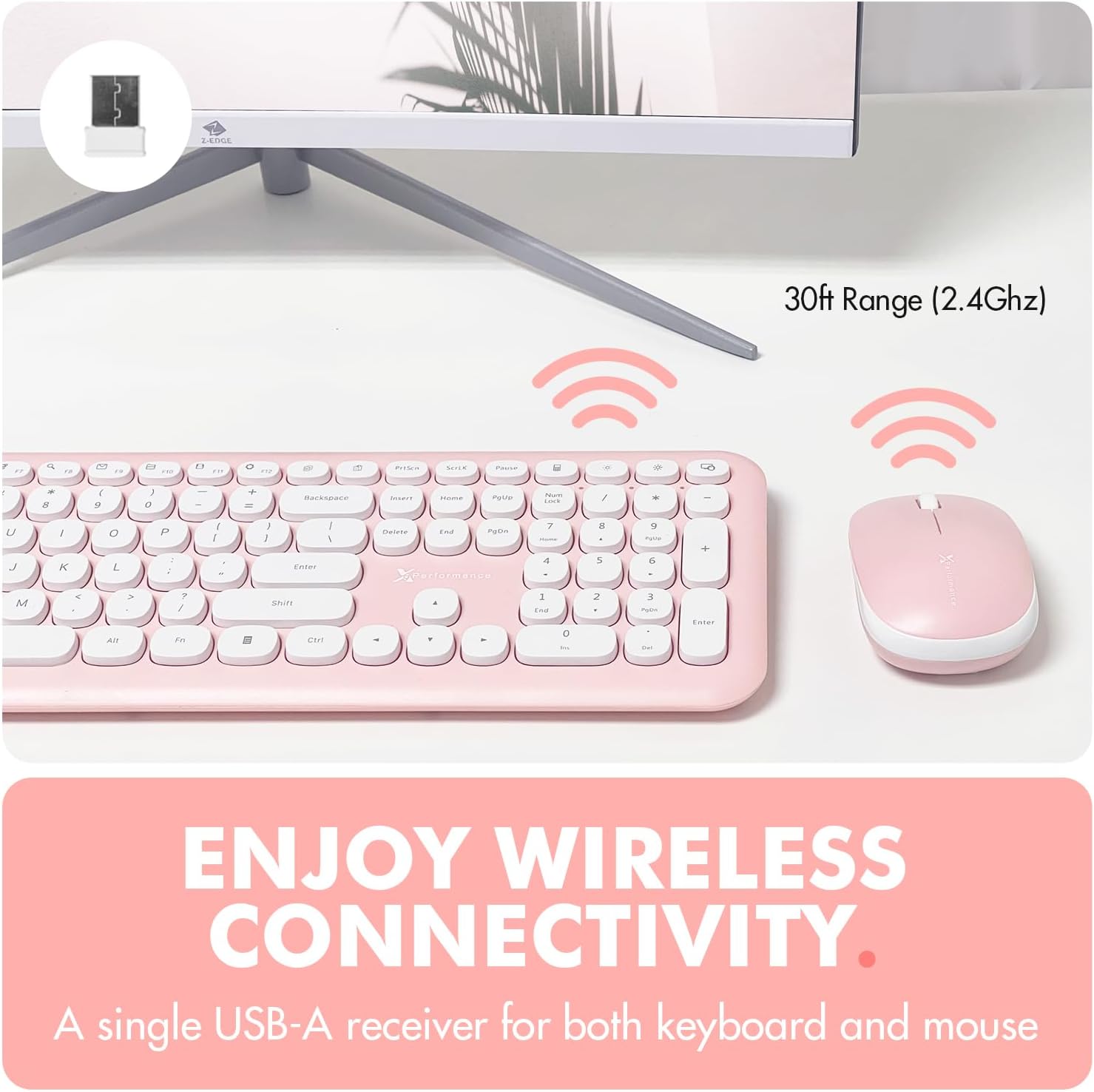
Image: Diagram illustrating the USB receiver and the 30ft wireless range of the keyboard and mouse combo.

Image: Visual guide for plug-and-play setup, showing the keyboard and mouse connecting to a computer via a USB receiver.
Setup Video Guide
Video: This video demonstrates the unboxing and initial setup process for the X9 Pink Wireless Keyboard and Mouse Combo, including battery installation and USB receiver connection.
Video: A short video showing the wireless keyboard and mouse combo, including how to connect the USB receiver for immediate use.
Operating Instructions
Keyboard Usage
The keyboard features a full-size layout with 110 round keys, providing a tactile typing experience. It includes 18 shortcut keys for quick access to common functions.
- Shortcut Keys: Utilize the 18 dedicated shortcut keys for functions such as media control (play/pause, volume), web browser, email, calculator, and more. Refer to the keycap legends for specific functions.
- Integrated Kickstand: The keyboard features an integrated kickstand to provide an ergonomic typing angle, enhancing comfort during extended use.

Image: The keyboard layout highlighting the multi-functional shortcut keys (F1-F12 and others) for quick access to various commands.

Image: An overhead view of the keyboard, emphasizing the 18 shortcut and media keys available for one-touch commands.

Image: A side profile of the keyboard, illustrating its integrated kickstand for an ergonomic typing angle.
Mouse Usage
The mouse features a simple 3-button layout with a scroll wheel and a 1200 DPI optical sensor for precise navigation.
- Point and Click: Use the left and right buttons for standard clicking functions.
- Scroll Wheel: The scroll wheel allows for smooth vertical scrolling through documents and web pages.
- Ambidextrous Design: The mouse is designed for comfortable use by both left and right-handed users.

Image: The X9 Performance mouse, highlighting its simple 3-button and scroll wheel layout for easy use.

Image: A hand holding the X9 Performance mouse, demonstrating its ergonomic design for a comfortable grip.
Power Saving Features
Both the keyboard and mouse are designed with power-saving features to extend battery life.
- Auto-Sleep: The mouse will enter sleep mode after a period of inactivity. To reactivate, simply click any button.
- Power-Saving Mode: The keyboard also enters a power-saving mode when not in use.

Image: Visual representation of the mouse's power states: working, standby, auto-sleep, and how to activate it by pressing a button.

Image: An illustration indicating the auto power-saving feature of the keyboard and mouse, which enters sleep mode when not in use.
Key Feel Demonstration
Video: This video demonstrates the sound and feel of typing on the X9 Performance keyboard, highlighting its tactile feedback.
Video: A demonstration of the keyboard's key presses, illustrating that the sound is not excessively loud.
Maintenance
- Cleaning: Use a soft, dry cloth to clean the surfaces of the keyboard and mouse. For stubborn dirt, a slightly damp cloth can be used, ensuring no liquid enters the device.
- Battery Replacement: When the keyboard or mouse becomes unresponsive or exhibits lag, it may be time to replace the batteries. Open the battery compartment and replace the AA battery in the mouse and the AAA battery in the keyboard with new ones, observing correct polarity.
- Storage: When not in use for extended periods, remove the batteries to prevent leakage and store the USB receiver in the mouse's battery compartment.

Image: The underside of the keyboard, showing the anti-scratch rubber inserts that help maintain stability and protect surfaces.

Image: The underside of the mouse, displaying the battery compartment and the 1200 DPI optical sensor.
Troubleshooting
| Problem | Solution |
|---|---|
| Keyboard/Mouse is unresponsive or lagging. |
|
| Keys are skipping or not registering input when typing quickly. |
|
| Mouse cursor is erratic or jumps. |
|
| Spacebar or other keys feel "sticky" or repeat characters. |
|
Specifications
| Feature | Detail |
|---|---|
| Brand | X9 Performance |
| Model | X9 Wireless Keyboard and Mouse Combo |
| Connectivity Technology | 2.4G Radio Frequency |
| Wireless Range | Up to 30 feet |
| Compatible Devices | Laptop, Personal Computer, Television |
| Compatible Operating Systems | Android, Chrome OS, Mac OS, Windows |
| Keyboard Layout | QWERTY, 110 Keys |
| Keyboard Special Features | Round Key Design, 18 Shortcut Keys, Integrated Kickstand, Power-Saving |
| Mouse Movement Detection | Optical |
| Mouse DPI | 1200 DPI |
| Mouse Hand Orientation | Ambidextrous |
| Power Source | Battery Powered (1 AA for mouse, 1 AAA for keyboard) |
| Item Weight | 689 g |
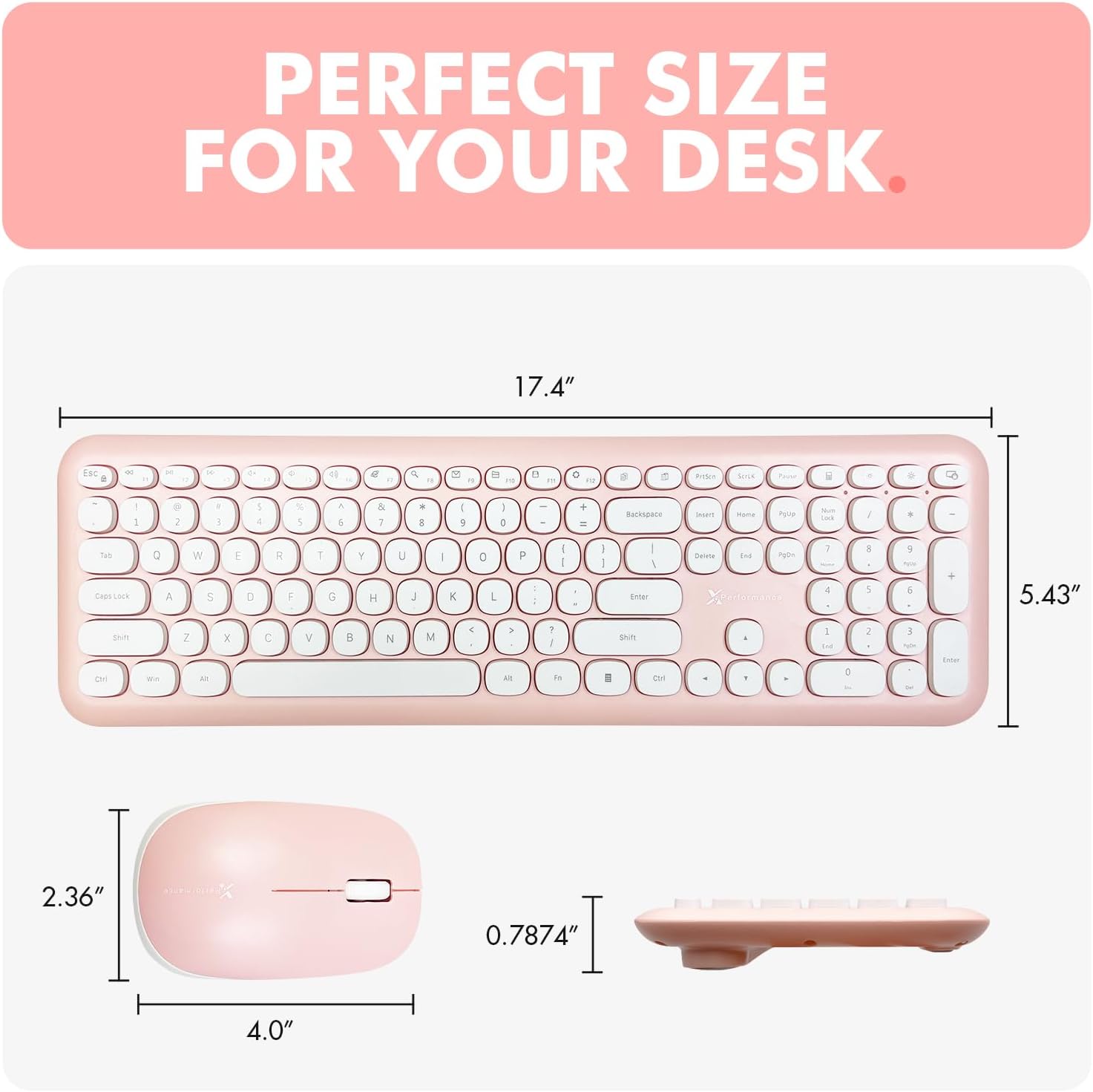
Image: Detailed dimensions of the X9 Performance keyboard and mouse for reference.

Image: A summary table of key features including power, connectivity, backlight, compatibility, key type, and kickstand.
Warranty and Support
The X9 Performance X9 Wireless Keyboard and Mouse Combo comes with a 2-year warranty. For any product-related inquiries, technical assistance, or warranty claims, please contact X9 Performance customer support.
You can find more information and support resources by visiting the official X9 Performance store: X9 Performance Store


