
1. Introduction
This manual provides detailed instructions for the installation, operation, and maintenance of your Roinvou 9-inch Android 13 Car Stereo. This unit is specifically designed for Ford F-150 models manufactured between 2009 and 2012. Please read this manual thoroughly before installation and use to ensure proper functionality and safety.
2. What's in the Box
Verify that all components are present in your package:
- Ford F150 Car Stereo
- Power Cable
- CANBUS Box
- Radio Antenna Adaptor
- Dual RCA Harness
- GPS Antenna
- Backup Camera
- External Microphone
- Rear Camera Input Cable
- Dual USB Cable
- Installation Tool & Accessories

Image: Detailed view of all components included in the Roinvou car stereo package.
3. Product Overview (Key Features)
The Roinvou car stereo offers a range of advanced features to enhance your driving experience:
- Vehicle Compatibility: Designed for Ford F-150 models from 2009 to 2012.
- Android 13 System: Features a 9-inch HD capacitive touchscreen with 1024 x 600 resolution for clear visuals and a responsive user experience.
- GPS Navigation: Pre-equipped with North America maps and supports online map applications via Wi-Fi.
- 5GHz WiFi Connectivity: Allows access to online navigation, streaming, and app downloads.
- Bluetooth: Supports hands-free calling, music playback, and contact synchronization.
- Mirror Link: Enables screen mirroring from your smartphone (iOS and Android) to the car stereo.
- FM/RDS Radio: Provides stable FM radio reception with 18 preset stations and real-time road conditions.
- Backup Camera Support: Automatically displays the rear view when shifting into reverse gear for enhanced safety.
- Steering Wheel Control: Allows quick function switching directly from your vehicle's steering wheel.
Visual Features
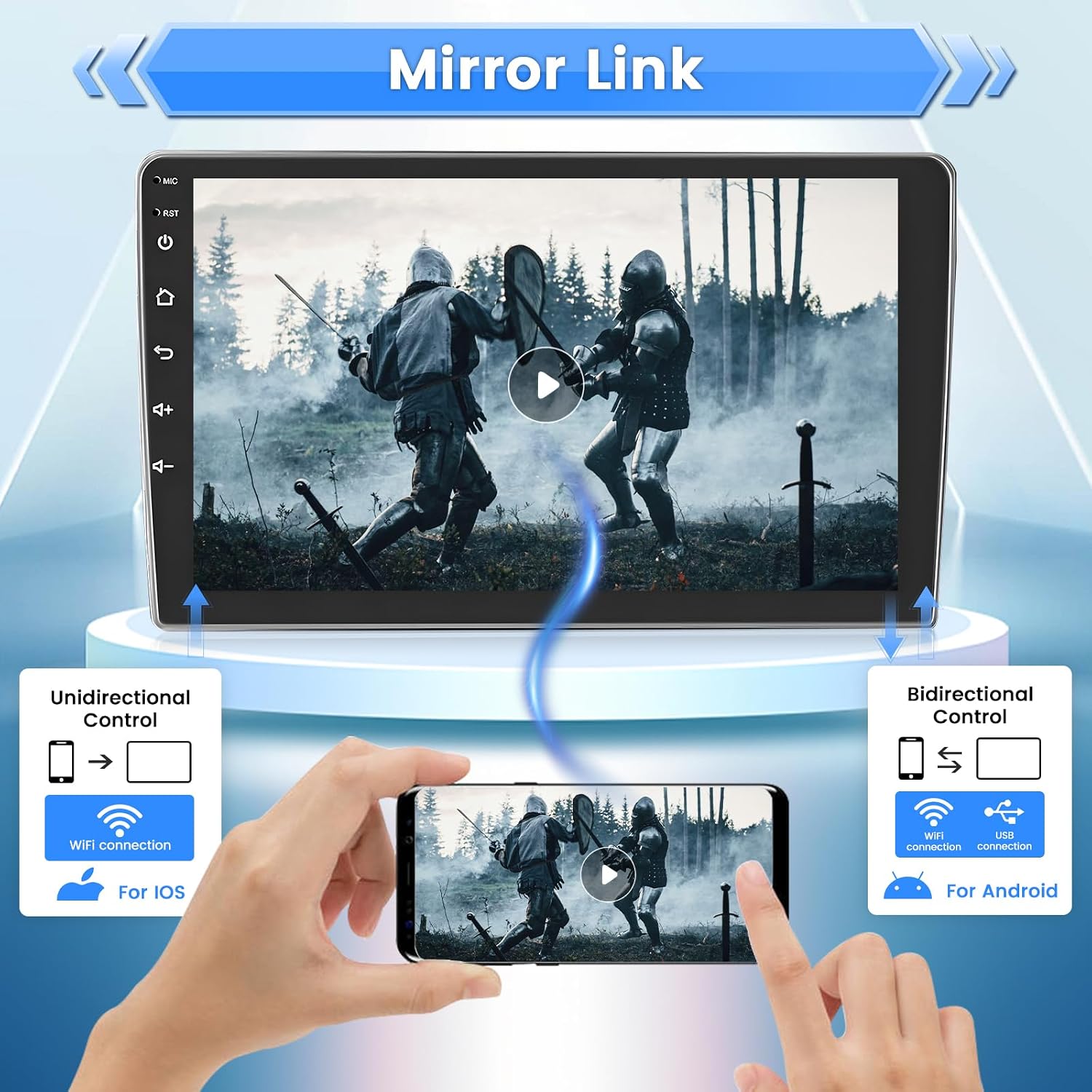
Image: Mirror Link feature, illustrating unidirectional control for iOS and bidirectional control for Android devices.

Image: Bluetooth connectivity, showing phone call and music playback icons.

Image: WiFi and GPS Navigation, displaying a map and various online application icons.

Image: 2.5D Screen and UI Interface, showcasing the screen's design and multiple display themes.

Image: Rear View Camera, highlighting its features including HD image quality, waterproofing, 170-degree wide angle, and night vision.
4. Setup & Installation
Proper installation is crucial for optimal performance. It is recommended to have this unit installed by a professional. Ensure your vehicle is turned off and the battery is disconnected before beginning installation.
4.1. Vehicle Compatibility Check
Before installation, confirm your Ford F-150 model is compatible (2009-2012). The image below illustrates compatible and incompatible dashboard types.

Image: Car radio compatibility for Ford F-150 (2009-2012), showing 'Can Install' and 'Cannot Install' dashboard types.
4.2. Center Console Disassembly & Wiring
The installation process involves disassembling the center console and connecting the new stereo's wiring harness. Refer to the detailed video guide below for step-by-step instructions on removing the original unit and connecting the new one.
Video: A detailed guide on how to disassemble the center console and perform the wiring for the Roinvou car stereo in a Ford F-150.
The wiring diagram below provides a visual reference for connecting the various components, including the CANBUS box, RCA harnesses, and antennas.

Image: Wiring diagram for the Roinvou car stereo, illustrating connections for various components.
4.3. Steering Wheel Control Connection
Depending on whether your vehicle has a CANBUS decoder, the connection method for steering wheel controls varies:
- Without CANBUS Decoder: Connect the Key1/Key2 wires in the power cable to the corresponding port of your original car. Then, activate the button function via the 'SteeringWheel Key' manual match setting.
- With CANBUS Decoder: Connect the CANBUS before powering on the machine. Navigate to Apps > Car Settings > Factory Settings (8888) > Protocol Settings. Choose the CANBUS Brand Name and Car's Style, then select the matching model and year.

Image: Steering Wheel Control setup, detailing steps for vehicles with and without a CANBUS decoder.
4.4. Backup Camera & CANBUS Connection
Ensure the wired transmission between the car radio and the AHD backup camera is stable. The system is designed to automatically display the image when you shift to reverse gear. The CANBUS connection is essential for integrating vehicle-specific functions.

Image: Backup Camera and CANBUS Connection diagram, showing wiring points for these features.
5. Operating Instructions
5.1. Basic Functions
- Power On/Off: Press and hold the power button on the unit or use the vehicle's ignition.
- Volume Control: Adjust using the physical knobs or touchscreen controls.
- Touchscreen Operation: Navigate the Android interface by tapping, swiping, and pinching.
5.2. GPS Navigation
The unit comes with pre-installed North America maps. To use online navigation features and real-time traffic updates, connect to Wi-Fi and download your preferred map application from the Play Store.

Image: WiFi and GPS Navigation interface, showing a map and various online application icons.
5.3. WiFi Connectivity
To connect to a Wi-Fi hotspot:
- Go to Settings on the car stereo.
- Select Network & Internet.
- Turn on Wi-Fi and select your desired network.
- Enter the password if prompted.
5.4. Bluetooth Functions
To pair your phone via Bluetooth:
- Enable Bluetooth on your smartphone and the car stereo.
- On the car stereo, search for available devices and select your phone.
- Confirm the pairing code on both devices.
Once paired, you can make hands-free calls, play music, and sync contacts.
5.5. Mirror Link
The Mirror Link feature allows you to display your smartphone screen on the car stereo. For iOS devices, it typically offers unidirectional control (from phone to stereo). For Android devices, bidirectional control is often supported (control from both phone and stereo).
5.6. FM/RDS Radio
Access the FM Radio application to scan for stations. You can manually tune or use the automatic search function. Save your favorite stations to the 18 available presets. RDS (Radio Data System) provides additional information like station name and song title where available.

Image: FM Radio interface, displaying radio frequencies and controls.
6. Maintenance
- Screen Cleaning: Use a soft, lint-free cloth to clean the touchscreen. Avoid abrasive cleaners.
- Software Updates: Periodically check for software updates via the system settings to ensure optimal performance and access to new features.
- General Care: Keep the unit free from dust and extreme temperatures.
7. Troubleshooting
If you encounter issues, try the following basic troubleshooting steps:
- No Power: Check all power connections and vehicle fuses. Ensure the unit is properly seated.
- No Sound: Verify speaker connections, volume levels, and audio source selection.
- GPS Signal Loss: Ensure the GPS antenna is correctly installed and has a clear view of the sky.
- Bluetooth Pairing Issues: Ensure both devices are in pairing mode and within range. Try restarting both devices.
- Backup Camera Not Displaying: Check the camera's power and video connections. Ensure the vehicle is in reverse.
For persistent issues, please contact customer support.
8. Specifications
| Feature | Specification |
|---|---|
| Product Dimensions | 9.96 x 1.57 x 14.96 inches |
| Item Weight | 3.85 pounds |
| Screen Size | 9 Inches |
| Resolution | 1024 x 600 |
| Connectivity Technology | Bluetooth, USB, Wi-Fi |
| Map Type | North America |
| Audio Output Mode | Stereo |
| Mounting Type | Dashboard Mount |
| Special Features | 5GHz Wi-Fi, Bluetooth, IPS Touchscreen, FM RDS Radio, EQ Settings, Mirror Link, GPS Navigation, Steering Wheel Control, 26 Desktop Themes |
9. Warranty & Support
Your Roinvou car stereo comes with a one-year warranty. For any questions, technical assistance, or warranty claims, please contact our customer support team.
You can reach us via:
- Amazon Chat: Access through the Amazon platform by clicking on the seller name (Roinvou) and then 'Ask a question'.
- Email: roinvouservices@163.com
We aim to respond to all inquiries within 24 hours, regardless of holidays.

Image: Roinvou customer support contact methods.


