
1. Introduction
Thank you for choosing the MOFII Wireless Keyboard and Mouse Combo. This product is designed to provide a comfortable and efficient typing and navigation experience with its retro-inspired design and reliable 2.4GHz wireless technology. This manual provides detailed instructions for setup, operation, and maintenance to ensure optimal performance.
2. Package Contents
- 1 x MOFII Wireless Keyboard
- 1 x MOFII Wireless Mouse
- 1 x USB Nano Receiver (typically stored in the mouse battery compartment)
- 1 x Cleaning Brush (for keyboard maintenance)
- User Manual (this document)

Image: The MOFII Wireless Keyboard and Mouse Combo, showcasing the keyboard, mouse, and the compact USB nano receiver.
3. Setup Instructions
- Insert Batteries:
- For the keyboard: Open the battery compartment on the underside of the keyboard. Insert the required batteries (typically 2x AAA, not always included). Ensure correct polarity.
- For the mouse: Open the battery compartment on the underside of the mouse. Insert the required battery (typically 1x AA, not always included). Ensure correct polarity. The USB nano receiver is often stored in this compartment.
- Locate USB Nano Receiver: The compact USB nano receiver is usually stored within the mouse's battery compartment for safekeeping during transport. Carefully remove it.
- Plug and Play Connection: Insert the USB nano receiver into an available USB port on your computer (PC, laptop, Mac). The system should automatically detect and install the necessary drivers.
- Power On: Ensure both the keyboard and mouse have their power switches (if present) set to the 'ON' position.
- Testing: Test the keyboard and mouse functionality. If they do not respond, ensure batteries are correctly inserted and the USB receiver is securely plugged in.

Image: Visual representation of the plug-and-play setup, showing the USB receiver connecting the keyboard and mouse to a laptop.
4. Operating Instructions
4.1 Basic Usage
The keyboard features a full-size layout with 104 keys, including a numeric keypad, providing a complete typing experience. The mouse offers precise tracking for smooth navigation.
4.2 Multimedia Hotkeys
The keyboard is equipped with 13 multimedia hotkeys for quick access to various functions. These keys are typically located along the top row (F1-F12) and may require pressing the 'Fn' key simultaneously with the function key for activation.
- F1-F12: Functions may include media control (play/pause, next/previous track), volume adjustment, mute, web browser, email, and calculator. Refer to the keycap legends for specific functions.
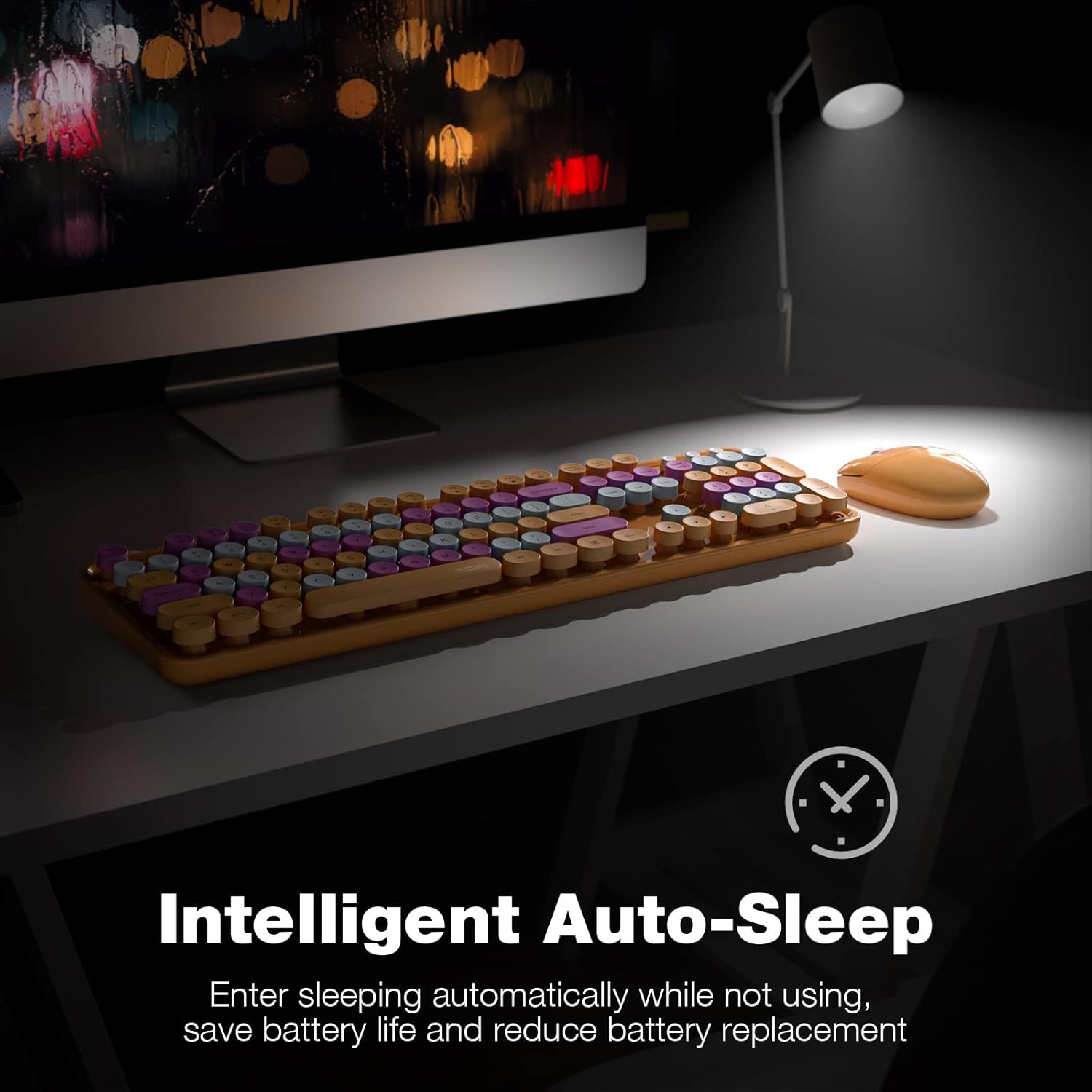
Image: Close-up of the keyboard highlighting the multimedia hotkeys for quick access to various functions.
4.3 Ergonomic Design
The keyboard is designed with foldable stands and anti-slide pads on the underside, allowing you to adjust the typing angle for improved comfort and reduced wrist pressure during extended use.

Image: The keyboard viewed from the side, illustrating the foldable stands and non-slip silicone pads for ergonomic positioning.
5. Power Saving Features
Both the keyboard and mouse are equipped with an intelligent auto-sleep function to conserve battery life. If inactive for a period, the devices will enter a sleep mode. To wake them up, simply press any key on the keyboard or click a mouse button.

Image: The keyboard and mouse on a desk, illustrating the intelligent auto-sleep feature to save battery power.
6. Maintenance
6.1 Cleaning
To maintain hygiene and performance, regularly clean your keyboard and mouse. The keyboard features detachable keycaps, allowing for thorough cleaning. Use the provided cleaning brush to remove dust and debris from between the keys.

Image: Close-up of the keyboard with several keycaps removed, showing the included cleaning brush for easy maintenance.
6.2 Battery Replacement
When the devices stop responding or the indicator light (if present) signals low battery, replace the batteries. Open the battery compartment, remove old batteries, and insert new ones, ensuring correct polarity. Dispose of old batteries responsibly.
7. Troubleshooting
- No Response from Keyboard/Mouse:
- Ensure batteries are correctly inserted and not depleted. Replace if necessary.
- Verify the USB nano receiver is securely plugged into a working USB port on your computer.
- Check if the power switch on the keyboard and mouse is in the 'ON' position.
- Try plugging the USB receiver into a different USB port.
- Restart your computer.
- Intermittent Connection:
- Ensure the devices are within the effective wireless range (up to 33ft/10m).
- Minimize interference from other wireless devices or large metal objects.
- Replace batteries if they are low.
- Mouse Cursor Jumps or is Erratic:
- Clean the mouse sensor area on the underside.
- Ensure you are using the mouse on a suitable surface (not highly reflective or transparent).
8. Specifications
| Feature | Detail |
|---|---|
| Product Dimensions | 17.5 x 5.35 x 1.38 inches |
| Item Weight | 1.45 pounds |
| Connectivity Technology | 2.4GHz Wireless (USB) |
| Special Features | Ergonomic, Round Keycaps, Auto-Sleep |

Image: Detailed dimensions of the full-size wireless keyboard and mouse.
9. Compatibility
The MOFII Wireless Keyboard and Mouse Combo is compatible with a wide range of operating systems:
- Windows 98 / Me / 2000 / XP / Vista / Win 7 / Win8 / Win10
- Mac OS (or latest versions)
10. Warranty and Support
For warranty information, please refer to the product packaging or contact MOFII customer support directly. Keep your purchase receipt as proof of purchase. For technical assistance or further inquiries, please visit the official MOFII website or contact their customer service.
11. Safety Information
- Do not expose the devices to water or excessive moisture.
- Avoid dropping or subjecting the devices to strong impacts.
- Keep out of reach of children.
- Dispose of batteries according to local regulations.
- Do not attempt to disassemble or repair the devices yourself. Contact qualified personnel for service.