
1. Introduction
The XTRONS TIE Series Car Navigation System is an advanced 2DIN in-car PC designed to enhance your driving experience with comprehensive multimedia and connectivity features. Running on Android 12, it offers a responsive and intuitive interface on its large 10.1-inch display. This manual provides detailed instructions for installation, operation, maintenance, and troubleshooting to ensure optimal performance and longevity of your device.

Image 1.1: The XTRONS TIE Series Car Navigation System, showcasing the main unit and essential connection cables.

Image 1.2: Overview of key features including 4G LTE, CarPlay, Android Auto, powerful processor, large display, and multimedia capabilities.
2. Setup and Installation
2.1 Package Contents
Before installation, please verify that all items listed below are included in your package:
- 1 x ISO Cable
- 1 x RCA Cable
- 1 x GPS Antenna
- 1 x 4G Antenna
- 2 x USB Cables
- 1 x CANbus Cable
- 1 x Camera Cable
- 2 x Installation Tools
- 8 x Installation Screws
- 2 x Monitor Mounting Plugs
- 1 x Frame
- 1 x User Manual (PDF version available online)

Image 2.1: Visual representation of the unit's dimensions and a list of all included accessories.
2.2 Wiring Diagram
Refer to the following diagram for proper wiring connections. Ensure all connections are secure before powering on the unit.

Image 2.2: Comprehensive wiring diagram for connecting the unit to your vehicle's electrical system and peripherals.
Key to Wiring Diagram:
- 4G Antenna
- GPS Antenna
- USB Port
- CarPlay USB Port
- Camera Power 12V
- Audio Output (Front Right)
- Audio Output (Rear Left)
- Coaxial Digital Output
- Amp Control
- Audio Input (Left)
- Audio Output (Front Left)
- Audio Input (Right)
- Video Input
- Subwoofer Output
- Audio Output (Rear Right)
- Front Camera Video Input
- SIM Card Slot
- External Microphone Terminal
- WiFi Antenna
- Camera Power 12V
- Bluetooth Antenna
- Brake Signal Wiring
- Backup Camera Video Input
- Steering Wheel Control KEY1 (5V)
- Auto Antenna
- Steering Wheel Control KEY2 (5V)
- Reverse Signal Wiring
- ISO Power Cable
- Radio Antenna Port
2.3 ISO Cable Connection
The ISO cable connects the unit to your vehicle's power and speaker system. Ensure correct polarity and secure connections.
| Wire Color | Function |
|---|---|
| Yellow | Connects to Battery Power Plus |
| Black | Connects to Battery Power Minus |
| Red | Connects to ACC (Accessory Power) |
| Orange | Illumination |
| Purple + | Rear Right Speaker + |
| Purple - | Rear Right Speaker - |
| Gray + | Front Right Speaker + |
| Gray - | Front Right Speaker - |
| White + | Front Left Speaker + |
| White - | Front Left Speaker - |
| Green + | Rear Left Speaker + |
| Green - | Rear Left Speaker - |
3. Operating Instructions
3.1 4G Communication and Internet Access
The unit features a built-in 4G communication module. Insert a micro SIM card into the designated slot (refer to Image 2.2, item 17) to enable direct internet access. Alternatively, you can use Wi-Fi or USB tethering from your smartphone to connect the unit to the internet. This allows you to download apps from the Play Store, use Google Maps, YouTube, and other online services.

Image 3.1: Internet connectivity options: built-in 4G LTE, Wi-Fi tethering, and USB tethering.
3.2 CarPlay, Android Auto, and Mirroring
The unit supports both Apple CarPlay and Android Auto for seamless smartphone integration.
- Apple CarPlay: Supports wireless connection via Bluetooth. Connect your iPhone to access navigation, music, calls, and more directly on the unit's screen.
- Android Auto: Supports both wireless (Bluetooth) and wired (USB) connections. Connect your Android phone to use compatible apps safely while driving.
- Screen Mirroring: Use the built-in app to mirror your smartphone's screen (photos, music, videos) directly onto the navigation unit.
Note: Video streaming apps may not be supported through CarPlay or Android Auto due to safety regulations.
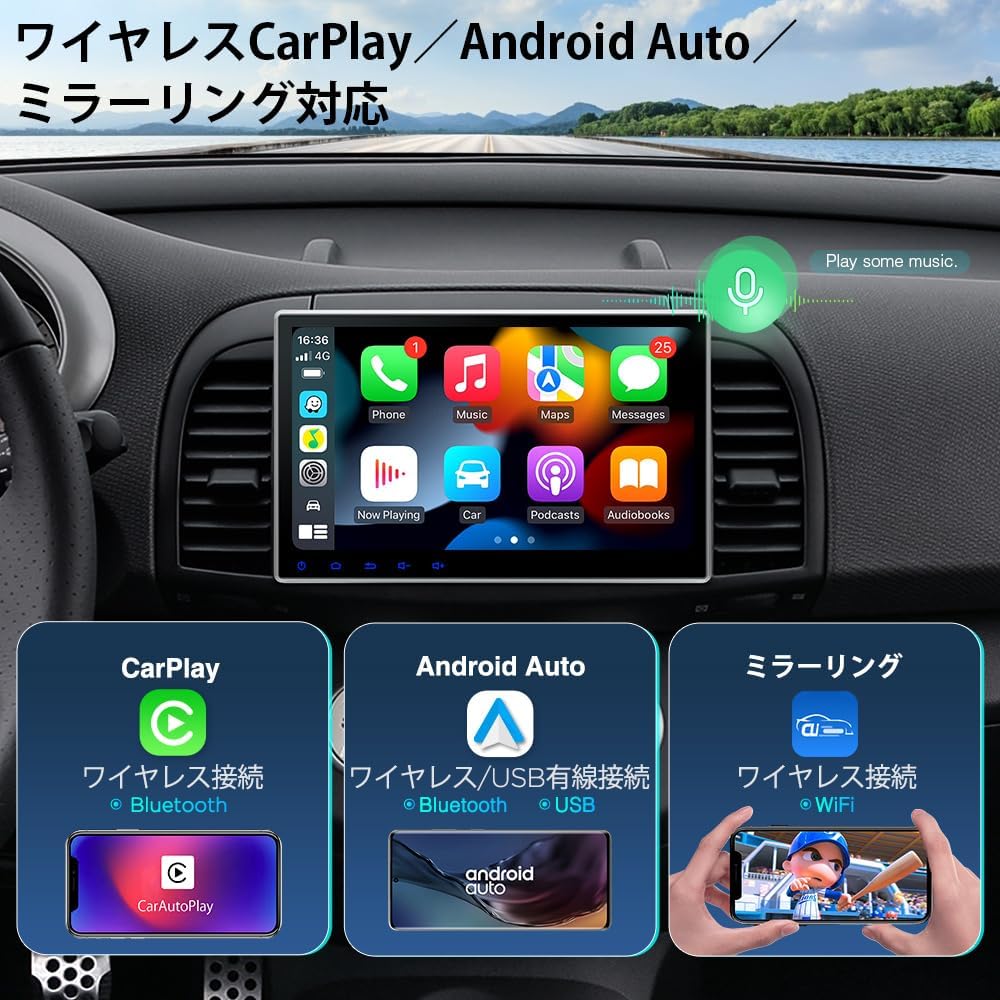
Image 3.2: Connectivity options for CarPlay, Android Auto, and screen mirroring.
3.3 Built-in DVD Player
The unit includes a built-in DVD/CD player. Gently insert a disc into the slot located above the main unit. Ensure the disc is clean and free of scratches for optimal playback.

Image 3.3: The integrated DVD player for multimedia entertainment.
3.4 Bluetooth 5.0
Utilize Bluetooth 5.0 for hands-free calling and wireless audio streaming.
- Hands-Free Calling: Pair your smartphone to make and receive calls safely while driving.
- Bluetooth Music: Stream audio from your paired device directly to the car's speakers.
3.5 Steering Wheel Control
The unit supports steering wheel controls, allowing you to manage audio playback and other functions without taking your hands off the wheel. Configure the controls in the system settings.
3.6 GPS Navigation
With the connected GPS antenna, you can download and use various navigation applications from the Google Play Store for accurate route guidance.

Image 3.4: Features including screen mirroring, Bluetooth, steering wheel control, and GPS navigation.
3.7 Display Features
The 10.1-inch IPS LCD screen provides a high-quality visual experience with a resolution of 1024x600. IPS technology ensures clear images from wide viewing angles.

Image 3.5: Details of the 10.1-inch high-resolution IPS display.
The unit also supports full-screen output to an external monitor via an XTRONS USB to RCA converter (sold separately). This allows all content displayed on the main unit to be mirrored on a rear-seat monitor or other external display.

Image 3.6: External display output via RCA converter.
4. Maintenance
To ensure the longevity and optimal performance of your XTRONS TIE Series unit, follow these maintenance guidelines:
- Screen Cleaning: Use a soft, lint-free cloth slightly dampened with water or a screen-specific cleaning solution. Avoid abrasive materials or harsh chemicals.
- Dust Removal: Regularly wipe down the unit's exterior to prevent dust buildup, especially around vents and ports.
- Disc Care: Handle DVDs/CDs by their edges. Store them in their cases when not in use to prevent scratches and dust accumulation.
- Temperature: Avoid exposing the unit to extreme temperatures, which can affect its electronic components.
5. Troubleshooting
If you encounter issues with your XTRONS TIE Series unit, refer to the common problems and solutions below.
| Problem | Possible Cause | Solution |
|---|---|---|
| Unit does not power on. | Incorrect wiring, blown fuse, power supply issue. | Check power connections (Yellow, Red, Black wires). Verify vehicle fuse and unit's fuse. Ensure sufficient power supply. |
| No display on screen. | Loose display cable, software glitch, hardware failure. | Ensure the display cable is securely connected. Try restarting the unit. If the issue persists, contact support. |
| No sound. | Speaker wiring issue, volume too low, incorrect audio source. | Check speaker connections (ISO cable). Increase volume. Select the correct audio source. |
| Bluetooth not connecting. | Device not in pairing mode, unit's Bluetooth off, interference. | Ensure both devices have Bluetooth enabled and are in pairing mode. Restart both devices. Move closer to the unit. |
| GPS signal weak or inaccurate. | GPS antenna placement, environmental interference. | Ensure GPS antenna is placed in an unobstructed location (e.g., dashboard, away from metal). Update GPS software if available. |
| DVD/CD not playing. | Disc dirty or scratched, incorrect disc format, disc not fully inserted. | Clean the disc. Ensure it's a supported format. Insert the disc fully and correctly. |
| Noise or interference in monitor. | Poor grounding, faulty cables, electrical interference from vehicle. | Check all ground connections. Inspect cables for damage. Consider installing a noise filter if interference persists. |
6. Specifications
| Feature | Detail |
|---|---|
| Screen Size | 10.1 inches |
| Display Type | LED IPS |
| Resolution | 1024 x 600 |
| Operating System | Android 12 |
| Processor | 8-Core |
| RAM | 2GB |
| Internal Storage | 32GB |
| USB Ports | 2 |
| Memory Card Slots | 2 x Micro SD slots |
| Map Type | City Tour (via downloadable apps) |
| Product Dimensions (W x D x H) | 17.8 x 15.3 x 10 cm |
| Weight | 2.2 kg |
| Connectivity | Bluetooth 5.0, Wi-Fi, 4G (SIM compatible) |
| Features | Hands-free calling, CarPlay, Android Auto, Screen Mirroring, DVD Player, Video Input/Output, OBD2/DVR support |
| Audio Output Mode | Stereo |
| Power Output | 4 x 45W |
| Operating Voltage | DC 12V (10.8V to 16V operable) |
7. Warranty and Support
The XTRONS TIE Series Car Navigation System comes with a 1-year warranty from the date of purchase. This warranty covers manufacturing defects and malfunctions under normal use. Please retain your proof of purchase for warranty claims.
For detailed instructions, a PDF version of the Japanese user manual can be downloaded from the official XTRONS community website: https://xtrons.com/community/index.php/user-manuals-japanese/.
If you have any questions or require technical assistance, please contact XTRONS customer support via email. Provide your product model and a detailed description of the issue for prompt assistance.


