
1. Introduction
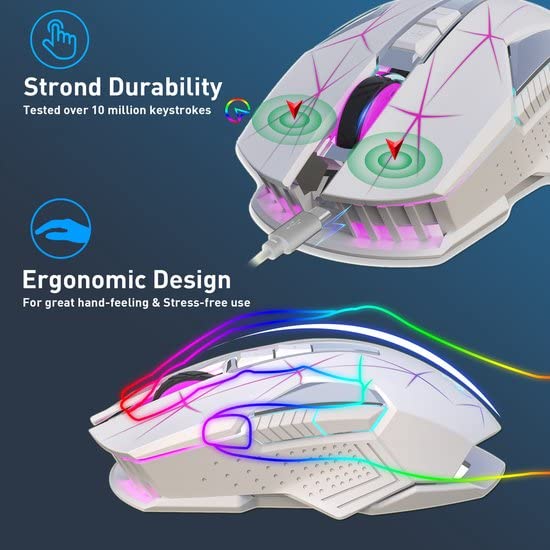
This manual provides instructions for the HXSJ T300 2.4G Wireless Ergonomic Mouse. This device features 2.4 GHz wireless connectivity, adjustable DPI settings, a rechargeable battery, and an ergonomic design for comfortable use. Please read this manual carefully before using the product to ensure proper operation and maintenance.
2. Package Contents
- HXSJ T300 Wireless Mouse
- USB 2.4G Receiver
- Type-C Charging Cable
3. Product Overview
Familiarize yourself with the components of your HXSJ T300 wireless mouse:
A detailed diagram illustrating the various parts of the HXSJ T300 wireless mouse, including the left and right buttons, scroll wheel, DPI adjustment buttons, forward and backward buttons, Type-C charging port, power/light switch, optical sensor, and wireless receiver.
- Left Button: Standard left-click function.
- Right Button: Standard right-click function.
- Scroll Wheel: For scrolling and middle-click function.
- DPI Loop+ Button: Increases DPI sensitivity.
- DPI Loop- Button: Decreases DPI sensitivity.
- Forward Button: Navigates forward in web browsers or file explorers.
- Backward Button: Navigates backward in web browsers or file explorers.
- Type-C Charger Hole: Port for connecting the charging cable.
- Power Supply ON/OFF / Light Switch: Controls mouse power and lighting.
- Optical Sensor: Tracks mouse movement.
- Wireless Receiver: USB dongle for 2.4G wireless connection.
4. Setup
4.1 Connecting the Mouse
- Locate the USB 2.4G receiver. It is typically stored in a compartment on the underside of the mouse.
- Insert the USB receiver into an available USB port on your computer.
- Turn on the mouse using the Power Supply ON/OFF switch located on the underside of the mouse.
- The computer should automatically detect and install the necessary drivers. The mouse is ready for use once detected.

The HXSJ T300 wireless mouse in white, connected via its Type-C charging cable. The 2.4GHz wireless receiver is also visible, highlighting the charging and wireless connectivity features.
4.2 Charging the Mouse
The HXSJ T300 mouse is equipped with a built-in 600mAh rechargeable lithium battery.
- Connect the provided Type-C charging cable to the Type-C Charger Hole on the front of the mouse.
- Connect the other end of the charging cable to a USB power source (e.g., computer USB port, USB wall adapter).
- The mouse will indicate charging status, typically through its lighting.
- Once fully charged, disconnect the charging cable.

This image illustrates the Type-C charging interface of the HXSJ T300 mouse and its 2.4G wireless connection mode, indicating a 10-meter connection distance to a laptop.
5. Operating Instructions
5.1 DPI Adjustment
The HXSJ T300 mouse offers three adjustable DPI (Dots Per Inch) settings to suit different tasks and preferences:
- 1000 DPI: Suitable for precise tasks or general use.
- 1600 DPI: A balanced setting for everyday use and moderate speed.
- 2400 DPI: Ideal for faster cursor movement, such as in gaming or large display setups.
To adjust the DPI, press the DPI Loop+ or DPI Loop- buttons located on the top of the mouse. Each press will cycle through the available DPI settings.

An illustration demonstrating the three adjustable DPI levels (1000, 1600, 2400) of the HXSJ T300 mouse, suitable for various tasks from office work to gaming.
5.2 Lighting Control
The mouse features a colorful breathing light. The lighting can be controlled via the Power Supply ON/OFF / Light Switch on the underside of the mouse. Refer to the product overview diagram for its location.
5.3 Power Saving Mode
The HXSJ T300 mouse incorporates an automatic sleep power-saving design. If the mouse is inactive for a period, it will enter a sleep mode to conserve battery. To wake the mouse, simply move it or click any button.
6. Maintenance
- Cleaning: Use a soft, dry cloth to clean the mouse. For stubborn dirt, a slightly damp cloth can be used, ensuring no moisture enters the internal components.
- Storage: Store the mouse in a cool, dry place away from direct sunlight and extreme temperatures.
- Battery Care: Avoid fully discharging the battery frequently. Charge the mouse when the battery indicator suggests low power.
- Receiver: When not in use, you may store the USB receiver in its designated compartment on the mouse to prevent loss.
7. Troubleshooting
| Issue | Possible Cause | Solution |
|---|---|---|
| Mouse not responding | Mouse is off, low battery, receiver not connected, or driver issue. | Ensure mouse is turned on. Charge the mouse. Reinsert the USB receiver. Try a different USB port. Restart your computer. |
| Lagging or intermittent connection | Interference from other wireless devices, distance from receiver, or low battery. | Move the mouse closer to the receiver. Remove obstacles between mouse and receiver. Charge the mouse. Avoid using near other 2.4GHz devices. |
| DPI adjustment not working | Buttons not pressed correctly or software conflict. | Ensure you are pressing the DPI buttons firmly. Restart your computer. |
| Lighting not working | Light switch is off or low battery. | Check the Power Supply ON/OFF / Light Switch. Charge the mouse. |
8. Specifications
| Feature | Detail |
|---|---|
| Brand | HXSJ |
| Model | T300 |
| Connection Type | 2.4 GHz Wireless |
| Operation Mode | Opto-electronic |
| Number of Keys | 7 keys |
| Key Life | 10 million times (sound switch) |
| DPI Resolution | 1000 / 1600 / 2400 DPI |
| Wireless Distance | Up to 10 meters |
| Battery Capacity | 600mAh (Rechargeable Lithium Battery) |
| Charging Interface | Type-C |
| Charging Cable Length | 80 cm |
| Rated Voltage/Current | 3.7V / 10mA |
| Movement Speed | 28 inches/sec |
| Refresh Rate | 3000FPS |
| Acceleration | 10G |
| Lighting | Colorful Breathing Light |
| Product Dimensions | 8 x 5 x 0.1 cm |
| Item Weight | 150 g |
| Compatible Operating Systems | Windows XP and above (PC, Gaming Console, Smartphone, Tablet) |
9. Warranty and Support
For warranty information or technical support, please refer to the documentation provided with your purchase or contact the HXSJ customer service directly. Keep your proof of purchase for any warranty claims.


