
WAVLINK UHP504
Contents
WAVLINK 8-in-1 USB C Hub Docking Station User Manual
Model: UHP504
Brand: WAVLINK
1. Introduction
This user manual provides detailed instructions for the WAVLINK 8-in-1 USB C Hub Docking Station (Model: UHP504). This versatile adapter expands the connectivity of your USB-C enabled devices, offering a comprehensive solution for various peripherals and display needs. It is designed for compatibility with a wide range of devices including MacBook, iPad, Surface, Steam Deck, and other Type-C devices.

Figure 1: WAVLINK 8-in-1 USB C Hub Docking Station connected to various devices.
2. Key Features
- Massive Expansion: Equipped with a USB-C Power Delivery input port, two USB-A data ports, an HDMI port, a VGA port, an Ethernet port, and a microSD/SD card reader, providing an extensive range of functions from a single USB-C port.
- Powerful Charging: Supports 87W Power Delivery (PD3.0) charging, allowing you to charge your computer, MacBook Pro, or other Type-C devices while simultaneously transferring data.
- Dual Display Capability: Mirror or extend your screen with 4K UHD @ 30Hz via the HDMI port and 2K @ 60Hz via the VGA port, enhancing work efficiency and display options.
- High-Speed Data Transfer: USB 3.0 ports offer data transfer speeds up to 5Gbps.
- Gigabit Ethernet: Provides a stable and fast wired network connection up to 1Gbps.
- Wide Compatibility: Plug & play functionality with no additional driver/firmware/adapter needed. Supports multiple operating systems including Windows 7, 8, 10, Mac OS X 10.11 and later, Chrome OS, and Linux.

Figure 2: Overview of the 8-in-1 ports and their capabilities.
3. Package Contents
Please check the package contents upon opening to ensure all items are present:
- 1 x WAVLINK USB-C 8-in-1 Hub (Model: UHP504)
- 1 x User Manual

Figure 3: The WAVLINK USB C Hub, its packaging, and included user manual.
4. Setup Guide
Follow these steps to set up your WAVLINK 8-in-1 USB C Hub:
- Connect to Host Device: Plug the USB-C connector cable from the WAVLINK hub into an available USB-C port on your laptop, tablet, or smartphone. Ensure your device's USB-C port supports DisplayPort Alternate Mode (Alt Mode) for video output.
- Connect Power Adapter (Optional but Recommended): For optimal performance and to charge your host device, connect your original USB-C power adapter to the USB-C Power Delivery (PD) input port on the hub. The hub supports up to 87W PD charging.
- Connect Peripherals:
- Connect USB devices (e.g., mouse, keyboard, USB flash drives) to the USB 3.0 ports.
- Connect an HDMI cable from the hub to your monitor or TV for video output.
- Connect a VGA cable from the hub to your monitor or projector for video output.
- Connect an Ethernet cable to the RJ45 port for a wired network connection.
- Insert SD or microSD cards into the respective card reader slots.
- Plug & Play: The hub is designed for plug-and-play functionality. No additional drivers or software installation should be required for most operating systems. Your connected devices should be recognized automatically.
5. Operating Instructions
5.1. USB-C Power Delivery (PD)
The USB-C PD port allows you to charge your host device (laptop, tablet) while using the hub. Connect your device's original USB-C power adapter to this port. The hub supports up to 87W power input, with a portion reserved for the hub's operation and the remainder passed through to your host device.

Figure 4: Power Delivery (PD) functionality, illustrating power flow from adapter to laptop via the hub.
5.2. USB 3.0 Data Ports
The two USB 3.0 Type-A ports provide high-speed data transfer up to 5Gbps. These ports are suitable for connecting USB flash drives, external hard drives, keyboards, mice, and other USB peripherals.

Figure 5: USB 3.0 ports enable super-speed data transfer up to 5Gbps.
5.3. HDMI and VGA Video Output
The hub supports dual display output via its HDMI and VGA ports. You can extend or mirror your desktop to external monitors or projectors.
- HDMI Port: Supports resolutions up to 4K UHD (3840x2160) at 30Hz. Ideal for high-definition displays.
- VGA Port: Supports resolutions up to 2K (1920x1080) at 60Hz. Suitable for older monitors or projectors.
- Dual Display Modes:
- Mirror Mode: Displays the same content on all connected screens (host device and external monitors).
- Extend Mode: Extends your desktop across multiple screens, allowing for more workspace. Note: When in extend mode, two of the three monitors (including the laptop screen) will display the same content on Mac OS X. This dock does not support Multi-Stream Transport (MST).

Figure 6: Dual 2K Display setup, demonstrating Mirror and Extend modes for Windows and Mac OS X.

Figure 7: Experience stunning 4K resolution on a big screen in either Mirror or Extend mode.
5.4. Gigabit Ethernet Port
The RJ45 Ethernet port provides a stable and reliable wired network connection up to 1Gbps (10/100/1000Mbps). This is ideal for situations where Wi-Fi is unstable or unavailable, ensuring consistent internet access.
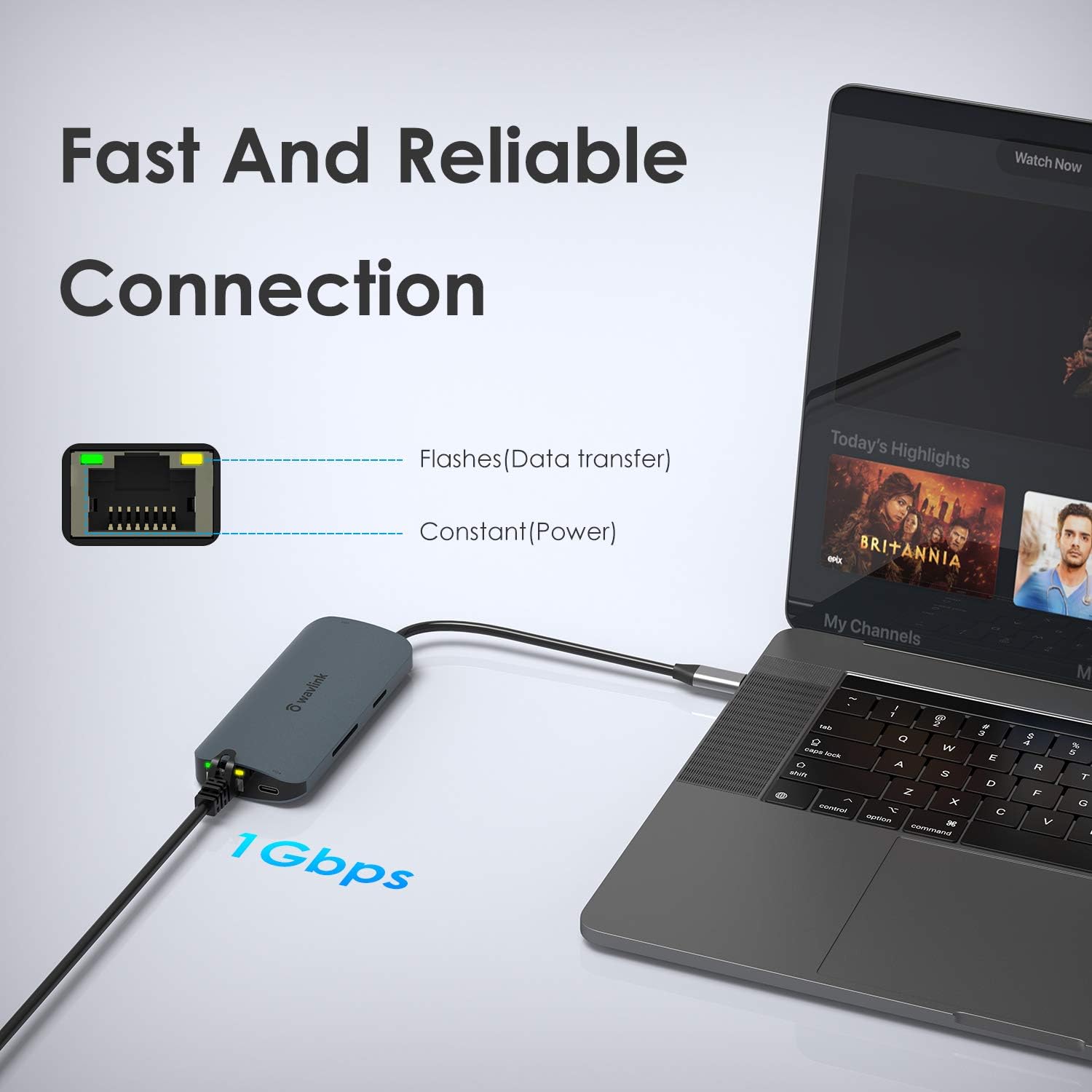
Figure 8: Fast and reliable 1Gbps Ethernet connection.
5.5. SD/microSD Card Reader
The integrated card reader supports both standard SD cards and microSD cards. This allows for quick and convenient transfer of photos, videos, and other data from memory cards to your host device. Note: The SD and microSD card slots cannot be used simultaneously. Please insert only one card at a time.
6. Specifications
| Feature | Description |
|---|---|
| Product Dimensions | 4.7 x 2 x 0.65 inches |
| Item Weight | 3.84 ounces |
| Model Number | UHP504 |
| Brand | WAVLINK |
| Color | Black, Grey |
| Hardware Interface | USB 3.0, USB Type C, VGA, HDMI, RJ45, SD/microSD |
| Special Features | Fast Charging (87W PD), Plug and Play, Dual Display |
| Compatible Devices | Laptops, Monitors, Projectors, Card Readers, Type-C devices (MacBook, iPad, Surface, Steam Deck) |
| Date First Available | August 22, 2022 |
7. Troubleshooting
If you encounter issues with your WAVLINK 8-in-1 USB C Hub, please refer to the following common solutions:
- No Display Output (HDMI/VGA):
- Ensure your host device's USB-C port supports DisplayPort Alternate Mode. Not all USB-C ports support video output.
- Check that the HDMI/VGA cable is securely connected to both the hub and the monitor.
- Verify the monitor input source is correctly selected (e.g., HDMI 1, VGA).
- Try restarting your host device.
- Test with a different HDMI/VGA cable or monitor if possible.
- For Mac OS X, ensure display settings are configured correctly (System Preferences > Displays).
- No Power Delivery/Charging:
- Ensure your USB-C power adapter is connected to the hub's PD port and is functioning correctly.
- Verify that your host device supports USB-C Power Delivery.
- Some devices may require a specific power profile; ensure your adapter meets the minimum wattage for your device.
- USB Ports Not Working / Slow Data Transfer:
- Ensure the USB device is properly inserted into the hub's USB 3.0 port.
- Try connecting the USB device directly to your host device to confirm it functions independently.
- Disconnect and reconnect the hub from your host device.
- If transferring large files, other simultaneous data transfers (e.g., over Ethernet) might affect USB speeds.
- Ethernet Connection Issues:
- Check the Ethernet cable connection to both the hub and your router/modem.
- Verify that the network indicator lights on the Ethernet port are active (flashing for data, constant for power).
- Ensure your network settings on your host device are configured for a wired connection (DHCP enabled).
- Try restarting your router/modem.
- SD/microSD Card Reader Not Detected:
- Ensure the card is fully inserted into the correct slot.
- Remember that the SD and microSD slots cannot be used simultaneously; remove one card before inserting the other.
- Test the card in another device to ensure it is not corrupted.
- Check your computer's Disk Management (Windows) or Disk Utility (Mac) to see if the card is recognized but not assigned a drive letter.
8. Care and Maintenance
To ensure the longevity and optimal performance of your WAVLINK 8-in-1 USB C Hub, please follow these maintenance guidelines:
- Cleaning: Use a soft, dry, lint-free cloth to clean the surface of the hub. Avoid using abrasive cleaners, solvents, or strong chemicals, as they may damage the finish or internal components.
- Storage: When not in use, store the hub in a cool, dry place away from direct sunlight and extreme temperatures.
- Handling: Handle the hub with care. Avoid dropping it or subjecting it to strong impacts, which can damage internal circuitry.
- Connectivity: Always grasp the plug, not the cable, when connecting or disconnecting the hub or any peripherals. This prevents damage to the cable and ports.
- Ventilation: Ensure the hub is placed in an area with adequate ventilation to prevent overheating, especially during prolonged use with multiple connected devices.
- Unplug When Not in Use: For extended periods of non-use, it is recommended to unplug the hub from your host device to conserve power and prevent unnecessary wear.
9. Warranty and Support
WAVLINK provides a 12-month worry-free warranty for this product. Registered members may receive an additional 6 months of warranty coverage. We also offer life-long technical support.
For technical assistance, warranty claims, or further inquiries, please visit the official WAVLINK website or contact their customer support directly. You can find more information and support resources at the WAVLINK Store on Amazon.
Documents and downloads
Ask a question about this manual
Ask about setup, troubleshooting, compatibility, parts, safety, or missing instructions. Manuals+ will review the question and use this page’s manual context to help answer it.