
Miroir M76
Miroir M76 Micro Pocket Projector User Manual
Your guide to setting up, operating, and maintaining your Miroir M76 projector.
Introduction
The Miroir M76 Micro Pocket Projector is an ultra-portable, battery-powered DLP mini projector designed for on-the-go entertainment and presentations. Its compact size and versatile connectivity options make it ideal for projecting content from various devices onto any flat surface.

Image: The Miroir M76 Micro Pocket Projector, showcasing its compact design and illuminated projection lens.
Setup
What's Included
Before you begin, ensure all components are present in the box:
- Miroir M76 Projector
- HDMI Cable
- USB-A to USB-C Charging Cable
- Quick Start Guide

Image: A visual representation of the items included in the Miroir M76 product box.
Charging the Projector
The Miroir M76 features a built-in rechargeable battery, offering up to 2 hours of cordless operation. To charge the device, connect the provided USB-A to USB-C charging cable to the projector's USB-C port and plug the USB-A end into a compatible USB-A power adapter (not included). The projector can also be powered via USB connection for extended viewing sessions.
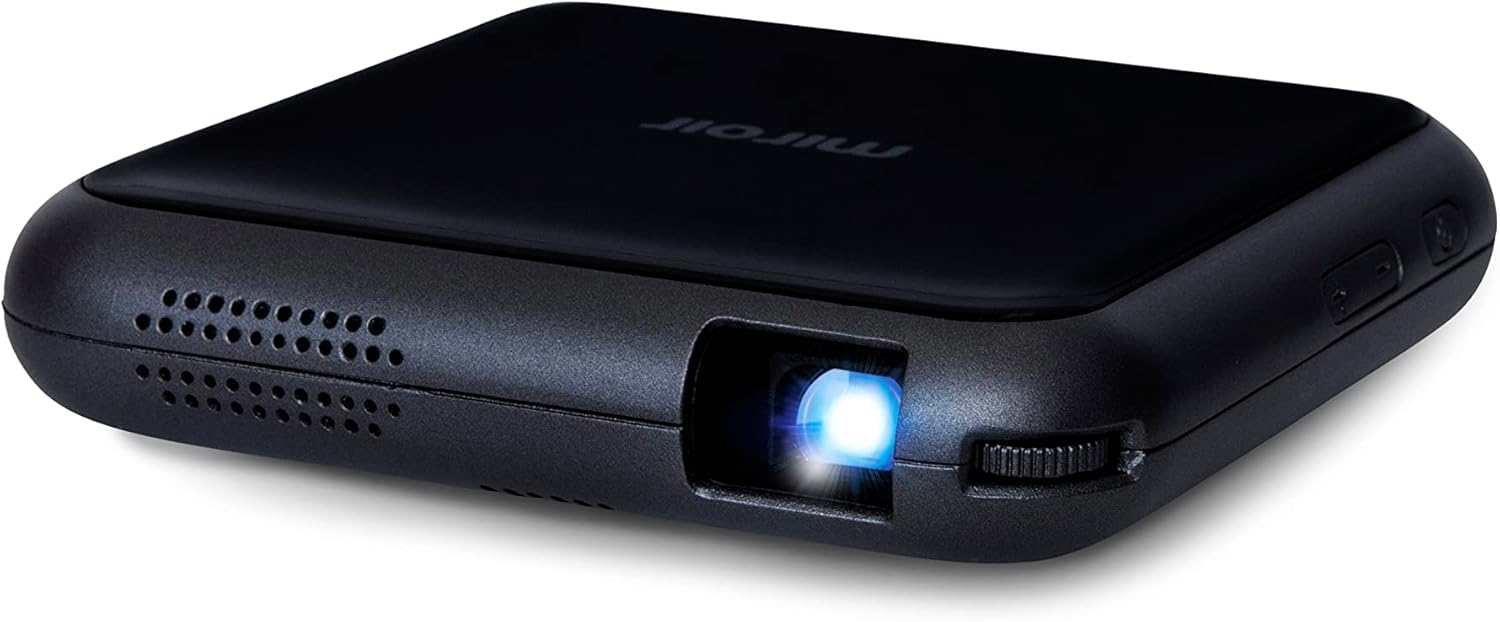
Image: The rear panel of the Miroir M76 projector, showing the various input and output ports, including the USB-C charging port.
Powering On/Off
To power on the projector, press and hold the power button located on the side of the device until the indicator light illuminates. To power off, press and hold the power button again until the light turns off.

Image: The side of the Miroir M76 projector, highlighting the power button and volume controls for easy access.
Adjusting Focus
Locate the focus wheel near the projection lens. Rotate the wheel until the projected image appears sharp and clear on your desired surface. The optimal focus will depend on the distance between the projector and the projection surface.
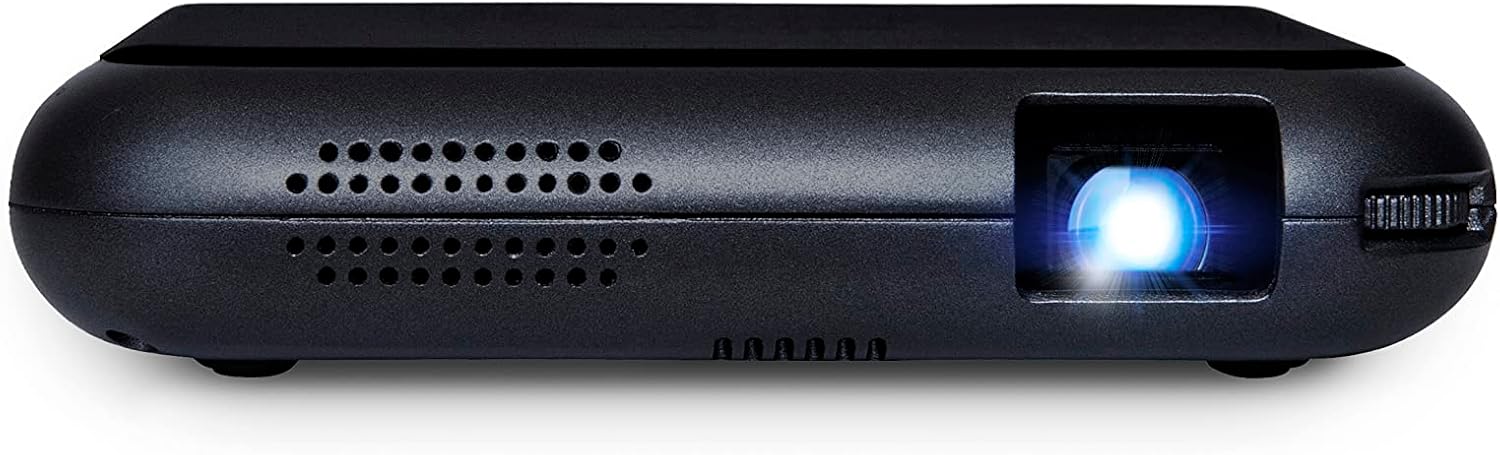
Image: A detailed view of the Miroir M76 projector's lens and the adjacent focus adjustment wheel.
Operating
Connectivity Options
The Miroir M76 offers multiple ways to connect your devices:
- HDMI Input: Connect laptops, gaming consoles, streaming sticks, or mobile devices (with an appropriate adapter) using the HDMI port.
- USB Input: The USB-A port can be used for charging or powering compatible devices.
- Wireless Mirroring: The M76 supports iOS and Android screen mirroring, allowing you to project content wirelessly from your smartphone or tablet.

Image: Icons illustrating the broad compatibility of the Miroir M76 with various devices such as smartphones, tablets, laptops, media streamers, and game consoles.
Wireless Screen Mirroring
For wireless projection, ensure your device and the Miroir M76 are connected to the same Wi-Fi network. Follow your device's instructions for screen mirroring (e.g., AirPlay for iOS, Smart View for Android) and select the M76 from the available devices. Note that some streaming services may restrict mirroring due to content protection.
Video: An official demonstration of the Miroir M76's ultra-portable and wireless battery-powered features, showcasing its ease of use and screen mirroring capabilities with various devices.

Image: A user demonstrating wireless screen mirroring from a smartphone to the Miroir M76 projector, highlighting its seamless integration with mobile devices.
Audio Output
The Miroir M76 includes a built-in 1W speaker for direct audio playback. For a more immersive experience or private listening, you can connect headphones or external speakers using the 3.5mm audio out jack.
Projection Size and Distance
The projector can display a crisp image up to 50 inches. The size and clarity of the projected image will vary based on the distance from the projection surface and ambient light conditions. For best results, use in a dimly lit environment.

Image: A family enjoying a projected movie in a home setting, demonstrating the Miroir M76's ability to create a large display for entertainment.
Maintenance
Cleaning the Lens
To maintain optimal image quality, regularly clean the projector lens using a soft, lint-free cloth specifically designed for optical surfaces. Avoid using abrasive materials or harsh chemicals, which can damage the lens coating.
General Care
Store the projector in a cool, dry place away from direct sunlight and extreme temperatures. Protect it from dust and moisture. When not in use, it is recommended to keep the projector in its original packaging or a protective case to prevent damage.
Troubleshooting
If you encounter issues with your Miroir M76 projector, refer to the common problems and solutions below:
| Problem | Possible Solution |
|---|---|
| No image projected | Ensure the projector is powered on and fully charged or connected to power. Check HDMI cable connection if using wired input. Verify correct input source is selected on your connected device. |
| Image is blurry | Adjust the focus wheel until the image is sharp. Ensure the projection surface is flat and the projector is stable. |
| No sound | Check the projector's volume level and your connected device's volume. Ensure external speakers or headphones are properly connected to the 3.5mm audio jack. |
| Wireless mirroring issues | Confirm both the projector and your device are on the same Wi-Fi network. Restart both devices. Ensure your device's operating system is up to date. |
For further assistance, please contact Miroir customer support.
Specifications
| Feature | Detail |
|---|---|
| Brand Name | Miroir |
| Item Weight | 8 ounces |
| Product Dimensions | 4.25 x 4.25 x 0.7 inches |
| Item Model Number | M76 |
| Batteries | 1 CR2032 batteries required (included) |
| Color Name | Black |
| Special Features | Built-In Speaker, Portable, Digital Keystone Correction, Lightweight, Wi-Fi Ready |
| Connectivity Technology | HDMI |
| Display Resolution | 640 x 360 |
| Recommended Uses | Home Cinema |
Warranty and Support
Warranty Information
For detailed warranty information regarding your Miroir M76 projector, please refer to the warranty card included in your product packaging or visit the official Miroir website. Protection plans may also be available for extended coverage.
Customer Support
If you require technical assistance, have questions about your product, or need to report an issue, please contact Miroir customer support through their official website or the contact information provided in your Quick Start Guide.
Visit the official Miroir Store: Miroir Store on Amazon
Related documentsM76


Ask a question about this manual
Ask about setup, troubleshooting, compatibility, parts, safety, or missing instructions. Manuals+ will review the question and use this page’s manual context to help answer it.