
LIVTAB LT90
Contents
LIVTAB Smart Coffee Table User Manual
Model: LT90
1. Product Overview
The LIVTAB Smart Coffee Table (Model LT90) is a multi-functional living room furniture piece designed to enhance convenience and connectivity. It integrates a dual-temperature refrigerated storage, a powerful Bluetooth speaker system, and versatile charging capabilities including 15W wireless charging and USB-A/USB-C ports. Its sleek design and ambient lighting make it a central hub for any modern living space.

Image 1.1: Overview of the LIVTAB Smart Coffee Table highlighting its core functions: coffee table, fridge, Bluetooth speakers, wireless charging, and USB A/C charger.
Key Features:
- Integrated Refrigeration: Dual-zone refrigerated drawers with a total capacity of 93 liters, allowing for separate temperature control (37-46°F and 43-60°F). Operates quietly.
- Audio System: Built-in 20W Bluetooth speakers for high-quality stereo sound and deep bass.
- Charging Hub: Features a 15W wireless charging pad on the surface, along with USB-A and USB-C charging ports on the side.
- Smart Storage: Drawers include sliding boxes and partitions for organized storage of beverages and snacks.
- Ambient Lighting: Blue LED lights above the drawers that can synchronize with music rhythm.
- Durable Design: Smooth, easy-to-clean surface and removable drawers.
2. Important Safety Information
Please read and understand all safety instructions before operating the LIVTAB Smart Coffee Table. Failure to follow these instructions may result in electric shock, fire, or serious injury.
- Always ensure the product is plugged into a suitable power outlet only when in use.
- Do not store perishable items for extended periods within the refrigerated drawers to prevent food-borne illnesses.
- Ensure adequate ventilation around the product to prevent overheating. Do not obstruct the vents.
- Do not use the product near flammable materials or in excessively humid environments.
- Use only original charging cables and accessories provided or recommended by LIVTAB.
- Unplug the product from the power source before cleaning or when it is not in use for an extended period.
- Keep the product out of reach of children and pets to prevent accidents.
- Do not attempt to disassemble or repair the unit yourself. Contact qualified service personnel for any repairs.
3. Setup and Assembly
The LIVTAB Smart Coffee Table comes largely pre-assembled. Follow these steps for initial setup.
3.1 Unpacking
- Carefully remove the coffee table from its packaging. Retain packaging materials for future transport or storage if needed.
- Inspect the unit for any signs of damage during transit. If damage is found, do not proceed with setup and contact customer support immediately.
- Ensure all components are present: Main coffee table unit, power cord, and any included accessories.
3.2 Placement
- Place the coffee table on a flat, stable surface in your desired living area.
- Ensure there is sufficient space around the unit for proper ventilation, especially around the rear and sides where cooling vents are located.
- Avoid placing the table in direct sunlight or near heat sources, as this can affect the refrigeration performance.
3.3 Power Connection
- Connect the power cord to the power input port located at the rear of the coffee table.
- Plug the other end of the power cord into a standard electrical outlet (110-120V AC).
- The unit will power on, and the control panel on the tabletop will illuminate.
4. Operating Instructions
4.1 Refrigerated Drawers

Image 4.1: The dual refrigerated drawers, illustrating the two temperature zones and their respective capacities (65L for 37-46°F and 28L for 43-60°F).
- Opening Drawers: Gently pull the handles to open the refrigerated drawers.
- Temperature Control: Use the digital control panel on the tabletop to set the desired temperature for each drawer. The left drawer typically ranges from 37-46°F (65L capacity), and the right drawer from 43-60°F (28L capacity). Refer to the on-screen display for current settings.
- Storage: Utilize the sliding boxes and partitions within the drawers for organized storage of beverages and snacks.

Image 4.2: The LIVTAB Smart Coffee Table with both refrigerated drawers open, showcasing various bottles and cans stored inside, ready for use.
4.2 Bluetooth Speakers
- Pairing: Activate Bluetooth on your mobile device. On the coffee table's control panel, press the Bluetooth icon to enter pairing mode. Select "LIVTAB LT90" (or similar name) from your device's Bluetooth list.
- Audio Playback: Once paired, audio from your device will play through the table's 20W speakers. Control volume and track selection from your connected device or the table's control panel if available.
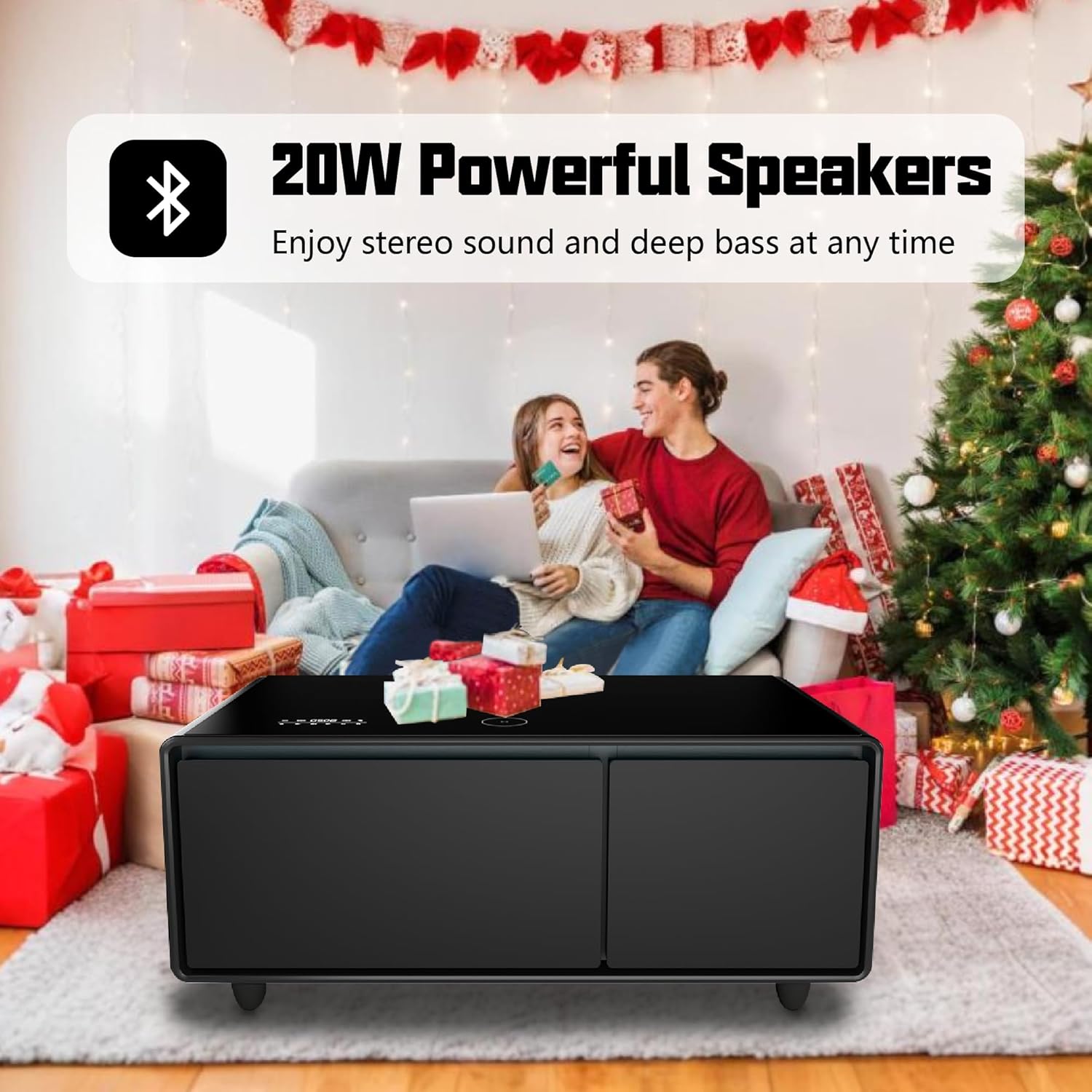
Image 4.3: A couple enjoying music from the LIVTAB Smart Coffee Table's integrated Bluetooth speakers, demonstrating its use as an entertainment hub.
4.3 Charging Capabilities
- Wireless Charging: Place your Qi-compatible smartphone or device on the designated wireless charging pad on the tabletop. Ensure the device is centered for optimal charging.
- USB Charging: Connect your devices to the USB-A or USB-C ports located on the side of the coffee table using appropriate charging cables.

Image 4.4: Diagram illustrating the wireless charging area on the tabletop and the location of the USB-A and USB-C charging ports on the side of the LIVTAB Smart Coffee Table.
4.4 Ambient Lighting
- The blue LED ambient lights are located above the refrigerated drawers.
- These lights can be controlled via the touch panel and are designed to pulse or "dance" with the rhythm of music played through the speakers, enhancing the atmosphere.

Image 4.5: The LIVTAB Smart Coffee Table with its blue LED ambient lighting activated, creating a vibrant atmosphere in a living room setting.
5. Maintenance and Cleaning
Regular maintenance ensures the longevity and optimal performance of your LIVTAB Smart Coffee Table.
- General Cleaning: Wipe the exterior surfaces with a soft, dry cloth. For stubborn marks, a slightly damp cloth can be used, followed by immediate drying.
- Glass Top: Use a glass cleaner and a microfiber cloth to keep the glass tabletop clean and streak-free.
- Drawer Cleaning: The refrigerated drawers are removable for easy cleaning. Wipe the interior with a mild detergent solution and rinse with a damp cloth. Ensure the drawers are completely dry before reinserting them.
- Ventilation: Periodically check and clean the ventilation grilles at the rear and sides of the table to ensure unobstructed airflow. Use a soft brush or vacuum cleaner to remove dust.
- Power Off: Always unplug the unit from the power outlet before performing any cleaning or maintenance.
- Avoid Abrasives: Do not use abrasive cleaners, solvents, or harsh chemicals, as these can damage the surface finishes.
6. Troubleshooting
If you encounter issues with your LIVTAB Smart Coffee Table, refer to the following common troubleshooting steps:
| Problem | Possible Cause | Solution |
|---|---|---|
| Table does not power on. | Power cord not securely plugged in; Power outlet not active. | Check power cord connection at both ends. Test the outlet with another device. |
| Refrigerated drawers not cooling. | Temperature setting too high; Vents obstructed; Door not fully closed. | Adjust temperature settings. Ensure vents are clear. Close drawers completely. Allow time for cooling. |
| Bluetooth speakers not pairing. | Bluetooth not enabled on device/table; Device too far; Already paired to another device. | Ensure Bluetooth is active on both devices. Move device closer. Disconnect from other devices. |
| Wireless charging not working. | Device not Qi-compatible; Device not centered; Foreign objects on pad; Thick phone case. | Verify device compatibility. Reposition device. Remove foreign objects. Remove thick phone case. |
| USB ports not charging. | Cable faulty; Device not compatible; Table not powered on. | Try a different USB cable. Ensure the table is powered on. |
| Ambient lights not working. | Lights turned off via control panel; Malfunction. | Check light settings on the control panel. If issue persists, contact support. |
If the problem persists after attempting these solutions, please contact LIVTAB customer support for further assistance.
7. Specifications
| Feature | Detail |
|---|---|
| Model Name | LT90 Smart Coffee Table |
| Brand | LIVTAB |
| Product Dimensions (D x W x H) | 23" x 41.5" x 18.2" |
| Item Weight | 86 lbs |
| Maximum Weight Recommendation (Table Surface) | 99 Pounds |
| Color | Black |
| Frame Material | Stainless Steel |
| Top Material | Glass |
| Refrigerated Drawer Capacity | Total 93L (Left: 65L, Right: 28L) |
| Refrigerated Drawer Temperature Range | Left: 37-46°F; Right: 43-60°F |
| Speaker Output | 20W Bluetooth Speakers |
| Wireless Charging Output | 15W |
| USB Ports | USB-A, USB-C |
| Included Components | Charging Station |
| Care Instructions | Wipe with Dry Cloth |

Image 7.1: Product dimensions of the LIVTAB Smart Coffee Table: 23 inches deep, 41.5 inches wide, and 18.2 inches high, with a 3-inch base height.
8. Warranty and Support
The LIVTAB Smart Coffee Table comes with a one-year warranty from the date of purchase. This warranty covers manufacturing defects and malfunctions under normal use.
8.1 Warranty Coverage
- One (1) year limited warranty covering defects in materials and workmanship.
- Proof of purchase is required for all warranty claims.
8.2 Exclusions
The warranty does not cover:
- Damage caused by improper installation, misuse, abuse, or neglect.
- Damage caused by unauthorized repairs or modifications.
- Normal wear and tear.
- Cosmetic damage, such as scratches, dents, or chips.
8.3 Customer Support
For warranty claims, technical support, or any questions regarding your LIVTAB Smart Coffee Table, please contact our customer support team. Refer to your purchase documentation or the LIVTAB official website for the most current contact information.
We are committed to providing excellent service and support for your product.
Ask a question about this manual
Ask about setup, troubleshooting, compatibility, parts, safety, or missing instructions. Manuals+ will review the question and use this page’s manual context to help answer it.