
1. Introduction
The LEDEPLY ZB-GU10-P2 Zigbee Smart Bulb offers advanced lighting control, allowing you to customize your environment with 16 million colors and tunable white light. This bulb is designed for energy efficiency and seamless integration with compatible smart home systems, providing convenient control via voice commands or a mobile application.
2. Important Safety Information
- Ensure power is OFF before installation or removal of the bulb.
- This bulb is designed for indoor use only. Do not expose to water or moisture.
- Do not use with traditional dimmer switches. This smart bulb is dimmable via its dedicated app or compatible smart home system. Using a traditional dimmer may damage the bulb.
- Do not disassemble or modify the bulb.
- Keep out of reach of children.
3. Package Contents
- 2 x LEDEPLY Zigbee GU10 Smart Bulbs
- 1 x User Manual
4. Specifications
| Feature | Detail |
|---|---|
| Model | ZB-GU10-P2 |
| Base Type | GU10 |
| Light Type | LED |
| Wattage | 5W (50W Incandescent Equivalent) |
| Light Output | 400 Lumens |
| Color Temperature | Tunable White (2700K Warm White to Cool White) + 16 Million Colors |
| Dimmable | Yes (via app/smart system) |
| Lifespan | 25,000 hours |
| Connectivity | Zigbee 3.0 |
| Voltage | 120V |
| Indoor/Outdoor Use | Indoor |
| Control Method | App, Voice Control |
The bulb's dimensions are approximately 49.5mm (1.95in) in diameter and 58mm (2.28in) in height, with a 21mm (0.83in) base length.

Figure 1: LEDEPLY GU10 Zigbee Smart Bulb Dimensions and Features
5. Setup
5.1 Physical Installation
- Ensure the power to the light fixture is turned OFF at the main switch.
- Carefully insert the LEDEPLY GU10 smart bulb into the GU10 socket. Twist it gently until it is securely in place.
- Turn the power ON at the main switch. The bulb should light up.

Figure 2: Bulb Installation and Device Discovery
5.2 Hub Requirements and Compatibility
The LEDEPLY Zigbee GU10 smart bulbs utilize the Zigbee 3.0 standard for enhanced compatibility.
- Direct Connection: These bulbs can connect DIRECTLY to Amazon Echo Plus, Echo Show (2nd Gen), Echo 4th Gen, Echo Studio, and Echo Show 10.
- Hub Required: For all other Alexa devices (e.g., Echo Dot) and Google Home devices, a compatible Zigbee hub (such as a Philips Hue Bridge or SmartThings Hub) is required.
- Compatible with ConBee.
- Not compatible with Apple Homekit or Philips Hue Entertainment mode.

Figure 3: Compatibility Overview
5.3 Pairing Process
- Ensure your Zigbee hub (if required) is set up and connected to your network.
- Install the bulb as described in Section 5.1.
- Open your smart home app (e.g., Alexa app, Google Home app, Philips Hue app, SmartThings app) and initiate the device discovery process. Refer to your hub's or app's instructions for specific steps.
- For best results, perform the pairing process with the bulb positioned close to your Zigbee bridge or hub. Once successfully paired and part of the network, the bulb's operational distance can be increased.
- The bulb will flash or change color to indicate successful pairing.
6. Operating Instructions
6.1 App Control
Once paired, you can control your LEDEPLY smart bulb using your preferred smart home application (e.g., Alexa, Google Home, Philips Hue, SmartThings).
- Color Selection: Choose from 16 million colors to create various moods and ambiances.
- Tunable White: Adjust the white light from warm white (2700K) to cool white to suit your daily needs.
- Dimming: Adjust the brightness from 1% to 100%.
- Group Control: Group multiple bulbs together to control them simultaneously.
- Scenes and Routines: Create custom lighting scenes or set schedules and routines for automated lighting.

Figure 4: Remote Control via App

Figure 5: Tunable White and Color Control Interface
6.2 Voice Control
Control your smart bulbs hands-free using voice commands with Amazon Alexa or Google Home (hub may be required, see Section 5.2).
- Turn On/Off: "Alexa, turn on the bedroom light." / "Hey Google, turn off the living room lights."
- Change Color: "Alexa, change the bedroom light to warm white." / "Hey Google, set the kitchen light to blue."
- Adjust Brightness: "Alexa, dim the lights to 50%." / "Hey Google, brighten the lights."
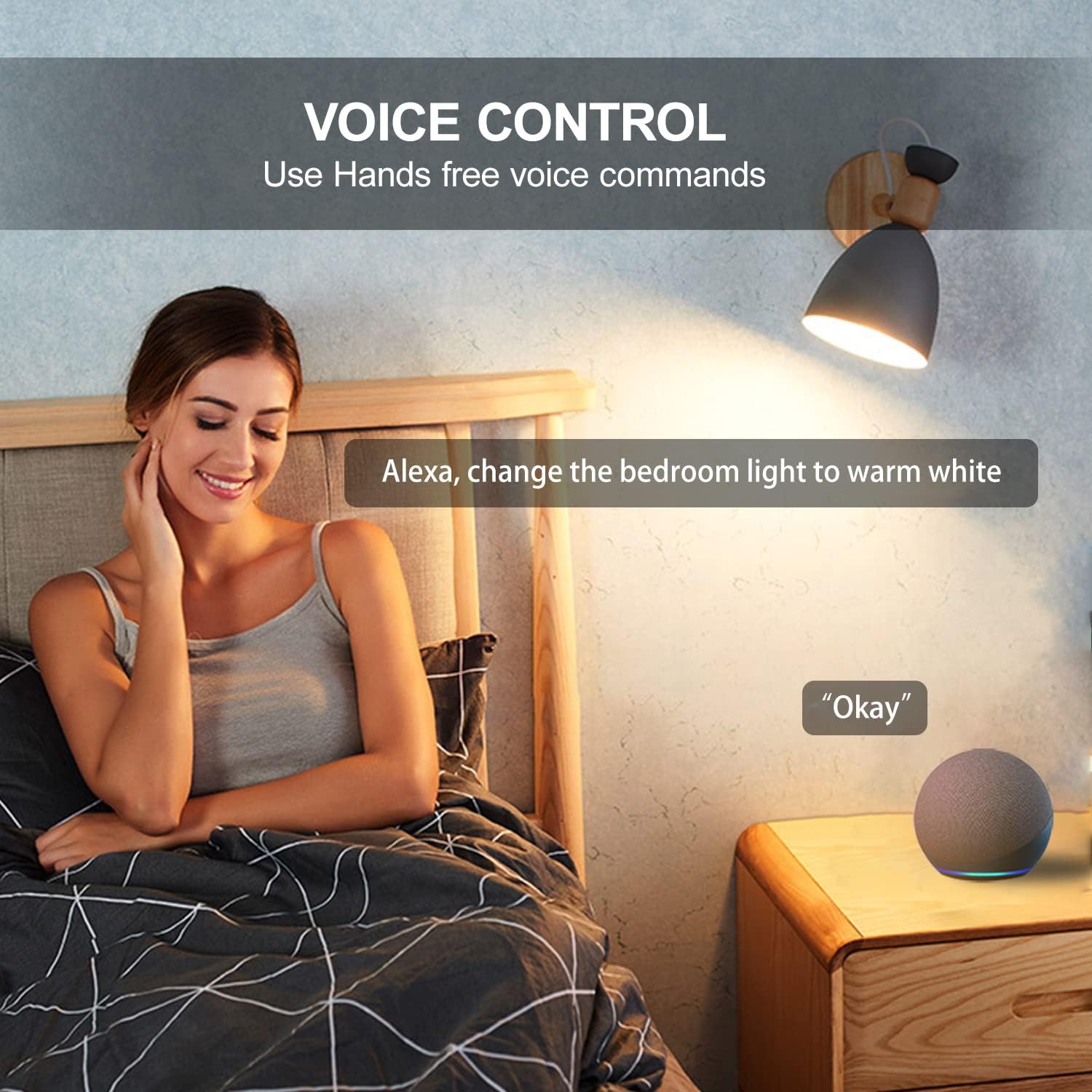
Figure 6: Voice Control Example
7. Maintenance
- Cleaning: Ensure the bulb is off and cool before cleaning. Wipe with a soft, dry cloth. Do not use liquid cleaners.
- Lifespan: The bulb has an estimated lifespan of 25,000 hours under normal operating conditions.
- Storage: If storing the bulb, keep it in a cool, dry place away from direct sunlight.
8. Troubleshooting
- Bulb Not Pairing:
- Ensure the bulb is powered on.
- Verify your Zigbee hub is powered on and connected to your network.
- Try moving the bulb closer to the hub during the pairing process.
- Reset the bulb by turning it off and on five times consecutively (wait 2 seconds between each toggle). The bulb should flash to indicate a successful reset.
- Bulb Not Responding to Commands:
- Check your Wi-Fi connection and ensure your smart home hub is online.
- Confirm the bulb is still paired in your smart home app.
- Ensure the bulb is not connected to a traditional dimmer switch.
- Try power cycling the bulb (turn off, wait 10 seconds, turn on).
- Incompatible with Traditional Dimmers:
- This smart bulb is designed for digital dimming via its app or smart home system. It is not compatible with traditional wall dimmer switches. Using a traditional dimmer will cause flickering, damage the bulb, or prevent proper operation.
9. Warranty and Support
LEDEPLY provides support for its products. If you encounter any issues or have questions regarding your ZB-GU10-P2 Zigbee Smart Bulbs, please do not hesitate to contact us. We aim to reply to all inquiries via email within 12 hours.
Please refer to your purchase documentation for specific warranty details and contact information.