
1. Introduction
This manual provides detailed instructions for the NEWDERY ZHX-NS06 Switch Docking Station. Please read this manual carefully before using the product to ensure proper operation and to prevent damage. Keep this manual for future reference.
Important Note: This docking station is compatible with Nintendo Switch and Nintendo Switch OLED models only. It is NOT compatible with Nintendo Switch Lite. A 15V/2.6A power adapter and HDMI cable are NOT included and must be purchased separately.
2. Product Overview
The NEWDERY ZHX-NS06 is a portable multiport hub adapter designed to replace the official Nintendo Switch dock. It allows you to connect your Nintendo Switch or Switch OLED console to a TV or monitor, charge your console, and connect USB peripherals.
2.1 Package Contents
- 1 x NEWDERY ZHX-NS06 Switch Docking Station
- 1 x User Manual (this document)
Please ensure all items are present and in good condition. If any items are missing or damaged, contact customer support.
2.2 Product Features
- Compact and Portable Design: Smaller and lighter than the official dock, ideal for travel.
- One-Key Switching: Easily switch between console screen and TV display with a single button press.
- 4K HD Video Output: Supports 4K HD game video output for an enhanced gaming experience.
- USB 3.0 High-Speed Port: Includes one USB 3.0 port for high-speed data transfer.
- Multiple USB Ports: Features two USB 2.0 ports for connecting additional peripherals.
- Charge While Playing: Allows the Switch to charge in both TV and tabletop modes.
- Advanced Safety Protection: Built-in smart chip provides short-circuit, over-power, recovery, and overheating protection.
- Screen Protection: Designed to prevent scratching the console screen when docking.
- Anti-Slip Mats: Equipped with anti-slip mats for stability.
2.3 Port Diagram

Image: Diagram showing the various ports on the NEWDERY ZHX-NS06 Switch Docking Station, including USB-C Output, Mode Switch Key, USB-3.0 Output, USB-A 2.0 Output, HDMI Output, and USB-C Charging Port.
- USB-C Input Port: For connecting the power adapter (15V/2.6A recommended).
- HDMI Output: For connecting to a TV or monitor.
- USB-A 3.0 Output: For high-speed peripherals.
- USB-A 2.0 Output (x2): For connecting controllers or other accessories.
- USB-C Output: For docking the Nintendo Switch/Switch OLED console.
- Mode Switch Key: Button to toggle between console display and TV display.
- LED Indicator Light: Indicates TV mode (green light on) or tabletop mode (light off).
3. Setup Instructions
Follow these steps to set up your NEWDERY ZHX-NS06 Switch Docking Station:
- Connect Power: Plug a 15V/2.6A USB-C power adapter (not included) into the USB-C Input Port on the docking station.
- Connect HDMI: Connect one end of an HDMI cable (not included) to the HDMI Output port on the docking station and the other end to an HDMI input on your TV or monitor.
- Connect Peripherals (Optional): If desired, connect USB peripherals such as controllers or a LAN adapter to the USB-A 3.0 or USB-A 2.0 ports.
- Dock Your Console: Carefully slide your Nintendo Switch or Switch OLED console onto the USB-C Output connector on the docking station. Ensure it is securely seated.
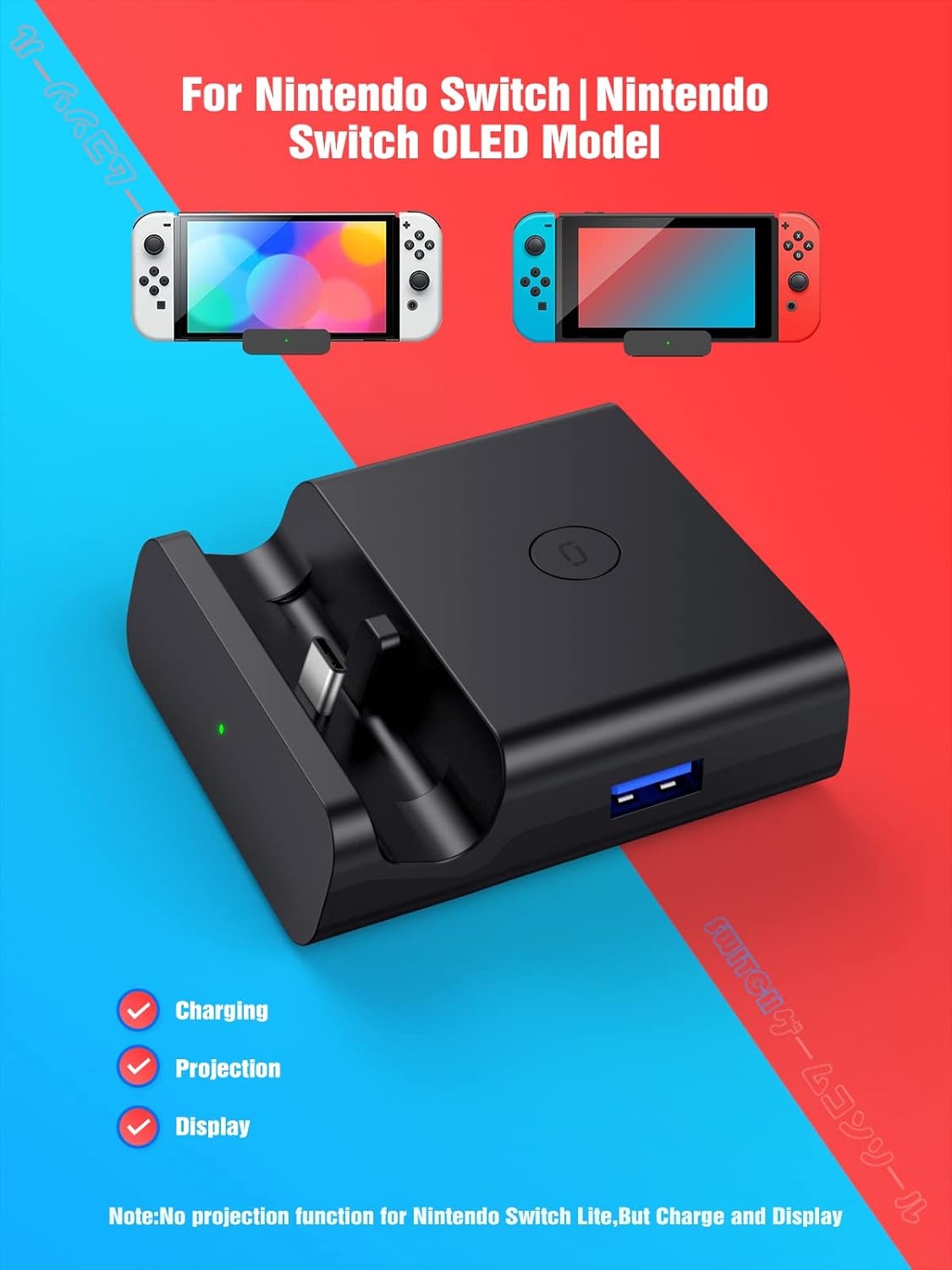
Image: The NEWDERY ZHX-NS06 Switch Docking Station with a Nintendo Switch OLED console docked, illustrating its compact size and connection points for charging, projection, and display.
Once connected, the console should begin charging, and if the TV is on the correct input, the display should automatically switch to TV mode (green LED indicator will light up).
4. Operating Instructions
4.1 Switching Display Modes
The docking station features a one-key switching mode:
- When the console is docked and connected to a TV, press the Mode Switch Key (located on the side/top of the dock) to toggle between displaying on the TV and displaying on the console's screen.
- A green LED indicator light will illuminate when the light is on, indicating TV mode. When the light is off, the console is in tabletop mode, displaying on its own screen.

Image: Illustration demonstrating the one-key switch function to toggle between tabletop mode (console screen) and TV mode (external display) using the dock's button and LED indicator.
4.2 Charging While Playing
The docking station allows your Nintendo Switch or Switch OLED console to charge simultaneously while you are playing in either TV mode or tabletop mode. Ensure a compatible 15V/2.6A power adapter is connected to the dock's USB-C Input Port.

Image: A Nintendo Switch console docked and connected to a power adapter, illustrating the "Charge While Playing" feature.
4.3 Connecting USB Peripherals
Use the available USB-A ports to connect various accessories:
- The USB 3.0 port offers higher data transfer speeds, suitable for devices like external hard drives (if supported by Switch) or high-speed LAN adapters.
- The two USB 2.0 ports are ideal for connecting wired controllers, charging cables for wireless controllers, or other standard USB accessories.

Image: Two people playing a Nintendo Switch game on a TV, with the console docked and controllers connected via USB, demonstrating multiplayer support.
5. Safety Information and Precautions
To ensure safe and optimal use of your NEWDERY ZHX-NS06 Switch Docking Station, please observe the following:
- Use only a 15V/2.6A power adapter for stable power delivery and to prevent damage to the console or dock.
- Do not expose the device to water, moisture, or extreme temperatures.
- Avoid dropping or subjecting the device to strong impacts.
- Do not attempt to disassemble or modify the device. This will void the warranty and may cause damage.
- Keep out of reach of children.
- The built-in smart chip provides protection against short-circuit, over-power, recovery issues, and overheating. However, always ensure proper ventilation around the dock and console during extended use.
- Ensure the console is properly seated in the USB-C output to avoid connection issues or damage to the port. The dock features a spring buffer function to protect the port.

Image: An exploded view of the NEWDERY ZHX-NS06 Switch Docking Station, highlighting the internal circuit board and icons representing overvoltage, overheating, recovery, and short-circuit protection features.
6. Troubleshooting
If you encounter issues with your docking station, refer to the following common problems and solutions:
| Problem | Possible Cause | Solution |
|---|---|---|
| No display on TV/monitor. |
|
|
| Console not charging. |
|
|
| USB peripherals not working. |
|
|
| Dock feels warm during use. | Normal operation, or poor ventilation. |
|
7. Specifications
| Feature | Detail |
|---|---|
| Model Number | ZHX-NS06 |
| Brand | NEWDERY |
| Compatible Devices | Nintendo Switch, Nintendo Switch OLED |
| Input Voltage | 5 Volts (via USB-C power adapter) |
| Amperage | 3.6 Amps (recommended power adapter) |
| Connector Type | USB Type C (Input/Output), HDMI (Output), USB Type A (Output) |
| USB Ports | 1 x USB 3.0, 2 x USB 2.0 |
| Video Output | Up to 4K HD |
| Product Dimensions (LxWxH) | 2.95 x 2.76 x 0.91 inches |
| Item Weight | 3.49 ounces |
| Color | Black |
| Special Features | Fast Charging, Lightweight Design, Short Circuit Protection, Travel-friendly |
8. Maintenance
To maintain the performance and longevity of your docking station:
- Cleaning: Use a soft, dry cloth to clean the exterior of the dock. Do not use liquid cleaners or abrasive materials.
- Storage: When not in use, store the dock in a cool, dry place away from direct sunlight and extreme temperatures.
- Port Care: Avoid forcing connectors into ports. Ensure correct orientation and gentle insertion.
9. Warranty and Support
NEWDERY products come with a standard warranty. For specific warranty terms and conditions, please refer to the warranty card included with your purchase or visit the official NEWDERY website. If you require technical support or have questions not covered in this manual, please contact NEWDERY customer service through the retailer where you purchased the product or via the contact information provided on the NEWDERY website.
Online Support: For additional resources and FAQs, please visit the NEWDERY Store on Amazon.
10. Product Demonstration Video
Watch this video for a visual guide on setting up and using your NEWDERY ZHX-NS06 Switch Docking Station:
Video: A demonstration of the NEWDERY ZHX-NS06 Switch Docking Station, showcasing its features, port connections, one-key switching between console and TV display, 4K HD support, and charging capabilities while playing.