1. Introduction
Thank you for purchasing the BYINTEK R17 Pro Portable Smart 3D DLP Projector. This manual provides essential information for safe and effective use of your device. Please read it thoroughly before operation and retain it for future reference.
The BYINTEK R17 Pro is a versatile portable projector featuring Android 9.0 OS, 4K decoding support, 3D capabilities, and a built-in battery, making it ideal for various entertainment and presentation needs. It also supports multiple languages including English, Russian, Arabic, Korean, Japanese, French, German, Italian, Spanish, Chinese, Vietnamese, Polish, and Traditional Chinese.
2. Safety Information
- Do not look directly into the projector lens when the lamp is on.
- Keep the projector away from water or other liquids to prevent electric shock.
- Do not block the ventilation openings to prevent overheating.
- Use only the power adapter provided by the manufacturer.
- Avoid placing the projector on unstable surfaces.
- Do not attempt to disassemble or repair the projector yourself. Contact qualified service personnel.
- Store the projector in a cool, dry place when not in use.
3. Package Contents
Please check the package contents upon unboxing to ensure all items are present:
- BYINTEK R17 Pro Projector
- Power Adapter
- Remote Control
- User Manual (this document)
- HDMI Cable (may vary by region)

Image: A detailed side view of the BYINTEK R17 Pro projector, highlighting its compact and portable design.
4. Setup Guide
4.1 Powering On/Off
- Connect Power: Plug the power adapter into the projector's DC input port and then into a power outlet.
- Power On: Press the power button on the projector or the remote control. The indicator light will turn on.
- Power Off: Press the power button again. Confirm shutdown if prompted.
4.2 Placement and Projection
Position the projector on a stable, flat surface. Ensure there are no obstructions in front of the lens. The ideal projection distance ranges from 1 to 8 meters, producing a screen size of 30 to 300 inches.
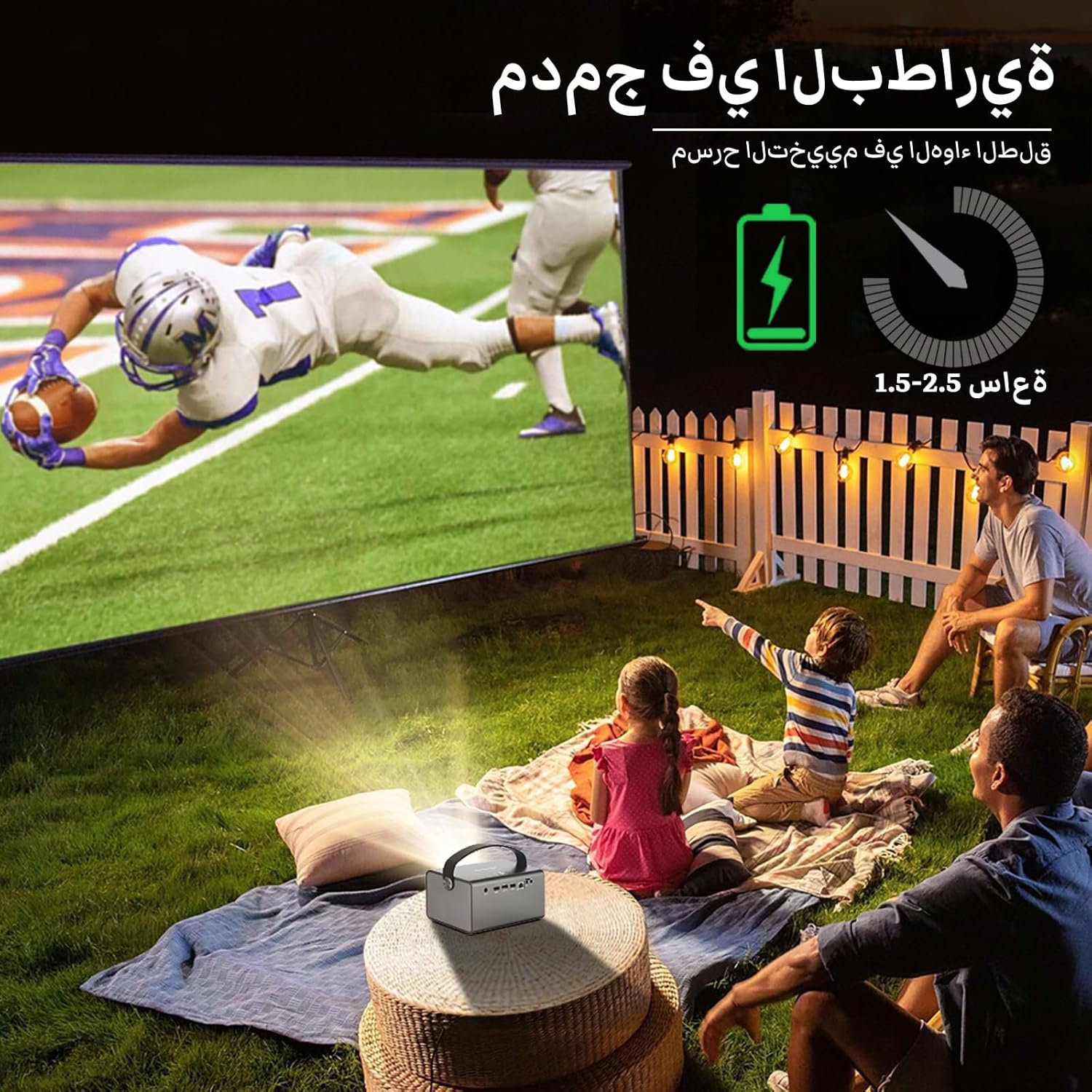
Image: The BYINTEK R17 Pro projector in an outdoor setting, demonstrating its portable use for entertainment. The image shows a football game projected onto a large screen, with people watching comfortably. This highlights the projector's battery life and suitability for outdoor events.
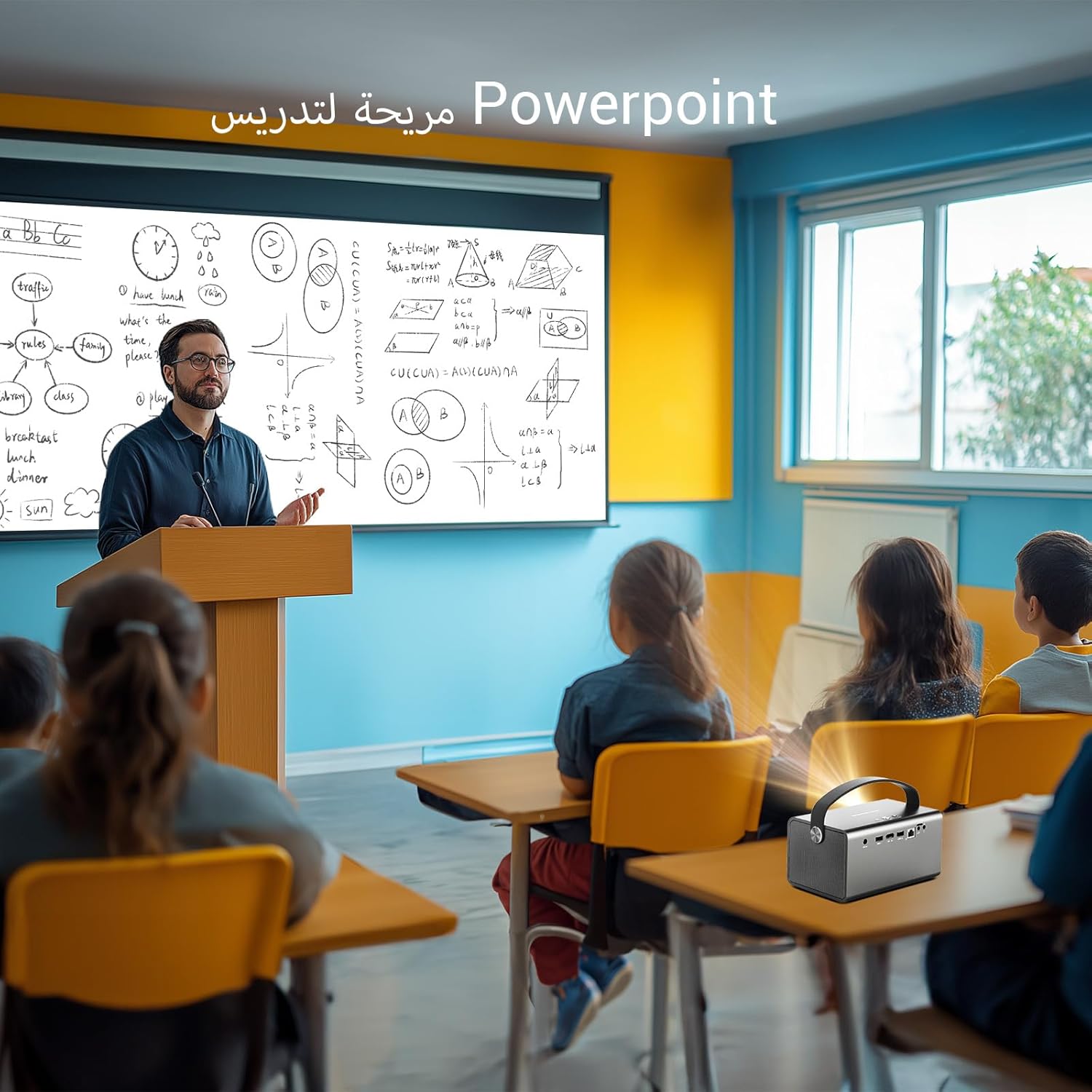
Image: The BYINTEK R17 Pro projector being used in a classroom to display a PowerPoint presentation. This illustrates its utility for educational purposes and presentations in various environments.
4.3 Focus and Keystone Correction
- Electric Focus: Use the remote control to adjust the focus until the image is clear.
- Automatic Keystone Correction: The projector supports automatic vertical keystone correction.
- Manual Keystone Correction: For side projections or specific adjustments, use the manual keystone correction feature via the settings menu. This includes corner keystone correction.
5. Operation
5.1 Navigating the Android 9.0 System
The BYINTEK R17 Pro runs on Android 9.0, providing a smart interface. Use the remote control or a connected air mouse to navigate through menus, launch applications, and adjust settings.
- Home Screen: Access pre-installed apps and system settings.
- App Store: Download additional applications for streaming, productivity, or gaming.
- Settings: Configure Wi-Fi, Bluetooth, display, sound, and other system preferences.
5.2 Media Playback
The projector supports various media formats and sources:
- USB Storage: Connect a USB drive or SSD (up to 32GB) to play videos, music, or view photos.
- Online Streaming: Use pre-installed or downloaded streaming apps via Wi-Fi.
- 3D Content: The projector supports Blu-ray 3D. Ensure your 3D content and glasses are compatible.

Image: A couple enjoying a Blu-ray 3D movie projected by the BYINTEK R17 Pro. The image showcases the projector's ability to display immersive 3D content with vivid colors.
5.3 Screen Mirroring (Wi-Fi Display)
Mirror your smartphone, tablet, or computer screen wirelessly to the projector using Airplay, Miracast, or DLNA (Eshare app is pre-installed).
- Ensure both your device and the projector are connected to the same Wi-Fi network.
- Open the Eshare app on the projector.
- On your mobile device, activate screen mirroring (e.g., Airplay for iOS, Smart View/Screen Cast for Android).
- Select the projector from the list of available devices.

Image: The BYINTEK R17 Pro projector wirelessly displaying a racing game from a smartphone. This demonstrates the screen mirroring feature for gaming and mobile content.
6. Connectivity
The BYINTEK R17 Pro offers multiple connectivity options:
- HDMI 2.0: Connect external devices like game consoles (e.g., PS4), computers, Blu-ray players, or TV boxes. Supports up to 4K input.
- USB 2.0 / USB 3.0: For connecting USB storage devices, external mice, game controllers, or 2.4GHz air mice.
- Audio Out: Connect external speakers or headphones for enhanced audio.
- Wi-Fi (2.4GHz/5GHz): For internet access and wireless screen mirroring.
- Bluetooth 5.0: For connecting Bluetooth speakers, headphones, or other compatible accessories.
7. Maintenance
7.1 Cleaning the Lens
Use a soft, lint-free cloth specifically designed for optical lenses. Do not use abrasive cleaners or excessive force, as this can scratch the lens.
7.2 Cleaning the Projector Body
Wipe the exterior of the projector with a soft, dry cloth. Avoid using chemical cleaners that may damage the finish.
7.3 Storage
When not in use for extended periods, store the projector in its original packaging or a protective case in a cool, dry, dust-free environment.
8. Troubleshooting
| Problem | Possible Cause | Solution |
|---|---|---|
| No image displayed | Power not connected; input source incorrect; lens cap on. | Check power connection; select correct input source (HDMI, USB, etc.); remove lens cap. |
| Image is blurry | Focus not adjusted; projector too far/close. | Adjust electric focus using the remote; reposition the projector within optimal distance. |
| Image is distorted (trapezoid shape) | Keystone correction needed. | Use auto or manual keystone correction in settings. |
| No sound | Volume too low; external speakers not connected/configured; audio output muted. | Increase volume; check external speaker connection; unmute audio. |
| Wi-Fi connection issues | Incorrect password; out of range; router issues. | Verify password; move closer to router; restart router and projector. |
| Projector shuts down unexpectedly | Overheating; low battery. | Ensure ventilation is clear; charge the battery or connect to power. |
9. Specifications
| Feature | Detail |
|---|---|
| Brand | BYINTEK |
| Model | R17 Pro |
| Light Engine | TI 0.47 inch DMD WVGA |
| Light Source | OSRAM RGB 3LED |
| Light Life | 50,000 hours |
| Brightness | 750 ANSI Lumens |
| Contrast Ratio | 10,000:1 |
| Native Resolution | 1280 x 800 (supports up to 4K input) |
| Aspect Ratio | 16:10 / 16:9 / 4:3 |
| Off-axis | 100% |
| Throw Ratio | 1.2:1 |
| Projection Size | 30 - 300 inches |
| Projection Distance | 1 - 8 meters |
| Focus Mode | Electric Motor Focus |
| Zoom | Remote Electric Zoom |
| Keystone Correction | Auto/Manual Vertical, Manual Corner |
| Operating System | Android 9.0 |
| CPU | MTK Contex A53 Quad-core |
| GPU | Mali-G52 |
| RAM | 2GB DDR3 |
| ROM | 32GB EMMC |
| Wi-Fi | Dual-band 2.4GHz / 5GHz |
| Bluetooth | Bluetooth 5.0 |
| Wi-Fi Display | Airplay, Miracast, DLNA (Eshare pre-installed) |
| Battery | Built-in 11.1V 5200mAh (15600mAh equivalent) Lithium-ion, 1.5-2.5 hours life |
| Speakers | 2 x 5W Stereo Speakers |
| Input Ports | HDMI 2.0 (supports 4K input), USB 2.0, USB 3.0 |
| Output Ports | Audio Out |
| Product Dimensions | 19.3 x 12.3 x 10 cm |
| Item Weight | 2.34 kg |
| Special Features | Auto Focus, Built-in Wi-Fi Receiver, Built-in 3D Display, Portable, Built-in Speaker |
10. Warranty & Support
BYINTEK products come with a standard manufacturer's warranty. Please refer to the warranty card included in your package for specific terms and conditions. For technical support, service, or warranty claims, please contact BYINTEK customer service or visit the official BYINTEK website.
BYINTEK has a service center in Saudi Arabia to provide professional after-sales service. For more information, please visit the BYINTEK Store on Amazon.


