Introduction
Thank you for choosing the EVICIV 156 QLED Portable Monitor. This monitor is designed to provide a high-quality visual experience with its 15.6-inch 1080P QLED display, 500 Nits brightness, 100% DCI-P3 color gamut, and 10-Bit color depth. It features HDR and FreeSync support for enhanced gaming and media consumption, along with eyecare technology for comfortable viewing. Its frameless, ultra-slim, and lightweight design, coupled with a versatile integrated stand and protective magnetic case, makes it an ideal extended display solution for various applications.
This manual provides essential information for setting up, operating, and maintaining your portable monitor. Please read it thoroughly before use to ensure optimal performance and longevity of your device.
Product Features

QLED Quantum Matrix Technology
Experience a more brilliantly intense picture with QLED Quantum Matrix Technology. This advanced display technology offers a high color gamut coverage of 157%, increased color purity by 58.3%, and a 10% increase in brightness compared to standard LED displays, delivering vibrant and lifelike visuals.

10-Bit Color for Smooth Transitions
The monitor supports 10-Bit color depth, displaying 1.07 billion colors. This allows for incredibly smooth color transitions without visible banding or gaps, crucial for professional design work, photo editing, and immersive gaming experiences.

100% DCI-P3 Color Gamut
Achieving 100% DCI-P3 color space coverage, this monitor meets the needs of color-critical professionals by producing highly vivid and accurate colors. The Delta E (ΔE) value of less than 2 ensures exceptional color precision.

500 Nits Brightness for Better Visuals
With a peak brightness of 500 Nits, the monitor delivers brighter and more detailed visuals, enhancing your viewing experience even in well-lit environments. This high brightness level contributes to superior contrast and clarity.

Smart Protect Case & Integrated Stand
The monitor includes a smart protective magnetic case that doubles as an adjustable stand, allowing you to set the monitor at various angles (0-65°). Additionally, an integrated kickstand on the back provides further flexibility for positioning without the case.

Frameless, Ultra-Slim & Ultra-Lightweight
Designed for portability, this monitor features a frameless display, an ultra-slim profile (0.17 inches), and is exceptionally lightweight (1.38 lbs). This makes it easy to carry and integrate into any mobile workspace or entertainment setup.

Low Blue Light Technology
Equipped with TÜV Rheinland certified Low Blue Light technology, the monitor reduces harmful blue light emissions, minimizing eye strain and fatigue during prolonged use. This feature is essential for maintaining eye comfort and health.

Built-in Speakers and Versatile Connectivity
The monitor includes built-in speakers for audio output. It offers comprehensive connectivity options including two Type-C ports, a Mini HDMI port, and an audio jack, ensuring compatibility with a wide range of devices such as laptops, smartphones, gaming consoles, and more.
Package Contents
Upon unpacking your EVICIV 156 QLED Portable Monitor, please ensure all the following items are present and in good condition:
- EVICIV 156 QLED Portable Monitor
- Smart Protective Magnetic Case
- USB-C to USB-C Cable (for power and video)
- USB-A to USB-C Cable (for power)
- Mini HDMI to HDMI Cable (for video)
- Power Adapter
- User Manual (this document)
Setup Instructions
Follow these steps to set up your EVICIV portable monitor:
- Positioning the Monitor:
Place the monitor on a stable, flat surface. You can use the smart protective magnetic case to prop up the monitor at your desired viewing angle, or utilize the integrated kickstand on the back of the monitor for standalone support.
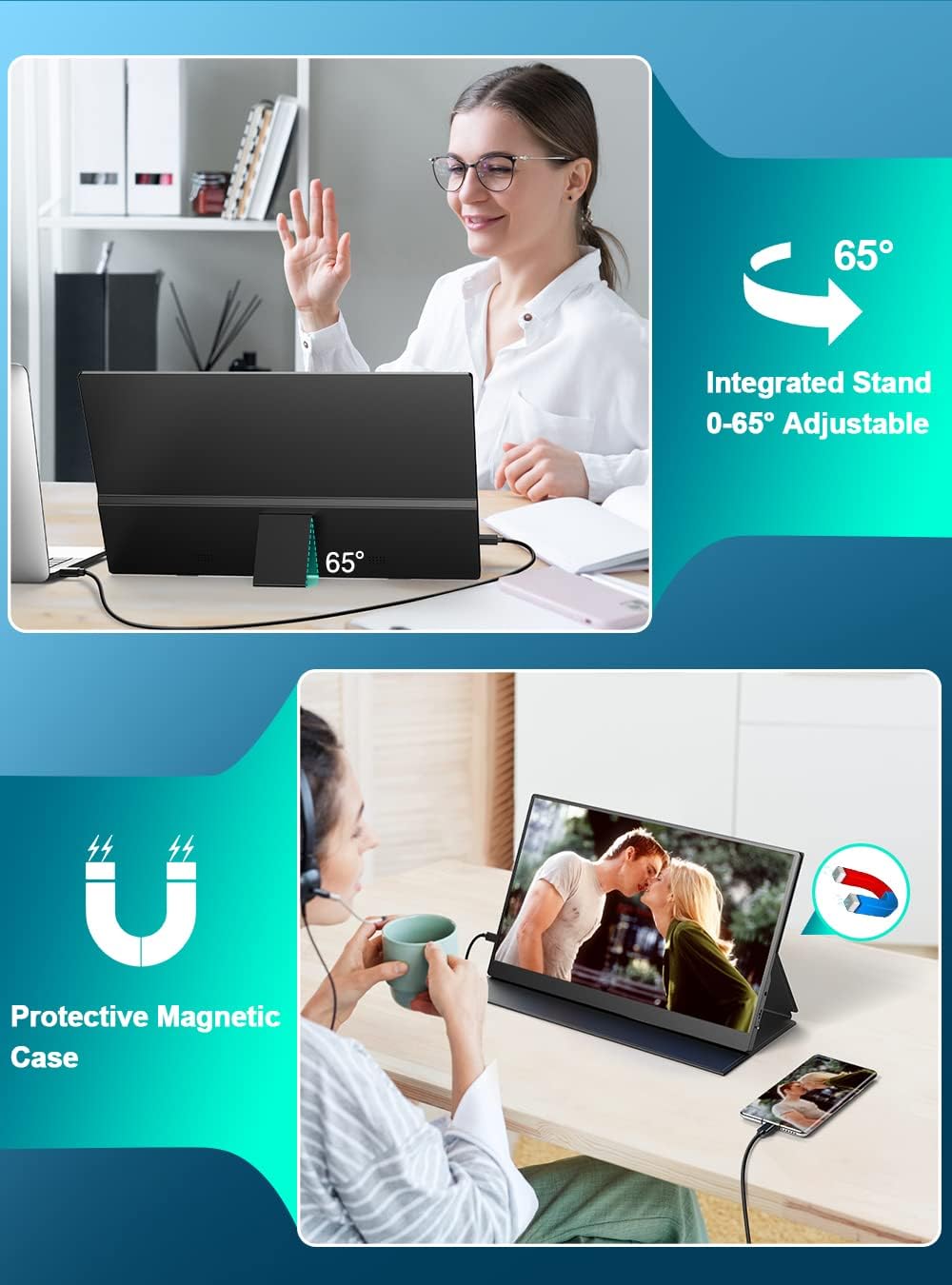
Image: The monitor is shown with its integrated kickstand extended, supporting the display at an angle. This allows for flexible positioning without the need for the magnetic cover.
- Connecting to a Power Source:
Connect the provided power adapter to a power outlet and then to one of the USB-C ports on the monitor labeled for power input. Alternatively, if your device supports power delivery, a single USB-C to USB-C cable can provide both power and video.
- Connecting to a Device (Video Input):
- USB-C Connection: If your device (laptop, smartphone) has a full-featured USB-C port that supports DisplayPort Alternate Mode and power delivery, use the USB-C to USB-C cable to connect it to the monitor. This single cable can transmit video, audio, and power.
- HDMI Connection: For devices with an HDMI output (e.g., gaming consoles, older laptops), use the Mini HDMI to HDMI cable. Connect the Mini HDMI end to the monitor and the standard HDMI end to your device. You will also need to connect the monitor to a power source via USB-C.
- Powering On:
Press the Power button located on the side of the monitor to turn it on. The display should automatically detect the input signal.
Operating Instructions
This section details how to operate your EVICIV portable monitor and navigate its settings.
Buttons and Ports Overview
Image: A close-up view of the monitor's side, highlighting the various ports and control buttons. Labels indicate Audio, Pulley/Back/Switch, Mini HDMI, and Type-C ports.
- Power Button: Press to turn the monitor on or off.
- Menu/Volume Control (Pulley/Switch): This multi-functional button allows you to:
- Press to access the On-Screen Display (OSD) menu.
- Roll up/down to navigate menu options or adjust volume.
- Press to confirm selections within the menu.
- Audio Jack: Connect headphones or external speakers.
- Mini HDMI Port: Connect to devices using the Mini HDMI to HDMI cable for video input.
- Type-C Ports (x2):
- One port typically for power input (connect to power adapter).
- The other port for full-featured USB-C connection (power, video, audio) to compatible devices.
On-Screen Display (OSD) Menu Navigation
To adjust display settings:
- Press the Menu button (Pulley/Switch) to open the OSD menu.
- Roll the Menu button up or down to navigate through the menu options (e.g., Brightness, Contrast, Color Settings, Input Source).
- Press the Menu button to select an option or confirm a setting.
- To exit the OSD menu, navigate to the "Exit" option or wait for the menu to time out.
Maintenance
Proper maintenance ensures the longevity and optimal performance of your monitor.
- Cleaning the Screen: Use a soft, lint-free cloth slightly dampened with water or a screen-specific cleaning solution. Avoid harsh chemicals, alcohol, or abrasive materials.
- Cleaning the Casing: Wipe the monitor's casing with a soft, dry cloth.
- Storage: When not in use, store the monitor in its protective magnetic case to prevent scratches and damage. Avoid exposing it to extreme temperatures or humidity.
- Handling: Always handle the monitor by its edges. Avoid applying pressure to the screen.
Troubleshooting
If you encounter issues with your monitor, refer to the following common problems and solutions:
| Problem | Possible Cause | Solution |
|---|---|---|
| No display/Black screen | No power, incorrect input source, faulty cable. | Ensure power adapter is connected and monitor is on. Check cable connections. Select correct input source via OSD menu. |
| "No Signal" message | Incorrect input source selected, device not outputting signal, cable issue. | Verify the input source in the OSD menu matches your connection. Ensure your connected device is powered on and configured to output to an external display. Try a different cable. |
| Flickering screen | Cable issue, refresh rate mismatch, power instability. | Try a different cable. Adjust refresh rate settings on your connected device. Ensure stable power supply. |
| No audio | Volume too low, incorrect audio output device, cable issue. | Increase monitor volume using the Menu button. Check audio output settings on your connected device. Ensure audio cable (if used) is properly connected. |
| Monitor does not turn on | No power, faulty power adapter. | Verify power connection. Try a different power outlet. Contact support if issue persists. |
Specifications
| Feature | Detail |
|---|---|
| Model Number | 156 |
| Screen Size | 15.6 Inches |
| Display Technology | QLED |
| Resolution | 1080P (Full HD) |
| Brightness | 500 Nits |
| Color Gamut | 100% DCI-P3 |
| Color Depth | 10 Bit |
| Special Features | Blue Light Filter, High Dynamic Range (HDR), FreeSync, Portable, Built-in Speakers |
| Connectivity | 2x USB-C, 1x Mini HDMI, 1x Audio Jack |
| Product Dimensions | 0.39 x 7.87 x 3.94 inches |
| Item Weight | 4.2 pounds |
| Screen Surface | Glossy |
| Manufacturer | EVICIV |
Warranty and Support
For warranty information and technical support, please refer to the warranty card included in your product packaging or visit the official EVICIV website. Keep your purchase receipt as proof of purchase for warranty claims.
Contact Information: Please refer to the contact details provided on the EVICIV official website or your product's packaging for customer service.


