
TEKXDD TYF196 smart lock
TEKXDD Smart Lock Fingerprint Door Lock User Manual
Model: TYF196 smart lock
Introduction
Thank you for choosing the TEKXDD Smart Lock. This advanced keyless entry system offers multiple unlocking methods including fingerprint recognition, keypad access, smartphone app control, and traditional mechanical keys, providing enhanced security and convenience for your home or office. This manual provides detailed instructions for installation, setup, operation, and maintenance to ensure optimal performance and longevity of your smart lock.
Safety Information
Please read all safety warnings and instructions carefully before installing and using this product. Failure to follow these instructions may result in electric shock, fire, or serious injury.
- Do not expose the lock to direct water or excessive moisture. This product is not waterproof and is intended for indoor use or covered outdoor areas where it will not be exposed to rain or direct elements.
- Use only the specified battery type and ensure correct polarity during installation.
- Keep mechanical keys in a secure location outside the property to prevent lockout in case of electronic failure or battery depletion.
- Avoid using abrasive cleaners or solvents on the lock's surface. Use a soft, dry cloth for cleaning.
- Ensure all components are securely fastened during installation to prevent accidental dislodgement.
- Do not attempt to disassemble or repair the lock yourself. Contact qualified personnel for service.
Package Contents
Verify that all the following components are included in your package:
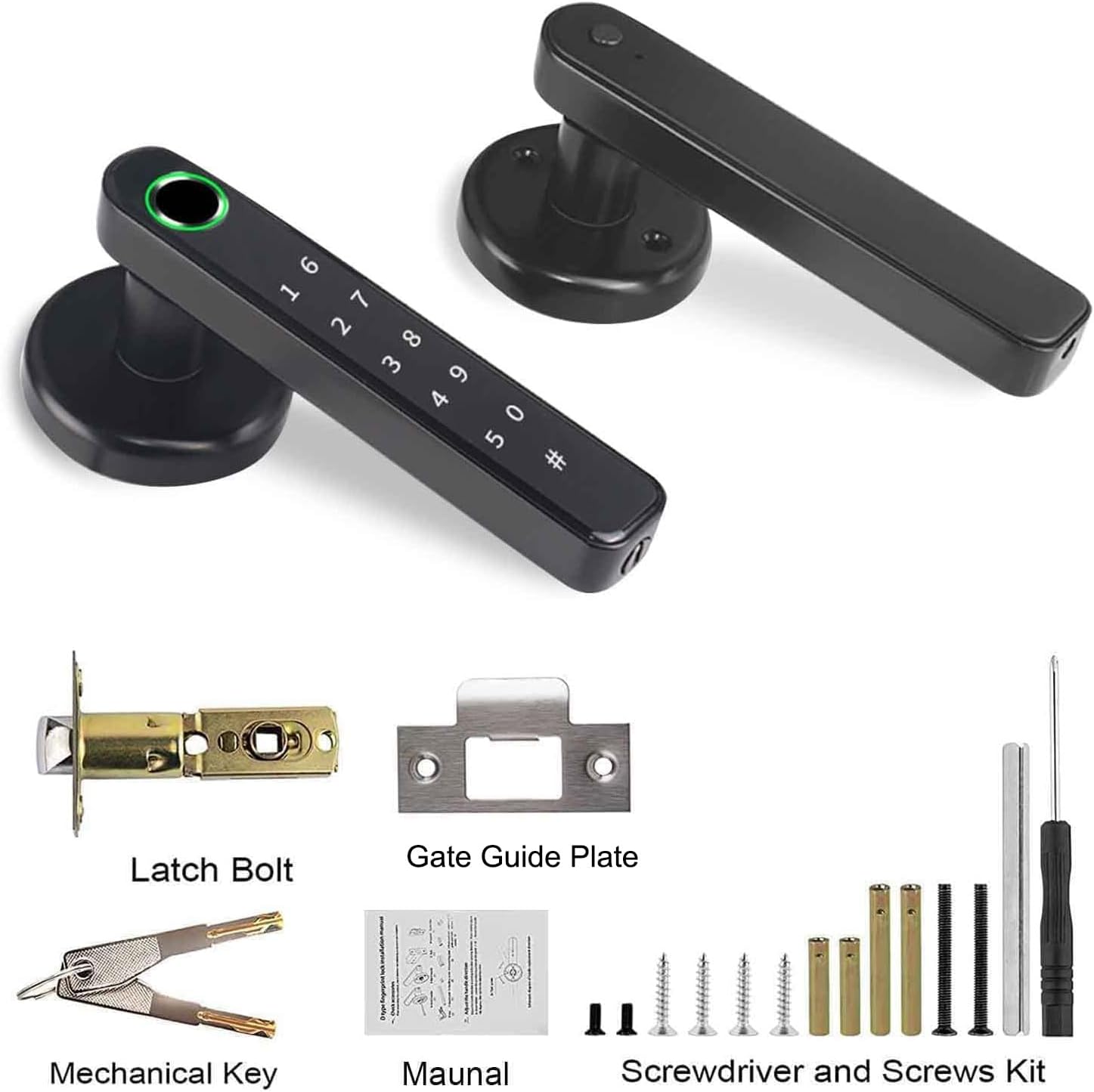
Image: Contents of the TEKXDD Smart Lock package, showing the latch bolt, gate guide plate, mechanical keys, user manual, a screwdriver, and a set of screws for installation.
- Front Handle Assembly (with keypad and fingerprint sensor)
- Rear Handle Assembly
- Latch Bolt
- Strike Plate and Dust Box
- Mounting Screws and Bolts
- Mechanical Keys (2)
- User Manual
- Screwdriver (for installation)
Product Overview
Familiarize yourself with the main components of your TEKXDD Smart Lock:

Image: A comprehensive view of the TEKXDD Smart Lock, highlighting its key components including the exterior handle with integrated keypad and fingerprint sensor, the interior handle, and the deadbolt mechanism. A smartphone screen illustrates the accompanying mobile application.
- Fingerprint Sensor: Located on the exterior handle for quick biometric access.
- Keypad: Numeric keypad for PIN code entry.
- Mechanical Keyhole: Discreetly located for emergency key access.
- USB Charging Interface: For emergency power supply if batteries are depleted.
- Battery Compartment: Located on the interior handle.
- Reset Button: For factory reset (refer to setup section).

Image: This image demonstrates the four primary methods of unlocking the TEKXDD Smart Lock: via a smartphone application, fingerprint recognition, a numerical PIN code, and a traditional mechanical key. It also highlights compatibility with the Tuya smart home platform.
Installation
The TEKXDD Smart Lock is designed for easy installation and fits most standard doors with a thickness of 35-55mm. No drilling is typically required if replacing an existing deadbolt.
- Prepare the Door:
Ensure your door meets the specified thickness (35-55mm) and that the existing boreholes are compatible. The backset can be 60mm or 70mm, and the cross bore diameter should be 40-57mm.

Image: Technical diagram detailing the required door dimensions for installing the smart lock, including measurements for door thickness, backset, and the diameter of the cross bore.
- Install the Latch Bolt:
Insert the latch bolt into the door edge. Ensure the "UP" arrow on the latch bolt is pointing upwards. Secure it with screws.
- Install the Exterior Handle:
Pass the spindle and cable from the exterior handle through the latch bolt and the door. Ensure the handle is oriented correctly for your door's opening direction (left or right).

Image: Visual guide demonstrating the adjustability of the smart lock handle to accommodate both left-opening and right-opening doors, ensuring proper orientation during installation.
- Install the Interior Handle:
Connect the cable from the exterior handle to the interior handle. Align the interior handle with the spindle and secure it to the door using the provided mounting screws. Do not overtighten.
- Install Batteries:
Open the battery cover on the interior handle and insert 4 x AAA batteries (not included), ensuring correct polarity. Close the battery cover.
- Test Operation:
After installation, test the mechanical operation of the handle and latch. Ensure it moves smoothly without obstruction.
Setup
Follow these steps to set up your TEKXDD Smart Lock and connect it to the mobile application.
- Download the App:
Search for "Tuya Smart" or "Smart Life" in your smartphone's app store (iOS or Android) and download the application. Register an account if you don't have one.
- Add Device:
Open the app, enable Bluetooth on your phone, and tap "Add Device" or the "+" icon. The app should automatically discover the smart lock. If not, select "Security & Video Surveillance" > "Door Lock (Bluetooth)".
- Pair the Lock:
Follow the on-screen prompts to pair the lock. You may need to press a button on the lock or enter a default pairing code (refer to the specific app instructions).
- Set Administrator Fingerprint/PIN:
Once paired, the app will guide you to set up the administrator fingerprint and/or PIN code. This is crucial for managing other users and settings. Follow the app's instructions for multiple scans of your fingerprint for accuracy.
- Add User Fingerprints/PINs:
From the app, you can add additional user fingerprints, PIN codes, or temporary access codes for family members or guests. You can also generate one-time or time-sensitive codes.
- Calibrate Lock Direction (if needed):
Some locks require calibration of the opening direction within the app to ensure correct locking/unlocking behavior. Refer to the app's settings for this option.
Operating Instructions
Your TEKXDD Smart Lock offers multiple convenient ways to unlock your door:
- Fingerprint Unlock:
Place your registered finger firmly on the fingerprint sensor. The lock will unlock with a confirmation sound/light if the fingerprint is recognized. The lock will automatically re-lock after a few seconds (default setting, adjustable in app).
- PIN Code Unlock:
Enter your registered PIN code on the keypad, followed by the '#' key. The lock will unlock if the code is correct. Use the anti-peep function by entering random digits before or after your actual PIN to prevent others from guessing your code.
- Smartphone App Unlock:
Open the "Tuya Smart" or "Smart Life" app on your smartphone. Ensure Bluetooth is enabled and you are within range of the lock. Tap the unlock icon in the app to unlock the door. You can also lock the door remotely via the app.
- Mechanical Key Unlock:
In case of emergency, battery depletion, or electronic malfunction, insert the mechanical key into the keyhole and turn to unlock the door manually.
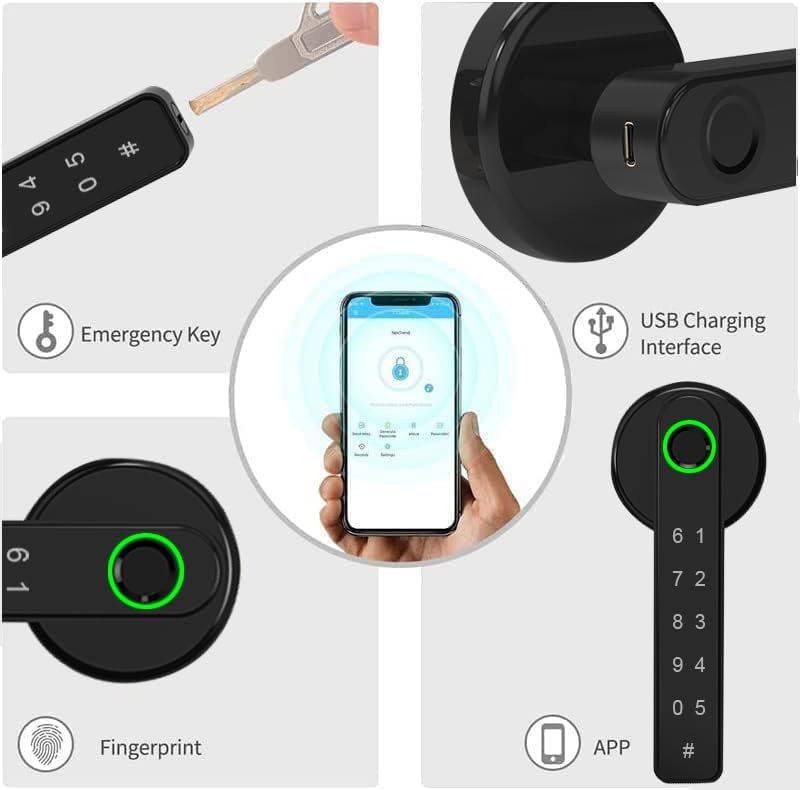
Image: This image highlights the various access methods and features of the smart lock, including the use of an emergency key, the convenient USB charging port for backup power, the integrated fingerprint sensor, and the intuitive mobile application interface.
Locking the Door
- Automatic Locking: The lock is set to automatically re-lock after a short period (e.g., 5 seconds) once unlocked. This duration can be adjusted in the app.
- Manual Locking: From the outside, simply lift the handle or press the '#' key to lock. From the inside, turn the thumb-turn or lift the handle.
Maintenance
Proper maintenance ensures the longevity and reliable operation of your smart lock.
- Cleaning: Wipe the lock surface with a soft, dry cloth. Do not use abrasive cleaners, solvents, or liquid sprays directly on the lock.
- Battery Replacement: The lock will provide a low battery warning (audible beeps or app notification). Replace all four AAA batteries promptly. Ensure correct polarity.
- Fingerprint Sensor Care: Keep the fingerprint sensor clean and dry for optimal performance. Avoid scratching the sensor surface.
- Mechanical Components: Periodically check that all screws are tight and that the handle and latch operate smoothly. Do not lubricate the lock cylinder unless specifically instructed by the manufacturer.
Troubleshooting
If you encounter issues with your smart lock, refer to the following common problems and solutions:
| Problem | Possible Cause | Solution |
|---|---|---|
| Lock does not respond (no sound/light). | Dead batteries. | Replace batteries. Use mechanical key or emergency USB power. |
| Fingerprint not recognized. | Finger wet/dirty, sensor dirty, fingerprint not registered correctly. | Clean finger and sensor. Re-register fingerprint, ensuring multiple scans from different angles. |
| PIN code not working. | Incorrect code, keypad malfunction. | Ensure correct code entry. Try resetting the lock (refer to app for instructions). |
| App cannot connect to lock. | Bluetooth off, out of range, app issue. | Ensure Bluetooth is on and you are close to the lock. Restart app/phone. Re-pair if necessary. |
| Lock makes unusual noises or is stiff. | Misalignment during installation, internal mechanical issue. | Check installation alignment. Do not force the handle. Contact support if issue persists. |
Specifications
Key technical specifications for the TEKXDD Smart Lock:
| Model Number | TYF196 smart lock |
| Brand | TEKXDD |
| Dimensions (L x W x H) | 10 x 10 x 5 cm |
| Item Weight | 920 g |
| Material | Alloy Steel |
| Colour | Black |
| Lock Type | Biometric |
| Special Features | Keyless, Fingerprint, Keypad, App Control |
| Batteries Required | Yes (4 x AAA, not included) |
| Door Thickness Compatibility | 35-55mm |
Warranty and Support
TEKXDD provides high-quality technology and after-sales service for its products.
- Warranty: This product typically comes with a manufacturer's warranty. Please refer to your purchase documentation or contact the seller for specific warranty terms and duration.
- Technical Support: If you have any questions, encounter issues not covered in this manual, or require technical assistance, please contact TEKXDD customer support. Contact information can usually be found on the product packaging or the official TEKXDD website.
- Returns Policy: For information regarding returns, please refer to the retailer's return policy where the product was purchased.
Related documentsTYF196 smart lock


Ask a question about this manual
Ask about setup, troubleshooting, compatibility, parts, safety, or missing instructions. Manuals+ will review the question and use this page’s manual context to help answer it.