
1. Product Overview
The ORICO 2.5 inch External Hard Drive Enclosure (Model: 25PW1-U3-BK) is designed to easily connect 2.5 inch SATA I/II/III SSD & HDD to various devices such as PCs, laptops, routers, PS4, or Xbox for data transfer or expanding storage. This enclosure allows you to recover data from old hard drives and give them new life as external storage.
Key features include:
- High-Speed Data Transfer: Supports up to 5Gbps with UASP Accelerated Transmission Protocol, offering up to 70% faster speeds than conventional USB 3.0 when connected to a compatible computer. Backward compatible with USB 2.0 or 1.1 ports.
- Tool-Free Installation: Simple plug & play design requires no tools or drivers for installation. Just push out the cover, plug in the drive, close the cover, and connect. Hot-swap supported with no external power supply needed.
- Wide Compatibility: Suitable for 7mm and 9.5mm 2.5 inch SATA III/II/I Hard Disk Drives or Solid State Drives. Compatible with Windows 2000/98/XP/Vista/7/8/10, Linux, Mac OS 9.1/10.8.4 and above. Works with PC, laptop, Xbox, PS5/PS4/PS3, Router, etc.
- Portable Design: Made of lightweight ABS material, featuring a slim and handy size for easy portability.

Figure 1.1: ORICO 2.5 inch External Hard Drive Enclosure (Model 25PW1-U3-BK)
2. Package Contents
Verify that all items are present in the package:
- 2.5" Hard Drive Enclosure ×1
- USB B to A Cable ×1
- EVA Foam Pad ×1
- User Manual ×1
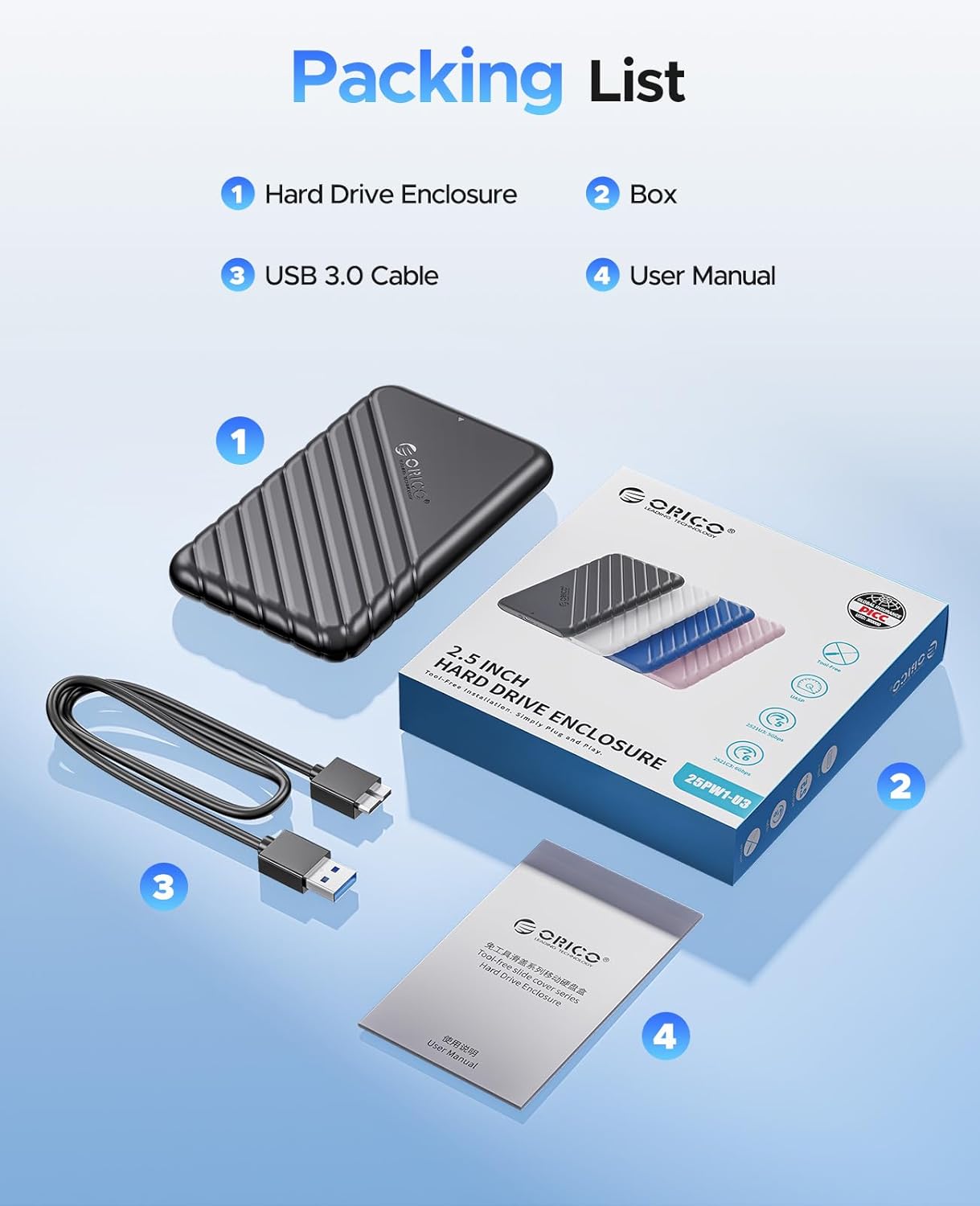
Figure 2.1: Package Contents
3. Specifications
| Feature | Description |
|---|---|
| Brand | ORICO |
| Model Number | 25PW1-U3-BK |
| Material | Plastic (ABS) |
| Compatible Drive Type | 2.5 inch SATA III/II/I HDD & SSD (7mm, 9.5mm thickness) |
| Max Storage Capacity | 6 TB |
| Hardware Interface | USB 3.0 |
| Data Transfer Rate | Up to 5Gbps (UASP Supported) |
| Compatible Devices | Laptop, TV, PC, Game Consoles (PS4, Xbox), Router |
| Supported Systems | Windows 2000/98/XP/Vista/7/8/10, Linux, Mac OS 9.1/10.8.4 and above |
| Product Dimensions | 5.12 x 3.15 x 0.55 inches (approx.) |
| Item Weight | 3 ounces (approx.) |
4. Setup Guide
Follow these simple steps to install your 2.5 inch SATA HDD or SSD into the ORICO enclosure:
- Open the Enclosure: Gently press and slide the top cover of the enclosure forward to remove it. The tool-free design allows for easy access.
- Insert the Hard Drive: Align your 2.5 inch SATA HDD or SSD with the SATA interface inside the enclosure. Gently slide the drive into the connectors until it is firmly seated.
- Secure the Enclosure: Slide the top cover back onto the enclosure until it clicks securely into place.
- Connect to Device: Use the provided USB 3.0 cable to connect the enclosure to your computer, laptop, game console, or other compatible device. The enclosure is plug & play and does not require additional drivers.

Figure 4.1: Easy Installation Steps
Video 4.1: Official ORICO USB 3.0 to SATA 2.5" SSD HDD Hard Drive Enclosure overview and installation demonstration.
5. Operating Instructions
Once connected, your operating system should recognize the drive. You may need to initialize and format the drive if it's new or unformatted. Refer to your operating system's disk management tools for this process.
- Data Transfer: Utilize the USB 3.0 connection for high-speed data transfer. With UASP support, you can achieve optimal transfer rates, significantly reducing the time it takes to move large files.
- Compatibility: The enclosure is universally compatible with various devices and operating systems, allowing you to use your 2.5-inch drive across different platforms.

Figure 5.1: High-Speed 5Gbps Data Transfer with UASP

Figure 5.2: Universal Compatibility
6. Maintenance and Care
Proper care ensures the longevity and optimal performance of your ORICO enclosure and the installed drive:
- Physical Protection: The enclosure is made of anti-drop ABS material and includes an EVA foam pad to protect the internal drive from shocks and vibrations. Ensure the foam pad is correctly placed for optimal cushioning.
- Auto-Sleep Mode: The enclosure features an intelligent sleep function. If left idle for 10 minutes, it will automatically enter smart auto-sleep mode to save power and extend the lifespan of your hard drive.
- LED Indicator: A blue LED indicator light shows the working status of the enclosure, indicating power and data activity.
- Safe Removal: Always ensure the computer has finished saving and accessing data before removing the drive. Removing a drive while it's still transferring or saving data may cause damage to your drive or its data.
- Environmental Conditions: Do not drop, hit, throw, or puncture the product. Avoid exposing the product to high heat, direct sunlight, or humid environments. Keep it away from fire.
- Cleaning: Do not use chemical solutions to clean the product.
- Electromagnetic Fields: Do not place the product or accessories in areas with strong electromagnetic fields.
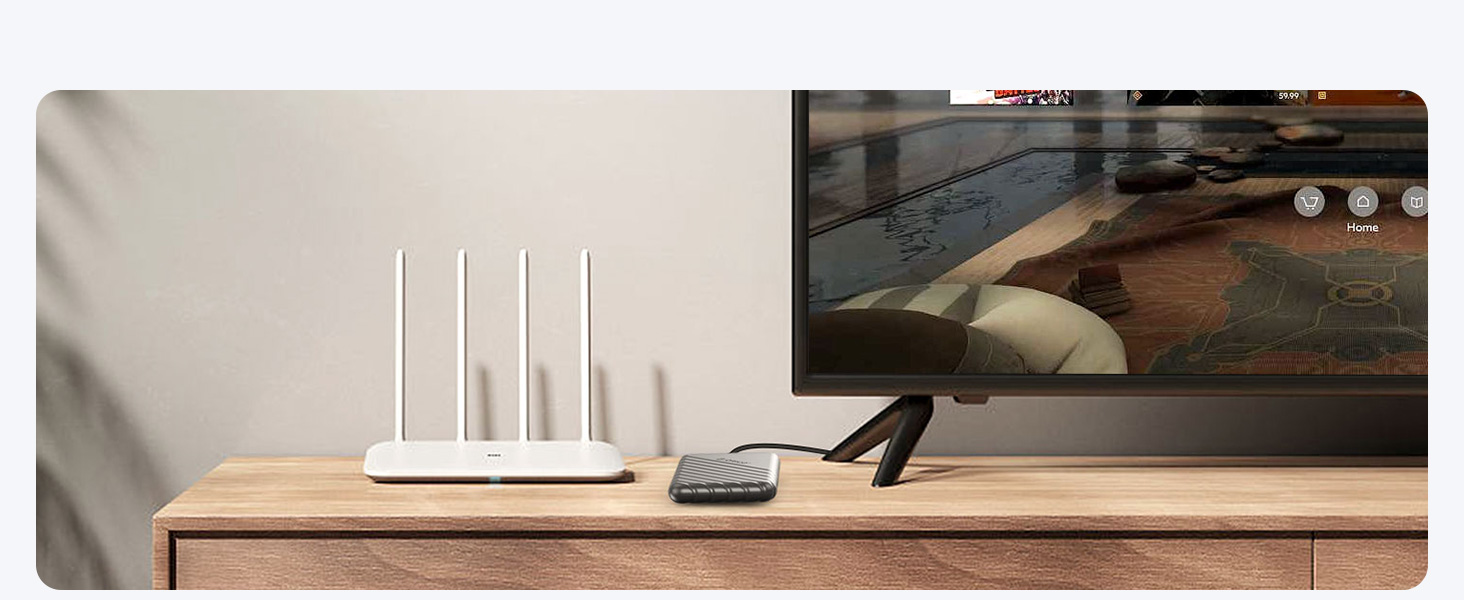
Figure 6.1: All Around Protection
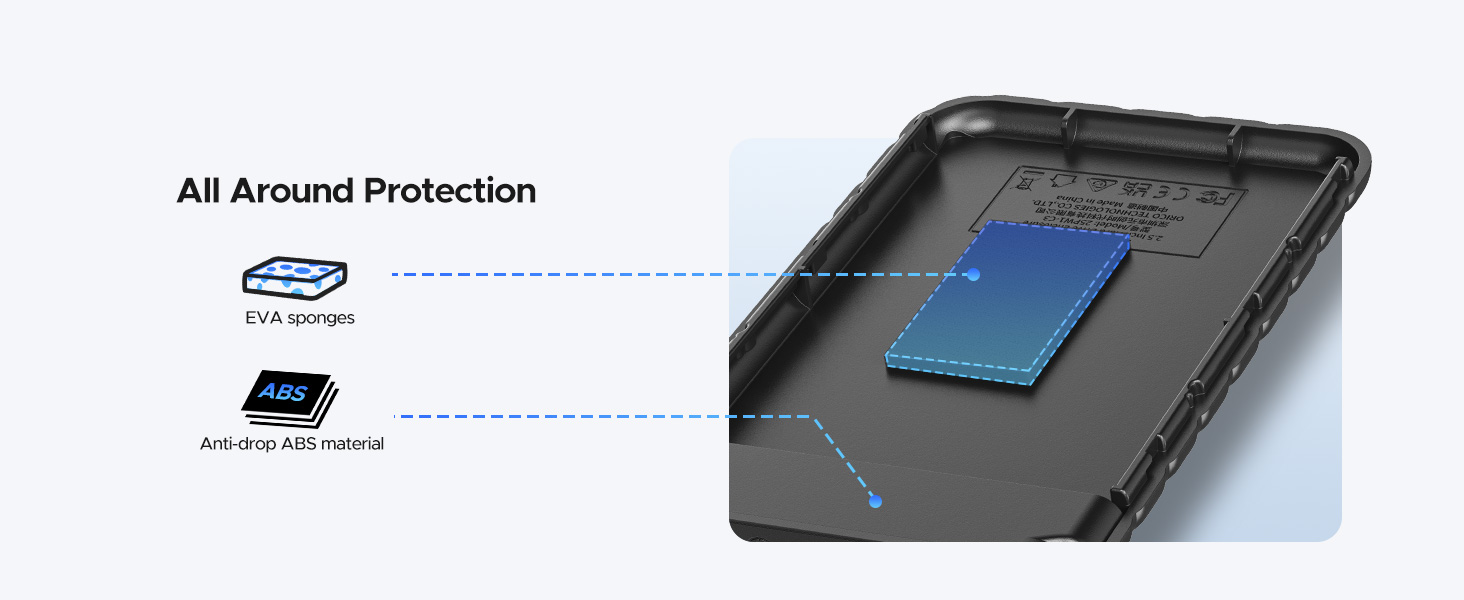
Figure 6.2: Auto-Sleep Modes
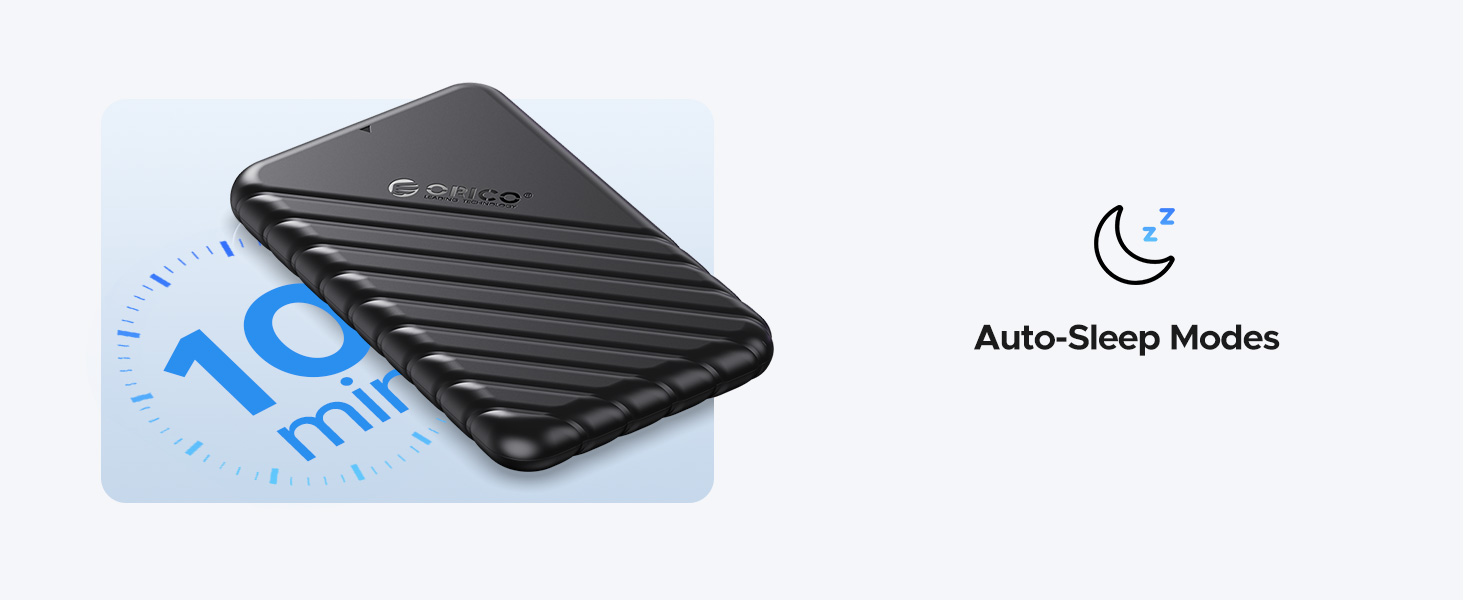
Figure 6.3: LED Indicator
7. Troubleshooting
If you encounter issues with your ORICO enclosure, please refer to the following common problems and solutions:
- Drive Not Recognized:
- Ensure the hard drive is properly seated within the enclosure and the cover is securely closed.
- Verify that the USB cable is securely connected to both the enclosure and the host device.
- Try connecting to a different USB port on your device.
- Check your computer's Disk Management (Windows) or Disk Utility (Mac) to see if the drive is detected but uninitialized or unformatted. Initialize and format the drive if necessary.
- Ensure your operating system is compatible (Windows 2000/98/XP/Vista/7/8/10, Linux, Mac OS 9.1/10.8.4 and above).
- Slow Transfer Speeds:
- Ensure you are connected to a USB 3.0 port on your host device. USB 2.0 ports will result in slower speeds.
- Verify that your host device and operating system support UASP (USB Attached SCSI Protocol) for optimal performance.
- Check the health of your hard drive. A failing drive can result in slow transfer speeds.
- Avoid transferring many small files simultaneously, as this can be slower than transferring a single large file.
- Enclosure Disconnects Randomly:
- Ensure the USB cable is not loose or damaged. Try a different USB cable if available.
- Ensure the hard drive is securely installed within the enclosure.
- Avoid placing the enclosure near strong electromagnetic interference.
If the issue persists after trying these steps, please contact ORICO customer support for further assistance.
8. Warranty and Support
This ORICO product comes with a standard manufacturer's warranty. For detailed warranty terms, conditions, and duration, please refer to the warranty card included in your package or visit the official ORICO website.
For technical support, troubleshooting assistance, or to inquire about warranty claims, please contact ORICO customer service through the following channels:
- Official Website: www.orico.cc
- Email Support: support@orico.com.cn
- Customer Service Hotline: +86-755-25196059 (International charges may apply)
Please have your product model number (25PW1-U3-BK) and purchase information ready when contacting support.


