
ORICO 25PW1-C3-BK
ORICO 2.5 inch USB C Hard Drive Enclosure User Manual
Model: 25PW1-C3-BK
Brand: ORICO
Introduction
The ORICO 2.5 inch USB C Hard Drive Enclosure (Model 25PW1-C3-BK) is designed to easily connect 2.5-inch 7mm/9.5mm SATA I/II/III SSDs and HDDs to various devices such as PCs, laptops, TVs, routers, PS4, or Xbox. It is an ideal solution for backing up files, expanding storage or recovering important data from old hard drives. This enclosure features a USB 3.1 Type-C interface, supporting up to 6Gbps transfer speeds with UASP acceleration, making data transfer efficient and fast. Its tool-free design ensures quick and easy installation.
Package Contents
- 2.5" Hard Drive Enclosure ×1
- 0.5m USB C to A Cable ×1
- EVA Foam Pad ×1
- User Manual ×1
Setup Guide
Installing Your Hard Drive/SSD
The ORICO 2.5 inch USB C Hard Drive Enclosure features a tool-free design for quick and easy installation of your 2.5-inch SATA SSD or HDD. Follow these steps:
Step 1: Open the Enclosure. Gently press and push forward the top cover of the enclosure to slide it off.

Detailed view of the enclosure being opened by sliding the top cover.
Step 2: Insert the Drive. Carefully slide your 2.5-inch SATA I/II/III SSD or HDD into the enclosure, ensuring it connects securely to the internal SATA connector.

The enclosure is designed to accommodate 2.5-inch SATA SSDs or HDDs up to 6TB capacity.
Step 3: Secure the Drive with EVA Foam Pad. If your drive is thinner (e.g., 7mm), use the included EVA foam pad. Peel off the adhesive backing and stick the foam pad onto the inside of the top cover, directly above where the drive will sit. This prevents the drive from moving around inside the enclosure.

The EVA foam pad ensures a snug fit for drives of varying thicknesses, preventing internal movement.
Step 4: Close the Enclosure. Slide the top cover back onto the enclosure until it clicks securely into place.
Ensure the cover is fully closed to protect the internal drive.
Operating Instructions
Connecting to Your Device
Once your hard drive or SSD is securely installed, connect the enclosure to your computer or other compatible device using the provided USB-C to USB-A cable.

The enclosure comes with a USB-C to USB-A cable for broad compatibility.

Connect the enclosure to your laptop or PC for data access.
Data Transfer and Performance
The enclosure supports USB 3.1 Gen 1 with UASP (USB Attached SCSI Protocol) acceleration, providing transfer speeds up to 6Gbps. This significantly improves read and write speeds compared to traditional USB 3.0 when connected to a UASP-enabled computer.

The enclosure leverages UASP for enhanced data transfer performance.

Experience significantly faster data transfer rates with USB 3.1 Gen 1.
Compatibility
This enclosure is widely compatible with various devices and operating systems:
- Compatible Devices: Laptop, PC, Xbox, PS5/PS4/PS3, Router, Smart TV, Game Consoles, Tablet.
- Compatible Operating Systems: Windows 2000/98/XP/Vista/7/8/10, Linux, Mac OS 9.1/10.8.4 and above.

The enclosure offers broad compatibility across different platforms.
LED Indicator and Auto-Sleep
The enclosure features an LED indicator that shows the status of the drive. It also has an intelligent 10-minute auto-sleep mode to conserve power and extend the lifespan of your hard drive when not in use.

The LED indicator provides visual feedback on the enclosure's activity.
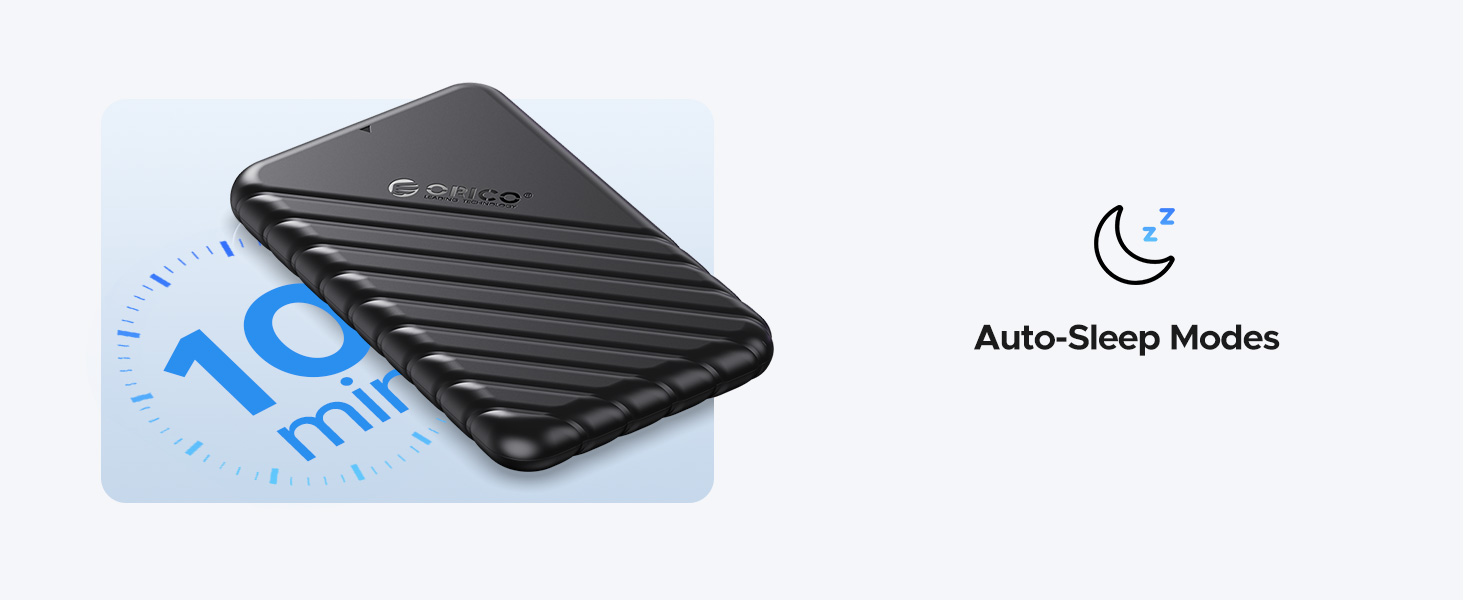
The auto-sleep function helps in power saving and prolonging drive life.
Maintenance
To ensure the longevity and optimal performance of your ORICO Hard Drive Enclosure, consider the following maintenance tips:
- Keep the enclosure clean and free from dust. Use a soft, dry cloth for cleaning.
- Avoid exposing the enclosure to extreme temperatures, direct sunlight, or high humidity.
- Handle the enclosure with care to prevent physical damage. Although made of anti-drop ABS material, excessive force can still cause damage.
- Always safely eject the drive from your operating system before disconnecting the enclosure to prevent data corruption.
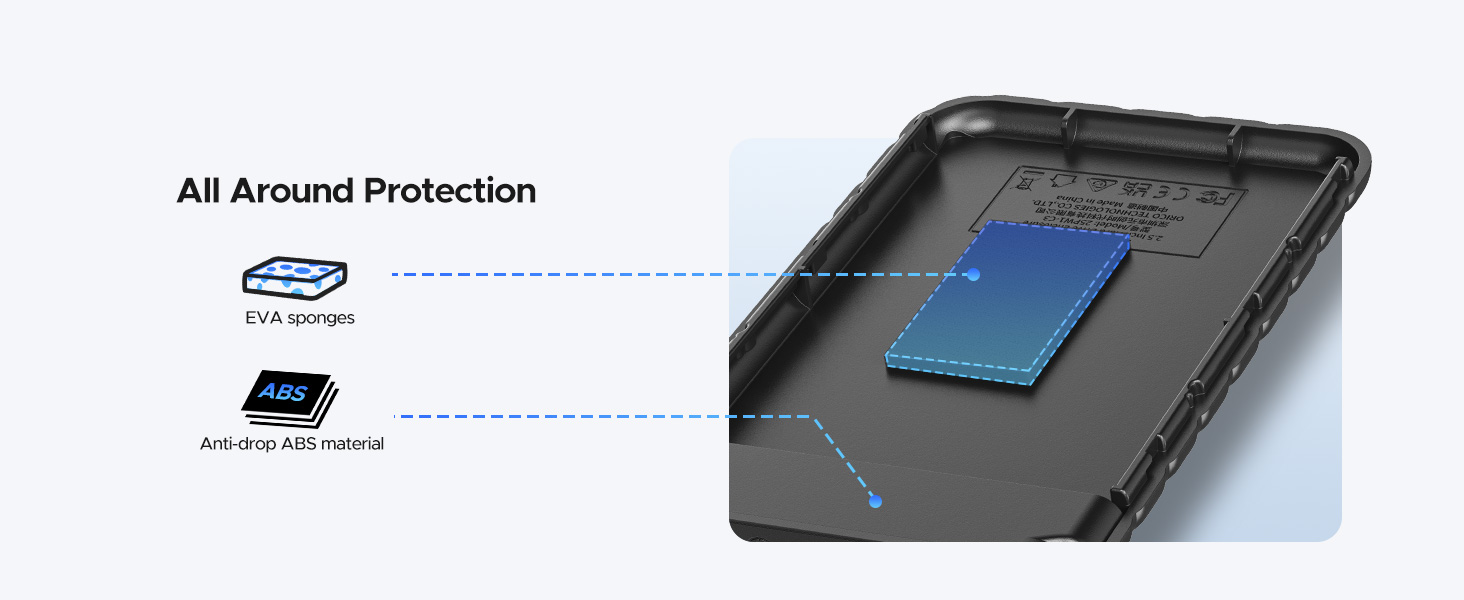
The enclosure is constructed with anti-drop ABS material and includes EVA sponges for enhanced protection.
Troubleshooting
If you encounter issues with your ORICO Hard Drive Enclosure, try the following common troubleshooting steps:
- Drive Not Detected:
- Ensure the hard drive/SSD is correctly seated and connected inside the enclosure.
- Try connecting the enclosure to a different USB port on your computer.
- Test with a different USB cable if available.
- Verify that the drive itself is functional by testing it in another enclosure or directly connecting it to a system if possible.
- Check Disk Management (Windows) or Disk Utility (macOS) to see if the drive is recognized but needs formatting or has a partition issue.
- Slow Transfer Speeds:
- Ensure you are connected to a USB 3.0/3.1 port on your computer. USB 2.0 ports will result in slower speeds.
- Verify that your operating system and USB host controller support UASP.
- The performance of the internal drive (HDD vs. SSD) will also affect transfer speeds.
- Enclosure Disconnects Randomly:
- Ensure the USB cable is securely connected at both ends.
- Avoid using USB hubs if possible, or try a powered USB hub.
- Check for power saving settings on your computer that might be turning off USB ports.
Specifications
| Feature | Detail |
|---|---|
| Model | 25PW1-C3-BK |
| Material | Plastic (Anti-drop ABS) |
| Compatible Drive Type | 2.5 inch SATA I/II/III SSD & HDD (7mm/9.5mm thickness) |
| Max Storage Capacity | Up to 6 TB |
| Interface | USB 3.1 Gen 1 Type-C |
| Data Transfer Rate | Up to 6Gbps (with UASP) |
| Installation | Tool-Free |
| Auto-Sleep | 10 minutes idle |
| Product Dimensions | 5.12 x 3.15 x 0.57 inches |
| Item Weight | 3.53 ounces (100 Grams) |
| Color | Black |
Warranty and Support
ORICO products typically come with a manufacturer's warranty. Please refer to the warranty card included in your product packaging or visit the official ORICO website for detailed warranty terms and conditions specific to your region.
For technical support, product inquiries, or further assistance, please visit the official ORICO website or contact their customer service. You can find more information and resources at the ORICO Store on Amazon.
Related documents25PW1-C3-BK


Ask a question about this manual
Ask about setup, troubleshooting, compatibility, parts, safety, or missing instructions. Manuals+ will review the question and use this page’s manual context to help answer it.