
1. Introduction
This manual provides detailed instructions for the installation, operation, and maintenance of your Fractal Design Define 7 Nano Black Solid Mini ITX PC Case. Please read this manual thoroughly before beginning assembly to ensure proper installation and to maximize the performance and longevity of your system.
The Define 7 Nano is a compact Mini ITX case designed for silent operation and flexible component support, offering a balance of size and functionality for small form factor builds.

Figure 1: Front-side view of the Fractal Design Define 7 Nano Black Solid Mini ITX PC Case.
2. Safety Information
Observe the following safety precautions during installation and operation:
- Always disconnect the power supply from the wall outlet before installing or removing any components.
- Wear an anti-static wrist strap to prevent electrostatic discharge (ESD) damage to sensitive components.
- Handle components carefully to avoid physical damage.
- Ensure proper ventilation around the PC case to prevent overheating.
- Keep the case away from liquids and excessive humidity.
- Do not attempt to modify the case structure, as this may void your warranty and pose safety risks.
3. Package Contents
Verify that all components are present in the package:
- Fractal Design Define 7 Nano PC Case
- Accessory Box (screws, zip ties, standoffs, cleaning cloth)
- User Manual (this document)
- Pre-installed fans (Dynamic X2 GP-12/GP-14, quantity may vary)

Figure 2: Exploded view showing the various removable components of the Define 7 Nano case.
4. Setup and Component Installation
4.1. Preparation
- Unpack the Case: Carefully remove the case from its packaging.
- Remove Side Panels: The side panels are secured with captive thumbscrews. Loosen the thumbscrews and slide the panels backward to remove them.
- Remove Top Panel (Optional): The top panel can be removed for easier access during installation or for enhanced airflow. Press the release button at the rear of the top panel and lift it off.
- Remove Front Panel (Optional): The front panel can be carefully pulled off from the bottom for access to front fan mounts and dust filters.
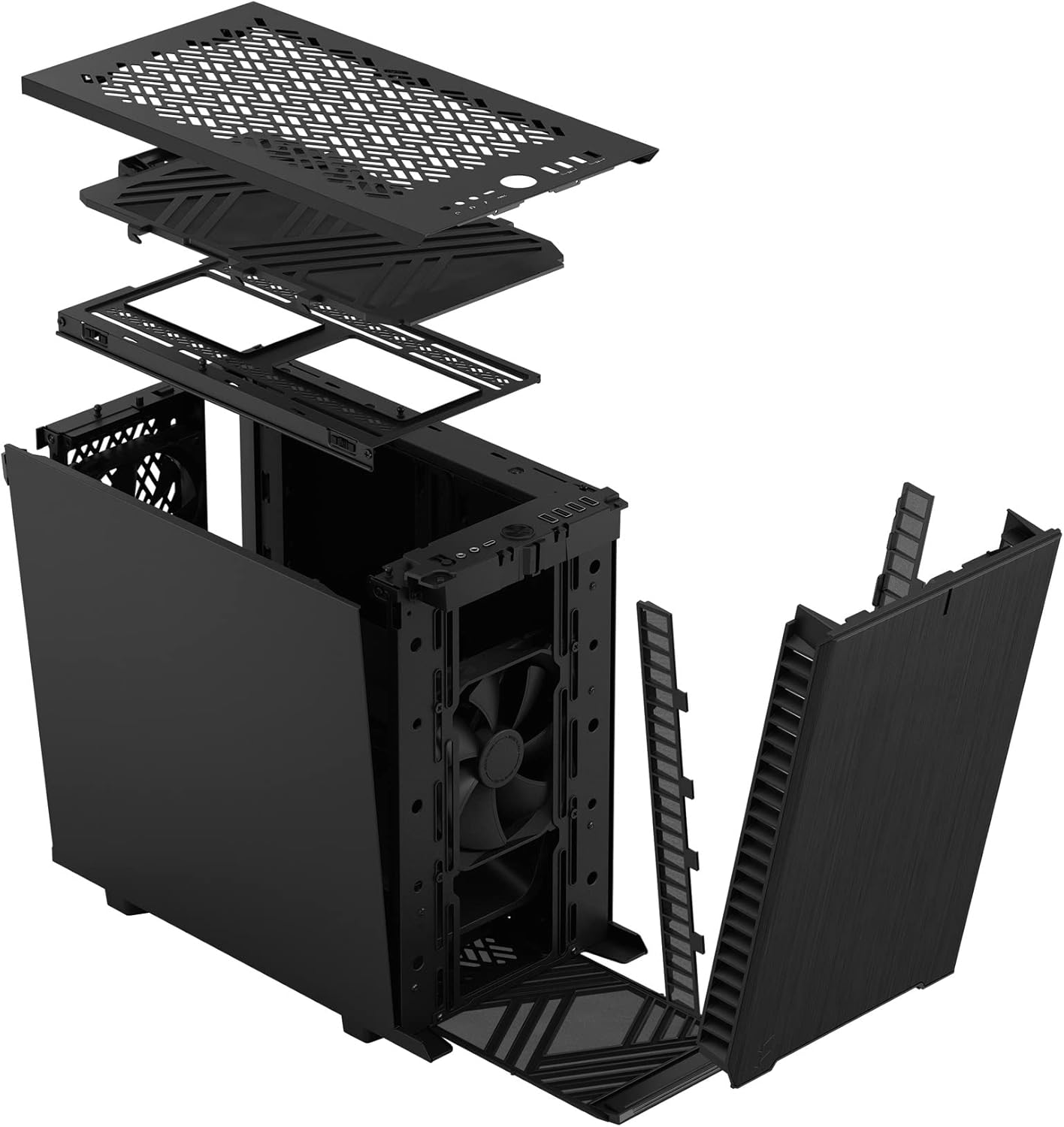
Figure 3: Exploded view illustrating the removal process for the front and top panels.
4.2. Motherboard Installation
The Define 7 Nano supports Mini ITX motherboards.
- Install I/O Shield: If your motherboard requires an I/O shield, install it into the rear opening of the case before mounting the motherboard.
- Position Motherboard: Align your Mini ITX motherboard with the pre-installed standoffs inside the case.
- Secure Motherboard: Use the provided screws from the accessory box to secure the motherboard to the standoffs.
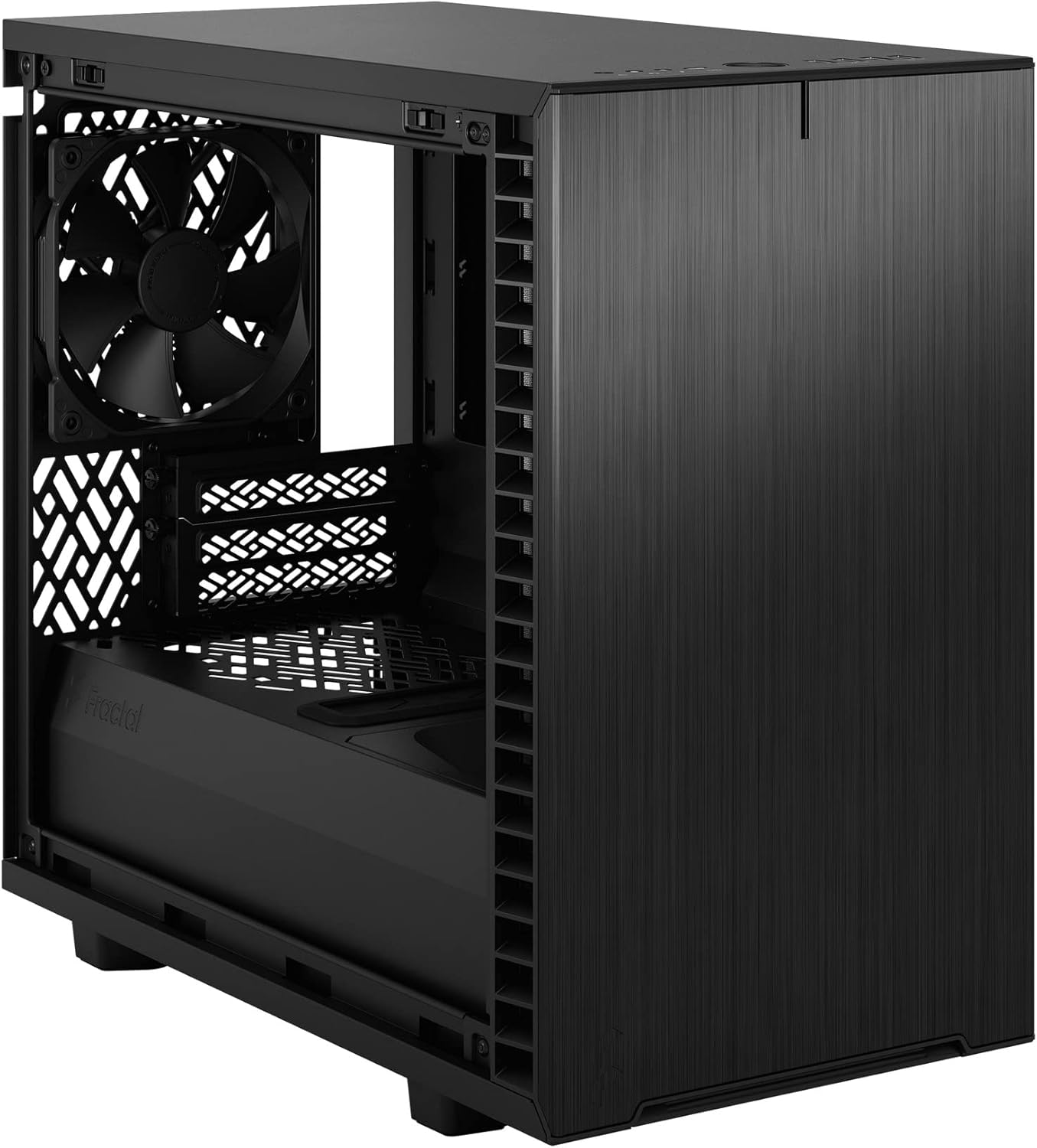
Figure 4: Interior view of the case, highlighting the motherboard mounting area and fan locations.
4.3. Power Supply Unit (PSU) Installation
The Define 7 Nano supports ATX PSUs.
- Mount PSU Bracket: Attach the PSU mounting bracket to your power supply using the screws provided with the PSU.
- Slide PSU into Case: Slide the PSU with the attached bracket into the rear of the case.
- Secure PSU: Secure the PSU bracket to the case using the thumbscrews.
4.4. Storage Drive Installation
The case supports 2.5" SSDs and 3.5" HDDs.
- 2.5" Drives: Mount 2.5" drives to the dedicated SSD brackets located behind the motherboard tray or on the PSU shroud. Secure with screws.
- 3.5" Drives: Install 3.5" drives into the drive cage located beneath the PSU shroud. Secure with screws.
4.5. Graphics Card (GPU) Installation
- Remove PCIe Slot Covers: Remove the necessary PCIe slot covers from the rear of the case.
- Insert GPU: Carefully insert your graphics card into the primary PCIe slot on the motherboard.
- Secure GPU: Secure the graphics card to the case using the thumbscrews or standard screws.
4.6. Cooling System Installation (Fans/Radiators)
The Define 7 Nano offers flexible cooling options.
- Front Fans: Up to two 120/140mm fans or a 240/280mm radiator can be installed at the front.
- Top Fans: Up to two 120/140mm fans or a 240mm radiator can be installed at the top (requires removing the solid top panel and installing the ventilated top panel).
- Rear Fan: One 120mm fan can be installed at the rear.
- Bottom Fan: One 120mm fan can be installed at the bottom.
Ensure fans are oriented correctly for optimal airflow (intake or exhaust).
4.7. Cable Management
The case features routing channels and Velcro straps behind the motherboard tray for organized cable management.
- Route Cables: Pass power and data cables through the rubber grommets to the back of the motherboard tray.
- Secure Cables: Use the pre-installed Velcro straps and included zip ties to bundle and secure cables.

Figure 5: Rear interior view demonstrating the cable management system with Velcro straps.
4.8. Front Panel Connections
Connect the front panel cables to the corresponding headers on your motherboard:
- Power Button (PWR SW)
- Reset Button (RESET SW)
- Power LED (PWR LED)
- HDD Activity LED (HDD LED)
- USB 3.0 Header
- USB Type-C Header (if applicable)
- HD Audio Header
Refer to your motherboard manual for exact header locations.
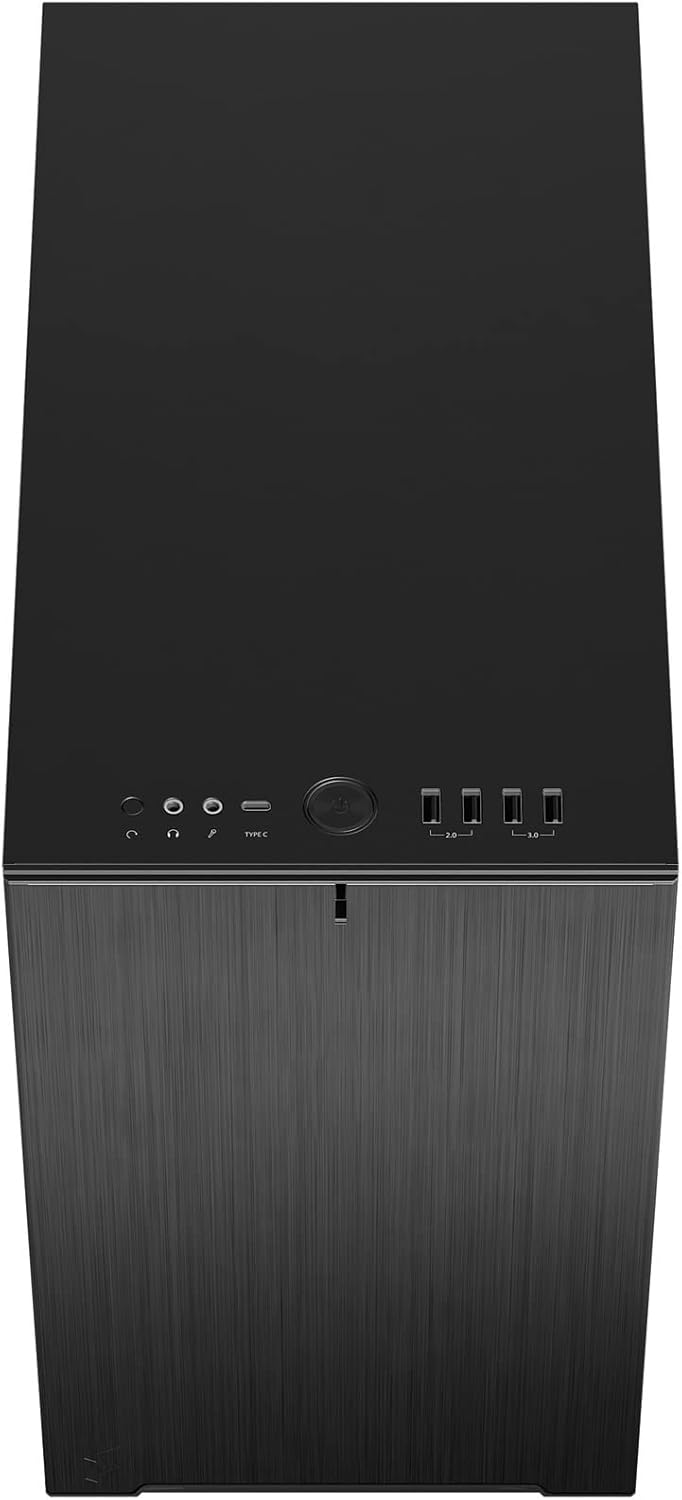
Figure 6: Top-front view displaying the front I/O panel with USB ports, audio jacks, and power button.
5. Operating Instructions
5.1. Powering On/Off
- Power On: Press the power button located on the front I/O panel.
- Power Off: Initiate a shutdown from your operating system. Alternatively, press and hold the power button for 5 seconds for a forced shutdown.
5.2. Using Front Panel Ports
The front I/O panel provides convenient access to:
- USB 3.0 Ports: For high-speed data transfer with compatible devices.
- USB Type-C Port: For modern devices requiring a Type-C connection.
- Audio Jacks: For connecting headphones and microphones.
6. Maintenance
Regular maintenance helps ensure optimal performance and longevity of your PC components.
6.1. Dust Filter Cleaning
The Define 7 Nano is equipped with easily removable dust filters to prevent dust buildup inside the case.
- Front Filter: Can be accessed by removing the front panel.
- Top Filter: Located beneath the ventilated top panel (if installed).
- Bottom Filter: Slides out from the front of the case.
Clean filters regularly (e.g., monthly) by rinsing them with water and allowing them to dry completely, or by using a soft brush or compressed air.
6.2. General Cleaning
- Use a soft, damp cloth to wipe down the exterior surfaces of the case.
- Avoid using harsh chemicals or abrasive materials that could damage the finish.
- For interior cleaning, use compressed air to remove dust from components. Ensure the system is powered off and unplugged.
7. Troubleshooting
This section addresses common issues you might encounter.
7.1. No Power / System Not Starting
- Check Power Connections: Ensure the PSU is properly connected to the wall outlet and the power switch on the PSU is in the 'ON' position. Verify all internal power cables (24-pin ATX, 8-pin CPU, PCIe, SATA) are securely connected.
- Front Panel Headers: Double-check that the power button header (PWR SW) is correctly connected to the motherboard.
- Motherboard/CPU: Ensure the CPU and RAM are correctly seated.
7.2. Excessive Noise
- Fan Noise: Check if any fan cables are obstructing fan blades. Ensure fans are securely mounted. Consider adjusting fan speeds in your motherboard's BIOS/UEFI or operating system.
- Vibration: Ensure all components (PSU, drives, GPU) are securely fastened to prevent rattling.
7.3. Overheating
- Airflow: Verify that fans are oriented correctly (intake/exhaust) and that there is adequate airflow.
- Dust Filters: Clean dust filters regularly to prevent restricted airflow.
- Thermal Paste: Ensure CPU cooler has proper thermal paste application.
8. Specifications
| Feature | Specification |
|---|---|
| Model Name | Define 7 Nano |
| Model Number | FD-C-DEF7N-01 |
| Case Type | Mini-Tower |
| Motherboard Compatibility | Mini ITX |
| Dimensions (L x W x H) | Approx. 18.74 x 11.38 x 17.91 inches (Package) |
| Weight | Approx. 18.37 pounds |
| Material | Aluminum |
| Color | Black Solid |
| Front I/O Ports | 5x USB 3.0, Audio In/Out, Power Button |
| Drive Bays | 2.5" SSD, 3.5" HDD (specific quantities vary by configuration) |
| Cooling Method | Air |
| Pre-installed Fans | Dynamic X2 GP-12 (rear), Dynamic X2 GP-14 (front) |
9. Warranty and Support
Fractal Design products are manufactured to the highest quality standards and come with a limited warranty. For detailed warranty information, please refer to the official Fractal Design website or the warranty card included with your product.
For technical support, troubleshooting assistance, or to inquire about replacement parts, please visit the official Fractal Design support page:
www.fractal-design.com/support/
Please have your product model number (FD-C-DEF7N-01) and proof of purchase ready when contacting support.