
AcuRite 00777
AcuRite What-to-Wear Weather Station
Instruction Manual
Introduction
Thank you for purchasing the AcuRite What-to-Wear Weather Station. This device is designed to provide hyperlocal weather forecasts, outdoor temperature readings, and unique clothing recommendations to help users, especially children, dress appropriately for the day's weather conditions. It also functions as an alarm clock with time and date display.
This manual provides detailed instructions for setting up, operating, and maintaining your weather station to ensure optimal performance.
Package Contents
- AcuRite What-to-Wear Weather Station Display Unit
- Wireless Outdoor Sensor
- Instruction Manual (this document)
Features
- Clothing Recommendations: Over 40 different clothing suggestions based on the hyperlocal weather forecast.
- Hyperlocal Forecast: Self-calibrating technology uses data from the wireless outdoor sensor to generate a personalized 12-hour forecast.
- Smart Weather Kid Rewards: Virtual stars can be awarded on the display for appropriate dressing, with fun bonus images.
- Weather Alarm Clock: Displays date and time, includes a 10-minute snooze function, momentary backlight, and automatic daylight saving time updates.
- Comprehensive Weather Info: Outdoor temperature with trend arrow, comparison to yesterday's weather, and a freeze indicator.
- Wireless Operation: Battery-powered display and remote outdoor sensor for cord-free use and continued function during power outages.
Setup
1. Battery Installation
The display unit requires three (3) AAA batteries, and the outdoor sensor requires two (2) AA batteries. Batteries are not included.
- Open the battery compartment on the back of the display unit and the outdoor sensor.
- Insert batteries according to the polarity diagrams (+/-) inside the compartments.
- Close the battery compartments securely.

Figure 1: Back of the display unit with battery compartment.
2. Sensor Placement
Proper placement of the outdoor sensor is crucial for accurate temperature and forecast data. The sensor has a maximum wireless range of 165 feet (50 meters).
- Place the sensor in a shaded area to avoid direct sunlight, which can cause inaccurate high temperature readings.
- Ensure the sensor is protected from direct precipitation.
- Mount the sensor securely using the integrated keyhole or place it on a flat surface.
- Keep the sensor away from heat sources (e.g., exhaust vents, windows) and large metal objects that could interfere with wireless transmission.

Figure 2: Side view of the display unit, illustrating its compact size.
3. Initial Synchronization
Once batteries are installed in both units, the display unit will automatically attempt to connect with the outdoor sensor. This may take a few minutes. Ensure both units are within range of each other during this process.
Operating the Weather Station
Display Overview
The main display provides a wealth of information at a glance:
- Future Forecast: Icons indicating upcoming weather conditions (e.g., sunny, cloudy, rainy).
- Outdoor Temperature: Current temperature from the wireless sensor, with a trend arrow and comparison to yesterday's temperature.
- Time and Date: Current time and date.
- Weather Smart KID: A character whose clothing changes based on the forecast, offering visual recommendations.
- Alarm Status: Indicates if the alarm is set or off.

Figure 3: Front display of the weather station.
Setting Time and Alarm
Refer to the small label inside the battery compartment cover for specific button functions related to setting time, date, and alarm. Generally, a 'SET' button is used to enter settings mode, and '+' or '-' buttons adjust values.
Backlight and Snooze Function
Press the 'LIGHT / SNOOZE' button located on the top of the display unit to activate the momentary backlight for 5 seconds or to snooze an active alarm for 10 minutes.

Figure 4: Backlight comparison (Off vs. On).
Smart Weather Kid Rewards
The display features a 'Weather Smart KID' character. You can reward your child with a virtual star on the display for each day they dress appropriately based on the weather conditions. Look for the dedicated button on the back of the unit to add or remove these rewards.
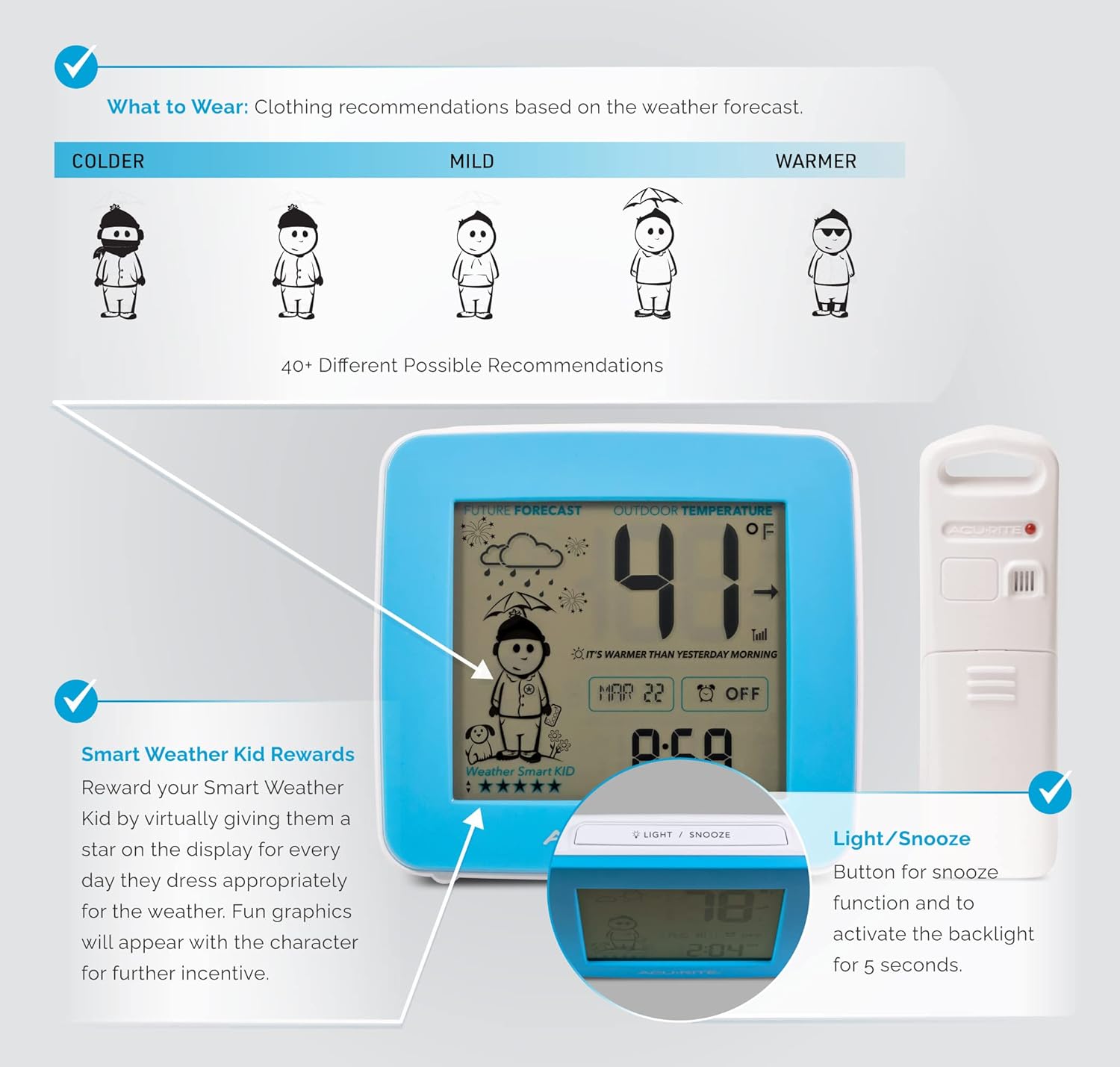
Figure 5: Display highlighting clothing recommendations and reward system.
Maintenance
Battery Replacement
Replace batteries in both the display unit and outdoor sensor when the low battery indicator appears on the display. Always replace all batteries in a unit at the same time with new batteries of the correct type.
Cleaning Instructions
Wipe the display and sensor with a soft, damp cloth. Do not use abrasive cleaners or chemicals that could damage the plastic components or display screen.
Sensor Care
Periodically check the outdoor sensor for debris or obstructions that might affect its performance. Ensure it remains in a location protected from direct elements but with good air circulation.
Troubleshooting
| Problem | Possible Solution |
|---|---|
| No outdoor temperature reading or dashes on display. |
|
| Inaccurate outdoor temperature. |
|
| Display screen is dim or blank. |
|
Specifications
| Feature | Detail |
|---|---|
| Model Number | 00777 |
| Power Source (Display) | 3 x AAA Batteries (not included) |
| Power Source (Sensor) | 2 x AA Batteries (not included) |
| Wireless Range | Up to 165 feet (50 meters) |
| Connectivity Technology | Radio Frequency (433 MHz) |
| Temperature Accuracy | +/- 2 degrees Fahrenheit |
| Product Dimensions | 0.9 x 1.6 x 4.8 inches |
| Item Weight | 12.6 ounces |
| Display Type | LCD |
Warranty and Support
Limited One-Year Warranty
This AcuRite product is covered by a limited one-year warranty from the date of purchase. For full warranty details and to register your product, please visit the official AcuRite website or refer to the warranty card included with your product.
Customer Support
For technical assistance, troubleshooting, or replacement parts, please contact AcuRite Customer Service. Contact information can typically be found on the AcuRite website or on the product packaging.
Related documents00777


Ask a question about this manual
Ask about setup, troubleshooting, compatibility, parts, safety, or missing instructions. Manuals+ will review the question and use this page’s manual context to help answer it.