
1. Introduction and Overview
The Cuifati 3 in 1 iCopy Plus 2.2 is a versatile repair instrument designed for various mobile device maintenance tasks. It supports a wide range of functions including touch repair, photosensitive repair, vibration repair, battery data repair, and headphone repair for compatible series. Equipped with a 2.8-inch high-definition screen, this device offers clear visibility and smooth operation, making it an essential tool for professional and advanced DIY repairs.
Its ergonomic design ensures comfortable handling during extended use. The iCopy Plus 2.2 is primarily used to address issues such as original color failure, unstable photosensitive and vibration functions after screen replacement, and for the detection and data repair of batteries.
2. Product Features
- Comprehensive Scope of Application: Supports touch repair, photosensitive repair, vibration repair, battery data repair, and headphone repair for various series via PC software terminal operation.
- Maintenance and Inspection Capabilities: Addresses original color failure, unstable photosensitive and vibration functions post-screen replacement, and facilitates battery detection and data repair.
- Battery Detection and Repair Function: Capable of repairing or modifying battery data to verify normal battery operation.
- Ergonomic Design: Shaped to fit the human hand, providing a comfortable user experience.
- 2.8 Inch HD Screen Display: Offers clear visuals and smooth interaction for enhanced usability.

Figure 2.1: Overview of the Cuifati iCopy Plus 2.2 and its accompanying repair boards.
3. Setup
Before operating the iCopy Plus 2.2, ensure the device is charged. Connect the appropriate connecting board for the specific repair task. The device features dedicated slots for different types of repair boards, such as those for display/touch, vibrator, battery, and lightning data cable/headset detection.

Figure 3.1: Key components and connection areas of the iCopy Plus 2.2.
- Power On/Off: Press and hold the "OFF/ON" button for 3 seconds to power the device on or off.
- Connecting Boards: Identify the correct connecting board for your repair. For example, use the "Display & Touch" board for screen-related repairs or the "Battery Detection" board for battery data.
- Secure Connection: Carefully insert the chosen connecting board into its designated slot on the iCopy Plus 2.2 until it is firmly seated.

Figure 3.2: Proper insertion of a connecting board into the iCopy Plus 2.2.
4. Operating Instructions
4.1. True Tone Display Repair
This function allows you to transfer the original display's true tone data to a new replacement screen, ensuring proper color calibration.
- Connect Original Screen: Connect the original screen to the iCopy Plus 2.2 using the appropriate display/touch connecting board.
- Read Data: Press the "Read" button to extract the original screen's data. The device will display the data on its screen.
- Connect New Screen: Disconnect the original screen and connect the new replacement screen to the iCopy Plus 2.2.
- Write Data: Press the "Write" button to transfer the previously read data to the new screen. This ensures the new screen's data matches the motherboard data, restoring True Tone functionality.

Figure 4.1: Process of reading and writing screen data for True Tone repair.
4.2. Battery Data Detection and Repair
The iCopy Plus 2.2 can detect and repair battery data, allowing you to check battery health and modify data if necessary.
- Connect Battery: Attach the battery to the iCopy Plus 2.2 using the Battery Detection Connecting Board.
- Read Battery Data: The device will automatically display battery information such as capacity, health, and cycle count.
- Repair/Modify Data: Follow on-screen prompts or use the PC software to repair or modify battery data as needed.
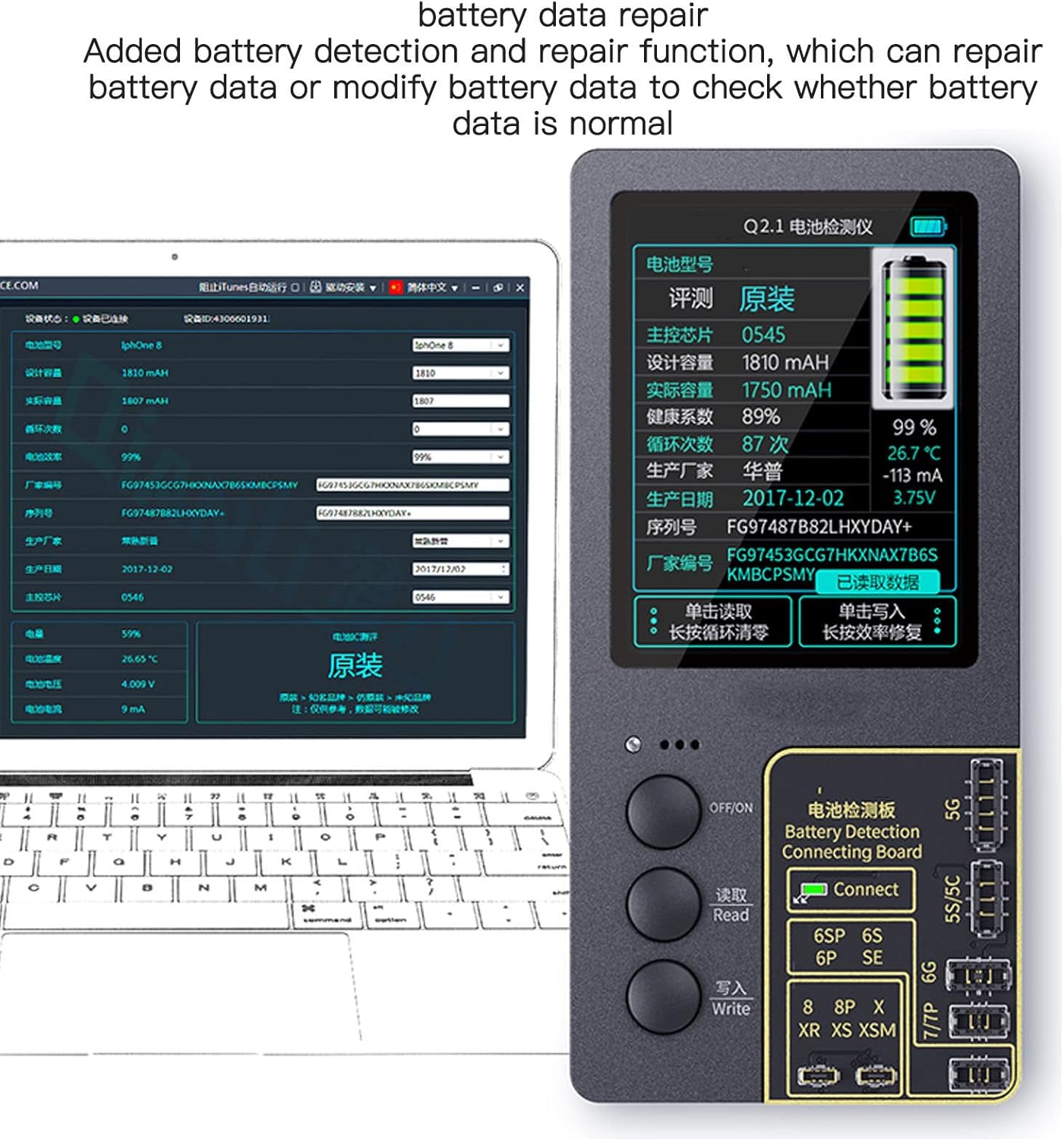
Figure 4.2: Battery data detection interface on the iCopy Plus 2.2.
4.3. Vibrator Repair
This function addresses issues with the device's vibrator module.
- Connect Vibrator: Connect the vibrator module to the iCopy Plus 2.2 via the dedicated vibrator area on the connecting board.
- Perform Repair: Use the device's interface to diagnose and perform necessary repairs or data transfers related to the vibrator function.
4.4. Data Cable and Headset Detection
The iCopy Plus 2.2 can be used to detect the functionality of lightning data cables and headsets.
- Connect Cable/Headset: Plug the lightning data cable or headset into the Lightning Detection Connecting Board.
- Initiate Detection: The device will analyze the connected accessory and display its status or relevant data.

Figure 4.3: Various connecting boards for different repair functions.
4.5. Logic Baseband Chip Read and Write
For advanced repairs, the device supports reading and writing data from the logic baseband chip.
- Connect Chip: Connect the chip of the logic baseband to the baseband area of the iCopy Plus 2.2 using a flying wire.
- Access Interface: Press "Read" and "Write" simultaneously to enter the baseband programming interface.
- Read Chip Data: Click "Read" to obtain the chip data.
- Write Chip Data: Use the "Write" function to program the chip with new data.
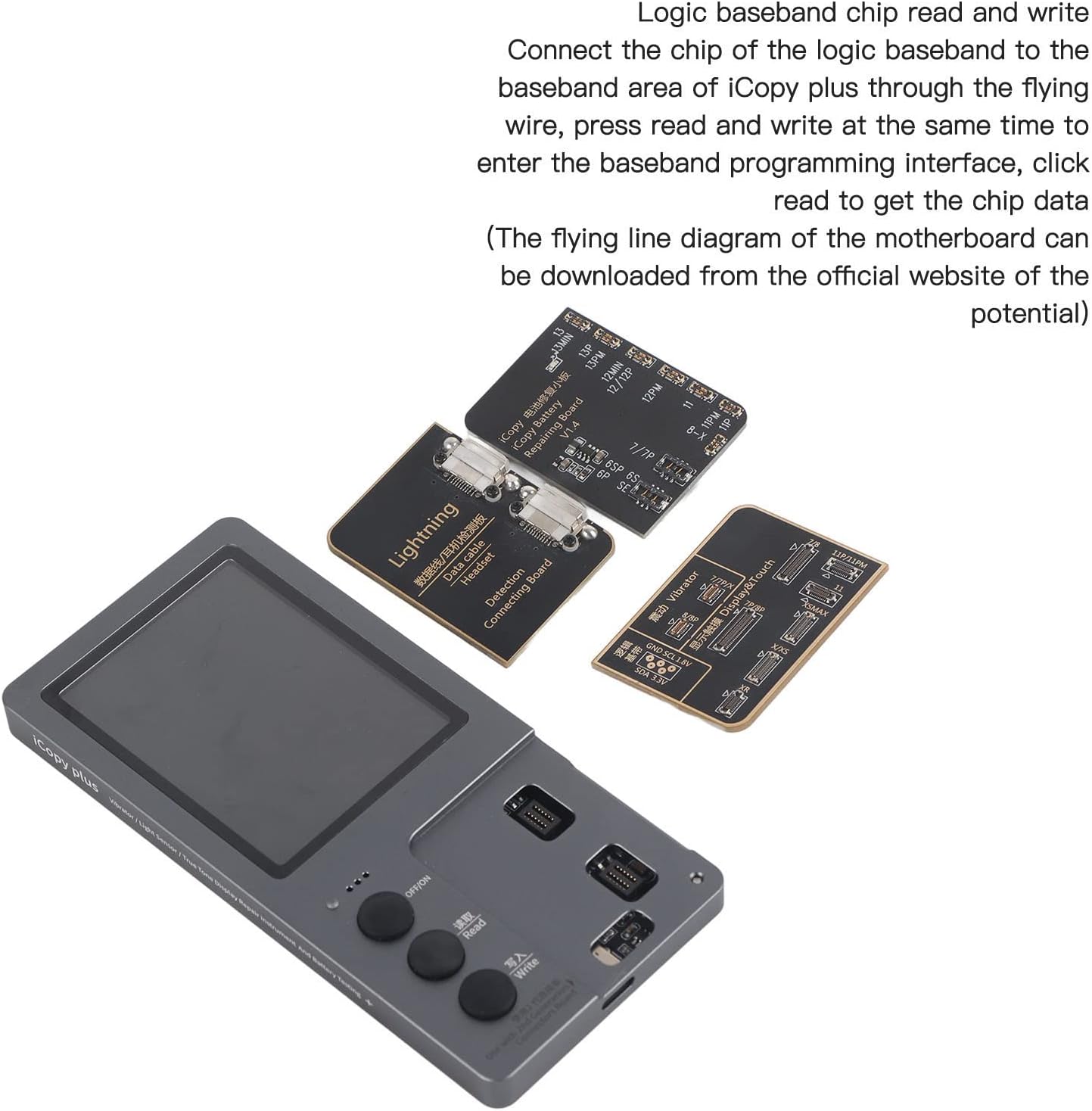
Figure 4.4: Logic baseband chip programming setup.
5. Maintenance
- Cleaning: Use a soft, dry cloth to clean the device and connecting boards. Avoid liquid cleaners or abrasive materials.
- Storage: Store the iCopy Plus 2.2 and its accessories in a cool, dry place, away from direct sunlight and extreme temperatures.
- Handle with Care: Avoid dropping the device or applying excessive force to the connecting ports.
- Software Updates: Periodically check the manufacturer's official website for software updates to ensure optimal performance and compatibility with new devices.
6. Troubleshooting
| Problem | Possible Cause | Solution |
|---|---|---|
| Device does not turn on. | Low battery or no charge. | Ensure the device is fully charged using a compatible charging cable. Verify the charging cable and power source are functional. |
| Data transfer fails or is unstable. | Improper connection of connecting board or component; software glitch. | Ensure the connecting board and the component (screen, battery, etc.) are securely and correctly attached. Restart the iCopy Plus 2.2. Check for and install any available software updates. |
| Screen display issues (e.g., blank, flickering). | Internal display issue or software error. | Restart the device. If the problem persists, contact customer support. |
| Inaccurate battery data readings. | Battery not properly connected or faulty battery. | Ensure the battery is correctly connected to the Battery Detection Connecting Board. Test with a known good battery if possible. |
7. Specifications
| Feature | Detail |
|---|---|
| Product Name | Cuifati 3 in 1 iCopy Plus 2.2 |
| Display Screen | 2.8 Inch HD Screen |
| Supported Functions | True Tone Display Repair, Vibrator Repair, Battery Data Repair, Headphone Repair, Data Cable Detection, Logic Baseband Chip Read/Write |
| Package Dimensions | 6.34 x 4.84 x 0.91 inches |
| Item Weight | 6.7 ounces |
| Manufacturer | CUIFATI |
| Country of Origin | China |
| ASIN | B0B8ZVQQGP |

Figure 7.1: Dimensional overview of the iCopy Plus 2.2 device and its packaging.
8. Warranty and Support
Cuifati products are designed for reliability and performance. For any issues or inquiries, please refer to the following information:
- Warranty: The manufacturer offers a 90-day exchange policy for the product. Please retain your proof of purchase for warranty claims.
- Customer Support: For technical assistance, troubleshooting beyond this manual, or warranty service, please contact Cuifati customer support through the retailer where the product was purchased or visit the official Cuifati store page for contact information.
- Protection Plans: Extended protection plans may be available for purchase separately from third-party providers. These plans offer additional coverage beyond the manufacturer's warranty.