
Epson C11CK67403
Epson Expression Home XP-2200 All-in-One Printer User Manual
Model: XP-2200 (C11CK67403)
1. Introduction
The Epson Expression Home XP-2200 is a compact, stylish, and user-friendly multifunction printer designed for home use. It offers 3-in-1 functionality: printing, scanning, and copying. This printer utilizes individual ink cartridges, allowing you to replace only the color that runs out, which can help reduce costs. It supports wireless connectivity through Wi-Fi and Wi-Fi Direct, enabling easy printing from various devices.

Image 1.1: Front view of the Epson Expression Home XP-2200 printer, showing a document being printed from the output tray.
Key Features:
- Compact multifunction printer: Saves space and offers versatile functionality.
- Easy mobile printing: Print directly from your smartphone or tablet.
- Separate ink cartridges: Replace only the color that is depleted to save money.
- Wi-Fi and Wi-Fi Direct connectivity for flexible placement and printing.
2. Setup Instructions
2.1 Unboxing and Initial Placement
- Carefully remove the printer from its packaging.
- Remove all protective tapes and packing materials from the exterior and interior of the printer.
- Place the printer on a stable, flat surface near a power outlet.
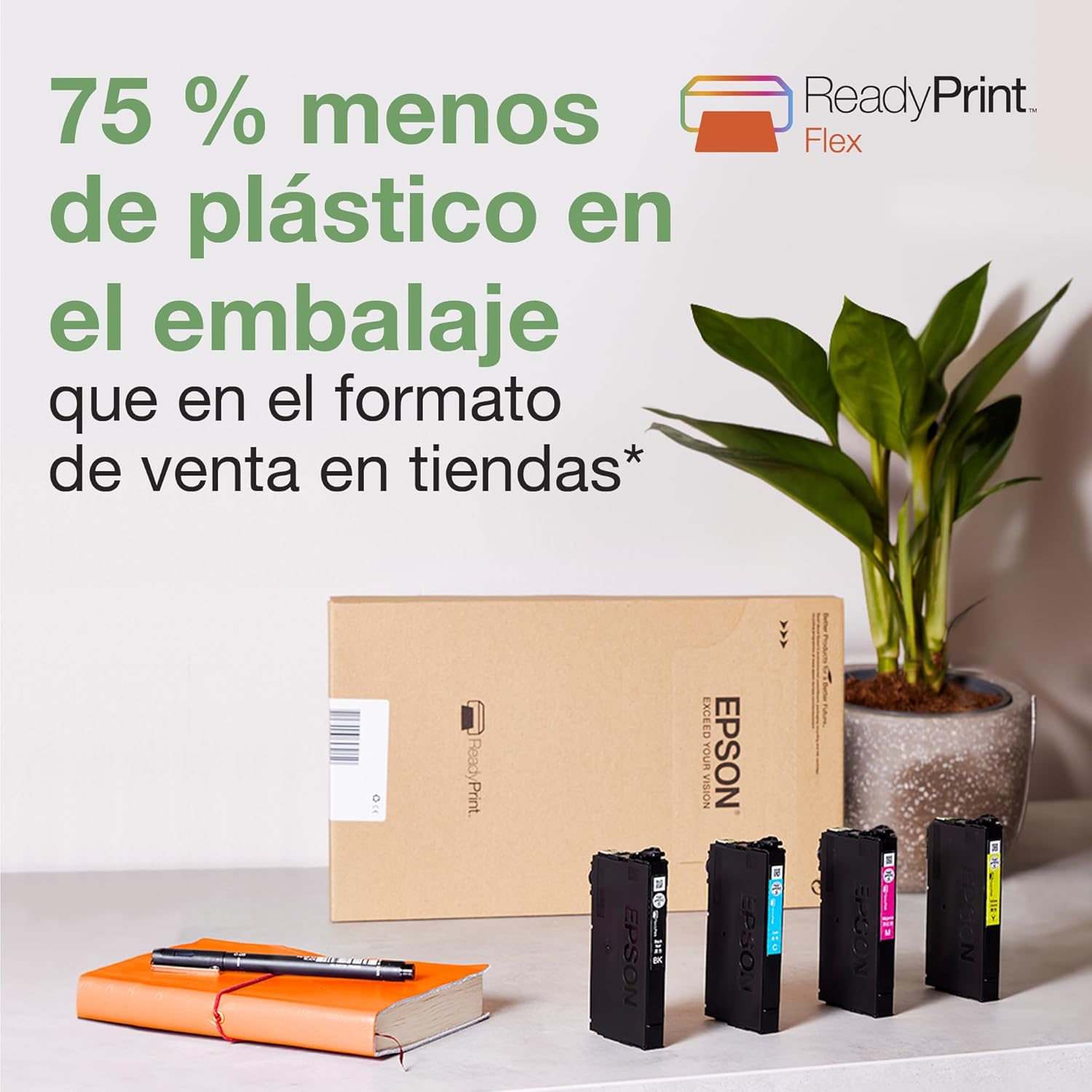
Image 2.1: The compact Epson Expression Home XP-2200 printer positioned on a desk, illustrating its suitability for home environments.
2.2 Power Connection
- Connect the power cable to the printer and then to a wall outlet.
- Press the power button to turn on the printer.
2.3 Ink Cartridge Installation
The printer comes with four separate ink cartridges (Black, Cyan, Magenta, Yellow).
- Open the printer's ink cartridge cover.
- Unpack each ink cartridge individually.
- Insert each cartridge into its corresponding slot, ensuring it clicks into place.
- Close the ink cartridge cover.

Image 2.2: A set of Epson 604 series individual ink cartridges, which are used with this printer model.
2.4 Software Installation
The printer includes a software CD. Alternatively, you can download the latest drivers and utilities from the official Epson support website.
- Insert the software CD into your computer's CD/DVD drive or visit the Epson support website for your model.
- Follow the on-screen instructions to install the printer drivers and utility software.
2.5 Network Connection (Wi-Fi)
The XP-2200 supports Wi-Fi and Wi-Fi Direct for wireless printing.
- Wi-Fi Setup: Use the printer's control panel or the EpsonNet Setup utility on your computer to connect the printer to your wireless network.
- Wi-Fi Direct: This feature allows direct connection between your device and the printer without a router. Refer to the on-screen instructions during setup or the Epson support website for detailed steps.

Image 2.3: A close-up view of the printer's control panel, highlighting the power and Wi-Fi status indicators.
3. Operating Instructions
3.1 Loading Paper
- Open the paper support and pull out the extension.
- Slide the edge guides to the outer edges.
- Load paper print-side up against the right edge guide.
- Slide the left edge guide against the paper, but not too tightly.
3.2 Printing from a Computer
- Open the document or image you wish to print.
- Select 'Print' from the application's menu (e.g., File > Print).
- Choose 'Epson XP-2200 Series' as your printer.
- Adjust print settings (paper size, print quality, color/monochrome) as needed.
- Click 'Print'.
3.3 Mobile Printing (Epson Smart Panel App)
The Epson Smart Panel app allows you to print, scan, and copy directly from your smartphone or tablet.
- Download and install the Epson Smart Panel app from your device's app store.
- Ensure your mobile device is connected to the same Wi-Fi network as your printer, or use Wi-Fi Direct.
- Open the app and follow the instructions to connect to your XP-2200 printer.
- Select the desired function (Print, Scan, Copy) and follow the in-app prompts.

Image 3.1: Mobile device showing the Epson Smart Panel app, demonstrating how to print documents wirelessly to the XP-2200 printer.
3.4 Scanning Documents
- Lift the scanner lid.
- Place the document face-down on the scanner glass, aligning it with the corner mark.
- Close the scanner lid gently.
- From your computer, open the Epson Scan software or use the Epson Smart Panel app on your mobile device.
- Select scan settings (document type, resolution, destination folder).
- Click 'Scan'.
3.5 Copying Documents
- Place the document on the scanner glass as described in Section 3.4.
- On the printer's control panel, press the Copy button.
- Use the control panel to select the number of copies and color/monochrome option.
- Press the Start button to begin copying.
3.6 Duplex Printing
The Epson XP-2200 supports automatic duplex (two-sided) printing.
- When printing from your computer, open the print settings dialog.
- Look for an option like '2-sided printing', 'Duplex printing', or 'Print on both sides'.
- Select the desired binding edge (long-edge or short-edge).
- Proceed with printing as usual.
4. Maintenance
4.1 Replacing Ink Cartridges
When an ink cartridge is low or empty, a message will appear on your computer or the printer's status monitor. Replace cartridges as follows:
- Ensure the printer is turned on.
- Open the ink cartridge cover. The print head will move to the replacement position.
- Press the tab on the empty cartridge and lift it out.
- Unpack a new genuine Epson ink cartridge.
- Insert the new cartridge into the correct slot until it clicks into place.
- Close the ink cartridge cover. The printer will begin initializing the ink system.

Image 4.1: The Epson XP-2200 printer shown alongside a multipack of genuine Epson 604 ink cartridges, recommended for optimal performance.
4.2 Cleaning the Printer
- Exterior: Wipe the exterior of the printer with a soft, damp cloth. Avoid using abrasive cleaners or solvents.
- Scanner Glass: Clean the scanner glass with a soft, lint-free cloth moistened with a small amount of glass cleaner.
- Print Head Cleaning: If print quality declines (e.g., missing lines, streaking), perform a print head cleaning using the printer utility software on your computer.
5. Troubleshooting
5.1 Common Issues and Solutions
- Printer Not Responding:
- Check power connection and ensure the printer is turned on.
- Verify Wi-Fi connection status.
- Restart the printer and your computer/mobile device.
- Poor Print Quality:
- Check ink levels and replace any empty cartridges.
- Perform a print head cleaning and nozzle check using the printer utility.
- Ensure you are using genuine Epson ink cartridges.
- Paper Jams:
- Turn off the printer and carefully remove any jammed paper from the input tray, output tray, or inside the printer.
- Ensure paper is loaded correctly and not overloaded.
For more detailed troubleshooting, refer to the Epson support website or the full electronic manual provided with your software.
6. Specifications
| Feature | Specification |
|---|---|
| Product Dimensions | 30D x 39W x 14.6H centimeters |
| Maximum Media Size | Letter |
| Power Consumption | 12 Watt |
| Included Components | Inkjet Cartridges |
| Supported Media Types | Envelopes, Plain Paper |
| Scanner Type | Flatbed |
| Max Sheet Capacity | 50 |
| Max Copy Speed (Black & White) | 2.2 seconds |
| Compatible Devices | Smartphone, Tablet |
| Max Color Print Resolution | 600 dpi |
| Sheet Size | A4 |
| Max Black & White Print Resolution | 600 dpi |
| Color Depth | 24 bpp |
| Duplex Printing | Yes |
| Max Copies per Series | 25 |
| Operating System | Mac OS X 10.9.5 or later, Windows 10 (32/64-bit), Windows 11 or later, Windows 7 (32/64-bit), Windows 8 (32/64-bit), Windows 8.1 (32/64-bit), Windows Server 2003, Windows Vista (32/64-bit), Windows XP SP3 or later (32-bit), XP Professional x64 Edition SP2, macOS 11 or later |
| Connections | Wi-Fi |
| Special Features | Email Printing, Network Ready |
| Total USB Ports | 2 |
| Print Technology | Inkjet |
| Color Output | Color |
| Max Color Print Speed | 15 Pages per minute |
| Max Monochrome Print Speed | 27 Pages per minute |
| Item Weight | 4 Kilograms |
7. Warranty and Support
7.1 Manufacturer's Warranty
This product comes with a 2-year manufacturer's warranty. Please retain your proof of purchase for warranty claims. For specific terms and conditions, refer to the warranty document included with your product or visit the official Epson website.
7.2 Customer Support
For further assistance, technical support, or to download the latest drivers and manuals, please visit the official Epson support website:
Related documentsC11CK67403


Ask a question about this manual
Ask about setup, troubleshooting, compatibility, parts, safety, or missing instructions. Manuals+ will review the question and use this page’s manual context to help answer it.