
Autel AutelTS508WF
Autel TS508WF Tire Sensor Programmer User Manual
Model: AutelTS508WF | Brand: Autel
1. Product Overview
The Autel MaxiTPMS TS508WF is a new generation comprehensive TPMS tool designed to activate all known TPMS sensors, read sensor data, program Autel MX-Sensors, and perform TPMS relearn procedures. It offers both Quick Mode and Advanced Mode for efficient TPMS service, and features convenient Wi-Fi updates for continuous software improvements and vehicle coverage.

Image: The Autel TS508WF device, its carrying case, and a set of tires, illustrating its primary function.
2. Setup and Software Updates
Before using your Autel TS508WF, ensure it is properly set up and its software is up-to-date to access the latest vehicle coverage and features.
2.1 Initial Setup
Upon first use, power on the device. The initial setup may guide you through language selection and basic settings.
2.2 Software Updates (Wi-Fi & USB)
The TS508WF supports two methods for software updates: Wi-Fi and USB. Wi-Fi updates offer convenience by allowing updates directly on the device without a computer, provided a stable internet connection is available.
- From the main menu, select "My Device".
- Choose "Update by Wi-Fi" or "Update by USB".
- For Wi-Fi updates, select "Scan Wi-Fi" to find available networks, then select your network and sign in.
- Ensure the device is connected to a power source during the update process to prevent interruption.
- Follow the on-screen prompts to complete the update.

Image: The TS508WF display showing the "Update by Wi-Fi" and "Update by USB" options, highlighting the device's connectivity features.

Image: The Autel TS508WF connected to a laptop and a printer, demonstrating its capability for data printing and software updates via USB.
Video: This video demonstrates the Wi-Fi update process for the Autel TS508WF, showing how to connect to a network and initiate software updates directly from the device.
3. Operating Modes
The TS508WF offers two distinct service modes to cater to different TPMS repair needs:
3.1 Quick Mode
Quick Mode provides basic TPMS functions for rapid sensor checks and MX-Sensor programming. It is ideal for quick diagnostics and simple sensor replacements.
3.2 Advanced Mode
Advanced Mode offers comprehensive TPMS functions, including sensor checks, TPMS diagnosis, MX-Sensor programming, and sensor position relearn. This mode is suitable for more complex TPMS issues and complete system overhauls.

Image: The Autel TS508WF display showing the "Update by Wi-Fi" and "Update by USB" options, highlighting the device's connectivity features.

Image: This graphic details the capabilities of Quick Mode (basic TPMS functions) and Advanced Mode (complete TPMS functions) on the Autel TS508WF.
3.3 TPMS Status Screen
The exclusive TPMS Status Screen allows you to:
- Read ECU sensor ID.
- Check sensor ID and ECU ID matching condition.
- Read and clear DTCs (Diagnostic Trouble Codes) from the ECU.
- View detailed DTC descriptions.
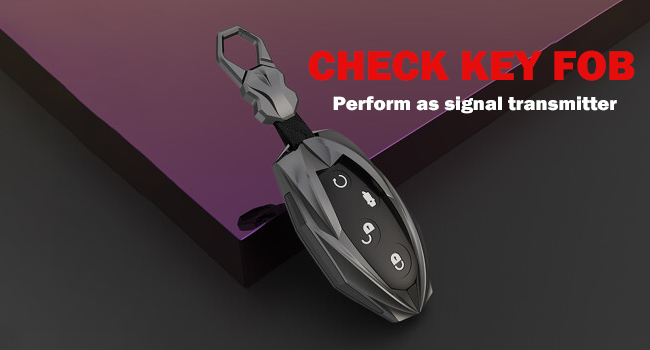
Image: The Autel TS508WF screen demonstrating the quick process of reading and erasing Diagnostic Trouble Codes (DTCs) from the TPMS system.
4. Sensor Programming
The TS508WF supports programming Autel MX-Sensors (315/433MHz) using four different methods:
- Copy By Activation: Programs the new MX-Sensor by activating the original sensor.
- Copy By Manual Input: Allows manual entry of the original sensor's ID to program the new MX-Sensor.
- Auto Create: Generates new, unique IDs for up to 16 MX-Sensors.
- Copy by OBD: Programs the new MX-Sensor by retrieving the sensor IDs from the vehicle's ECU via the OBDII port. This method is highly efficient as it eliminates the need for a relearn procedure if the wheel locations are correct.

Image: The Autel TS508WF screen displaying the four available programming options for MX-Sensors: Copy By Activation, Copy By Manual Input, Auto Create, and Copy by OBD.

Image: A detailed view of the four MX-Sensor programming options available on the Autel TS508WF, including examples of the interface for each method.
Video: This video demonstrates the usage of the Autel TS508WF, specifically highlighting the "Copy by OBD" programming method and its benefits for efficient TPMS sensor replacement.
5. TPMS Relearn Procedures
After replacing or programming a TPMS sensor, a relearn procedure is often required to link the new sensor IDs to the vehicle's ECU. The TS508WF supports three main relearn types:
- Stationary Relearn: Requires the vehicle to be in a stationary position, often involving specific steps like inflating/deflating tires or using the tool to activate sensors.
- Automatic Relearn: The vehicle automatically learns the new sensor IDs after a certain driving period, typically at a specific speed.
- OBD Relearn: Uses the OBDII port to directly write new sensor IDs to the vehicle's ECU. This is often the fastest and most reliable method, especially for domestic vehicles.

Image: The Autel TS508WF illustrating the three primary TPMS relearning methods: Stationary Relearn, Automatic Relearn, and OBD Relearn, with corresponding icons and percentages of vehicle coverage.

Image: This graphic highlights the three relearning options for all-brand sensors using the Autel TS508WF: Automatic Relearn, Stationary Relearn, and OBD Relearn.
6. Major Data Monitoring
The TS508WF allows you to wirelessly activate all OEM/Universal TPMS sensors and retrieve critical data, including:
- Sensor ID
- Tire Pressure
- Tire Temperature
- Sensor Battery Status
- Sensor Position
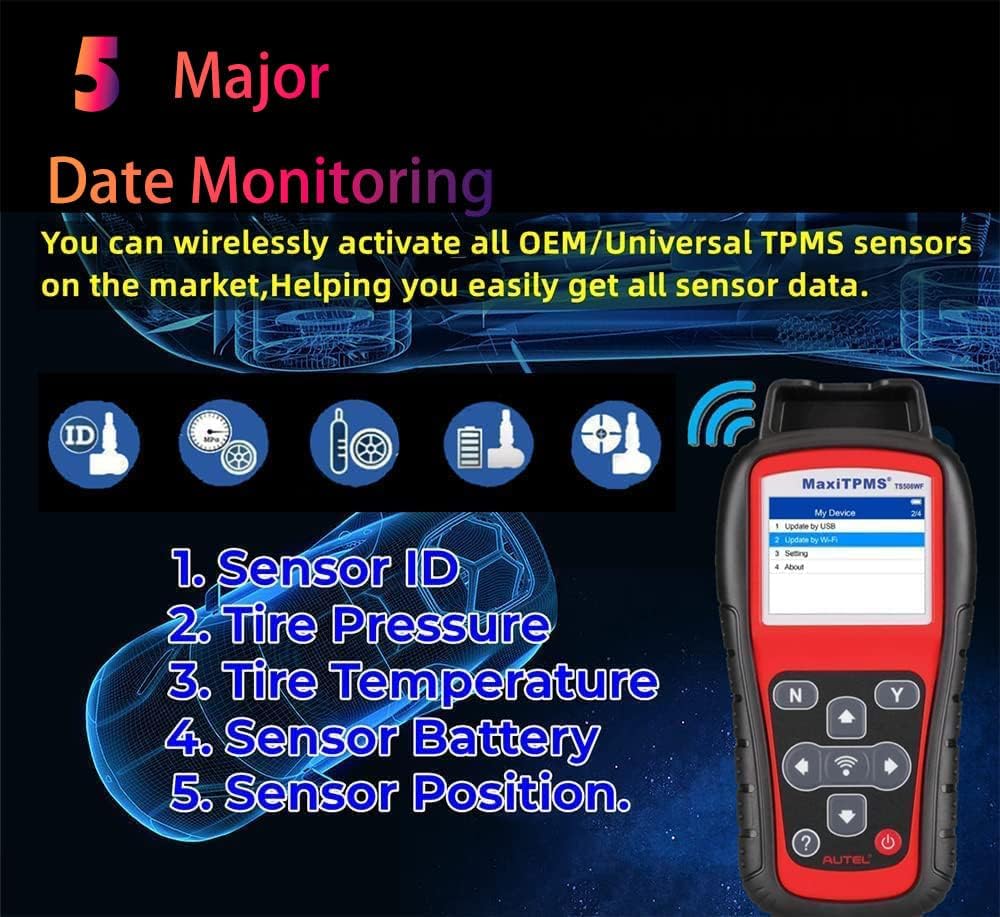
Image: The Autel TS508WF screen displaying the five major data points monitored by the device: Sensor ID, Tire Pressure, Tire Temperature, Sensor Battery, and Sensor Position.

Image: A graphic illustrating the five major data monitoring capabilities of the Autel TS508WF, overlaid on a car dashboard, emphasizing real-time data access.
7. Additional Features
7.1 Key Fob Check
The TS508WF can also perform a key fob check, acting as a signal transmitter to verify the functionality of your vehicle's key fob.
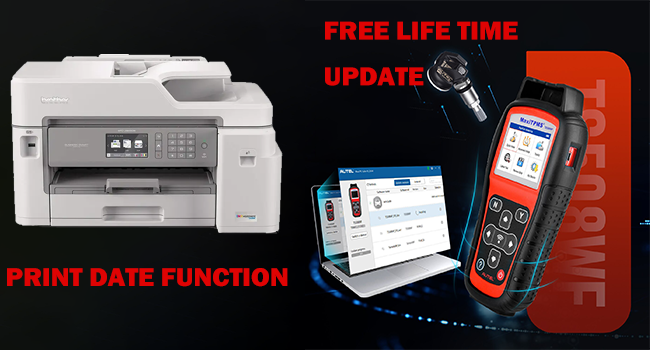
Image: The Autel TS508WF demonstrating its ability to check a key fob, indicating its function as a signal transmitter.
8. Maintenance
To ensure the longevity and optimal performance of your Autel TS508WF, follow these maintenance guidelines:
- Keep the device clean and free from dust and debris. Use a soft, dry cloth for cleaning.
- Store the device in its protective case when not in use to prevent damage.
- Perform regular software updates to ensure compatibility with new vehicle models and sensor types.
- Avoid exposing the device to extreme temperatures or direct sunlight.
- Charge the device regularly, even if not in frequent use, to maintain battery health.
9. Troubleshooting
Here are some common troubleshooting tips for the Autel TS508WF:
- Device Not Powering On: Ensure the battery is charged. Connect to a power source using the provided USB cable.
- Update Failure: Check your Wi-Fi connection or USB cable. Ensure sufficient battery charge during updates. Try restarting the device and your network.
- Sensor Not Activating: Ensure the sensor is within range and properly installed. Verify the correct vehicle make/model/year is selected on the tool. Check the sensor's battery status.
- TPMS Light Remains On: After programming/relearn, ensure all steps were followed correctly. Drive the vehicle for a short period (as per relearn instructions) to allow the system to register. Check for any remaining DTCs.
- Incorrect Readings: Verify tire pressure manually with a calibrated gauge. Ensure the correct sensor type is being used and programmed.
10. Specifications
| Feature | Detail |
|---|---|
| Brand | Autel |
| Model Number | AutelTS508WF |
| Item Weight | 4.24 pounds |
| Product Dimensions | 8.46 x 4.13 x 1.46 inches |
| Manufacturer Part Number | TS508WF-2022 |
| Operating System | 3.7 V Li-polymer battery & 3200 mAh / TFT color display (320 x 240 dpi) / Works 99% of cars / Lifetime Free Updates / TWO TPMS SERVICE MODES |
| UPC | 792499638368 |
| Date First Available | September 21, 2022 |
11. Warranty and Support
Autel provides a limited warranty for its products. For specific warranty terms and conditions, please refer to the warranty card included with your product or visit the official Autel website. For technical support, product registration, or service inquiries, please contact Autel customer support through their official channels.
Official Autel Store: Autel Amazon Store
Ask a question about this manual
Ask about setup, troubleshooting, compatibility, parts, safety, or missing instructions. Manuals+ will review the question and use this page’s manual context to help answer it.