
SteelSeries 61559
SteelSeries Arctis Nova 7P Wireless Gaming Headset
Model: 61559
Introduction
The SteelSeries Arctis Nova 7P Wireless Multi-Platform Gaming Headset delivers an immersive audio experience with its Nova Acoustic System, featuring custom audio drivers and 360° Spatial Audio. Designed for versatility, it offers simultaneous 2.4GHz wireless and Bluetooth connectivity, allowing seamless switching between PlayStation, PC, Mac, Switch, and mobile devices. This manual provides essential information for setting up, operating, maintaining, and troubleshooting your headset.

The Arctis Nova 7P Wireless Gaming Headset, shown with its accompanying USB-C wireless dongle.
Package Contents
- Arctis Nova 7P Wireless Gaming Headset
- USB-C Wireless Dongle
- USB-C to USB-A Charging Cable
- USB-C to USB-A Extension Cable (for dongle)
Setup
Initial Charging
Before first use, fully charge your headset. Connect the USB-C to USB-A charging cable to the headset's USB-C port and a powered USB port (e.g., computer, wall adapter). A 15-minute charge provides approximately 6 hours of playtime, while a full charge offers up to 38 hours.

The headset features a USB-C port for convenient charging and fast charge capabilities.
Connecting to Devices (2.4GHz Wireless)
The Arctis Nova 7P uses a 2.4GHz wireless dongle for low-latency audio on compatible platforms.
- For PlayStation, PC, or Switch: Insert the USB-C wireless dongle directly into an available USB-C port on your console or PC. If a USB-C port is not available, use the provided USB-C to USB-A extension cable.
- Ensure the toggle switch on the dongle is set to the correct platform (e.g., "PlayStation" or "PC").
- Power on your headset by pressing and holding the Power button until the LED illuminates.
- The headset and dongle should automatically pair. A solid light on the dongle indicates a successful connection.
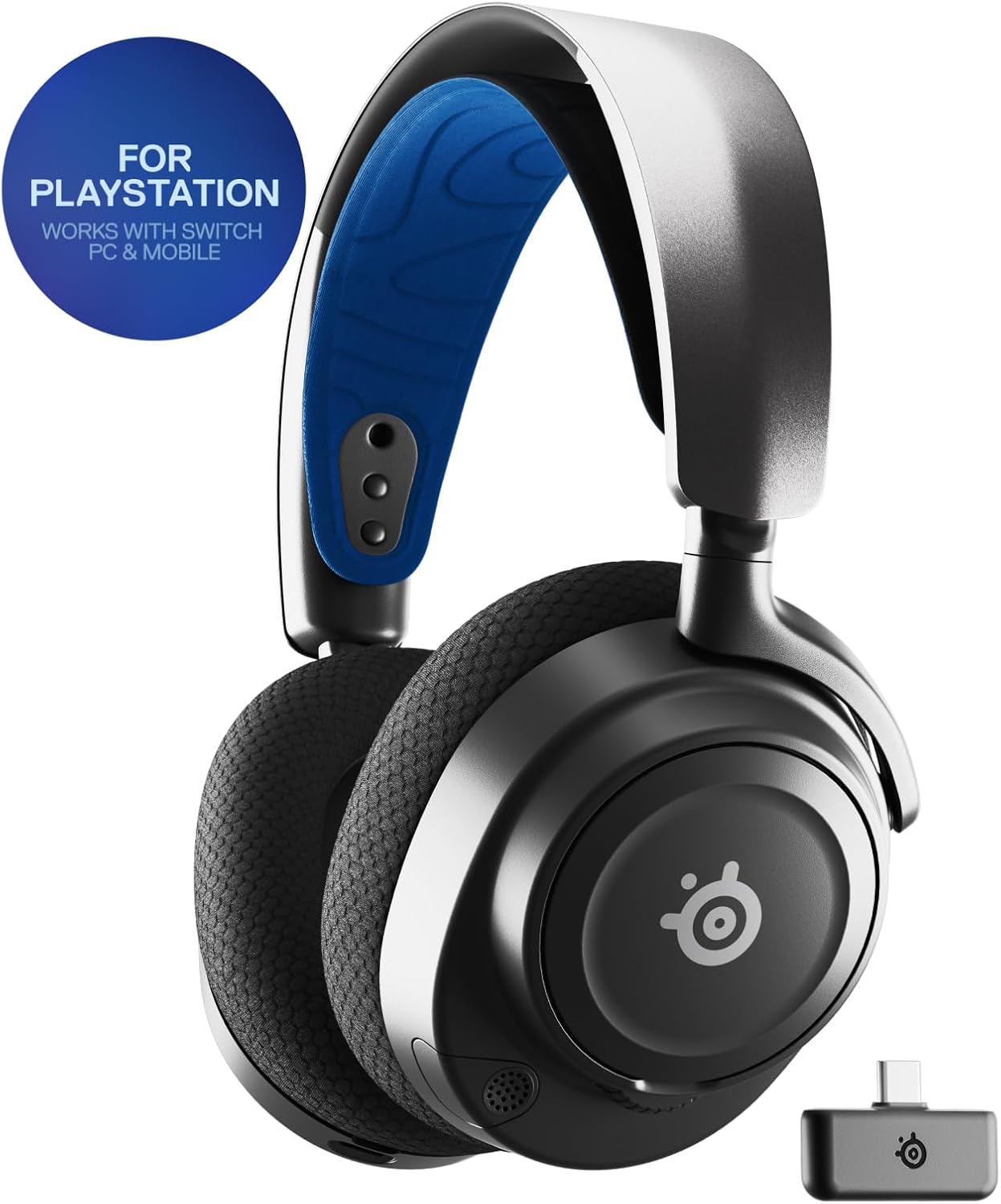
The Arctis Nova 7P is designed for PlayStation but also works seamlessly with PC, Switch, VR, and mobile devices.
Connecting to Devices (Bluetooth)
The headset supports Bluetooth 5.0 for mobile devices and simultaneous audio mixing.
- With the headset powered on, press and hold the Bluetooth button (located on the right earcup) for 5 seconds until the LED flashes blue rapidly. This indicates pairing mode.
- On your mobile device, navigate to Bluetooth settings and select "Arctis Nova 7P" from the list of available devices.
- Once connected, the LED on the headset will turn solid blue.

Simultaneous Bluetooth allows mixing mobile audio with game audio or using the headset on-the-go.
Operating Instructions
On-Ear Controls
The Arctis Nova 7P features intuitive controls located on the earcups for easy access to essential functions.

Easy access controls for volume, sidetone, mute, and Bluetooth pairing.
- Volume Wheel (Left Earcup): Adjusts the master volume of the headset.
- Mic Mute Button (Left Earcup): Toggles microphone mute. The microphone LED will illuminate red when muted.
- Bluetooth Button (Right Earcup): Press to play/pause audio, double-press to skip track, press and hold for pairing.
- Sidetone Control (Right Earcup): Adjusts the level of your own voice heard through the headset.
- Power Button (Left Earcup): Press and hold to power on/off. Single press to check battery status.
ClearCast Gen 2 Microphone
The retractable ClearCast Gen 2 microphone offers AI-powered noise cancellation for clear communication.
- Retracting the Mic: Gently push the microphone into the left earcup when not in use for a sleek, integrated look.
- Extending the Mic: Pull the microphone out from the left earcup. Position it close to your mouth for optimal voice pickup.
- Noise Cancellation: The AI-powered noise cancellation actively reduces background noise, ensuring your voice is heard clearly. For advanced settings and customization, download the SteelSeries GG software.
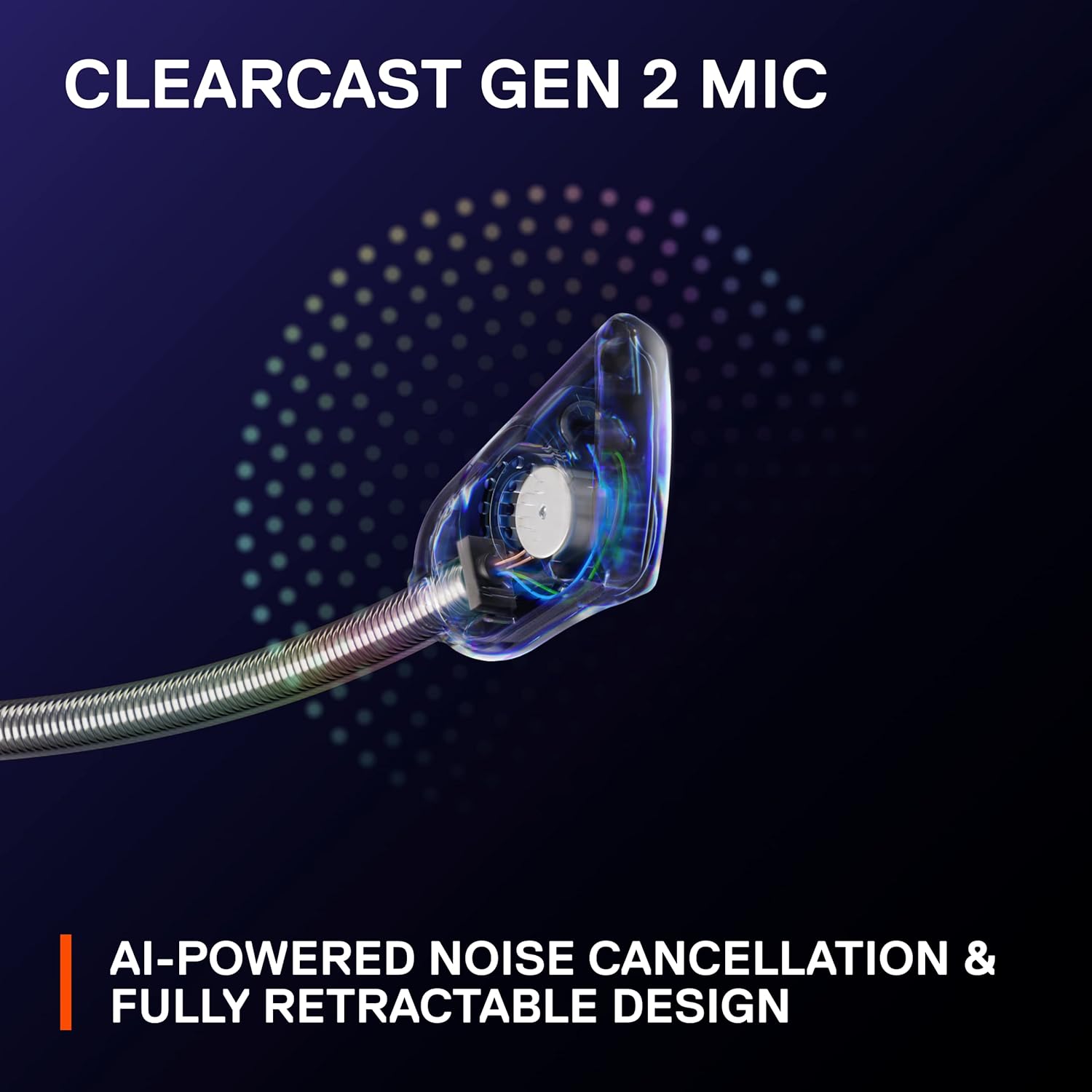
The ClearCast Gen 2 microphone features AI-powered noise cancellation and a fully retractable design.
Nova Acoustic System & Spatial Audio
Experience superior audio quality with Neodymium Magnetic Drivers and 360° Spatial Audio.
- Neodymium Magnetic Drivers: These custom-designed drivers deliver a detailed soundscape with clear highs, precise mids, and deep bass.
- 360° Spatial Audio: Provides immersive audio that allows you to pinpoint sound sources from all directions, enhancing situational awareness in games. Fully compatible with Tempest 3D Audio for PS5 and Microsoft Spatial Sound.
- Sonar Software: For advanced audio customization, including a 10-band Parametric EQ, download the SteelSeries GG software from the official SteelSeries website.

The headset features fully custom, high-fidelity Neodymium Magnetic Drivers for exceptional sound.
Maintenance
Cleaning
- Use a soft, dry cloth to clean the headset's surfaces.
- For ear cushions, gently wipe with a damp cloth and mild soap if necessary, then allow to air dry completely before use.
- Avoid using harsh chemicals or abrasive materials, as these can damage the headset's finish.
Storage
- Store the headset in a cool, dry place away from direct sunlight and extreme temperatures.
- When not in use, retract the microphone to protect it.
Battery Care
- To maximize battery lifespan, avoid fully discharging the battery regularly.
- Charge the headset using the provided USB-C cable and a standard USB power source.
Troubleshooting
No Audio / Disconnection
- Check Dongle Connection: Ensure the USB-C wireless dongle is securely plugged into your device and its toggle switch is set to the correct platform (e.g., "PlayStation" or "PC").
- Power Cycle: Turn off both the headset and the dongle, then power them back on.
- Re-pair: If the connection is lost, try re-pairing the headset with the dongle. Consult the SteelSeries support website for specific re-pairing instructions if automatic pairing fails.
- Check Device Audio Output: Ensure your device's audio output is set to the "Arctis Nova 7P" headset.
Microphone Issues
- Check Mute: Ensure the microphone mute button on the headset is not activated (red LED indicates mute).
- Mic Position: Make sure the microphone is fully extended and positioned correctly near your mouth.
- Software Settings: Verify microphone input settings in your device's sound control panel or game/chat application. For PC, check SteelSeries GG Sonar software settings.
Bluetooth Connectivity Problems
- Pairing Mode: Ensure the headset is in Bluetooth pairing mode (rapidly flashing blue LED).
- Device Bluetooth: Turn off and on Bluetooth on your mobile device.
- Forget Device: On your mobile device, "forget" or "unpair" the Arctis Nova 7P and then attempt to re-pair.
Specifications
| Feature | Detail |
|---|---|
| Model Name | Arctis Nova 7P Wireless Multi-Platform Gaming Headset |
| Model Number | 61559 |
| Connectivity | 2.4GHz Wireless (USB-C Dongle), Bluetooth 5.0 |
| Battery Life | Up to 38 hours |
| Fast Charge | 15 minutes charge for 6 hours play |
| Audio Drivers | Neodymium Magnetic Drivers, Dynamic Driver |
| Spatial Audio | 360° Spatial Audio (compatible with Tempest 3D Audio, Microsoft Spatial Sound) |
| Microphone | ClearCast Gen 2 (AI-powered noise cancellation, retractable) |
| Noise Control | Sound Isolation |
| Impedance | 140 Ohm |
| Ear Placement | Over Ear |
| Material | Plastic, Metal |
| Dimensions | 7.58 x 6.6 x 3.41 inches |
| Weight | 1.59 pounds (721 Grams) |
Warranty and Support
SteelSeries products typically come with a limited manufacturer's warranty. For detailed warranty information, please refer to the warranty card included with your product or visit the official SteelSeries website.
Customer Support
For further assistance, technical support, or to download the latest drivers and software (such as SteelSeries GG with Sonar), please visit the official SteelSeries support page:steelseries.com/support
You can also find FAQs and community forums on their website for common questions and solutions.
Related documents61559


Ask a question about this manual
Ask about setup, troubleshooting, compatibility, parts, safety, or missing instructions. Manuals+ will review the question and use this page’s manual context to help answer it.