
WHDPETS 4L Pet Feeder
WHDPETS 4L WiFi Automatic Pet Feeder Instruction Manual
Model: 4L Pet Feeder
Introduction
Thank you for choosing the WHDPETS 4L WiFi Automatic Pet Feeder. This device is designed to provide convenient and reliable feeding for your pets, ensuring they receive their meals on schedule, whether you are at home or away. With smart app control, adjustable height, and a voice recording feature, this feeder offers a personalized and stress-free feeding solution for both you and your beloved companion.
Please read this manual thoroughly before operating the feeder to ensure proper setup and usage.
Safety Information
- This appliance is for indoor use only. Do not expose to rain or moisture.
- Do not immerse the main unit in water or any other liquid.
- Keep out of reach of children and pets to prevent tampering or injury.
- Use only the original power adapter provided with the feeder.
- Ensure the feeder is placed on a stable, level surface.
- Only use dry pet food with a pellet size between 2-12mm.
- Always unplug the feeder before cleaning.
Package Contents
Please check the package contents to ensure all items are present and in good condition.
- WHDPETS Automatic Pet Feeder Main Unit
- Stainless Steel Food Bowl
- Silicone Dog Bowl
- Pet Feeding Mat
- Power Adapter
- Desiccant Bag
- Feeder Raisers (1-inch and 2-inch sizes)
- User Manual

Image: All components included in the package.
Product Overview
Familiarize yourself with the different parts of your WHDPETS Automatic Pet Feeder.

Image: Detailed diagram of the feeder's components.
- Sealed Cover: Prevents pets from accessing food and maintains freshness.
- 4L Visible Food Container: Transparent container for monitoring food levels.
- Control Panel: Includes Indicator Light, Feed, Lock, Record, and Set buttons.
- Food Outlet: Where kibble is dispensed.
- Stainless Steel Bowl: Durable and easy to clean feeding bowl.
- Removable Feeding Tray: Supports the bowl and is detachable for cleaning.
- Battery Compartment: Holds 3 D-size batteries for backup power (not included).
- Power Switch: On/Off switch for the feeder.
- Feeder Raisers: Optional legs to adjust the height of the feeder.

Image: Adjustable height feature for various pet sizes.
Setup
1. Assembly
- Place the main feeder unit on a stable, level surface.
- Insert the stainless steel bowl into the removable feeding tray.
- If desired, attach the feeder raisers to the bottom of the feeder to adjust the height. Two sizes (1-inch and 2-inch) are provided, allowing for 2-inch, 3-inch, or 4-inch total height.
- Open the sealed cover and fill the 4L food container with dry pet food. Ensure the food pellet size is between 2-12mm.
- Close the sealed cover securely.
2. Power Supply
The feeder supports dual power supply for continuous operation.
- Primary Power: Connect the power adapter to the feeder's power input and plug it into a wall outlet.
- Backup Power: For power outage protection, install 3 D-size batteries (not included) into the battery compartment at the bottom of the feeder.
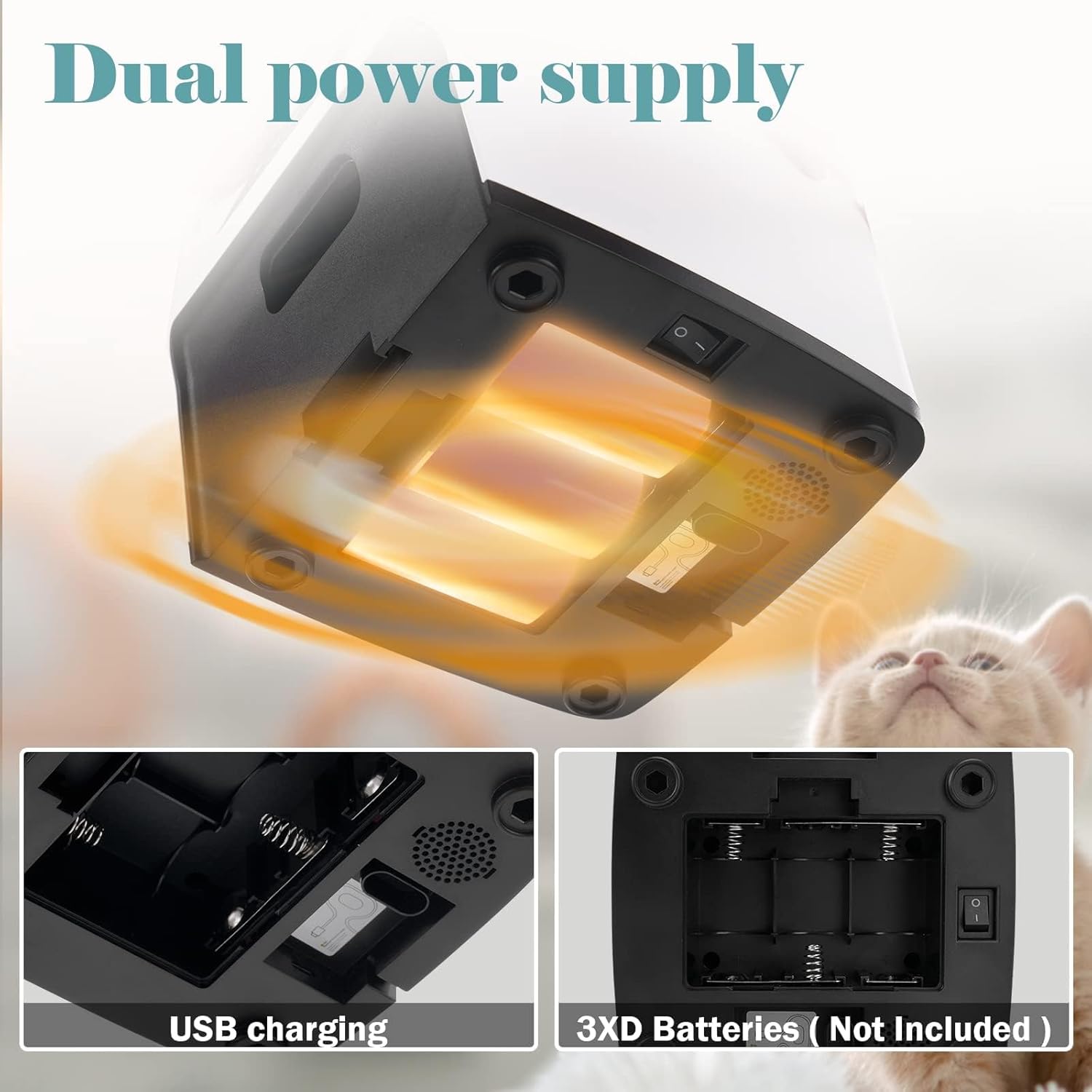
Image: Dual power supply options for reliable operation.
3. App Installation and WiFi Connection
The feeder is controlled via a smartphone app. Ensure your home WiFi network is 2.4GHz. 5GHz networks and public WiFi are not supported.
- Download the 'TUYA' app from the iOS App Store (iOS 9.0 or later) or Google Play Store (Android 4.4 or later).
- Register or log in to your TUYA account.
- Turn on the feeder using the power switch. The indicator light should blink, indicating it's ready for pairing.
- In the TUYA app, follow the on-screen instructions to add a new device. Select 'Small Home Appliance' > 'Pet Feeder (Wi-Fi)'.
- Enter your 2.4GHz WiFi network password when prompted.
- Once connected, the indicator light on the feeder will turn solid blue.

Image: App interface for scheduling and WiFi connection details.
4. Personalized Meal Call (Voice Recording)
Record a 10-second voice message to call your pet at meal times.
- Long press the 'Mic' button on the feeder's control panel.
- Record your 10-second message. Release the button when finished.
- This message will play automatically before each scheduled feeding.
- You can also turn off the sound of the recorder through the app if desired.

Image: Recording a personalized voice message.
Operating Instructions
1. Scheduling Meals via App
Program up to 10 meals per day with customizable portions.
- Open the 'TUYA' app and select your WHDPETS feeder.
- Navigate to the 'Feed Plan' section.
- Set desired feeding times and the number of portions (1-12 portions per meal, approximately 7-9g per portion).
- Save your schedule. The feeder will automatically dispense food at the programmed times.

Image: Scheduling a healthy feeding routine through the app.
2. Manual Feeding
You can dispense food manually at any time.
- Via App: On the main screen of the feeder in the TUYA app, tap the 'Feed' button and select the number of portions to dispense.
- Via Feeder: Briefly press the 'Feed' button on the feeder's control panel to dispense one portion.

Image: Remote feeding via the app.
3. Portion Control Guidelines
The food tank has a capacity of 4L (approximately 16 cups). One portion is approximately 2.5 tsp (1/20 cup).
Image: Portion guidelines for pet feeding.
4. Applicable Kibble Size Range
Ensure your pet's dry food meets the recommended size for optimal dispensing.

Image: Recommended kibble size and types.
Maintenance
1. Cleaning
Regular cleaning ensures hygiene and proper functioning.
- Unplug the feeder before cleaning.
- The food container, stainless steel bowl, and feeding tray are detachable for easy cleaning.
- The stainless steel food bowl is dishwasher-safe.
- Hand wash the food container and feeding tray with mild soap and water. Rinse thoroughly and dry completely before reassembling.
- Wipe the main unit with a damp cloth. Do not immerse the main unit in water.

Image: Detachable design for easy cleaning.
2. Food Freshness
The feeder is designed to keep food fresh and crunchy.
- The triple-locking storage system helps maintain food freshness.
- A built-in desiccant bag compartment helps absorb moisture. Replace the desiccant bag periodically for best results.

Image: Features ensuring food freshness and secure operation.
Troubleshooting
| Problem | Possible Cause | Solution |
|---|---|---|
| Feeder not connecting to WiFi. | Incorrect WiFi frequency (5GHz), wrong password, or weak signal. | Ensure your WiFi is 2.4GHz. Double-check password. Move feeder closer to router. Reset feeder and try pairing again. |
| Food not dispensing. | Food outlet clogged, food level too low, or incorrect kibble size. | Check for blockages in the food outlet. Refill food container. Ensure kibble size is 2-12mm. |
| Voice recording not playing. | Recording not saved correctly or sound turned off in app. | Re-record the message. Check app settings to ensure voice playback is enabled. |
| Feeder loses power. | Power outage or batteries depleted/not installed. | Ensure power adapter is securely plugged in. Install fresh D-size batteries for backup. |
Specifications
| Feature | Detail |
|---|---|
| Brand | WHDPETS |
| Model Number | 4L Pet Feeder |
| Food Tank Capacity | 4 Liters (approx. 16 cups) |
| Material | Stainless Steel (bowl), ABS (main unit) |
| Color | White |
| Dimensions (LxWxH) | 11.81 x 6.89 x 11.42 inches |
| Item Weight | 0.32 ounces (9 Grams) |
| Power Supply | AC100-240V, DC5V adapter; 3 x D-size batteries (backup, not included) |
| WiFi Connectivity | 2.4GHz only |
| App Compatibility | TUYA App (iOS 9.0+, Android 4.4+) |
| Kibble Size | 2-12mm (dry food only) |
| Adjustable Height | Yes (with included raisers) |
| Care Instructions | Hand Wash Only (main unit, container, tray); Dishwasher Safe (stainless steel bowl) |
Warranty and Support
For warranty information and customer support, please refer to the product packaging or contact WHDPETS customer service directly. Details can typically be found on the manufacturer's official website or through your purchase platform.
Keep your purchase receipt as proof of purchase for any warranty claims.
Ask a question about this manual
Ask about setup, troubleshooting, compatibility, parts, safety, or missing instructions. Manuals+ will review the question and use this page’s manual context to help answer it.