
SIMREX x900
SIMREX X900 Drone User Manual
Model: X900
Brand: SIMREX
Introduction
This user manual provides comprehensive instructions for the safe operation, setup, and maintenance of your SIMREX X900 Drone. Please read this manual thoroughly before operating the drone to ensure proper function and to avoid damage or injury. The SIMREX X900 is a foldable RC quadcopter featuring 1080P HD camera, optical flow positioning, altitude hold, and headless mode, designed for ease of use and stable flight.
Safety Guidelines
Always prioritize safety when operating the drone. Failure to follow these guidelines may result in injury, damage to the drone, or property damage.
- Flight Environment: Fly in open areas, away from people, animals, buildings, and obstacles. Avoid flying near airports or restricted airspace.
- Weather Conditions: Do not fly in strong winds, rain, snow, or fog. Optimal conditions are calm and clear.
- Battery Safety: Use only the provided charger and battery. Do not overcharge or puncture batteries. Discontinue use if batteries are damaged or swollen.
- Propeller Safety: Keep hands, face, and loose clothing away from rotating propellers. Always turn off the drone before handling propellers.
- Visual Line of Sight: Always maintain visual line of sight with the drone during flight.
- Age Recommendation: This product is recommended for adults.
Package Contents
Verify that all components are present in the package:
- SIMREX X900 Drone
- Remote Control
- Rechargeable Battery (1 included)
- Spare Propellers
- USB Charger
- User Manual (this document)
Components Overview
Familiarize yourself with the main components of your SIMREX X900 drone and its remote control.

Image: The SIMREX X900 drone in its unfolded state, alongside its remote control and a smartphone mounted on the controller. The drone is red and black with four propellers. The remote control is black with joysticks and buttons.
Drone Components:
- Propellers: Four rotating blades for lift and thrust.
- Motors: Drive the propellers.
- Camera: 1080P HD camera located at the front for photo and video capture.
- Battery Compartment: Houses the drone's rechargeable battery.
- Optical Flow Sensor: Located on the bottom, assists with stable hovering.
- Foldable Arms: Allow for compact storage and portability.
Remote Control Components:
- Left Joystick: Controls altitude (throttle) and rotation (yaw).
- Right Joystick: Controls forward/backward (pitch) and left/right (roll).
- Power Button: Turns the remote control on/off.
- One-Key Takeoff/Landing Button: Initiates automatic takeoff or landing.
- Speed Switch: Adjusts flight speed (beginner, intermediate, advanced).
- Headless Mode Button: Activates/deactivates headless mode.
- 3D Flip Button: Initiates a 360-degree flip.
- Phone Holder: Mount for your smartphone to view FPV feed.
Setup
1. Charging the Battery
Connect the drone battery to the USB charger and plug it into a USB power source (e.g., computer USB port, USB wall adapter). The indicator light on the charger will show charging status. Ensure the battery is fully charged before each flight for optimal performance and flight time.
2. Installing Propellers
The propellers are marked with 'A' or 'B'. Match them to the corresponding motor arms. Ensure they are securely fastened. Incorrect installation will prevent the drone from flying correctly.
3. Controller Setup
Install the required batteries into the remote control. Ensure correct polarity. Power on the remote control.
4. App Installation (Optional for FPV)
For FPV (First Person View) and advanced control features, download the official SIMREX drone app from your smartphone's app store (iOS/Android compatible). Search for "SIMREX FPV" or refer to the QR code in the quick start guide if provided.
Operating Instructions
1. Pairing the Drone and Remote
- Place the drone on a flat, level surface.
- Turn on the drone's power switch. The drone's indicator lights will flash.
- Turn on the remote control.
- Push the left joystick (throttle) all the way up, then all the way down. The drone's lights will become solid, indicating successful pairing.
2. Calibration
After pairing, perform a gyroscope calibration for stable flight. Push both joysticks to the bottom-right corner simultaneously until the drone's lights flash rapidly and then become solid again. This indicates successful calibration.
3. Take-off and Landing
- One-Key Takeoff: Press the One-Key Takeoff/Landing button. The drone will automatically ascend and hover at a stable altitude.
- Manual Takeoff: Slowly push the left joystick (throttle) upwards. The propellers will spin, and the drone will ascend.
- One-Key Landing: Press the One-Key Takeoff/Landing button again. The drone will automatically descend and land gently.
- Manual Landing: Slowly pull the left joystick (throttle) downwards until the drone lands. Once landed, push the joystick all the way down to stop the motors.
4. Flight Controls and Features
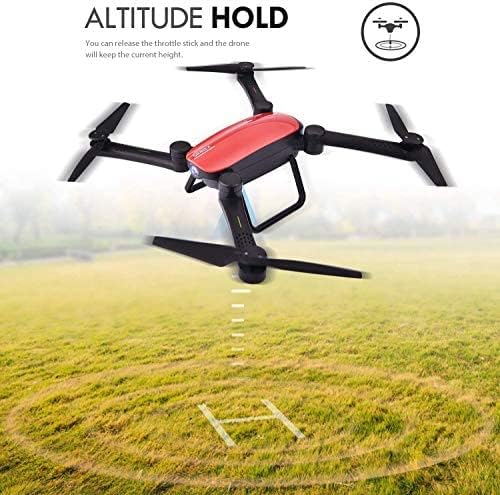
Image: The SIMREX X900 drone hovering above a grassy field, with an arrow indicating its stable altitude. Text highlights "ALTITUDE HOLD" and explains that releasing the throttle stick will maintain the current height.
Altitude Hold: The drone is equipped with an advanced barometer to automatically maintain its current altitude. You can release the throttle stick, and the drone will hover steadily at that height, making it easier to control and capture stable photos/videos.
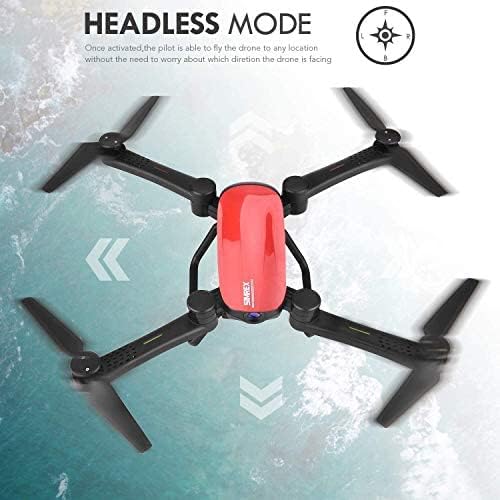
Image: The SIMREX X900 drone viewed from above, with arrows indicating movement directions relative to the pilot. Text highlights "HEADLESS MODE" and explains that once activated, the pilot can fly the drone without worrying about its orientation.
Headless Mode: Activate Headless Mode by pressing the dedicated button on the remote. In this mode, the drone's forward direction is always relative to the pilot, regardless of the drone's actual orientation. This simplifies control, especially for beginners.

Image: Three instances of the SIMREX X900 drone performing a 360-degree flip in mid-air, illustrating the "3D STUNT" feature. Text indicates "360° flips and rolling with one single button."
3D Flips (Stunt Mode): To perform a 360-degree flip, press the 3D Flip button on the remote control, then quickly push the right joystick in the desired flip direction (forward, backward, left, or right). Ensure sufficient altitude before attempting flips.

Image: A hand holding the SIMREX X900 drone's remote control, with a blurred background showing the drone flying. Text describes "GRAVITY SENSOR MODE ON PHONE APP & CONTROLLER," explaining that both the phone app and controller can operate by activating gravity sensor mode, controlling flight by holding and moving the device.
Gravity Sensor Mode: When using the smartphone app, you can activate Gravity Sensor Mode. This allows you to control the drone's pitch and roll by tilting your smartphone, providing an intuitive flight experience. This mode can also be activated on the controller.

Image: Two options for controlling the SIMREX X900 drone: "PHONE WIFI DIRECT CONTROL" showing a smartphone with on-screen controls, and "TRANSMITTER CONTROL WITH PHONE MONITOR" showing the remote control with a smartphone mounted. Text indicates iOS/Android compatibility for phone control.
FPV and WiFi Live Video: Connect your smartphone to the drone's WiFi network (SSID usually starts with "SIMREX" or "X900"). Open the SIMREX app to view a live video feed from the drone's 1080P HD camera. You can also control the drone directly from the app or use the remote control with your phone as a monitor.

Image: The SIMREX X900 drone shown in both its folded and unfolded states, with dimensions provided. Text highlights "FOLDABLE DESIGN" and states it "Saves the space & easy to carry." Aircraft folding size is 138x93x48mm, and unfolding size is 383.2x356.7x88.4mm.
Foldable Design: The SIMREX X900 features a foldable arm design, allowing for easy storage and portability. To fold, gently push the arms inwards towards the drone's body. To unfold, pull the arms outwards until they click into place. Ensure all arms are fully extended before flight.
Maintenance
- Cleaning: Use a soft, dry cloth to clean the drone and remote control. Do not use harsh chemicals or solvents.
- Propeller Inspection: Regularly check propellers for damage (cracks, bends). Replace damaged propellers immediately using the provided spares.
- Battery Care: Store batteries in a cool, dry place. Do not store fully charged or completely depleted batteries for extended periods. Charge them to about 50% for long-term storage.
- Storage: When not in use, store the drone in its original packaging or a protective case to prevent damage.
Troubleshooting
| Problem | Possible Cause | Solution |
|---|---|---|
| Drone does not respond to remote. | Not paired, low battery (drone or remote), interference. | Re-pair the drone and remote. Charge batteries. Fly in an open area away from other wireless devices. |
| Drone drifts during flight. | Not calibrated, uneven surface at takeoff, wind. | Perform gyroscope calibration. Take off from a flat surface. Avoid flying in windy conditions. |
| Propellers do not spin. | Propellers blocked, motor issue, low battery. | Check for obstructions. Ensure battery is charged and connected. |
| FPV feed is choppy or disconnected. | Weak WiFi signal, too far from drone, app issue. | Ensure strong WiFi connection. Fly closer to the drone. Restart the app and drone. |
Specifications
| Feature | Detail |
|---|---|
| Brand | SIMREX |
| Model Name | X900 |
| Video Capture Resolution | 1080p |
| Connectivity Technology | Wi-Fi |
| Skill Level | Beginner |
| Battery Capacity | 1800 Milliamp Hours |
| Maximum Range | 120 Meters |
| Material | Plastic |
| Optical Sensor Technology | Optical Flow |
| Foldable Design | Yes |
| Item Weight | 1.39 pounds |
| Package Dimensions | 10.08 x 6.81 x 3.11 inches |
Warranty and Support
SIMREX provides a standard warranty for manufacturing defects. Please refer to the product packaging or the official SIMREX website for specific warranty terms and conditions. For technical support, troubleshooting assistance, or spare parts, please contact SIMREX customer service through their official channels. Keep your purchase receipt as proof of purchase for warranty claims.
For more information, visit the official SIMREX store: SIMREX Store on Amazon
Related documentsx900


Ask a question about this manual
Ask about setup, troubleshooting, compatibility, parts, safety, or missing instructions. Manuals+ will review the question and use this page’s manual context to help answer it.