
Introduction
Welcome to the user manual for your new Infinix Smart 6 Plus mobile phone. This guide provides essential information on setting up, operating, maintaining, and troubleshooting your device. The Infinix Smart 6 Plus (Model X6823C) is designed to offer a smooth user experience with its MediaTek Helio G25 Octa-Core processor, a large 6.82-inch HD+ display, and a long-lasting 5000mAh battery. It features an 8MP AI dual rear camera, a 5MP front camera, and runs on Android 12 (Go Edition).

This image highlights the main features of the Infinix Smart 6 Plus, showcasing its Android 12 (Go Edition) operating system, 64GB internal storage with 3GB RAM (expandable to 6GB), a powerful 5000mAh battery with Power Marathon technology, a large 6.82-inch HD+ display with 440 nits brightness, the MediaTek Helio G25 octa-core processor, an 8MP AI dual rear camera, a 5MP dual LED flash selfie camera, DTS Digital Surround sound, and security features like fingerprint sensor and face unlock.
Getting Started
Package Contents
Ensure all items are present in your product package:
- Infinix Smart 6 Plus Mobile Phone
- Power Adapter
- USB Charging Cable
- SIM Ejector Tool
- Quick Start Guide / Warranty Card
SIM Card and SD Card Installation
To install your SIM card(s) and/or microSD card:
- Locate the SIM card tray on the side of your phone.
- Insert the SIM ejector tool into the small hole next to the tray and push gently until the tray pops out.
- Place your Nano-SIM card(s) and/or microSD card into the designated slots on the tray. Ensure the gold contacts face downwards.
- Carefully push the tray back into the phone until it is flush with the side.
Locate the SIM card tray on the side of the device. Use the provided SIM ejector tool to open the tray for inserting your SIM and microSD cards.
Charging the Device
Before first use, fully charge your Infinix Smart 6 Plus. Connect the USB cable to the charging port on your phone and the other end to the power adapter. Plug the adapter into a wall outlet. The charging indicator will appear on the screen.
Powering On/Off
- To Power On: Press and hold the Power button on the side of the phone until the Infinix logo appears.
- To Power Off: Press and hold the Power button until the power options menu appears, then tap 'Power off'.
- To Restart: Press and hold the Power button until the power options menu appears, then tap 'Restart'.
Operating Instructions
Basic Navigation
Your Infinix Smart 6 Plus features an intuitive touchscreen interface:
- Tap: Touch an icon or option to open or select it.
- Swipe: Drag your finger across the screen to scroll through pages or content.
- Pinch: Use two fingers to zoom in or out on photos and web pages.
- Home Screen: Access your apps, widgets, and notifications from the home screen.
- Notification Panel: Swipe down from the top of the screen to view notifications and quick settings.
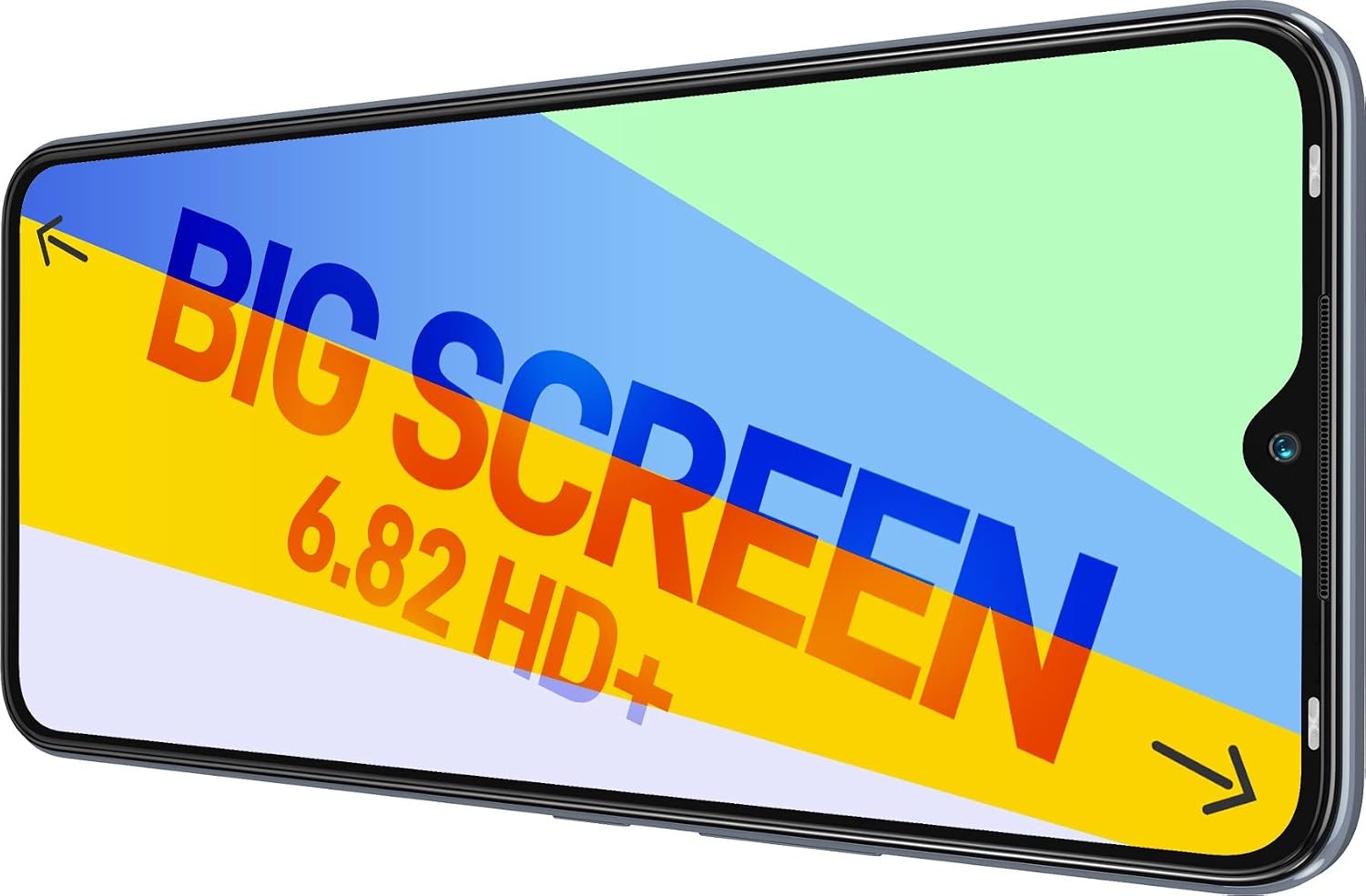
Experience vibrant visuals on the 6.82-inch HD+ display of the Infinix Smart 6 Plus, featuring a narrow bezel and a 20:5:9 aspect ratio for an immersive viewing experience.
Making Calls and Sending Messages
- Calls: Open the 'Phone' app, enter the number or select a contact, then tap the call icon.
- Messages: Open the 'Messages' app, tap 'Start chat', enter the recipient's number or name, type your message, and tap send.
Camera Operation
Capture moments with your phone's cameras:
- Open the 'Camera' app from your home screen or app drawer.
- To switch between the 8MP rear camera and the 5MP front camera, tap the camera switch icon.
- Select your desired mode (Photo, Video, Portrait, etc.).
- Tap the shutter button to take a photo or start/stop recording a video.

The rear of the Infinix Smart 6 Plus features an 8-megapixel AI dual camera system with a depth lens and dual LED flash for enhanced photography.
Security Features
Secure your device with advanced biometric options:
- Fingerprint Sensor: Go to Settings > Security > Fingerprint to register your fingerprints. Once registered, you can unlock your phone by placing your finger on the rear-mounted sensor.
- Face Unlock: Go to Settings > Security > Face Unlock to set up facial recognition. Your phone can then be unlocked by simply looking at the front camera.

The Infinix Smart 6 Plus includes a multi-purpose fingerprint sensor located on the back for secure and quick unlocking, alongside face unlock functionality.
Connectivity
Connect to networks and other devices:
- Wi-Fi: Go to Settings > Network & internet > Wi-Fi. Turn Wi-Fi on and select an available network to connect.
- Bluetooth: Go to Settings > Connected devices > Bluetooth. Turn Bluetooth on to pair with other Bluetooth devices.
- Mobile Data: Ensure your SIM card is active and mobile data is enabled in Quick Settings or Network & internet settings.
Device Care
Battery Management
Your Infinix Smart 6 Plus is equipped with a 5000mAh battery. To maximize battery life:
- Avoid extreme temperatures.
- Reduce screen brightness.
- Close unused apps running in the background.
- Enable Power Marathon technology in battery settings for optimized power saving.

The Infinix Smart 6 Plus is equipped with a large 5000mAh battery, providing extended usage times. The Power Marathon technology further optimizes battery performance.
Software Updates
Regularly check for software updates to ensure optimal performance and security:
- Go to Settings > System > System update.
- Tap 'Check for updates' and follow the on-screen instructions if an update is available.
Cleaning Your Device
Use a soft, lint-free cloth to clean your phone. Avoid using harsh chemicals or abrasive materials that could damage the screen or finish.
Troubleshooting
If you encounter issues with your device, try the following solutions:
- Device not turning on: Ensure the battery is charged. Connect the charger and wait a few minutes before attempting to power on again.
- Screen unresponsive: Restart the device by holding the Power button for about 10-15 seconds until it reboots.
- Poor battery life: Review battery management tips in the 'Device Care' section. Close background apps and reduce screen brightness.
- Network connectivity issues: Check if your SIM card is properly inserted. Toggle Airplane Mode on and off. Restart your phone.
- Apps crashing: Clear the cache and data for the problematic app in Settings > Apps. If the issue persists, uninstall and reinstall the app.
- Device freezing: Perform a force restart by holding the Power button until the device reboots.
If problems persist, contact Infinix customer support or visit an authorized service center.
Technical Specifications
| Feature | Detail |
|---|---|
| Model Name | Smart 6 Plus |
| Model Number | X6823C |
| Operating System | Android 12.0 (Go Edition) |
| Processor | MediaTek Helio G25 Octa-Core, 2.0 GHz |
| RAM | 3 GB (expandable up to 6 GB virtual RAM) |
| Internal Storage | 64 GB |
| Expandable Storage | Up to 512 GB via dedicated SD card slot |
| Display Size | 6.82 inches (17.32 cm) |
| Display Resolution | HD+ (1080 x 2160 pixels) |
| Refresh Rate | 60 Hz |
| Brightness | 440 nits |
| Rear Camera | 8 MP + Depth Lens with Dual LED Flash |
| Front Camera | 5 MP with Dual LED Flash |
| Battery Capacity | 5000 mAh Li-Polymer |
| Security | Rear Fingerprint Sensor, Face Unlock |
| Dimensions (L x W x H) | 17.26 x 7.77 x 0.87 cm |
| Weight | 320 grams |
Warranty Information and Support
Your Infinix Smart 6 Plus is covered by a limited manufacturer's warranty. Please refer to the warranty card included in your package for specific terms and conditions, including the warranty period and coverage details.
For technical support, service inquiries, or to find an authorized service center, please visit the official Infinix website or contact their customer service helpline. Keep your purchase receipt and product serial number handy when seeking support.