
1. Introduction
Welcome to the user manual for your new XTRONS Car Stereo. This guide provides detailed instructions on the installation, operation, and maintenance of your device. Please read this manual thoroughly before using the product to ensure proper functionality and to maximize your driving experience.
2. Applicable Models & Years
This XTRONS Car Stereo is designed for specific Mercedes Benz models and years:
- For Mercedes Benz E-Class W211 (E200 / E220 / E240 / E270 / E280) (2002-2008)
- For Mercedes Benz CLS Class W219 (CLS-350 / CLS-500 / CLS-55) (2005-2006)

Image: Overview of applicable Mercedes Benz models and years for the car stereo.
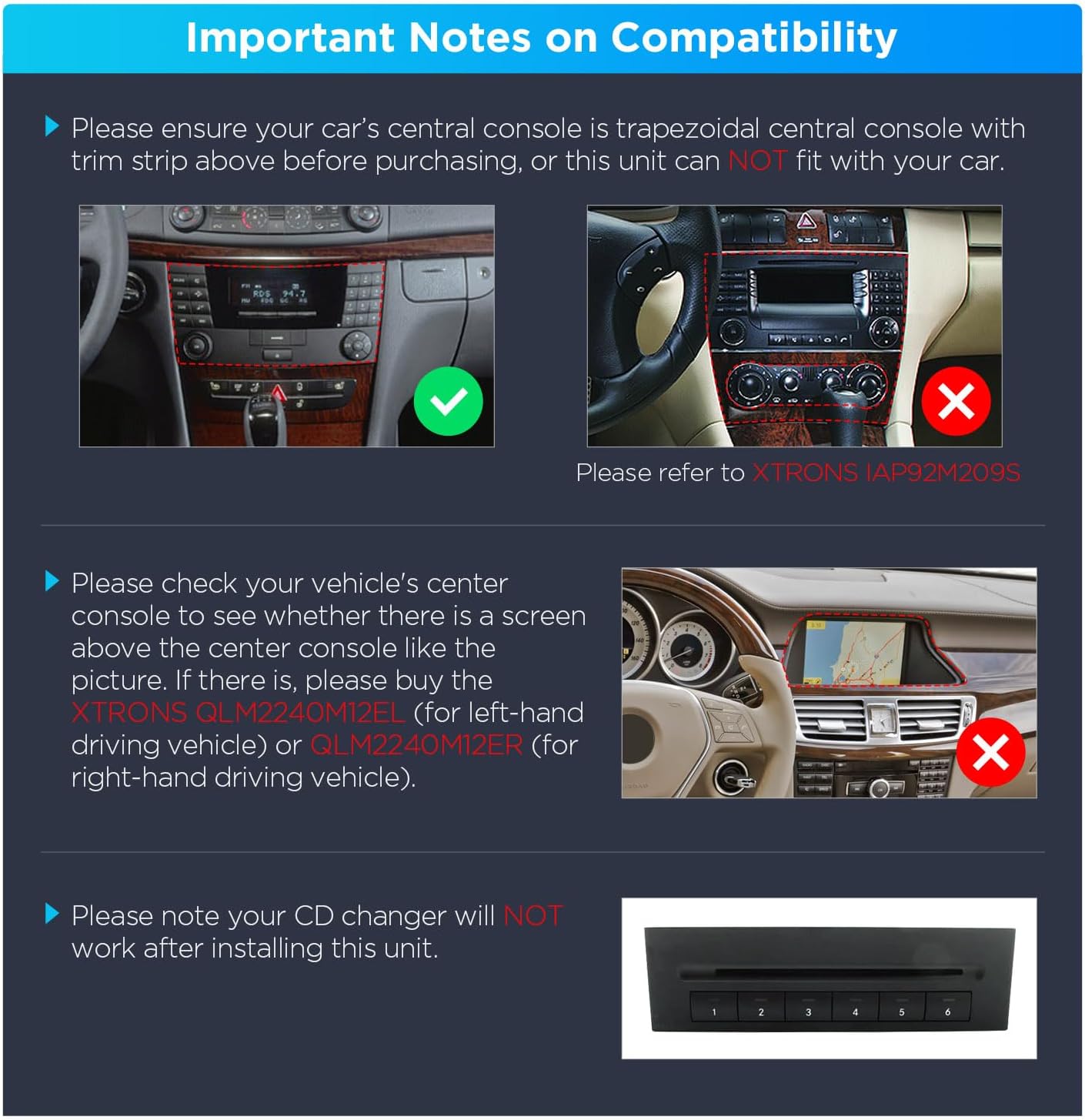
Image: Visual comparison of the car's dashboard before and after the installation of the XTRONS car stereo, highlighting the integrated appearance.
3. Important Notes on Compatibility
Before purchasing and installing, please observe the following critical compatibility notes:
- Ensure your car's central console is a trapezoidal central console with a trim strip above. This unit will NOT fit if your console differs.
- If your vehicle's center console has a screen above it, you may need a different XTRONS unit (e.g., QLM2240M12EL for left-hand drive or QLM2240M12ER for right-hand drive).
- Your original CD changer will NOT work after installing this unit.
- For Mercedes vehicles from 2003-2008 with COMAND APS NTG 1 system, an extra optical decoder box (XTRONS FOBB01) is required to retain your car's original COMAND system.
- For Mercedes vehicles from 2009-2012 with original COMAND APS NTG (MOST Bus Based Systems) 2 or COMAND APS NTG 2.5 system, an extra optical decoder box (XTRONS FOBB03) is required.
- This unit does NOT support your vehicle's air conditioning information display.

Image: Visual guide for checking central console compatibility, showing correct and incorrect console types.
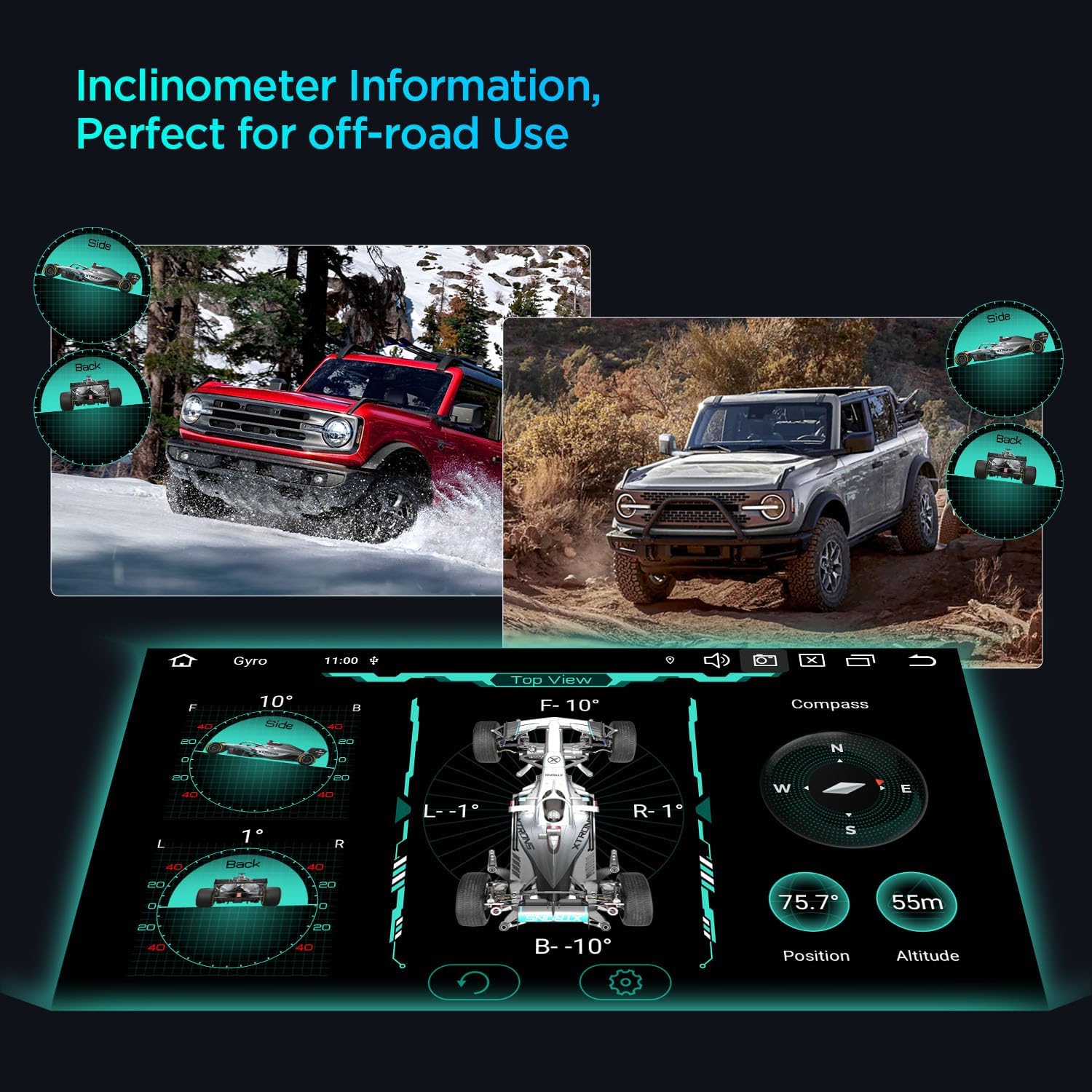
Image: Illustration of various cables and optical decoder boxes that might be necessary for installation, depending on the vehicle's original system.
4. Features Overview
Your XTRONS Car Stereo is equipped with a range of advanced features designed to enhance your in-car entertainment and navigation experience.

Image: Front view of the XTRONS car stereo display, highlighting key specifications like Android 14, Octa-core processor, 4GB RAM, and 64GB ROM.
4.1. Display and Performance
- 7-inch IPS Touch Screen: Features a 1024x600 high-definition display with a 178° viewing angle for clear visuals from any position.
- Android 14 Operating System: Experience a fast and smooth interface with the latest Android OS.
- Octa Core CPU with 4GB RAM & 64GB ROM: Ensures snappy and responsive performance for all applications.
- 2K Video Support: Capable of playing 2K format videos for high-quality entertainment.
- Dual UI Theme: Customize your user interface with two distinct XTRONS UI themes for optimized menus and intuitive icons.
4.2. Connectivity
- Integrated 4G LTE Solution: Insert a Micro-SIM card to access mobile broadband connection anywhere, supporting 99% of worldwide carriers.
- Wireless CarPlay & Wired/Wireless Android Auto: Seamlessly integrate your smartphone for navigation, music, calls, and voice control (Siri/Google Assistant).
- Bluetooth 5.0: Enjoy hands-free calls, access your phone book, and stream music wirelessly.
- Dual Band Wi-Fi (2.4GHz & 5GHz): Provides faster and more flexible internet connection, avoiding interference.
- USB Tethering: Share your mobile network connection with the unit via a USB cable.

Image: Demonstrates the various smartphone connectivity options including Wireless CarPlay, Wired/Wireless Android Auto, and Screen Mirroring.

Image: Highlights the global 4G LTE modem for independent network access and dual-band Wi-Fi for flexible and fast internet connection, along with USB tethering.
4.3. Audio Features
- Built-in DSP (Digital Sound Processor): Enhances audio quality with advanced sound settings, including equalizer and sound field adjustments.
- Radio with RDS: Features a built-in ST TDA7708 radio chip for AM/FM bands with RDS decoding and multipath noise mitigation.
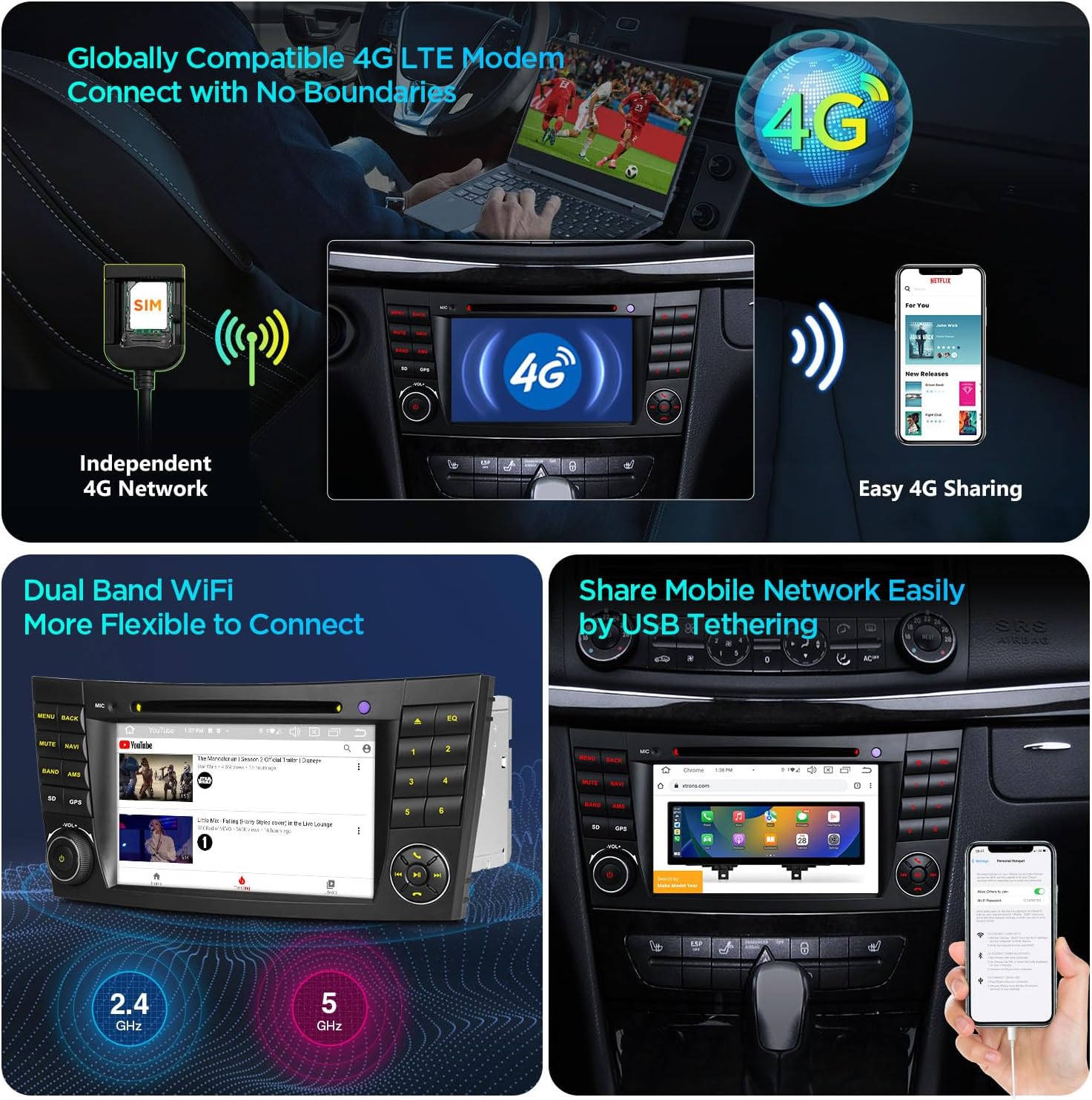
Image: Illustrates the built-in AKM DSP feature, showing an equalizer interface and emphasizing enhanced audio experience.
4.4. Navigation
- GPS Navigation: Supports various Android OS compatible navigation software such as Google Maps, Sygic, and Waze.
4.5. Advanced Functions
- Off-Road Inclinometer: Built-in high-precision gyroscope sensors accurately display current ride height, roll, and pitch angles for off-road use.
- Split Screen: Run two applications simultaneously side-by-side, for example, navigation on one side and music on the other.
- Picture in Picture (PIP): Maintain video playback in a floating window while performing other tasks on the main screen.
- Optimized CANbus Decoding: Ensures original car features like radio, Bluetooth, and ACC control work perfectly after upgrading.

Image: Shows the inclinometer display, providing real-time information on the vehicle's pitch and roll angles, ideal for off-road driving.
5. Setup and Installation
Installation of the XTRONS Car Stereo requires careful attention to detail. It is recommended that installation be performed by a qualified professional. Always disconnect the vehicle's battery before beginning any electrical work.
5.1. Pre-Installation Checklist
- Verify vehicle compatibility (refer to Section 3).
- Ensure all included accessories and necessary optional accessories are present.
- Gather required tools (e.g., trim removal tools, screwdrivers, wire strippers).
5.2. Basic Installation Steps (General Guide)
- Disconnect Battery: Disconnect the negative terminal of your car's battery to prevent electrical shorts.
- Remove Original Unit: Carefully remove the existing car stereo and any surrounding trim panels. Use appropriate trim removal tools to avoid damage.
- Connect Wiring Harnesses: Connect the provided ISO wiring harness to the car's factory harness. Connect the RCA cables, 4G antenna, camera cable, CANbus box, USB cables, GPS antenna, radio adapter cable, and radio antenna adapter as per your vehicle's configuration and the included wiring diagram.
- Install New Unit: Slide the XTRONS unit into the dashboard opening. Secure it using the appropriate mounting brackets and screws.
- Reconnect Battery: Reconnect the negative terminal of the car's battery.
- Test Functionality: Power on the unit and test all functions (radio, navigation, Bluetooth, touch screen, etc.) before fully reassembling the dashboard.
Note: Detailed wiring diagrams and specific installation instructions for your vehicle model may be provided in the included User Manual. Always refer to those for precise steps.
Video: An official XTRONS video demonstrating the features and appearance of the IA72M211 car stereo, including its boot-up sequence, user interface, and various functionalities. This video provides a visual overview of the product in operation.
6. Operating Instructions
This section covers the basic operation of your XTRONS Car Stereo.
6.1. Power On/Off
- Power On: The unit will typically power on automatically when the vehicle's ignition is turned on.
- Power Off: The unit will power off automatically when the vehicle's ignition is turned off. A long press on the volume knob may also manually turn off the display.
6.2. Basic UI Navigation
- Touchscreen: Navigate through menus and select options by tapping the icons on the 7-inch IPS touchscreen.
- Physical Buttons: Use the dedicated buttons on the unit for quick access to functions like MENU, BACK, MUTE, NAVI, BAND, AMS, SD, GPS, VOL+/-, and EQ.
- Volume Control: Adjust the volume using the rotary knob on the left side of the unit.
6.3. Smartphone Integration (CarPlay & Android Auto)
- Wireless CarPlay: Connect your iPhone wirelessly via Bluetooth to access compatible apps, navigation, and voice commands (Siri).
- Wired/Wireless Android Auto: Connect your Android phone wirelessly via Bluetooth or via USB cable to use Android Auto for navigation, music, and Google Assistant.
6.4. GPS Navigation
- Access the Navigation application from the main menu.
- Select your preferred navigation software (e.g., Google Maps, Sygic, Waze) and follow its on-screen instructions for route planning and guidance.
6.5. Radio Operation
- Select the 'Radio' icon from the main menu.
- Tune to your desired AM/FM station manually or use the auto-scan function.
- Utilize RDS features for station information and traffic announcements where available.
6.6. Media Playback
- DVD Player: Insert a DVD or CD into the disc slot for playback. The multi-region DVD player supports most available DVD and CD formats.
- USB Playback: Connect USB devices to the USB ports to play audio and video files.
- Bluetooth Music: Stream music from your smartphone via Bluetooth.
6.7. DSP Settings
- Access the 'DSP' icon from the main menu to adjust audio settings.
- Customize equalizer presets, balance, fader, and subwoofer settings to optimize your sound experience.
7. Maintenance
Regular maintenance helps ensure the longevity and optimal performance of your car stereo.
- Screen Cleaning: Use a soft, lint-free cloth to gently wipe the touchscreen. For stubborn smudges, slightly dampen the cloth with water or a screen-safe cleaner. Avoid abrasive materials or harsh chemicals.
- Software Updates: Periodically check the XTRONS website or the unit's settings for available software updates. Keeping the software updated can improve performance, add new features, and fix bugs.
- General Care: Avoid exposing the unit to extreme temperatures, direct sunlight for prolonged periods, or excessive moisture. Ensure proper ventilation around the unit.
8. Troubleshooting
If you encounter issues with your XTRONS Car Stereo, refer to the following common problems and solutions:
| Problem | Possible Cause | Solution |
|---|---|---|
| Unit does not power on. | Loose power connection, blown fuse, vehicle battery issue. | Check power wiring, inspect vehicle fuses, ensure car battery is charged. |
| No sound. | Incorrect wiring, optical decoder box not installed (if required), volume too low, mute enabled. | Verify speaker wiring, ensure optical decoder box is correctly installed for compatible vehicles, increase volume, check mute status. |
| GPS not working or inaccurate. | GPS antenna not connected or poorly positioned, outdated map data. | Ensure GPS antenna is securely connected and placed in an unobstructed location (e.g., dashboard), update map software. |
| Bluetooth connection issues. | Device not in pairing mode, incorrect pairing code, interference. | Ensure Bluetooth is enabled on both devices, put phone in pairing mode, re-pair devices, try restarting both devices. |
| Touchscreen unresponsive. | Software glitch, screen damage. | Restart the unit. If the problem persists, contact XTRONS support. |
For more complex issues, please refer to the detailed troubleshooting section in the full User Manual or contact XTRONS customer support.
9. Specifications
| Feature | Specification |
|---|---|
| Model | IA72M211 (B0B8HH95G3) |
| Operating System | Android 14 |
| CPU | Octa Core, Cortex-A75 up to 2.0GHz |
| RAM | 4GB DDR4 |
| ROM | 64GB SSD |
| Screen Size | 7 Inches (1024*600 resolution) |
| Display Type | IPS Panel |
| Bluetooth | Bluetooth 5.0 |
| Wi-Fi | Dual Band (2.4GHz & 5GHz) |
| 4G Connectivity | Integrated (Micro-SIM slot), supports 99% of carriers worldwide |
| DSP | Built-in DSP |
| Radio Chip | ST TDA7708 (AM/FM with RDS) |
| DVD Player | Built-in multi-region DVD/CD player |
| CarPlay/Android Auto | Built-in Wireless CarAutoPlay; Built-in Wired Android Auto |
| Additional Features | Off-Road Inclinometer, Split Screen, Picture in Picture (PIP), USB Tethering |
10. What's in the Box (Included Accessories)
The following items are included with your XTRONS Car Stereo:
- 2 × ISO Wiring Harness
- 1 × RCA Cable
- 1 × 4G Antenna
- 1 × Camera Cable
- 1 × CANbus Box
- 2 × USB Cable
- 1 × GPS Antenna
- 1 × Radio Adapter Cable
- 1 × Radio Antenna Adapter
- 1 × CANbus Cable
- 1 × CANbus Extension Cable
- 1 × User Manual

Image: A visual representation of all standard accessories included in the product package, such as wiring harnesses, cables, and antennas.
11. Optional Accessories
Enhance the functionality of your XTRONS Car Stereo with these optional accessories (sold separately):
- OBD Function: OBD2 dongles (e.g., ASIN: B015MU8UN6 / B08HQ9LQ9X) for real-time data and trouble codes.
- TPMS Function: Tire Pressure Monitoring System (TPMS) sensors (e.g., ASIN: B07WQFKV5G / B07DKB4GD2) for tire safety.
- Front / Reversing Camera: Cameras (e.g., ASIN: B07HMLYLJJ / B00GY3BVT6) for improved visibility and parking assistance.
- External DVR: Digital Video Recorder (DVR) (e.g., ASIN: B07MBYCG4C / B08MF1ZRJ3) for recording driving footage.
- DAB+ Tuner: USB DAB radio receiver stick for digital audio broadcasting.

Image: A grid displaying various optional accessories that can be purchased separately to expand the car stereo's capabilities, such as DAB radio, 3G/4G dongles, OBD tools, microphones, DVRs, cameras, keyboards, TPMS, and video output devices.
12. Warranty and Support
XTRONS products are designed for quality and reliability. For information regarding product warranty, please refer to the warranty card included in your product packaging or visit the official XTRONS website. For technical support, troubleshooting assistance, or inquiries about optional accessories, please contact XTRONS customer service through their official channels.
You can find more information and support on the XTRONS Brand Store.


