1. Introduction
This manual provides detailed instructions for the installation, setup, and operation of your Ubit AC1200A PCIe WiFi Card. This dual-band wireless adapter is designed to provide high-speed internet connectivity for desktop computers, supporting up to 1200 Mbit/s across 2.4GHz and 5GHz bands. It features an Intel Dual-Band Wireless-AC 7265 chipset for reliable performance.
2. Safety Information
- Always disconnect your computer from the power source before installing or removing any internal components.
- Wear an anti-static wrist strap or frequently touch a grounded metal object to discharge static electricity, which can damage electronic components.
- Handle the PCIe card by its edges to avoid touching the gold connectors or components.
- Keep the card away from moisture and extreme temperatures.
- Ensure proper ventilation inside your PC case to prevent overheating.
3. Package Contents
Verify that all items are present in your package:
- 1 x Ubit AC1200A Wireless Dual-Band Network WiFi Card
- 2 x 6dBi Antennas
- 1 x Low Profile Bracket (for mini PCs)
- 1 x Screwdriver
- 2 x Screws
- 1 x Driver CD
- 1 x User Manual
- 1 x Bluetooth Connection Cable

Image: Contents of the Ubit AC1200A PCIe WiFi Card package, including the card, antennas, bracket, screwdriver, screws, driver CD, and manual.
4. Specifications
| Brand | Ubit |
| Model Number | AC1200A |
| Hardware Interface | PCI Express (PCIe x1, x2, x8, or x16 slots) |
| Data Transfer Rate | Up to 1200 Mbps (900 Mbps at 5GHz, 300 Mbps at 2.4GHz) |
| Data Link Protocol | Wi-Fi (802.11ac), Bluetooth |
| Chipset | Intel Dual-Band Wireless-AC 7265 |
| Compatible Devices | Desktop PCs |
| Product Dimensions | 3.15 x 0.71 x 4.49 inches |
| Item Weight | 3.52 ounces |

Image: The Ubit AC1200A PCIe WiFi Card featuring dual-band support, high-gain antennas, and WPA3 security, powered by Intel and compatible with AMD Ryzen processors.

Image: Close-up of the Ubit AC1200A PCIe WiFi Card highlighting the Intel chipset and compatibility with Windows 7, 8, 8.1, 10 (32-bit and 64-bit), and Linux operating systems.
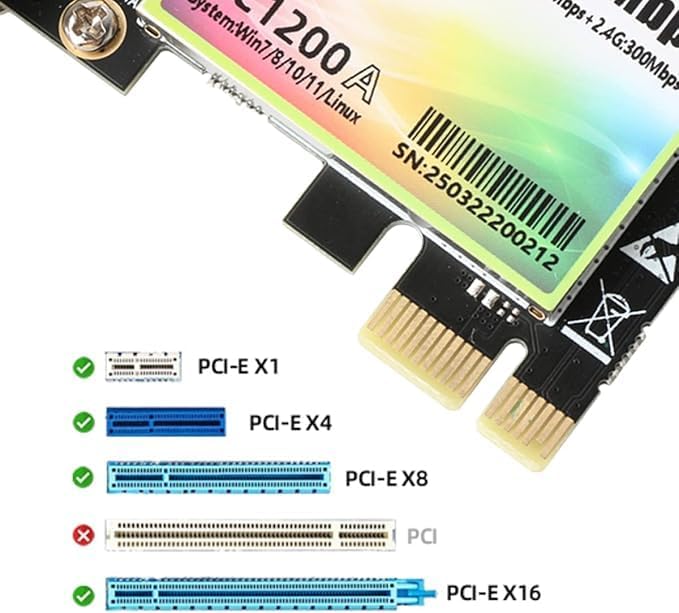
Image: Diagram illustrating compatibility of the Ubit AC1200A PCIe WiFi Card with various PCI-E slots: x1, x4, x8, and x16. It is not compatible with standard PCI slots.
5. Installation
5.1 Hardware Installation
- Prepare Your PC: Power off your computer and disconnect the power cable. Open the PC case to access the motherboard.
- Locate a PCIe Slot: Identify an available PCI Express slot (x1, x2, x8, or x16). Refer to your motherboard manual if unsure.
- Install the WiFi Card: Gently insert the Ubit AC1200A WiFi card into the chosen PCIe slot, ensuring it is fully seated. Apply even pressure until it clicks into place.
- Connect Bluetooth Cable: Connect the small end of the provided Bluetooth cable to the dedicated port on the WiFi card. Connect the other end of the Bluetooth cable to an available 9-pin USB 2.0 header on your motherboard. This connection is essential for Bluetooth functionality.
- Secure the Card: Use the provided screw to secure the WiFi card to the PC case bracket. If you have a small form factor PC, you may need to replace the standard bracket with the included low-profile bracket.
- Attach Antennas: Screw the two 6dBi antennas onto the connectors on the back of the WiFi card. Adjust their orientation for optimal signal reception.
- Close PC Case: Close your PC case and reconnect the power cable.
Video: A detailed guide on installing the Ubit WiFi card, including inserting it into a PCIe slot, connecting the Bluetooth cable to the motherboard, and securing the card. This video also covers driver installation and connecting to WLAN and Bluetooth devices.
5.2 Driver Installation
After hardware installation, you need to install the necessary drivers for the WiFi and Bluetooth functions.
- Insert Driver CD: Place the provided mini driver CD into your computer's CD/DVD drive.
- Access Drivers: Open 'This PC' or 'My Computer', then navigate to your CD/DVD drive.
- Install WiFi Driver: Locate and run the WiFi driver setup file (e.g., 'WiFi_21.0.0_Driver64_Win10.exe' for 64-bit Windows 10). Follow the on-screen prompts to complete the installation.
- Install Bluetooth Driver: Locate and run the Bluetooth driver setup file (e.g., 'BT_21.0.0_64_Win10.exe' for 64-bit Windows 10). Follow the on-screen prompts to complete the installation.
- Restart PC: Restart your computer after both drivers are installed to ensure changes take effect.
- Verify Installation: After restarting, open Device Manager (Right-click 'This PC' > 'Manage' > 'Device Manager'). Check under 'Network adapters' for your Ubit WiFi card and under 'Bluetooth' for the Bluetooth adapter. If they appear without yellow exclamation marks, the drivers are correctly installed.
6. Operation
6.1 Connecting to a Wireless Network
- Access Network Settings: Click the Wi-Fi icon in the system tray (usually bottom-right corner of the screen).
- Select Network: A list of available wireless networks will appear. Select your desired network (e.g., 'Ubit' or your home network name).
- Connect: Click 'Connect'. If prompted, enter the network security key (Wi-Fi password).
- Confirm Connection: Once connected, the Wi-Fi icon will show a strong signal, indicating successful connection.

Image: Illustrates the Ubit AC1200A PCIe WiFi Card providing high-speed connectivity for activities like 4K streaming and gaming on the 5GHz band (867 Mbps) and general internet use on the 2.4GHz band (300 Mbps).
6.2 Connecting Bluetooth Devices
- Enable Bluetooth: Ensure Bluetooth is enabled on your computer. You can usually find this in Windows Settings > Devices > Bluetooth & other devices.
- Pair Device: Put your Bluetooth device (e.g., headphones, mouse) into pairing mode.
- Add Device: On your PC, click 'Add Bluetooth or other device' and select 'Bluetooth'. Your PC will search for nearby devices.
- Select and Connect: Select your Bluetooth device from the list and follow any on-screen instructions to complete the pairing process.
7. Troubleshooting
- Card Not Detected:
Solution: Ensure the card is fully seated in the PCIe slot. Check that the PCIe slot is functional by testing with another card if possible. Verify that the card is properly secured with a screw. - No Wi-Fi Connection:
Solution: Check if the WiFi drivers are correctly installed in Device Manager. Reinstall drivers from the provided CD or the manufacturer's website. Ensure antennas are securely attached. Try connecting to a different Wi-Fi network to rule out router issues. - Slow Wi-Fi Speeds:
Solution: Ensure you are connected to the 5GHz band for higher speeds if your router supports it. Check for interference from other electronic devices. Update your router's firmware. Position antennas for optimal signal. - Bluetooth Not Working:
Solution: Verify that the Bluetooth cable is securely connected to both the WiFi card and a 9-pin USB 2.0 header on the motherboard. Check if Bluetooth drivers are installed and enabled in Device Manager. Ensure your Bluetooth device is in pairing mode. - Intermittent Connection:
Solution: This could be due to signal interference or outdated drivers. Try updating drivers. Ensure your PC is not too far from the router or that there are no major obstructions.
8. Warranty and Support
Ubit products typically come with a manufacturer's warranty. For specific warranty details, please refer to the documentation included with your product or visit the official Ubit website. If you encounter any issues that cannot be resolved using this manual, please contact Ubit customer support through their official channels for assistance.
For further support and driver updates, visit the Ubit Store on Amazon.