Introduction
This manual provides essential information for setting up, operating, maintaining, and troubleshooting your Lenovo ThinkCentre M83 Small Form Factor (SFF) desktop computer. Please read these instructions carefully to ensure proper use and longevity of your device.

Image: The Lenovo ThinkCentre M83 Small Form Factor desktop computer, showcasing its compact design and typical office setup.
Setup
Follow these steps to set up your ThinkCentre M83 desktop computer.
1. Unpacking and Contents Verification
Carefully remove all components from the packaging. Verify that all items listed below are present:
- Lenovo ThinkCentre M83 SFF Desktop
- Power Supply
- Wireless Keyboard
- Wireless Mouse
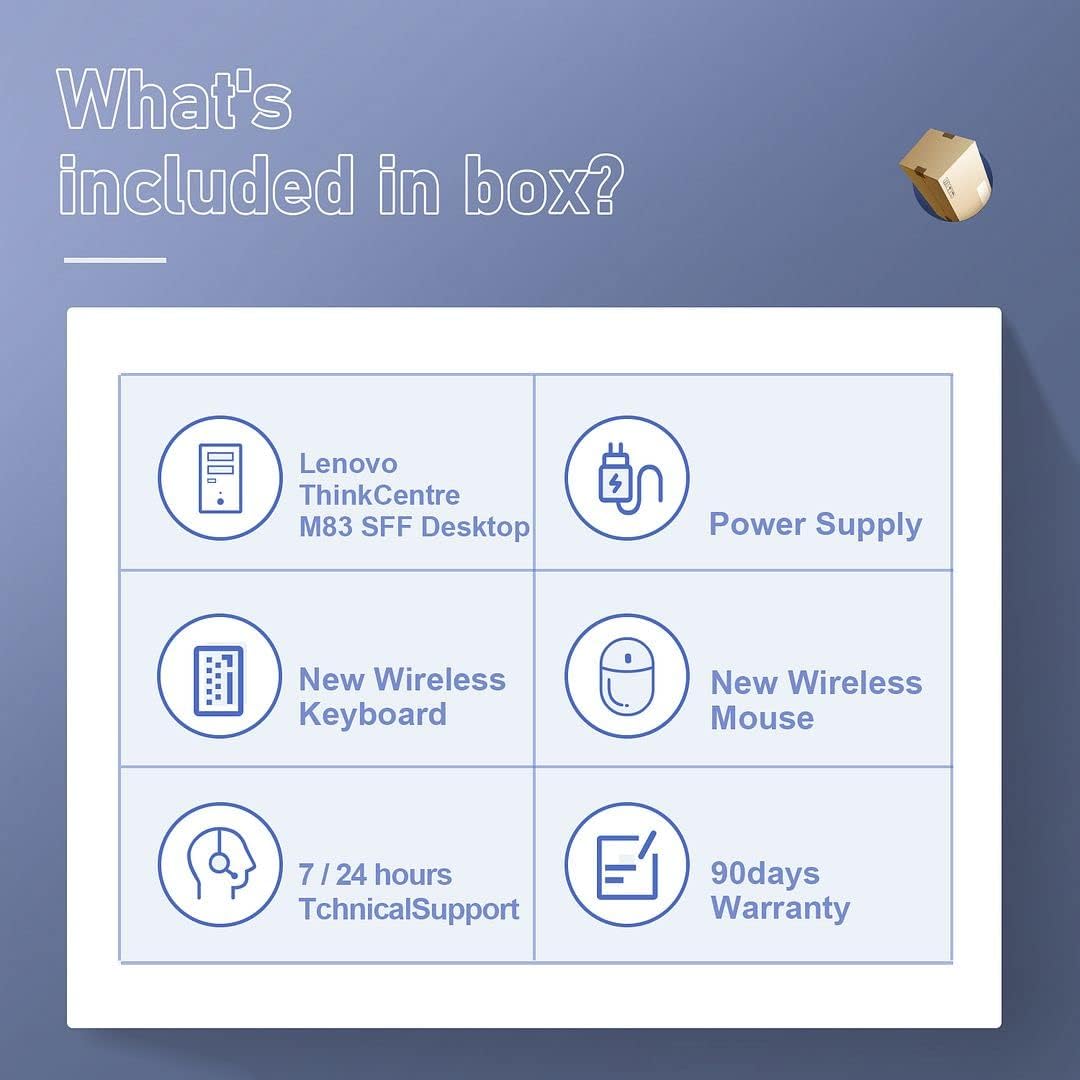
Image: A visual representation of the items included in the product box, such as the desktop unit, power supply, wireless keyboard, and wireless mouse.
2. Connecting Peripherals
- Connect Monitor(s): Use a VGA cable or DisplayPort (DP) cables to connect your monitor(s) to the corresponding ports on the back of the desktop. This system supports up to three independent displays.
- Connect Keyboard and Mouse: Insert the USB receiver for the wireless keyboard and mouse into an available USB port on the desktop.
- Connect Power: Plug the power cable into the power supply unit, then connect the power supply to the desktop and a wall outlet.
- Optional Connections: Connect any other peripherals such as speakers, printers, or external drives to the available USB or audio ports.
3. Initial Power On
Press the power button located on the front of the desktop. The system will boot up, and the Windows 10 Pro operating system will begin its initial setup process. Follow the on-screen prompts to complete the Windows setup, including language, region, and user account creation.
Operating Instructions
This section provides guidance on basic operation and features of your ThinkCentre M83.
Power On/Off
- To Power On: Press the power button on the front panel.
- To Shut Down: Click the Start button in Windows, then select Power > Shut down.
- To Restart: Click the Start button in Windows, then select Power > Restart.
Multi-Monitor Display
The ThinkCentre M83 supports connecting up to three monitors simultaneously using its VGA and two DisplayPort outputs. This allows for an extended desktop environment, enhancing productivity for various tasks.

Image: A desktop setup demonstrating the Lenovo ThinkCentre M83 connected to three monitors, illustrating its multi-display capability for office and entertainment use.
Optical Drive Usage
The integrated DVD-ROM drive allows you to read data from CDs and DVDs. To open the tray, press the eject button on the drive's front panel. Insert the disc with the label side facing up and gently push the tray back in.
Wi-Fi Connectivity
Your desktop is equipped with AC Wi-Fi 5 for wireless network connectivity. To connect to a Wi-Fi network:
- Click the Wi-Fi icon in the system tray (bottom right of the screen).
- Select your desired network from the list.
- Enter the network security key if prompted.
Performance and Applications
The Intel i7-4790 processor with 4 cores and 8 threads, combined with 16GB of RAM, provides efficient performance for various applications, including office work, design tasks, home entertainment, and online gaming.

Image: A collage illustrating the Lenovo ThinkCentre M83's capability to handle multiple applications, including education, office tasks, video playback, and gaming.

Image: A diagram highlighting the specifications of the Intel i7-4790 processor, including its 4 cores, 8 threads, 8MB cache, 3.60GHz base frequency, and 4.0GHz max turbo frequency.
Maintenance
Regular maintenance helps ensure the optimal performance and longevity of your desktop.
Cleaning
- Exterior: Use a soft, damp cloth to clean the exterior surfaces. Avoid abrasive cleaners.
- Vents: Periodically clean dust from the ventilation grilles using compressed air to prevent overheating.
Tool-Less Expandability and Upgrades
The ThinkCentre M83 is designed for easy internal access, allowing for tool-less upgrades and maintenance. You can add up to three hard drives and one slim ODD (Optical Disc Drive). The system also supports dual graphic card configurations.

Image: An internal view of the Lenovo ThinkCentre M83 desktop, highlighting areas for tool-less expandability, including support for an optional second 2.5-inch HDD and dual graphic card support.
Troubleshooting
This section addresses common issues you might encounter.
No Power
- Ensure the power cable is securely connected to the desktop and the wall outlet.
- Verify the wall outlet is functional by plugging in another device.
No Display on Monitor
- Check that the monitor is powered on and the video cable (VGA or DisplayPort) is securely connected to both the desktop and the monitor.
- Ensure the correct input source is selected on your monitor.
Slow Performance
- Close unnecessary applications running in the background.
- Ensure your operating system and drivers are up to date.
- Check for malware or viruses using reputable antivirus software.
- Verify that the system has adequate ventilation and is not overheating.

Image: The Lenovo ThinkCentre M83 desktop in an office setting, with visual indicators for energy efficiency, low noise operation, and low heat generation, contributing to stable performance.
Specifications
Detailed technical specifications for the Lenovo ThinkCentre M83 desktop computer.
| Component | Specification |
|---|---|
| Processor | Intel Core i7-4790 (3.6 GHz, up to 4.0 GHz Turbo, 8 MB Smart Cache, 4 Cores, 8 Threads) |
| RAM | 16 GB DDR3 SDRAM |
| Storage | 256 GB Solid State Drive (SSD) |
| Graphics | Intel HD Graphics 4600 (Dedicated) |
| Operating System | Windows 10 Pro (64-bit) |
| Optical Drive | DVD-ROM |
| Video Ports | 1x VGA, 2x DisplayPort (DP) |
| Wireless Connectivity | AC Wi-Fi 5 |
| Dimensions (LxWxH) | 13.31 x 14.76 x 4.02 inches |
| Weight | 17.26 pounds |
| Hardware Platform | PC |

Image: A diagram illustrating the compact dimensions of the Lenovo ThinkCentre M83 Small Form Factor desktop, showing its height (13.1"), depth (14.76"), and width (4.02"), emphasizing its space-saving design and support for horizontal or vertical orientations.
Warranty and Support
Your Lenovo ThinkCentre M83 desktop computer comes with the following:
- Warranty: A 90-day warranty covers defects in materials and workmanship.
- Technical Support: 7/24 hours technical support is available to assist with any operational or technical issues.
For warranty claims or technical assistance, please refer to the contact information provided by your reseller or the Amazon Renewed program.