
Easyfone A1 Pro
Easyfone Prime-A1 Pro 4G Flip Cell Phone User Manual
Model: A1 Pro
1. Introduction
The Easyfone Prime-A1 Pro is a 4G flip cell phone designed for ease of use, particularly suitable for seniors. It features large buttons, clear sound, and an intuitive operating system. This manual provides comprehensive instructions for setting up, operating, maintaining, and troubleshooting your device.

Image: The Easyfone Prime-A1 Pro 4G Flip Cell Phone in its closed, compact state, showcasing its sleek black design.
What's in the Box

Image: A visual representation of all items included in the Easyfone Prime-A1 Pro package: the A1 Pro flip phone, user manual, 1500mAh battery, USB cable, SIM card, charging dock, charger, and lanyard.
Your Easyfone Prime-A1 Pro package includes:
- Easyfone Prime-A1 Pro Flip Phone
- User Manual
- 1500mAh Battery
- USB Cable
- Charging Dock
- Wall Charger
- SpeedTalk SIM Card
2. Setup
2.1. SIM Card and Battery Installation
Before using your phone, you need to install the SIM card and battery. It is recommended to activate your SpeedTalk SIM card before inserting it into the phone.
- Carefully remove the back cover of the phone.
- Insert the SpeedTalk SIM card into the designated SIM slot. Ensure the gold contacts face downwards and the card is correctly oriented.
- Insert the 1500mAh battery into its compartment, aligning the contacts.
- Replace the back cover until it clicks securely into place.
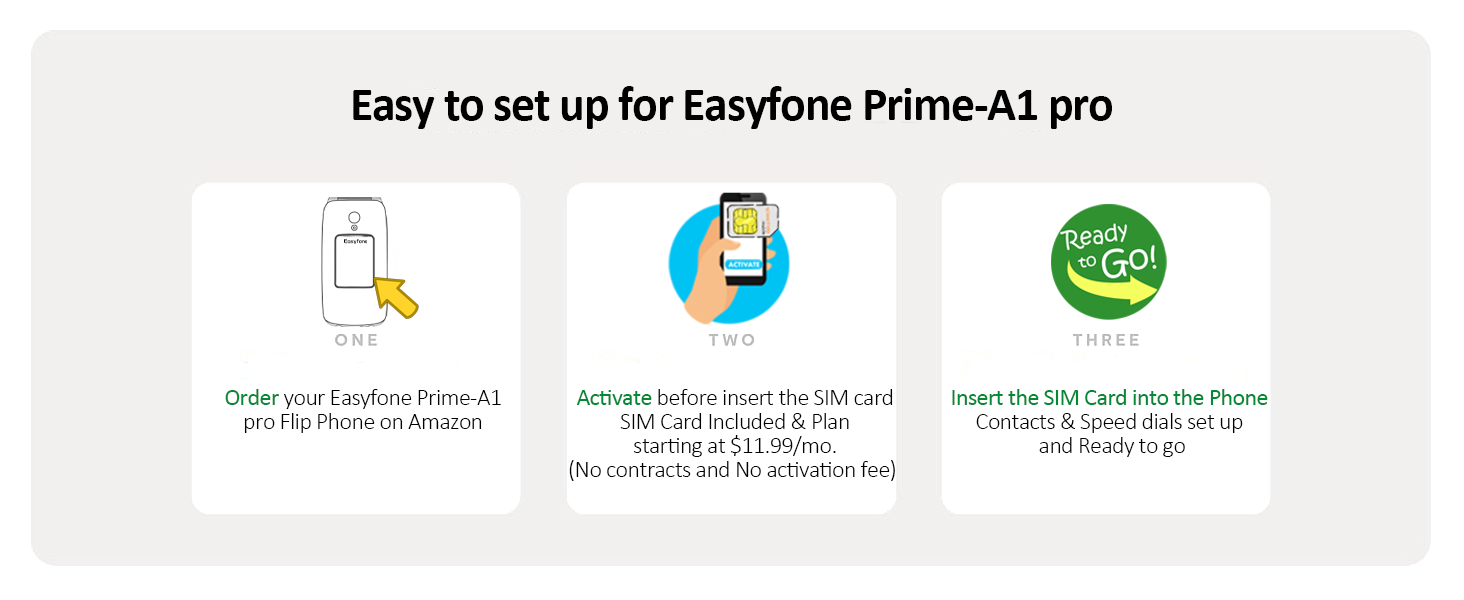
Image: A three-step guide illustrating the setup process: 1. Order the phone, 2. Activate the SIM card, 3. Insert the SIM card into the phone.
2.2. Charging the Phone
Your Easyfone Prime-A1 Pro can be charged using the included charging dock or directly via the USB cable.
- Using the Charging Dock: Place the phone into the charging dock, ensuring it is properly seated. The charging indicator on the phone's screen will show that it is charging.
- Using the USB Cable: Connect the USB cable to the phone's charging port and the other end to the wall charger. Plug the wall charger into a power outlet.

Image: The Easyfone Prime-A1 Pro flip phone securely placed in its charging dock, indicating convenient charging.

Image: Two charging methods for the Easyfone Prime-A1 Pro: direct USB cable charging and charging via the included dock, both connected to a wall outlet.
A full charge typically takes a few hours. The phone has a 1500mAh battery capacity, offering extended standby time.
2.3. Powering On/Off
To power on the phone, press and hold the red End Call/Power button until the screen lights up. To power off, press and hold the same button and follow the on-screen prompts.
3. Operating Instructions
The Easyfone Prime-A1 Pro features a user-friendly interface with large buttons and clear displays.

Image: The Easyfone Prime-A1 Pro in its open position, highlighting the large, easy-to-press physical buttons and the clear internal display.

Image: A close-up view of the Easyfone Prime-A1 Pro's silicone keyboard, emphasizing the large, clearly labeled buttons for easy dialing and navigation.

Image: The Easyfone Prime-A1 Pro showcasing its 2.4-inch HD main display and 1.44-inch external display, both designed for easy readability with large fonts.

Image: The Easyfone Prime-A1 Pro displaying its dual screens, highlighting the 1.44-inch external display and the 2.4-inch internal HD LCD, both showing clear icons and text.
3.1. Making and Receiving Calls
- Making a Call: Dial the number using the keypad and press the green Call button.
- Receiving a Call: Simply flip open the phone to answer an incoming call. Alternatively, press the green Call button.
- Ending a Call: Press the red End Call button or close the flip.

Image: The Easyfone Prime-A1 Pro open, displaying an incoming call with a contact photo, and options to answer or silence the call.
3.2. Photo Speed Dial
The Photo Speed Dial feature allows you to quickly call frequently contacted numbers by pressing a dedicated button associated with a contact's photo.
- Access the Photo Speed Dial menu.
- Assign contacts to specific speed dial numbers, including their photo.
- To call, simply press the assigned speed dial button.
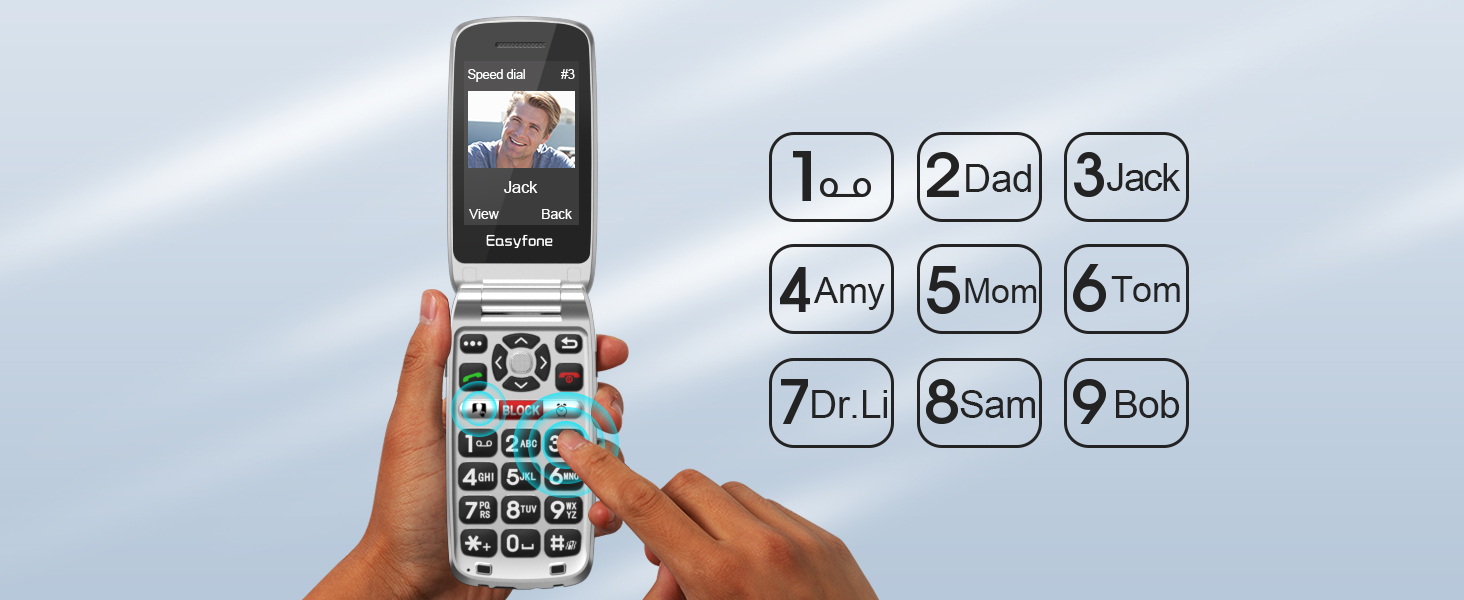
Image: A user interacting with the Easyfone Prime-A1 Pro, demonstrating the photo speed dial feature with assigned contacts and their corresponding numbers.
3.3. SOS Emergency Button
The SOS button is a critical safety feature. When activated, it automatically dials pre-set emergency contacts until an answer is received.
- To set up SOS contacts, navigate to the SOS settings in the phone's menu.
- Add up to 5 emergency contacts.
- In an emergency, press and hold the SOS button on the back of the phone. The phone will cycle through the emergency contacts until one answers.

Image: An illustration of the Easyfone Prime-A1 Pro's SOS emergency button, showing how it connects to pre-set contacts globally via calls, messages, and location sharing.
3.4. Volume and Sound
The phone is designed with clear and loud sound for users with hearing difficulties. Adjust the volume using the dedicated volume buttons on the side of the phone.

Image: The Easyfone Prime-A1 Pro highlighting its loud and clear receiver and powerful loudspeaker, designed for users who are hard of hearing.

Image: The Easyfone Prime-A1 Pro demonstrating its loud receiver and powerful loudspeaker, ensuring clear audio for calls.
3.5. Block Button
The Easyfone Prime-A1 Pro features a dedicated Block button to quickly add unwanted numbers to your blacklist. This is useful for managing spam calls.
- During an incoming call from an unwanted number, press the BLOCK button.
- To view or edit your blacklist, long-press the BLOCK button.
3.6. FM Radio
The phone includes an FM Radio function. Please note that the FM Radio does not support Bluetooth headset listening. You will need to use wired headphones or the phone's loudspeaker to listen to the radio.
4. Maintenance
4.1. Battery Care
- Charge the battery regularly, avoiding complete discharge.
- Use only the original charger and charging dock provided with the phone.
- Avoid exposing the battery to extreme temperatures.
4.2. Cleaning the Device
Wipe the phone with a soft, dry cloth. Do not use liquid cleaners or abrasive materials.
4.3. General Handling
- Protect the phone from drops and impacts.
- Keep the phone away from water and moisture.
- Store the phone in a cool, dry place when not in use.
5. Troubleshooting
If you encounter issues with your Easyfone Prime-A1 Pro, refer to the following common problems and solutions:
| Problem | Possible Cause | Solution |
|---|---|---|
| Phone does not power on. | Low battery; battery not installed correctly. | Charge the phone for at least 30 minutes. Ensure the battery is properly inserted. |
| Cannot make or receive calls. | No network signal; SIM card not activated or improperly inserted. | Check network signal strength. Ensure SIM card is activated and correctly inserted. Reboot the phone. Contact your service provider (SpeedTalk recommended). |
| Poor call quality or dropped calls. | Weak signal; network congestion. | Move to an area with better signal. Reboot the phone. |
| Bluetooth not connecting to FM Radio. | Feature not supported by design. | This phone's FM Radio function does not support Bluetooth headsets. Use wired headphones or the phone's loudspeaker. |
| Battery drains quickly. | Frequent usage; background processes; aging battery. | Reduce screen brightness. Close unused applications. If the issue persists, consider replacing the battery. |
For issues not listed here, please refer to the contact information in the Support section.
6. Specifications
| Feature | Detail |
|---|---|
| Model Name | A1 Pro |
| Brand | Easyfone |
| Operating System | Easyfone OS |
| Screen Size | 2.4 Inches (Main), 1.44 Inches (External) |
| Resolution | 320 x 240 |
| Battery Capacity | 1500 Milliamp Hours (mAh) |
| Phone Talk Time | 6 Hours |
| Memory Storage Capacity | 16 GB |
| Connectivity Technology | Bluetooth, Cellular (4G) |
| Special Features | Photo Speed Dial, Big button & Big Font & High Volume, Charging station, SOS Emergency Button, Dedicated Block Button |
| Item Weight | 4 ounces |
| Package Dimensions | 5.31 x 4.72 x 3.03 inches |
| Manufacturer | Shen Zhen Yixun Electronic Technology Co., Ltd |
| Date First Available | July 29, 2022 |
| IMEI | 862677050902305 |

Image: The product packaging for the Easyfone Prime-A1 Pro, displaying key product information including model, manufacturer, and IMEI number.
7. Warranty and Support
For warranty information and technical support, please contact Easyfone customer service. Refer to the contact details provided in your product packaging or visit the official Easyfone website.
Manufacturer: Shen Zhen Yixun Electronic Technology Co., Ltd
For additional support, you may visit the Easyfone Store on Amazon.
Related documentsA1 Pro


Ask a question about this manual
Ask about setup, troubleshooting, compatibility, parts, safety, or missing instructions. Manuals+ will review the question and use this page’s manual context to help answer it.