Introduction
This user manual provides detailed instructions for the Camiysn Typewriter Style Mechanical Gaming Keyboard. Please read this manual thoroughly before using the product to ensure proper operation and to maximize your experience. Keep this manual for future reference.
Product Features
- Clicky Blue Switches: Offers medium resistance, audible click sound, and tactile feedback for a satisfying typing experience.
- Multiple Blue Backlight Modes: Customize your keyboard's lighting with various blue light modes.
- Plug and Play Connectivity: Simple USB connection for immediate use with Win 2000/ 7/ 8/ 10/ XP, Vista, Linux, Mac, etc.
- Durable Design: Features two-color injection molded round keycaps for enhanced durability and a unique retro aesthetic.
- Versatile Use: Equipped with 26 anti-ghosting keys and adjustable rear feet, suitable for both office work and gaming.

Image: The Camiysn Typewriter Style Mechanical Gaming Keyboard in white with blue backlighting, showcasing its full layout and retro round keycaps.
Package Contents
Please ensure all items are present in the package:
- Camiysn Typewriter Style Mechanical Gaming Keyboard
- USB Cable

Image: An overview of the keyboard and its key features, including multiple backlighting options, hot-swappable switches, 26-key punchless design, 12 multimedia buttons, ergonomic design, and wired connection.
Setup
- Connect the Keyboard: Locate an available USB port on your computer (desktop, laptop, or gaming console).
- Plug and Play: Insert the USB cable from the keyboard into the USB port. The keyboard is designed for plug-and-play functionality and should be recognized automatically by your operating system (Windows, Mac, Linux, etc.) without requiring additional drivers.
- Initial Light Check: The keyboard's blue backlighting should illuminate upon successful connection.
Operating Instructions
Backlight Control
The keyboard features multiple blue backlight modes and adjustable brightness/speed:
- Change Light Mode: Press Fn + Ins to cycle through different blue light modes.
- Adjust Brightness: Press Fn + ↑ (Up Arrow) to increase brightness. Press Fn + ↓ (Down Arrow) to decrease brightness.
- Adjust Speed: Press Fn + ← (Left Arrow) to slow down the light effect speed. Press Fn + → (Right Arrow) to speed up the light effect.
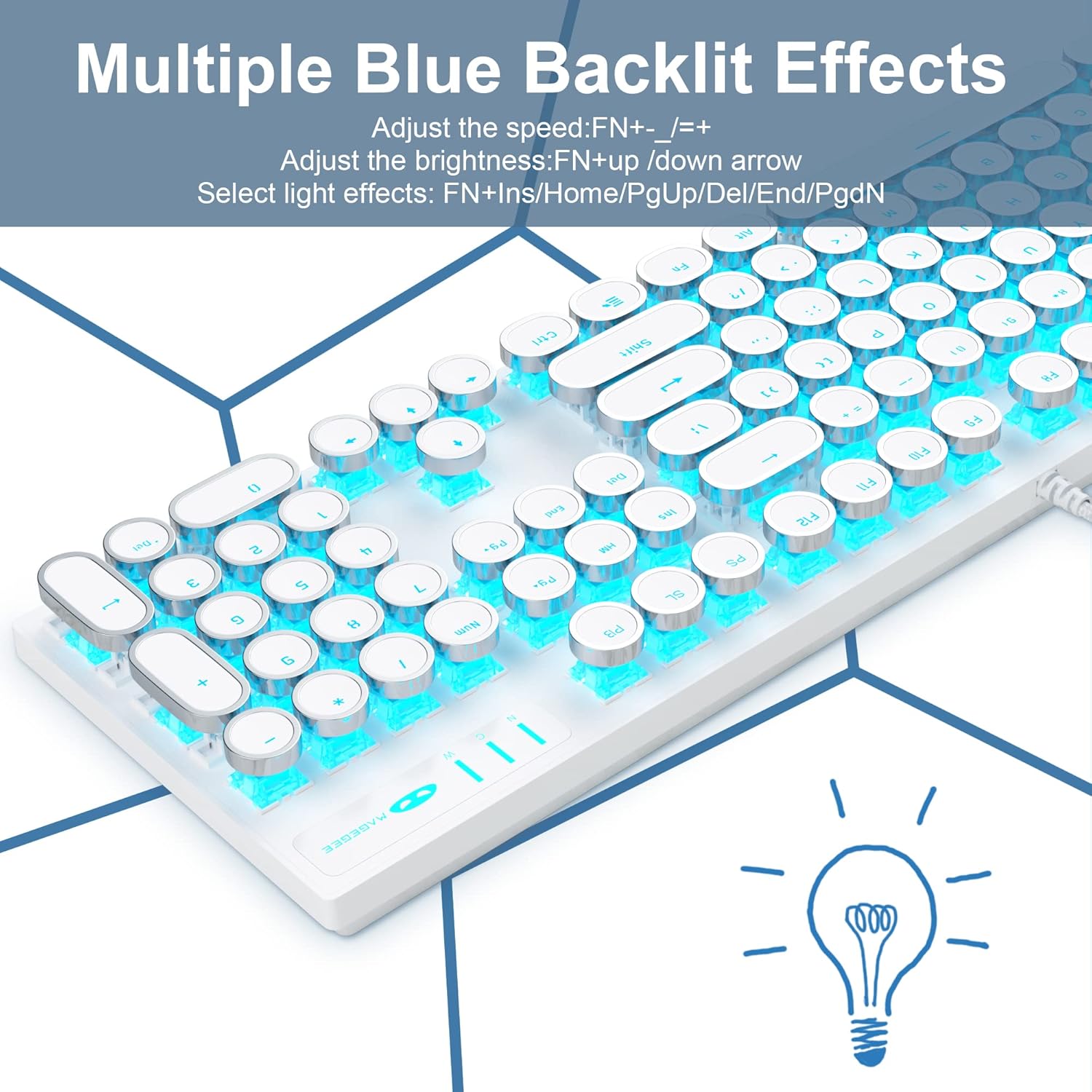
Image: The keyboard displaying various blue backlight effects, illustrating the dynamic lighting capabilities.

Image: A visual guide to combination keys for controlling backlighting, including brightness and speed adjustments.
Multimedia Keys
Access common multimedia functions using the Fn key in combination with the F-keys:
| Key Combination | Function |
|---|---|
| Fn + F1 | Media Player |
| Fn + F2 | Volume Decrease |
| Fn + F3 | Volume Increase |
| Fn + F4 | Mute |
| Fn + F5 | Halt |
| Fn + F6 | Last Song |
| Fn + F7 | Play/Suspend |
| Fn + F8 | Next Song |
| Fn + F9 | |
| Fn + F10 | Homepage |
| Fn + F11 | My Computer |
| Fn + F12 | Calculator |

Image: The keyboard layout indicating the location and function of multimedia keys when used with the Fn key.
N-Key Rollover (Anti-Ghosting)
The keyboard supports 26-key anti-ghosting, ensuring that multiple simultaneous key presses are registered accurately, which is crucial for fast-paced gaming and efficient typing.

Image: A diagram illustrating the N-Key Rollover feature, highlighting its benefit for gaming and complex key combinations.
Maintenance
To ensure the longevity and optimal performance of your Camiysn keyboard, follow these maintenance guidelines:
- Regular Cleaning: Use a soft, dry cloth to wipe down the keycaps and keyboard surface. For deeper cleaning, use compressed air to remove dust and debris from between the keys.
- Avoid Liquids: Do not spill liquids on the keyboard. If accidental spillage occurs, immediately disconnect the keyboard from your computer and allow it to dry completely before reconnecting.
- Handle with Care: While the two-color injection molded keycaps are durable, avoid excessive force or dropping the keyboard.
- Storage: When not in use for extended periods, store the keyboard in a clean, dry environment away from direct sunlight or extreme temperatures.
Troubleshooting
If you encounter issues with your keyboard, please refer to the following common solutions:
| Problem | Possible Cause / Solution |
|---|---|
| Keyboard not responding / Lights not on |
|
| Keys not registering or sticking (e.g., Spacebar, N key) |
|
| Backlight not working or flickering |
|
| Incorrect characters typed (e.g., @ instead of 2) |
|
Specifications
| Feature | Detail |
|---|---|
| Product Dimensions | 17.09 x 4.93 x 1.34 inches |
| Item Weight | 2.13 pounds |
| Manufacturer | Camiysn |
| ASIN | B096DS1R8P |
| Item Model Number | CPKJXFBWHITE602 |
| Brand | Camiysn |
| Color | White |
| Connectivity Technology | USB Wired |
| Special Feature | Backlit |
| Compatible Devices | Gaming Console, PC (Windows/Mac/Linux) |
| Key Switch Type | Blue Switch (Clicky) |
| Keycap Type | Round, Two-color Injection Molded |
| Anti-Ghosting | 26-Key Rollover |

Image: Diagram showing the full size of the keyboard with its dimensions (17.1 inches length, 4.95 inches width).

Image: Detailed specifications for the retro punk mechanical keyboard, including key life (50 million times), key force (50 ± 10gf), and conduction stroke (2.2 ± 0.5gf).
Warranty and Support
Camiysn products are designed for reliability and performance. For any product-related inquiries, technical support, or warranty claims, please contact Camiysn customer service directly through the retailer's platform or the official Camiysn website.
Please retain your proof of purchase for warranty validation.


