
Introduction
Thank you for purchasing the RUNMUS GAMING K2PRO Gaming Headset. This manual provides detailed instructions for setting up, operating, and maintaining your headset to ensure optimal performance and longevity. Please read this manual thoroughly before use.
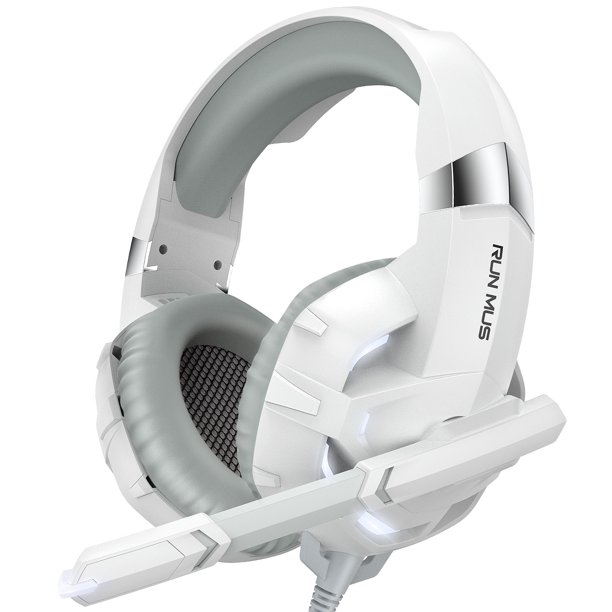
Image: The RUNMUS GAMING K2PRO Gaming Headset, showcasing its white design and over-ear cups.
What's in the Box
Carefully unpack the contents and ensure all items are present:
- RUNMUS GAMING K2PRO Gaming Headset
- User Manual
Product Overview
The K2PRO Gaming Headset is designed for immersive gaming experiences across multiple platforms. It features a comfortable over-ear design, 7.1 virtual surround sound, a noise-canceling microphone, and LED lighting.
Key Components:
- Adjustable Headband: For a comfortable fit.
- Over-Ear Earcups: Padded for extended wear, housing 50mm neodymium drivers.
- Noise-Canceling Microphone: 160-degree rotatable for clear voice communication.
- In-line Volume Control: For easy audio adjustments.
- 3.5mm Audio Jack: For audio and microphone connection to devices.
- USB Connector: Powers the LED lighting.

Image: A user wearing the K2PRO headset, illustrating its comfortable design for long gaming sessions.

Image: An exploded diagram of the headset's earcup, detailing the internal components responsible for 7.1 virtual surround sound.
Setup Instructions
Follow these steps to connect your K2PRO Gaming Headset to your device:
- Connect Audio and Microphone: Insert the 3.5mm audio jack into the corresponding port on your gaming console controller (e.g., PS4, PS5, newer Xbox One controllers), PC, laptop, Mac, tablet, or mobile device.
- Connect USB for LED Lighting: Plug the USB connector into an available USB port on your device (PC, console, or USB power adapter) to activate the headset's LED lights. Note that the USB connection is solely for powering the LED lights and does not transmit audio.
- Xbox One (Older Controllers): For older Xbox One controllers without a 3.5mm jack, a Microsoft adapter (not included) is required to connect the headset.
- Adjust Headset Fit: Adjust the headband to ensure the earcups sit comfortably over your ears.
- Position Microphone: Rotate the flexible microphone boom to position the microphone near your mouth for optimal voice pickup.

Image: A visual guide illustrating the multi-platform compatibility of the headset, including PC, PS4, Xbox One, Nintendo Switch, and mobile devices.
Operating Instructions
Audio Control:
- Volume Adjustment: Use the in-line volume control wheel located on the headset cable to increase or decrease the audio output.
- Microphone Mute: The in-line control may also include a switch to mute or unmute the microphone.
Microphone Usage:
The 160-degree rotating noise-canceling microphone is designed to minimize ambient noise and ensure clear voice transmission.
- Position the microphone approximately 1-2 inches from your mouth for best results.
- Rotate the microphone upwards when not in use to keep it out of the way.

Image: A user demonstrating the use of the headset's microphone for clear voice communication during gameplay.

Image: A graphic representation of the noise-canceling microphone, emphasizing its ability to reduce background noise.
Maintenance
Proper care will extend the life of your headset:
- Cleaning: Use a soft, dry cloth to wipe down the earcups and headband. Do not use harsh chemicals or abrasive cleaners.
- Storage: Store the headset in a clean, dry place away from extreme temperatures and direct sunlight.
- Cable Care: Avoid sharp bends or excessive pulling on the cable to prevent damage. The cable is retractable, which helps in managing it.
- Microphone Care: Handle the microphone boom gently when adjusting its position.
Troubleshooting
If you encounter issues with your K2PRO Gaming Headset, refer to the following common solutions:
| Problem | Possible Solution |
|---|---|
| No audio from headset |
|
| Microphone not working |
|
| LED lights not working |
|
| Sound quality is poor or distorted |
|
Specifications
| Feature | Detail |
|---|---|
| Brand | RUNMUS GAMING |
| Model | K2PRO |
| Color | White |
| Ear Placement | Over Ear |
| Driver Diameter | 50mm Neodymium |
| Sound Type | Virtual 7.1 Surround Sound |
| Microphone | 160-degree Rotating, Noise-Canceling |
| Connectivity | 3.5mm Audio Jack (for audio/mic), USB (for LED lights) |
| Controls | In-line Volume Control |
| Cable Features | Retractable |
| Material | Plastic |
| Item Weight | 390 Grams |
Warranty Information
The RUNMUS GAMING K2PRO Gaming Headset comes with a 6-month warranty from the date of purchase. This warranty covers manufacturing defects. Please retain your proof of purchase for warranty claims. The warranty does not cover damage caused by misuse, accidents, unauthorized modifications, or normal wear and tear.
Support
For further assistance, technical support, or warranty inquiries, please visit the official RUNMUS GAMING website or contact their customer service through the retailer where the product was purchased. Please have your product model (K2PRO) and proof of purchase ready when contacting support.
Manufacturer: SHENZHEN OUNI TECHNOLOGY CO.,LTD