
1. Introduction
Thank you for choosing the MAIWO K2568 2.5 inch SATA HDD SSD Enclosure. This device provides a convenient and efficient way to connect your 2.5-inch SATA hard drives (HDD) or solid-state drives (SSD) to your computer via USB 3.0. It supports drives up to 6TB capacity and features UASP for faster data transfer rates. This manual will guide you through the installation, operation, and maintenance of your enclosure.
2. Package Contents
Please verify that all items are present in your package:
- 1x MAIWO 2.5 inch SATA Hard Drive Enclosure
- 1x Micro-B to USB-A Data Cable
- 1x User Manual
- 1x Anti-vibration Pad

Image: The MAIWO K2568 enclosure, USB 3.0 data cable, user manual, and an anti-vibration pad are shown on a surface next to a laptop keyboard.
3. Specifications
| Feature | Description |
|---|---|
| Model Number | K2568 |
| Hardware Interface | Micro USB 3.0 Type B |
| Compatible Drives | 2.5 inch SATA HDD/SSD (7mm-9.5mm thickness) |
| Max Capacity | Up to 6TB |
| Data Transfer Rate | Up to 6Gbps (USB 3.0 with UASP) |
| Connectivity Technology | SATA, USB |
| Enclosure Material | High-Strength ABS Plastics |
| Product Dimensions | 4.76"L x 3.07"W x 0.57"H (121mm x 78mm x 14.5mm) |
| Item Weight | 35 Grams |
| Color | Black |
| Compatible Operating Systems | Windows 11/10/8.1/8/7/Vista/XP, MacOS, Linux, HarmonyOS |
4. Setup and Installation
The MAIWO K2568 enclosure features a tool-free, slide-open design for easy installation of your 2.5-inch SATA HDD or SSD.
- Slide the Cover Out: Gently slide the top cover of the enclosure to open it.
- Insert HDD/SSD: Carefully insert your 2.5-inch SATA HDD or SSD into the enclosure, ensuring the SATA connector aligns correctly. The built-in soft cushion helps prevent shaking and damage.
- Slide the Cover Back: Close the enclosure by sliding the cover back until it clicks into place.
- Connect to Computer: Use the provided USB 3.0 data cable to connect the enclosure to an available USB port on your computer. No drivers or external power adapter are needed for most systems.

Image: A visual representation of the tool-free installation process for the MAIWO K2568 enclosure.
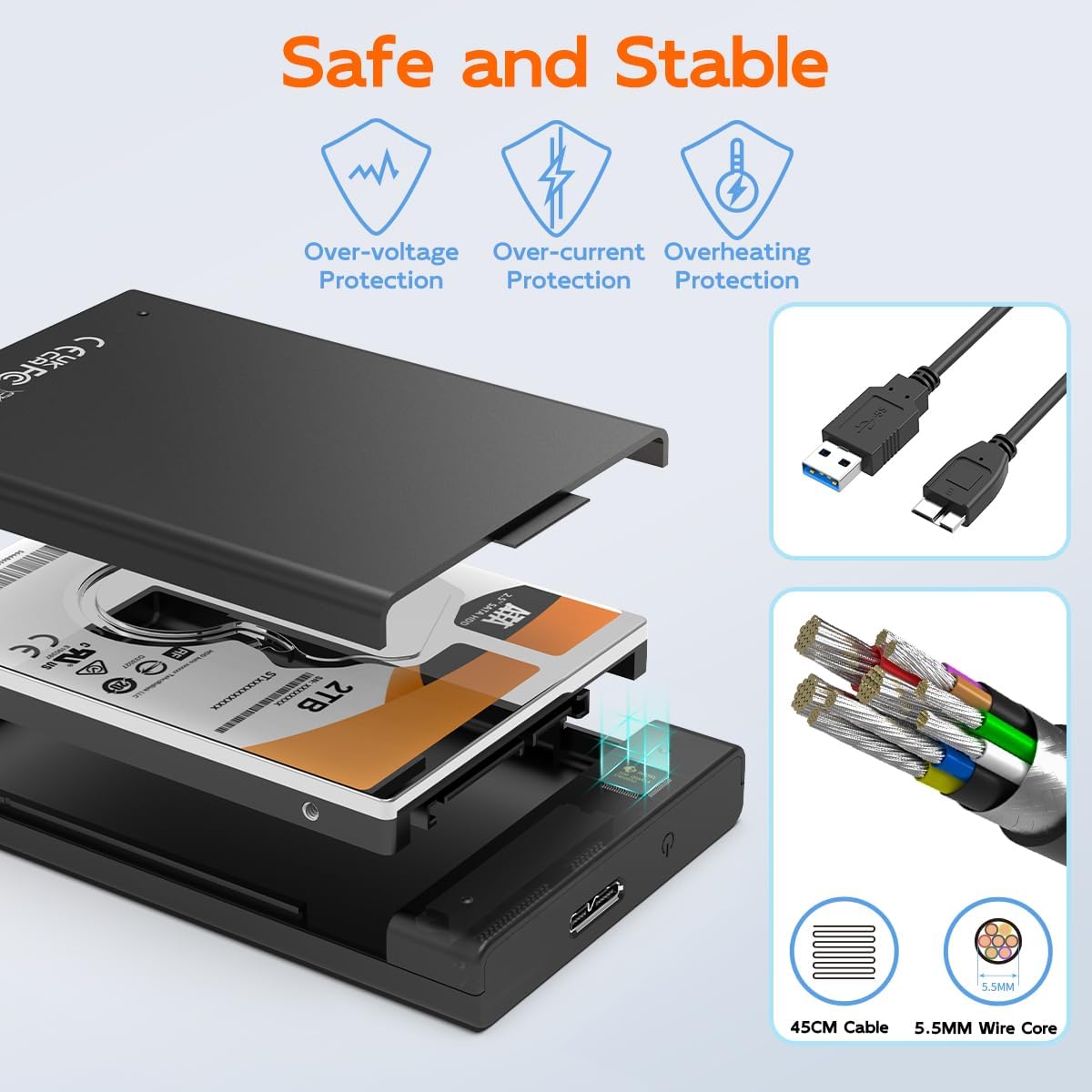
Image: The internal design of the enclosure, emphasizing safety features and the quality of the included USB cable.
Installation Video Guide
Video: This official product video demonstrates the tool-free installation of a 2.5-inch SATA drive into the MAIWO enclosure, showcasing its features and ease of use.
5. Operating Instructions
Once your drive is installed and the enclosure is connected to your computer, it will be recognized as an external storage device.
Data Transfer
The enclosure utilizes a USB 3.0 interface, offering data transfer speeds up to 5Gbps. It is backwards compatible with USB 2.0 and USB 1.1 ports. Support for the UASP (USB Attached SCSI Protocol) further enhances transfer rates, especially with compatible operating systems and hardware.
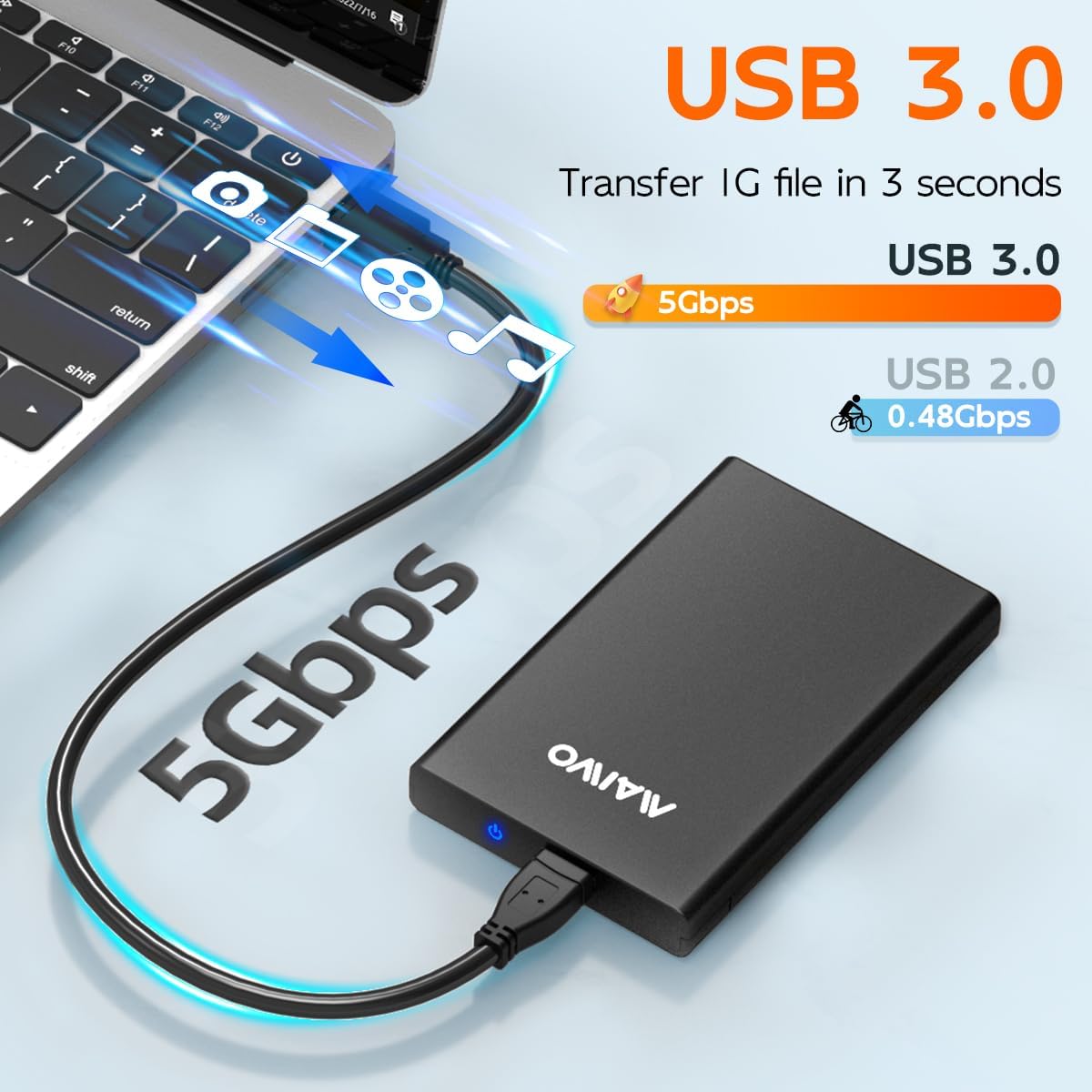
Image: This image highlights the high-speed data transfer capabilities of the USB 3.0 interface.
LED Indicator
A blue LED indicator on the enclosure provides status updates. It blinks during read or write operations, clearly indicating when the disk is active. This allows you to monitor the working state of your drive.
Intelligent Sleep Function
To prevent disk loss and conserve energy, the enclosure is designed with an intelligent sleep function. If there is no operation for more than 10 minutes, the system will automatically enter sleep mode.
6. Compatibility
The MAIWO K2568 enclosure is designed for broad compatibility:
- Drive Compatibility: Supports 2.5-inch SATA I/II/III HDD and SSD with a thickness of 7mm or 9.5mm. Note: Not compatible with 3.5-inch SATA drives or IDE (parallel) drives.
- System Compatibility: Works with Windows 11/10/8.1/8/7/Vista/XP, MacOS, Linux, and HarmonyOS.
- Device Compatibility: Can be used with PCs, laptops, MacBooks, Xbox, PS5/PS4/PS3, Smart TVs, routers, and phones (if they support OTG functionality).

Image: A visual guide detailing the types of 2.5-inch SATA drives supported by the enclosure and explicitly stating incompatibility with 3.5-inch SATA and IDE drives.
7. Maintenance
To ensure the longevity and optimal performance of your MAIWO K2568 enclosure and the installed drive, consider the following maintenance tips:
- Handle with Care: Avoid dropping or subjecting the enclosure to strong impacts.
- Keep Clean: Regularly wipe the exterior with a soft, dry cloth. Avoid using liquid cleaners.
- Proper Disconnection: Always safely eject the drive from your operating system before physically disconnecting the USB cable to prevent data corruption.
- Storage: When not in use, store the enclosure in a cool, dry place away from direct sunlight and extreme temperatures.
8. Troubleshooting
If you encounter issues with your MAIWO K2568 enclosure, please refer to the following common solutions:
- Drive Not Detected:
- Ensure the drive is correctly seated within the enclosure.
- Try connecting the enclosure to a different USB port on your computer.
- Test with a different USB cable if available.
- Verify that the drive itself is functional by testing it in another enclosure or directly connecting it to a system if possible.
- For new drives, ensure they are initialized and formatted in your operating system's Disk Management (Windows) or Disk Utility (macOS).
- Slow Transfer Speeds:
- Ensure you are connected to a USB 3.0 port on your computer. USB 2.0 ports will result in slower speeds.
- Verify that your operating system and hardware support UASP for optimal performance.
- Check the condition of the USB cable; a damaged cable can affect speed.
- Enclosure Disconnects Randomly:
- Ensure the USB cable is securely connected at both ends.
- Try a different USB port or cable.
- Disable USB selective suspend settings in your computer's power options (Windows) if applicable.
9. Warranty and Support
Warranty Information
The MAIWO K2568 2.5 inch SATA HDD SSD Enclosure comes with a One Year Warranty from the date of purchase. This warranty covers manufacturing defects and malfunctions under normal use. It does not cover damage caused by misuse, accidents, unauthorized modifications, or natural disasters.
Customer Support
For technical assistance, troubleshooting, or warranty claims, please contact MAIWO customer support through the official MAIWO website or your retailer's support channels. Please have your product model number (K2568) and proof of purchase ready when contacting support.


