1. Overview
The GlocalMe Numen Air 5G Mobile Hotspot is a portable WiFi device designed to provide ultra-high-speed internet access across more than 200 countries. Utilizing advanced CloudSIM technology, it eliminates the need for physical SIM cards in many regions, intelligently connecting to the strongest available network. This device supports up to 16 connected devices simultaneously and features a 2.4-inch LCD touchscreen for easy management. It also functions as a power bank, ensuring your devices stay charged on the go.

Image: The GlocalMe Numen Air 5G Mobile Hotspot, showcasing its sleek design and touchscreen display.
2. Key Features
- Lightning-fast 5G Speeds: Experience internet speeds up to 2.5 Gbps, significantly faster than 4G, for seamless browsing, streaming, and downloading.
- Global Frequency Bands & Coverage: Supports 5G in over 80 countries and 4G in over 200 countries, covering more than 390 operator networks worldwide. It also supports both 2.4GHz and 5GHz bands for flexible network management.
- Patented CloudSIM Technology: No physical SIM card is required for operation in many regions. The device intelligently selects the network with the best signal, offering pay-as-you-go, no-contract, and no-roaming-fee data packages.
- Connect Up to 16 Devices: Easily share your hotspot connection with multiple smartphones, tablets, laptops, and other Wi-Fi enabled devices without latency.
- Portable & User-friendly Design: Equipped with a large 2.4-inch LCD touchscreen for monitoring data usage, signal strength, connected devices, and network settings. Its ultra-slim and lightweight design makes it ideal for travel.
- Power Bank Functionality: Doubles as a power bank with a 5400mAh battery, allowing you to charge your other devices on the go.
- SIM Card Slot: In addition to CloudSIM, the device also supports a physical SIM card, offering flexibility to use data from any compatible SIM card.

Image: A visual representation comparing 5G speeds (up to 2.5Gbps) with 4G speeds (up to 150Mbps), highlighting the Numen Air's high-speed capabilities.

Image: A world map illustrating the extensive 5G and 4G network coverage provided by the GlocalMe Numen Air across various countries.

Image: A diagram illustrating how the Numen Air automatically switches between mobile network operators (MNOs) to ensure the best signal and connectivity.

Image: A group of people enjoying shared internet connectivity from the GlocalMe Numen Air hotspot, demonstrating its multi-device capability.

Image: A visual showing the ultra-slim profile and lightweight nature of the Numen Air, comparing its size to a tennis ball.
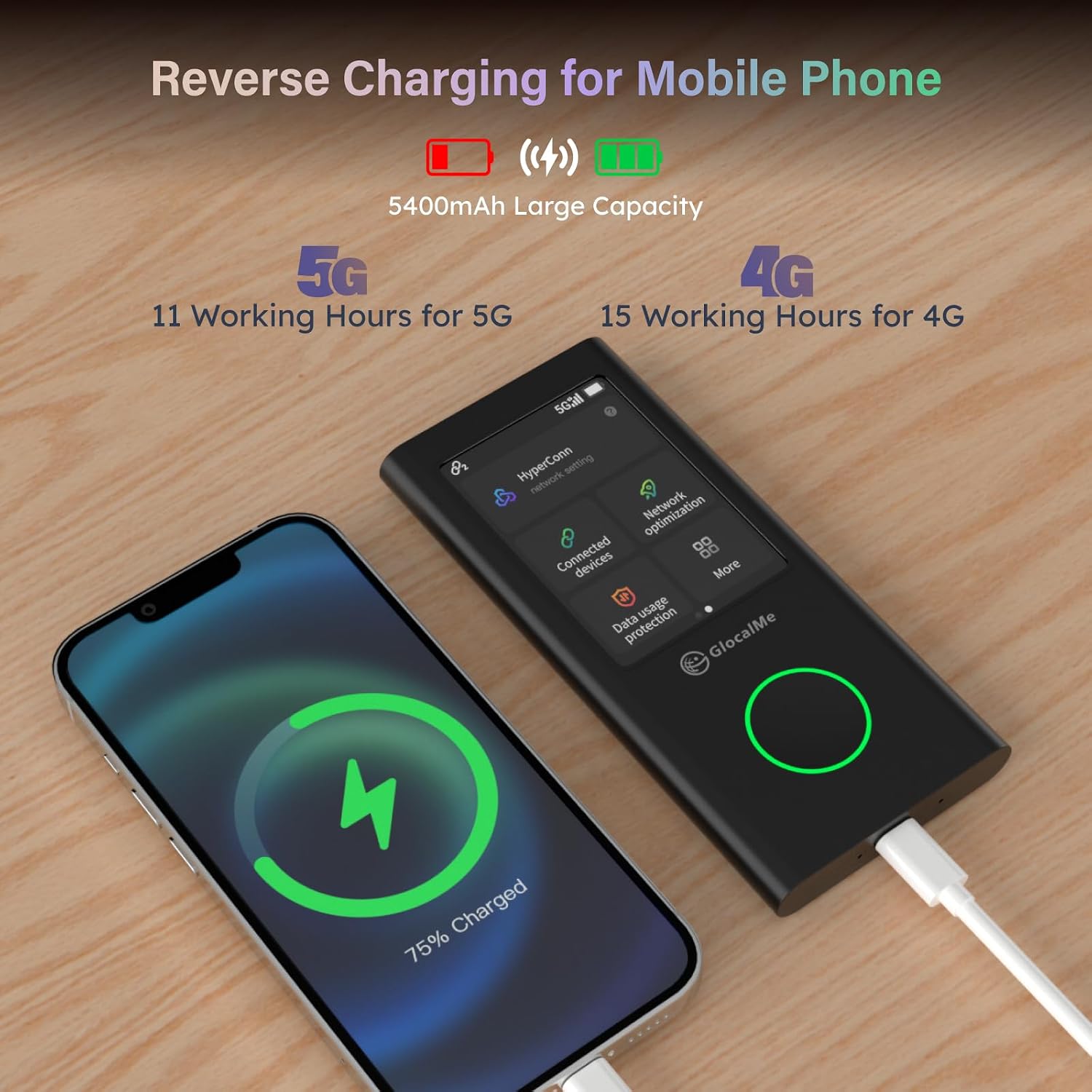
Image: The GlocalMe Numen Air connected via USB-C to a smartphone, illustrating its reverse charging capability as a power bank.
3. Setup Guide
Follow these steps to set up your GlocalMe Numen Air 5G Mobile Hotspot and get connected:

Image: A visual quick start guide showing the steps to activate and use the GlocalMe Numen Air.
- I. Get Your GlocalMe Device: Unpack your GlocalMe Numen Air device and turn it on.
- II. Download GlocalMe App: Scan the QR code provided in the packaging or search for "GlocalMe" on Google Play Store or Apple App Store to download the official app on your mobile phone.
- III. Create a GlocalMe Account and Activate Data Plans: Open the GlocalMe app, create your account, and choose from the flexible data plans that suit your needs.
- IV. Link Device with GlocalMe App: In the GlocalMe app, go to "My Device" and scan the QR code displayed on your Numen Air device to link it to your account.
- V. Connect to WiFi and Enjoy It Anytime, Anywhere: Once linked and a data plan is active, find the Wi-Fi name (SSID) and password displayed on the back of your Numen Air device or on its touchscreen. Connect your desired devices to this Wi-Fi network.
- VI. Need Assistance?: If you encounter any issues during setup, please refer to the Troubleshooting section or contact GlocalMe customer support.
4. Operating Instructions
Powering On/Off
- To power on, press and hold the power button until the screen lights up.
- To power off, press and hold the power button until the shutdown option appears on the screen, then confirm.
Connecting Devices to Wi-Fi
- On your Numen Air device, swipe up on the touchscreen to unlock.
- The Wi-Fi name (SSID) and password will be displayed on the screen. You can also find this information on a sticker on the back of the device.
- On your smartphone, tablet, or laptop, go to Wi-Fi settings, select the Numen Air's SSID, and enter the password.
- The device supports up to 16 simultaneous connections.
Managing Settings via Touchscreen
The 2.4-inch LCD touchscreen provides convenient access to various settings:
- Data Usage: Monitor your current data consumption.
- Signal Strength: Check the strength of the network signal.
- Connected Devices: View a list of devices currently connected to your hotspot.
- Network Settings: Adjust Wi-Fi band (2.4GHz/5GHz), change SSID or password, and other network configurations.
Using as a Power Bank
- Connect your smartphone or other USB-powered device to the Numen Air's USB-C port using a compatible charging cable.
- The Numen Air will automatically begin charging the connected device.
SIM Card Usage (Optional)
- The Numen Air has an unlocked SIM card slot. If you prefer to use your own physical SIM card, insert it into the designated slot.
- Navigate to the network settings on the device's touchscreen to switch between CloudSIM and physical SIM data.
5. Maintenance
To ensure the longevity and optimal performance of your GlocalMe Numen Air, please follow these maintenance guidelines:
- Cleaning: Use a soft, dry cloth to clean the device. Avoid using liquid cleaners or aerosols, as they may damage the device.
- Storage: Store the device in a cool, dry place away from direct sunlight and extreme temperatures.
- Charging: Use only the provided charging cable and a compatible power adapter. Avoid overcharging or completely draining the battery frequently to prolong its lifespan.
- Handling: Handle the device with care. Avoid dropping it or subjecting it to strong impacts.
6. Troubleshooting
If you encounter issues with your GlocalMe Numen Air, try the following troubleshooting steps:
No Internet Connection
- Check Data Plan: Ensure you have an active data plan on your GlocalMe account. You can check this via the GlocalMe app.
- Signal Strength: Verify the signal strength on the device's touchscreen. If the signal is weak or absent, try moving to a different location.
- Restart Device: Power off your Numen Air, wait a few seconds, and then power it back on.
- Check Connected Devices: Ensure your connected device's Wi-Fi is enabled and correctly connected to the Numen Air's network.
Slow Internet Speed
- Network Congestion: Internet speeds can vary based on network traffic and location. Try moving to an area with less network congestion.
- Number of Connected Devices: Too many devices connected simultaneously can reduce speed. Disconnect unnecessary devices.
- Signal Quality: A weak signal will result in slower speeds. Check the signal strength on the device.
- Band Selection: Ensure your connected devices are utilizing the 5GHz band if supported, as it generally offers faster speeds over shorter distances.
Battery Drains Quickly
- Usage: Heavy usage, especially 5G connectivity and power bank function, will consume battery faster.
- Charging Cycle: Ensure the device is fully charged before use. Battery performance may degrade over time with repeated charge cycles.
- Background Processes: Close any unnecessary applications running on the device if applicable.
7. Specifications
| Feature | Detail |
|---|---|
| Product Dimensions | 5.96 x 2.68 x 0.56 inches |
| Item Weight | 0.009 ounces |
| Item Model Number | Numen Air |
| Special Feature | Power Bank, 5G & 4G |
| Frequency Band Class | Dual-Band (2.4GHz & 5GHz) |
| Wireless Communication Standard | 802.11n, 802.11b, 802.11ac, 802.11g |
| Compatible Devices | Computer, Smartphone, Tablet and any compatible Wi-Fi devices |
| Frequency | 5 GHz |
| Recommended Uses | Travel, Live, Gaming, Home, Business |
| Manufacturer | GlocalMe |

Image: A detailed comparison table highlighting the superior features of the Numen Air compared to other mobile hotspot devices.
8. What's in the Box
Upon opening your GlocalMe Numen Air package, you should find the following items:
- GlocalMe Numen Air 5G Mobile Hotspot Device
- User Manual (this document)
- Charging Cable (USB-C)
9. Official Product Video
Watch the official GlocalMe Numen Air product video for a visual guide on its features and benefits:
Video: "5G High Speed Mobile Hotspot for Business Trip" - This video demonstrates the GlocalMe Numen Air's fast 5G speeds, automatic network selection, ability to connect multiple devices, long battery life, and global connectivity for business and travel.
10. Warranty and Support
For any product inquiries, technical support, or warranty information, please contact GlocalMe customer service. You can find more information and contact details on the official GlocalMe website or their Amazon store page.