
1. Introduction
Thank you for choosing the GEEKOM MiniAir 11 Mini PC. This compact and powerful device is designed for various computing tasks, from everyday browsing to 4K media playback. This manual provides essential information for setting up, operating, maintaining, and troubleshooting your Mini PC.
2. What's in the Box
Carefully unpack your GEEKOM MiniAir 11 and ensure all items are present:
- GEEKOM MiniAir 11 Mini PC
- Power Adapter
- Power Cable
- HDMI Cable
- Mini DisplayPort to HDMI Adapter
- VESA Mount and Screws
- Storage Bag
- User Manual (this document)
- Mascot Figurine (Special Edition)
- GEEKOM Mouse Pad (Special Edition)

Figure 2.1: Contents of the GEEKOM MiniAir 11 Special Edition box.
3. Product Overview
The GEEKOM MiniAir 11 features a compact design with various ports for connectivity and expansion.
3.1 Front Panel

Figure 3.1: Front panel ports.
- USB Type-C (SS 10): Data transfer only.
- USB 3.2 Gen1 (SS 5): High-speed data transfer.
- Headphone Jack: For audio output.
- Power Button: To power on/off the device.
3.2 Rear Panel

Figure 3.2: Rear panel ports.
- Power Socket (19V DC): Connect the power adapter here.
- Mini DisplayPort (DP): For video output.
- Gigabit LAN: For wired network connection.
- 2x USB 3.2 Gen1 (SS 5): High-speed data transfer.
- USB Type-C (SS 10): Data transfer only.
- HDMI: For video output (supports 4K UHD).
3.3 Side Panels

Figure 3.3: Side panel with SD card slot.
- SD Card Slot: For expanding storage with an SD card.
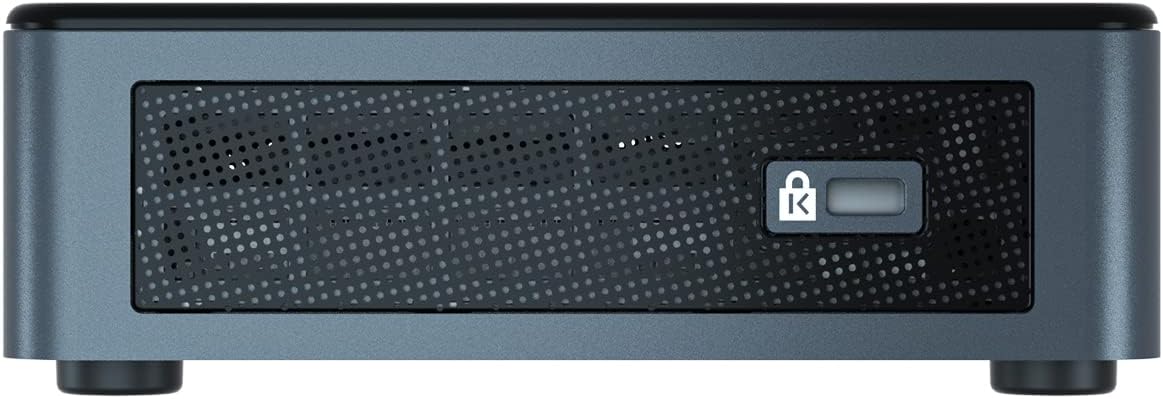
Figure 3.4: Side panel with Kensington lock slot.
- Kensington Lock Slot: For physical security.
4. Setup
Follow these steps to set up your GEEKOM MiniAir 11:
- Connect to Display: Connect your monitor or TV to the Mini PC using the HDMI cable or Mini DisplayPort to HDMI adapter.
- Connect Peripherals: Plug in your keyboard, mouse, and any other USB devices into the available USB ports.
- Connect to Network: For a wired connection, plug an Ethernet cable into the Gigabit LAN port. For Wi-Fi, the device will prompt you during initial Windows setup.
- Connect Power: Connect the power adapter to the Mini PC's power socket, then plug the power cable into an electrical outlet.
- Power On: Press the power button on the front panel. The device will boot up, and you will be guided through the Windows 11 Pro setup process.
5. Operating System
The GEEKOM MiniAir 11 comes pre-installed with Windows 11 Pro, offering a full desktop experience. Ensure your operating system is regularly updated for optimal performance and security.
6. Maintenance
To ensure the longevity and optimal performance of your Mini PC, consider the following maintenance tips:
- Cleaning: Regularly clean the exterior with a soft, dry cloth. Use compressed air to clear dust from vents to maintain proper airflow and cooling.
- Software Updates: Keep Windows 11 Pro and all drivers updated. This can be done through Windows Update in the Settings menu.
- Storage Management: Periodically clear unnecessary files and applications to free up storage space.
- Environment: Operate the Mini PC in a well-ventilated area, away from direct sunlight, heat sources, and excessive moisture.
7. Upgrading Components
The GEEKOM MiniAir 11 offers upgrade options for RAM and storage:
- RAM: The device features two DDR4 RAM slots. It comes with 8GB DDR4 RAM (one slot occupied) and is upgradable to a maximum of 32GB (16GB per slot).
- SSD: The Mini PC includes a 256GB M.2 NVMe SSD. This can be upgraded to a 1TB M.2 NVMe SSD. Note that upgrading the SSD will require reinstalling the operating system.
For detailed instructions on how to access and upgrade these components, please refer to the official GEEKOM support resources or consult a qualified technician.
8. Troubleshooting
If you encounter issues with your GEEKOM MiniAir 11, try the following basic troubleshooting steps:
- No Power: Ensure the power adapter is securely connected to both the Mini PC and a working electrical outlet. Try a different outlet.
- No Display: Verify that the HDMI or Mini DisplayPort cable is correctly connected to both the Mini PC and your display. Ensure the display is set to the correct input source.
- Slow Performance: Check for background applications consuming resources. Ensure Windows and drivers are updated. Consider upgrading RAM or SSD if performance issues persist.
- Network Issues: For wired connections, check the Ethernet cable and router. For Wi-Fi, ensure the device is connected to the correct network and the signal is strong. Restart your router if necessary.
- Peripheral Not Detected: Try connecting the peripheral to a different USB port. Ensure drivers for the peripheral are installed.
For more advanced troubleshooting, visit the GEEKOM support website.
9. Specifications
| Feature | Specification |
|---|---|
| Brand | GEEKOM |
| Model Name | GEEKOM MiniAir 11 |
| Model Number | GMA11N5095S |
| Operating System | Windows 11 Pro |
| CPU Model | Intel Celeron N5095 (11th Gen Quad-Core) |
| CPU Speed | Up to 2.9 GHz |
| GPU | Intel UHD Graphics 605 (Integrated) |
| RAM | 8GB DDR4 (Upgradable to 32GB Max) |
| Storage | 256GB M.2 NVMe SSD (Upgradable to 1TB Max) |
| Wireless Connectivity | Wi-Fi (5GHz AC), Bluetooth 4.0 |
| Wired Connectivity | Gigabit LAN |
| Video Output | HDMI, Mini DisplayPort (Supports 4K UHD) |
| USB Ports | 3x USB 3.2 Gen1, 2x USB Type-C (Data Only) |
| Other Ports | Headphone Jack, SD Card Slot, Kensington Lock Slot |
| Dimensions | 4.61 x 4.41 x 1.34 inches |
| Cooling Method | Air |
10. Warranty and Support
GEEKOM products are designed for reliability and performance. For warranty information, product registration, and technical support, please visit the official GEEKOM website or contact their customer service. Keep your purchase receipt for warranty claims.
GEEKOM Official Website: www.geekompc.com