
1. Introduction
Thank you for purchasing the iPega Ninja PG-SW038A Wireless Game Controller. This manual provides detailed instructions on how to set up, operate, and maintain your controller. Please read this manual carefully before use to ensure optimal performance and longevity of your device.
2. Safety Information
- Keep the controller away from high temperatures, humidity, and direct sunlight.
- Do not expose the controller to liquids or moisture.
- Do not attempt to disassemble or modify the controller. This will void the warranty.
- Use only the provided charging cable or a certified equivalent.
- Keep out of reach of children.
3. Package Contents
- iPega Ninja PG-SW038A Wireless Game Controller
- USB Type-C Charging Cable
- User Manual
4. Product Overview
4.1 Controller Layout
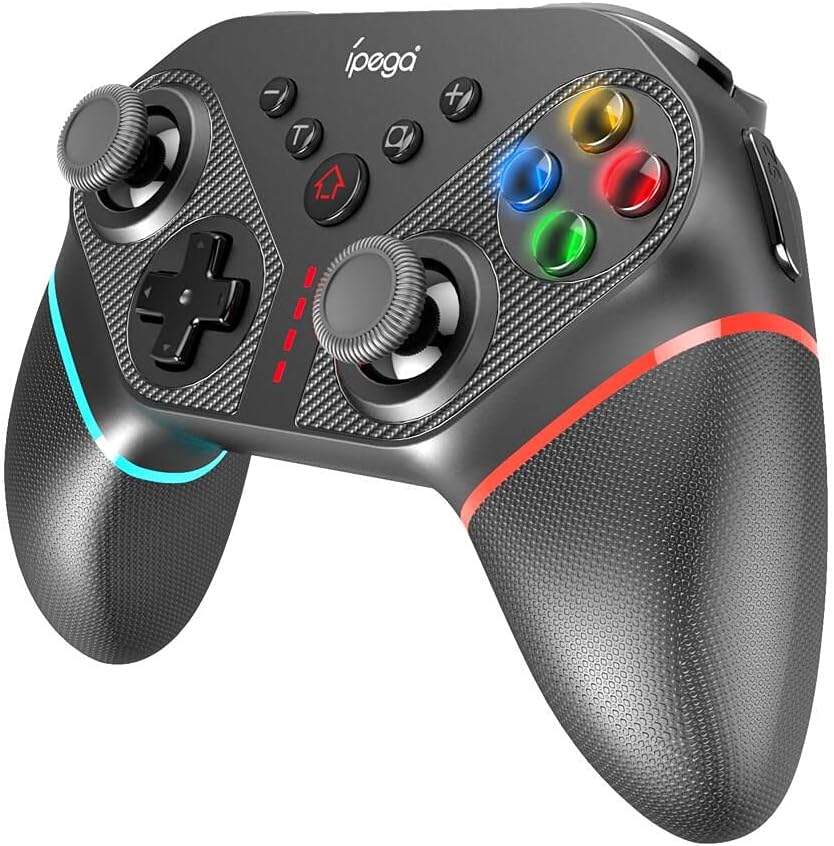
Figure 1: Front View of the Controller. This image displays the primary control layout including the left and right analog sticks, directional pad (D-pad), ABXY action buttons, Home button, Turbo (T) button, and various indicator lights.

Figure 2: Top View of the Controller. This image shows the shoulder buttons (L1, R1) and trigger buttons (L2, R2) located on the top edge of the controller, along with the USB-C charging port.

Figure 3: Back View of the Controller. This image illustrates the additional programmable buttons (S1, S2) on the underside of the grips, and potentially a reset button or other functional elements.
4.2 Button Functions
- Left/Right Analog Sticks: For precise 360-degree movement.
- D-Pad: Directional control for menus and specific game actions.
- ABXY Buttons: Standard action buttons.
- L1/R1 (Shoulder Buttons): Primary shoulder actions.
- L2/R2 (Trigger Buttons): Analog triggers for nuanced input.
- HOME Button: Returns to the system home screen.
- TURBO (T) Button: Activates/deactivates turbo function for selected buttons.
- +/- Buttons: System-specific menu or volume controls.
- Screenshot Button: Captures screenshots (Nintendo Switch).
- S1/S2 Buttons: Programmable back buttons for custom assignments.
5. Setup and Connection
5.1 Connecting to Nintendo Switch
- On your Nintendo Switch, go to the HOME Menu.
- Select Controllers > Change Grip/Order.
- Press and hold the HOME button and Y button simultaneously on the iPega controller for 3-5 seconds until the LED indicators start flashing rapidly.
- Once connected, the corresponding player LED(s) on the controller will light up solid.
5.2 Connecting to Android Devices
- Ensure Bluetooth is enabled on your Android device.
- Press and hold the HOME button and A button simultaneously on the iPega controller for 3-5 seconds until the LED indicators start flashing rapidly.
- On your Android device, search for Bluetooth devices and select "PG-SW038A" or similar from the list.
- Once paired, the LED indicator on the controller will light up solid.
5.3 Connecting to PC (Windows)
- Wireless Connection (Bluetooth):
- Ensure Bluetooth is enabled on your PC.
- Press and hold the HOME button and X button simultaneously on the iPega controller for 3-5 seconds until the LED indicators start flashing rapidly.
- On your PC, go to Bluetooth settings, add a device, and select "PG-SW038A" or similar.
- Once paired, the LED indicator on the controller will light up solid.
- Wired Connection (USB):
- Connect the controller to your PC using the provided USB Type-C cable.
- The PC should automatically detect and install the necessary drivers. The controller will function as a wired gamepad.
6. Operating Instructions
6.1 Basic Operation
- Power On: Press the HOME button.
- Power Off: Press and hold the HOME button for 5 seconds, or the controller will automatically power off after 5 minutes of inactivity when disconnected.
- Reconnection: Press the HOME button briefly to reconnect to the last paired device.
6.2 Turbo Function
- Setting Turbo: Press and hold the T button, then press the desired action button (A/B/X/Y/L1/R1/L2/R2/D-pad directions) to enable turbo for that button. The button will now repeatedly register input when held down.
- Clearing Turbo for a single button: Press and hold the T button, then press the same action button again.
- Clearing all Turbo settings: Press and hold the T button for 5 seconds.
6.3 Vibration Function
The iPega PG-SW038A controller supports vibration feedback, enhancing the gaming experience. Vibration intensity is typically controlled by the game itself or the connected system settings.
6.4 Programmable Back Buttons (S1/S2)
The S1 and S2 buttons on the back of the controller can be programmed to mimic other button inputs for enhanced gameplay. Refer to the specific programming instructions in the full manual or product documentation for detailed steps on how to assign functions to these buttons.
7. Charging the Controller
- Connect the USB Type-C cable to the charging port on the top of the controller and the other end to a USB power source (e.g., PC, USB wall adapter).
- The LED indicators will flash during charging and turn solid when fully charged.
- A full charge typically takes approximately 2-3 hours.
- When the battery is low, the LED indicators will flash slowly to alert you.
8. Maintenance
- Cleaning: Use a soft, dry cloth to clean the controller. Do not use harsh chemicals or abrasive materials.
- Storage: Store the controller in a cool, dry place away from direct sunlight and extreme temperatures.
- Battery Care: If not used for extended periods, charge the controller at least once every three months to maintain battery health.
9. Troubleshooting
| Problem | Possible Cause | Solution |
|---|---|---|
| Controller does not power on. | Low battery. | Charge the controller for at least 30 minutes. |
| Cannot connect to device. | Incorrect pairing mode; Bluetooth off; interference. | Ensure correct pairing mode (HOME+Y for Switch, HOME+A for Android, HOME+X for PC). Check device's Bluetooth. Move closer to the device. |
| Input lag or disconnection. | Low battery; too far from device; wireless interference. | Charge controller. Move closer to device. Reduce wireless interference. |
| Buttons not responding. | Software glitch; physical damage. | Try resetting the controller (if a reset button is present, usually a small pinhole). If wired, try a different USB port. If wireless, re-pair. |
| Vibration not working. | Game does not support vibration; vibration disabled in game/system settings. | Check game and system settings for vibration options. Ensure the game supports vibration. |
10. Specifications
- Model: PG-SW038A
- Brand: iPega
- Connectivity: Wireless (Bluetooth), Wired (USB Type-C)
- Compatible Devices: Nintendo Switch, Android, PC
- Special Features: Vibration feedback, Turbo function, Programmable back buttons
- Charging Port: USB Type-C
- Battery: Built-in rechargeable (specific capacity not provided in input)
11. Warranty and Support
This product comes with a standard manufacturer's warranty. For detailed warranty terms, please refer to the documentation included with your purchase or contact iPega customer support. For technical assistance or further inquiries, please visit the official iPega website or contact your retailer.


