1. Introduction
Thank you for choosing the PUSOKEI Bluetooth Keyboard. This manual provides essential information for setting up, operating, and maintaining your new keyboard. Please read these instructions carefully before use to ensure optimal performance and longevity of your device.
This keyboard is designed for broad compatibility and ease of use, featuring a QWERTZ German layout for specific regional typing needs.
2. Safety Information
- Keep the keyboard away from water, moisture, and extreme temperatures.
- Avoid dropping or subjecting the keyboard to strong impacts.
- Do not attempt to disassemble or repair the keyboard yourself. Contact qualified service personnel for assistance.
- Dispose of batteries according to local regulations.
3. Package Contents
Please check the package for the following items:
- 1 x PUSOKEI Bluetooth Keyboard (QWERTZ German Layout)
- 1 x User Manual
4. Product Overview
The PUSOKEI Bluetooth Keyboard is a slim, silent, and portable wireless keyboard designed for stable connection across various operating systems. It features a QWERTZ German layout for efficient typing.

Image: The PUSOKEI Bluetooth Keyboard showcasing its QWERTZ German layout.

Image: A user operating the PUSOKEI Bluetooth Keyboard with a laptop, highlighting its universal design and portability.
- German Layout: Specifically designed QWERTZ German version keyboard.
- Broad Compatibility: Works with iOS, Android, and Windows operating systems.
- Stable Connection: Bluetooth 3.0 ensures a reliable connection up to 10 meters.
- Portable Design: Ultra-thin and lightweight for easy transport.
- Quiet Typing: Responsive keys provide a comfortable and low-noise typing experience.
5. Setup
5.1. Battery Installation
- Locate the battery compartment on the underside of the keyboard.
- Slide open the battery compartment cover.
- Insert the required batteries (typically 2x AAA, not included) according to the polarity indicators (+/-).
- Close the battery compartment cover securely.
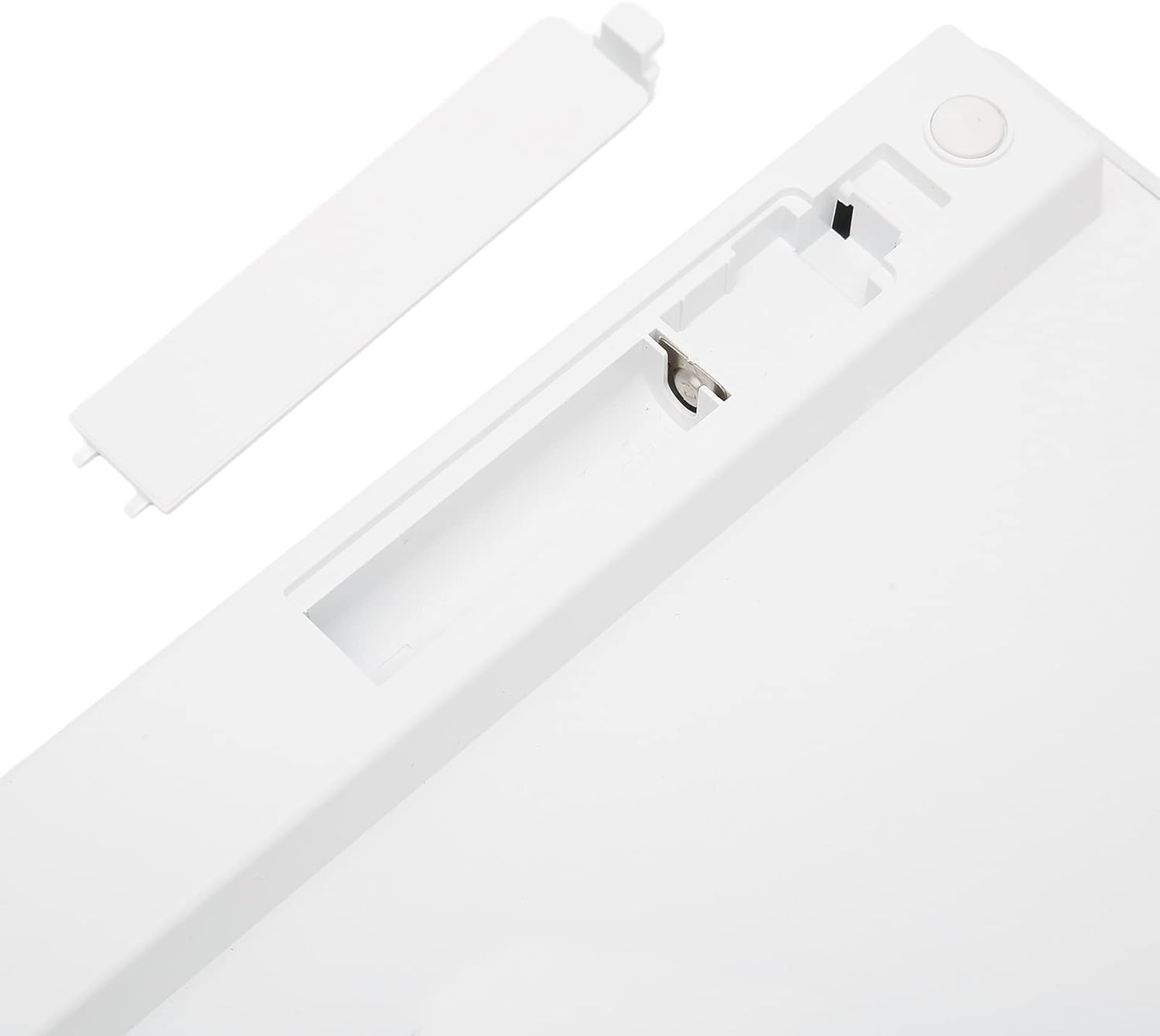
Image: View of the keyboard's underside, showing the open battery compartment for battery insertion.
5.2. Bluetooth Pairing
Follow these steps to connect your keyboard via Bluetooth:
- Ensure the keyboard has fresh batteries and is powered on (if it has a power switch).
- Activate Bluetooth on your device (tablet, phone, laptop).
- On your device, search for available Bluetooth devices. The keyboard should appear as "Bluetooth Keyboard" or a similar name.
- Select the keyboard from the list to initiate pairing.
- If prompted, enter the displayed pairing code on the PUSOKEI keyboard and press Enter.
- Once paired, the keyboard will be ready for use.
6. Operating Instructions
6.1. Basic Usage
After successful pairing, you can begin typing. The keyboard functions like a standard QWERTZ German layout keyboard.
6.2. Function Keys
The top row of keys (F1-F12) often includes multimedia and system control functions. These functions are typically accessed by pressing the Fn key simultaneously with the desired function key.
- Fn + F1-F12: Control brightness, volume, media playback, etc., depending on your device's operating system.
6.3. Compatibility
The PUSOKEI Bluetooth Keyboard is broadly compatible with devices running:
- iOS (e.g., iPad, iPhone)
- Android (e.g., Android tablets, smartphones)
- Windows (e.g., Windows laptops, desktops)
7. Maintenance
7.1. Cleaning
To clean your keyboard:
- Ensure the keyboard is turned off and disconnected from any device.
- Use a soft, lint-free cloth slightly dampened with water or a mild cleaning solution.
- Avoid excessive moisture and do not spray cleaners directly onto the keyboard.
- Use compressed air to remove dust and debris from between the keys.
7.2. Storage
When not in use for extended periods, store the keyboard in a cool, dry place. Consider removing the batteries to prevent leakage.
8. Troubleshooting
8.1. Keyboard Not Connecting
- Ensure the keyboard has power (fresh batteries).
- Verify Bluetooth is enabled on your device.
- Make sure the keyboard is within the 10-meter operating range of your device.
- Try unpairing and re-pairing the keyboard with your device.
- Restart both the keyboard and your device.
8.2. Keys Not Responding
- Check battery levels.
- Ensure the keyboard is properly connected via Bluetooth.
- Clean any debris that might be stuck under the keys.
9. Specifications
| Feature | Specification |
|---|---|
| Model Name | PUSOKEIigp690fkrv1355 |
| Brand | PUSOKEI |
| Connectivity Technology | Bluetooth 3.0 |
| Keyboard Description | Portable, Slim, Silent, QWERTZ German Layout |
| Compatible Devices | Laptop, Tablet (iOS, Android, Windows) |
| Material | Acrylonitrile Butadiene Styrene (ABS) |
| Item Weight | 11.7 ounces |
| Package Dimensions | 11.54 x 5.08 x 0.94 inches |
10. Warranty and Support
For warranty information or technical support, please refer to the contact details provided with your purchase or visit the official PUSOKEI website. Keep your proof of purchase for warranty claims.