
Introduction
This manual provides detailed instructions for the MOFII Wireless Bluetooth Keyboard. It covers essential information regarding product setup, operation, maintenance, and troubleshooting to ensure optimal performance and longevity of your device. This keyboard supports both Bluetooth and USB wired connections, offering versatility across various operating systems including Windows, Mac OS, and iOS.
Package Contents
Please verify that all items listed below are included in your package:
- MOFII Wireless Bluetooth Keyboard x 1
- USB Charging Cable x 1
- User Manual x 1
Product Overview
The MOFII Wireless Bluetooth Keyboard features a unique hexagon keycap design and offers dual connectivity modes. Below is an overview of its key components and indicators.

Image: The MOFII Wireless Bluetooth Keyboard showing the ON/OFF switch, Micro-USB charging port, and indicator lights for Case Switch, Charging, Bluetooth Connection, and Low Battery.
The keyboard is equipped with an ON/OFF switch, a Micro-USB charging port, and several indicator lights to provide status information:
- Case Switch Indicator: Indicates the status of the Caps Lock function.
- Charging Indicator: Illuminates during charging and changes status upon full charge.
- Bluetooth Connection Indicator: Shows the Bluetooth pairing and connection status.
- Low Battery Indicator: Alerts when the battery level is low and requires charging.
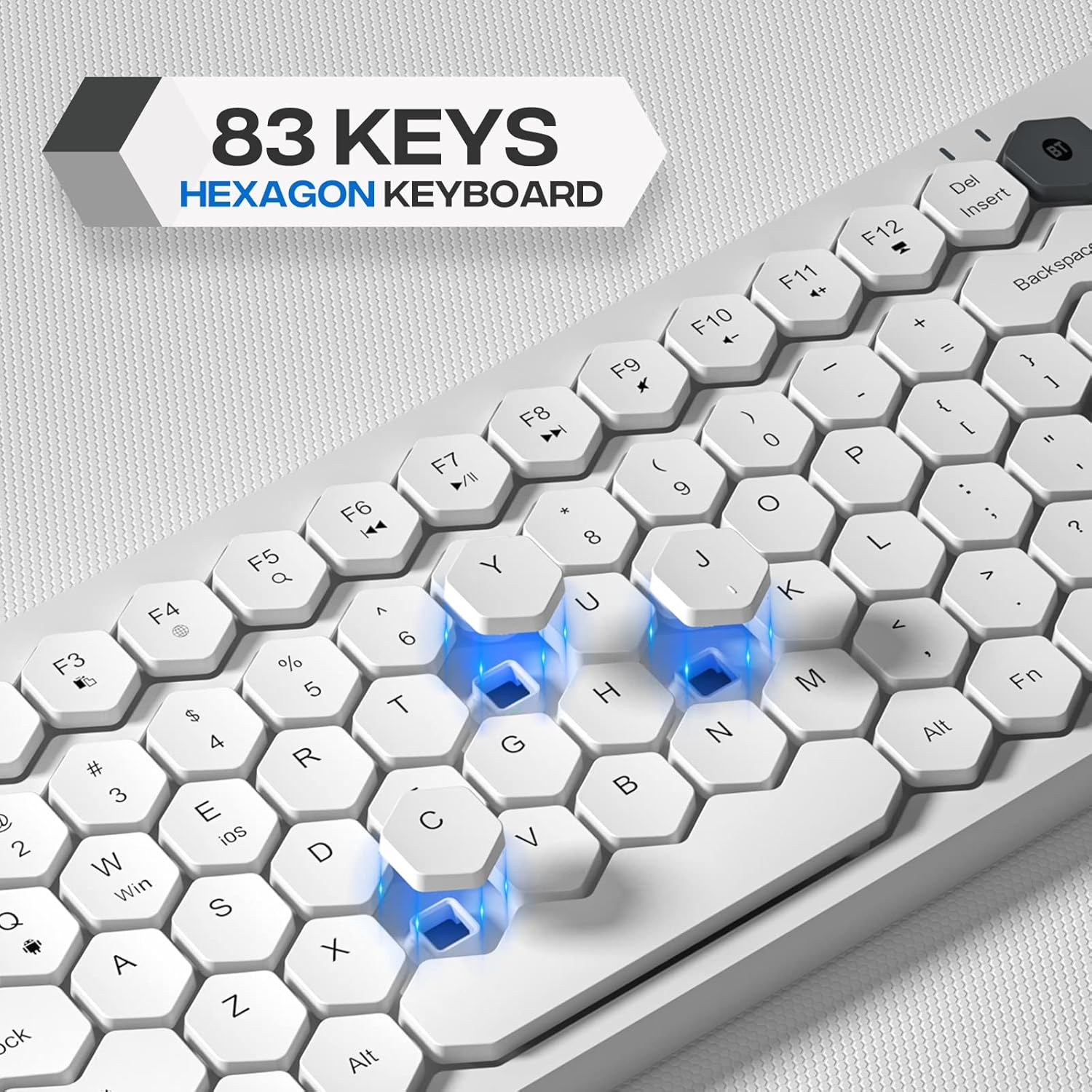
Image: Close-up view of the MOFII Wireless Bluetooth Keyboard highlighting its 83-key layout and distinctive hexagon-shaped keycaps.
The keyboard features an 83-key layout with hexagon keycaps, designed for a distinct typing experience. It includes dedicated function keys and multimedia shortcuts for enhanced productivity.
Setup
1. Powering On/Off
Locate the ON/OFF switch on the keyboard. Slide the switch to the 'ON' position to power on the keyboard. Slide it to the 'OFF' position when not in use to conserve battery life.
2. Charging the Keyboard
The keyboard is equipped with a built-in rechargeable battery. To charge:
- Connect the provided USB charging cable to the Micro-USB port on the keyboard.
- Connect the other end of the USB cable to a USB power source (e.g., computer USB port, USB wall adapter).
- The Charging Indicator light will illuminate during charging. A full charge typically takes approximately 2 hours and provides up to 360 hours of usage.
3. Connecting via Bluetooth
To connect the keyboard wirelessly via Bluetooth:
- Ensure the keyboard is powered on.
- Press the 'BT' key on the keyboard to enter Bluetooth pairing mode. The Bluetooth Connection Indicator will flash.
- On your device (computer, tablet, smartphone), navigate to the Bluetooth settings.
- Search for available Bluetooth devices and select "MOFII Keyboard" (or similar name) from the list.
- Follow any on-screen prompts to complete the pairing process. The Bluetooth Connection Indicator will become solid once connected.
4. Connecting via USB Wired Connection
For a wired connection:
- Connect the provided USB cable to the Micro-USB port on the keyboard.
- Connect the other end of the USB cable to an available USB port on your computer.
- The keyboard will be automatically recognized and ready for use.
Operating Instructions
1. Switching Operating Systems
The keyboard is compatible with multiple operating systems. Use the following key combinations to switch between modes:
- FN + Q: Switch to Android system mode.
- FN + W: Switch to Windows system mode.
- FN + E: Switch to iOS system mode.
2. Multimedia Keys
The keyboard features 12 multimedia key combinations. These keys, often used in conjunction with the 'FN' key, provide quick access to functions such as volume control, media playback, and browser shortcuts. Refer to the keycap legends for specific multimedia functions.
3. Auto Sleep Function
To conserve battery life, the keyboard will automatically enter sleep mode after 30 minutes of inactivity. To wake the keyboard, press any key. The keyboard will reconnect to the last paired device.
Maintenance
Proper maintenance ensures the longevity and performance of your keyboard.

Image: Underside view of the MOFII Wireless Bluetooth Keyboard, illustrating its stainless steel material, matte smooth coating, and non-slip increased pads for stability.
- Cleaning: Use a soft, dry cloth to wipe the keyboard surface. For stubborn dirt, a slightly damp cloth with mild soap can be used, ensuring no liquid enters the key switches or internal components.
- Keycaps: The keycaps are designed with injection molding technology to prevent letter color fading. Avoid using harsh chemicals or abrasive materials on the keycaps.
- Storage: Store the keyboard in a cool, dry place away from direct sunlight and extreme temperatures.
- Non-slip Pads: The keyboard features non-slip pads on its base for stability. Ensure these pads are clean and free from debris for optimal grip.
Troubleshooting
If you encounter issues with your MOFII Wireless Bluetooth Keyboard, refer to the following common solutions:
| Problem | Possible Solution |
|---|---|
| Keyboard does not power on. | Ensure the ON/OFF switch is in the 'ON' position. Charge the keyboard using the provided USB cable. |
| Bluetooth connection fails or disconnects frequently. | Ensure the keyboard is fully charged. Re-enter Bluetooth pairing mode by pressing the 'BT' key. On your device, forget the keyboard and attempt to re-pair. Ensure the keyboard is within the 33 ft signal range. |
| Keys are not responding. | Check if the keyboard is powered on and connected (Bluetooth or USB). If in auto-sleep mode, press any key to wake it. Ensure the correct operating system mode (FN+Q/W/E) is selected. |
| Low battery indicator is on. | Charge the keyboard immediately using the USB charging cable. |
| Keyboard is not recognized in wired mode. | Ensure the USB cable is securely connected to both the keyboard and the computer. Try a different USB port on your computer. |
Specifications
Key technical specifications for the MOFII Wireless Bluetooth Keyboard:
- Brand: MOFII
- Model: B0B7WTFWPN
- Connectivity Technology: Bluetooth, USB Wired
- Compatible Devices: Laptop, PC, Desktop, Notebook, iPad (Windows, Mac OS, Android, iOS)
- Keyboard Description: Wireless
- Special Feature: Portable
- Color: White
- Included Components: USB Cable
- Number of Batteries: 1 (Built-in rechargeable)
- Power Source: Battery Powered
- Switch Type: Mechanical
- Keyboard Layout: QWERTY
- Manufacturer: MOFII
Warranty Information
The MOFII Wireless Bluetooth Keyboard comes with a 12-month warranty from the date of purchase. This warranty covers manufacturing defects under normal use. Please retain your proof of purchase for warranty claims.
Support
For further assistance, technical support, or warranty inquiries, please refer to the contact information provided with your purchase documentation or visit the official MOFII support website.


