
HIKMICRO B20
HIKMICRO B20 Thermal Camera User Manual
Model: B20
1. Introduction
Thank you for choosing the HIKMICRO B20 Thermal Camera. This manual provides essential information for the safe and effective operation of your device. The HIKMICRO B20 is a professional thermal imaging tool designed for various applications, including electrical inspections, HVAC diagnostics, building inspections, and more. It combines high-resolution thermal imaging with a visual camera, offering advanced features for accurate temperature measurement and analysis.
Please read this manual thoroughly before using the product and keep it for future reference.
2. Safety Information
Always observe the following safety precautions to prevent injury and damage to the device:
- Do not point the camera directly at intense heat sources like the sun or lasers, as this may damage the detector.
- Use only the charger and accessories provided or approved by HIKMICRO.
- Do not disassemble or modify the device. Refer all servicing to qualified personnel.
- Keep the device dry. Do not expose it to water or moisture.
- Operate the device within the specified temperature and humidity ranges.
- Clean the lens and screen with a soft, lint-free cloth. Avoid abrasive materials.
3. Package Contents
Verify that all items are present and in good condition upon unpacking:
- HIKMICRO B20 Thermal Imaging Camera
- HIKMICRO Thermal Imaging Camera Macro Lens
- USB Type-C Cable
- Power Adapter
- Wrist Strap
- Quick Start Guide
- Calibration Certificate
4. Product Overview
The HIKMICRO B20 is designed for ergonomic handling and intuitive operation. Below is an overview of its main components:

Image: The HIKMICRO B20 thermal camera shown from the side and front, alongside its detachable macro lens. The camera features a large display screen and a pistol-grip design.
4.1. Main Components
- Thermal Lens: Captures infrared radiation to form thermal images.
- Visual Camera: Captures visible light images for fusion and picture-in-picture modes.
- 3.2" LCD Screen: Displays thermal and visual images, menus, and measurement data.
- Trigger Button: Used to capture images or start/stop video recording.
- Navigation Buttons: For menu navigation and selection.
- USB Type-C Port: For charging and data transfer.
- LED Work Light: Illuminates dark areas for visual inspection.
- Macro Lens Attachment Point: For connecting the included macro lens.

Image: Top view of the HIKMICRO B20 showing the thermal and visual lenses.

Image: Side view of the HIKMICRO B20, highlighting the ergonomic grip.

Image: Bottom view of the HIKMICRO B20, showing the USB-C port and tripod mount.

Image: A finger interacting with the touch screen of the HIKMICRO B20, demonstrating user interface.
5. Setup
5.1. Charging the Battery
The device comes with a built-in rechargeable Li-Ion battery. Before first use, fully charge the battery.
- Connect the USB Type-C cable to the camera's USB port.
- Connect the other end of the cable to the power adapter.
- Plug the power adapter into a wall outlet.
- The charging indicator light will show the charging status. A full charge typically takes approximately 4 hours.
5.2. Powering On/Off
- Power On: Press and hold the power button until the HIKMICRO logo appears on the screen.
- Power Off: Press and hold the power button until the shutdown prompt appears, then confirm to power off.
6. Operating the Camera
6.1. Image Modes
The HIKMICRO B20 offers four distinct image modes to suit various inspection needs, blending thermal and visual data for comprehensive analysis.

Image: A display showing four different image modes: Fusion, Thermal, Visual, and Picture-in-Picture (PIP), demonstrating how the camera combines thermal and visual data.
- Thermal: Displays only the infrared thermal image, showing temperature distribution.
- Optical: Displays only the visual image captured by the 2MP optical camera.
- Fusion: Blends the thermal and visual images to provide a detailed view where thermal anomalies are overlaid on the visible scene.
- Picture-in-Picture (PIP): Displays a small thermal image window overlaid on the full visual image, allowing for quick comparison.
6.2. Temperature Measurement Features
The B20 provides comprehensive temperature measurement capabilities, including full-screen analysis and specific spot measurements.

Image: The camera display showing full-screen temperature measurement with indicators for Hot Spot, Cold Spot, Center Spot, and three user-defined spots, along with an automatic spot tracker.
- Full-Screen Measurement: Automatically identifies and displays the maximum, minimum, and center temperatures across the entire screen.
- Hot Spot Tracking: Automatically tracks and displays the hottest point in the scene.
- Cold Spot Tracking: Automatically tracks and displays the coldest point in the scene.
- User-Defined Spots: Allows you to set up to three specific points for temperature measurement.
6.3. Wi-Fi Connectivity and App Integration
Connect your HIKMICRO B20 to mobile devices via Wi-Fi for enhanced functionality using the HIKMICRO Viewer App.
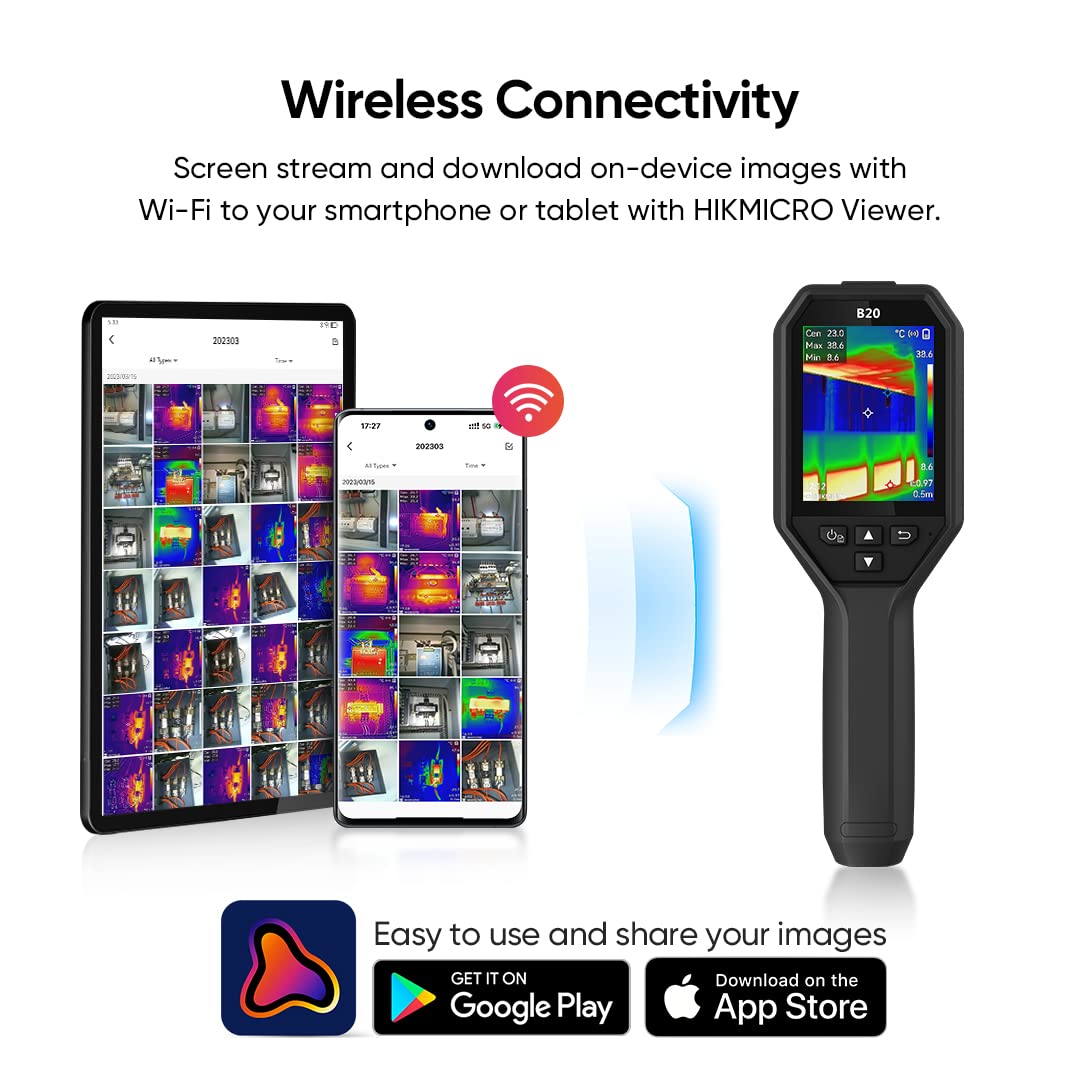
Image: A diagram illustrating the wireless connection between the HIKMICRO B20 camera and mobile devices (smartphone and tablet) running the HIKMICRO Viewer App, showing live streaming and image download capabilities.
- Live Stream: View the camera's live feed on up to three connected mobile devices.
- Image Transfer: Download captured images and videos directly to your smartphone or tablet.
- Remote Control: Control certain camera functions from the app.
- Analysis and Reporting: Perform detailed analysis of thermal images and generate reports within the app.
6.4. Using the Macro Lens
The included macro lens allows for detailed thermal inspection of small components, such as circuit boards.

Image: The HIKMICRO B20 camera with the macro lens attached, positioned to inspect a circuit board, with a detailed thermal image of the PCB shown alongside.

Image: A side-by-side comparison of thermal images, demonstrating the increased detail and clarity achieved when using the macro lens for close-up inspections versus without it.
- Ensure the camera is powered off.
- Carefully attach the macro lens to the front of the camera, aligning it with the main lens.
- Power on the camera. The camera will automatically adjust for the macro lens.
- Position the camera close to the target object for optimal focus and detail.
6.5. Data Analysis with HIKMICRO Analyzer
For more in-depth analysis and reporting on a computer, use the HIKMICRO Analyzer software.

Image: A visual representation showing the HIKMICRO B20 camera connected wirelessly to iOS and Android devices via the HIKMICRO Viewer app, and wired to a PC for analysis using HIKMICRO Analyzer software.
- Connect the camera to your PC using the USB Type-C cable.
- Launch the HIKMICRO Analyzer software.
- Import images and videos for detailed thermal analysis, trend charting, and professional report generation.
7. Maintenance
7.1. Cleaning the Device
- Lens and Screen: Use a soft, clean, lint-free cloth. For stubborn smudges, a small amount of lens cleaning solution designed for optics can be applied to the cloth (not directly to the lens/screen).
- Device Body: Wipe with a soft, damp cloth. Do not use harsh chemicals or abrasive cleaners.
7.2. Storage
- Store the camera in a cool, dry place, away from direct sunlight and extreme temperatures.
- If storing for extended periods, ensure the battery is charged to approximately 50% to prolong its lifespan. Recharge every 3-6 months.
8. Troubleshooting
| Problem | Possible Cause | Solution |
|---|---|---|
| Device does not power on. | Battery is depleted. | Charge the battery fully. |
| Image is blurry or out of focus. | Incorrect focus distance; dirty lens. | Adjust the distance to the object; clean the lens. |
| Wi-Fi connection fails. | Incorrect Wi-Fi settings; device too far from mobile. | Check Wi-Fi settings on both devices; ensure proximity. |
| Temperature readings seem inaccurate. | Incorrect emissivity setting; environmental factors. | Adjust emissivity for the target material; avoid strong air currents. |
9. Specifications
Detailed technical specifications for the HIKMICRO B20 Thermal Camera:
| Feature | Description |
|---|---|
| IR Resolution | 256 x 192 (49,152 pixels) |
| NETD | < 40 mK (@ 25°C, F#=1.0) |
| Visual Camera | 2 MP |
| Refresh Rate | 25 Hz |
| Temperature Range | -20°C to 550°C (-4°F to 1022°F) |
| Accuracy | ±2°C (±3.6°F) or ±2% of reading |
| Display | 3.2" LCD Screen |
| Image Modes | Thermal, Optical, Fusion, Picture-in-Picture (PIP) |
| Storage | 16 GB eMMC (stores approx. 90,000 images) |
| Battery Life | Up to 6 hours continuous operation |
| Connectivity | Wi-Fi, USB Type-C |
| Protection Level | IP54 |
| Drop Test Height | 2 meters (6.56 feet) |
| Dimensions | Refer to product packaging for exact dimensions. |
| Weight | Refer to product packaging for exact weight. |
10. Warranty and Support
10.1. Warranty Information
HIKMICRO provides the following warranty for the B20 Thermal Camera:
- Entire Device: 3 Years
- Thermal Sensor: 10 Years
This warranty covers defects in materials and workmanship under normal use. It does not cover damage caused by misuse, accidents, unauthorized modifications, or natural disasters. Please retain your proof of purchase for warranty claims.
10.2. Technical Support
HIKMICRO offers lifetime firmware updates and technical support for your B20 Thermal Camera.
- For technical assistance, troubleshooting, or warranty claims, please visit the official HIKMICRO website or contact their customer support.
- Regularly check the HIKMICRO website for firmware updates to ensure your device has the latest features and performance improvements.
Ask a question about this manual
Ask about setup, troubleshooting, compatibility, parts, safety, or missing instructions. Manuals+ will review the question and use this page’s manual context to help answer it.