
1. Introduction
This manual provides detailed instructions for the installation, operation, and maintenance of your Loccess Smart Digital Lock Box, Model SMKB2-BT. This device offers secure storage for keys and small items, featuring multiple access methods including Bluetooth app control and a digital keypad. Please read this manual thoroughly before use to ensure proper functionality and safety.
2. Product Features
- Multiple Unlocking Methods: Access via Bluetooth app, traditional password, one-time password, or time-limited passwords.
- App Control: Manage access, view operation logs, and control the lock box remotely (requires optional WiFi Gateway, not included).
- Durable Construction: Made from high-quality zinc alloy, designed for outdoor use.
- Weather Resistance: IP65 waterproof rating protects against rain, snow, and sun.
- Flexible Installation: Can be wall-mounted with supplied screws or hung using the integrated U-Hook.
- Large Storage Capacity: Ample space for multiple keys, access cards, or small valuables.
- Low Battery Alerts: Receive notifications when battery power is low.
3. Package Contents
Verify that all items listed below are included in your package:
- Loccess Smart Digital Lock Box (SMKB2-BT)
- Screws Set (x4) for wall mounting
- User Manual (this document)
- Drill Template
- Emergency Power Cord (Micro USB)

Figure 3.1: Package Contents
This image illustrates the items you should find inside the product packaging: the main lock box unit, a set of four screws for installation, the user manual, a drill template to assist with wall mounting, and a Micro USB emergency power cord.
4. Setup and Installation
4.1 Battery Installation
- Open the lock box using the default code (usually 123456 + OK) or by applying temporary power via the emergency Micro USB cable if the box is new or batteries are depleted. The Micro USB port is located on the bottom edge of the keypad.
- Locate the battery compartment inside the lock box.
- Insert 4 AAA batteries (not included) according to the polarity markings.
- Close the battery compartment cover securely.
4.2 App Download and Pairing
- Download the Tuya Smart or Smart Life app from your mobile device's app store (iOS or Android).
- Register or log in to your account.
- Ensure Bluetooth is enabled on your mobile device.
- In the app, tap '+' to add a device. The app should automatically detect the lock box if it's powered on and within Bluetooth range.
- Follow the on-screen instructions to pair the lock box with your app. You may need to enter the default password or press a button on the lock box to confirm pairing.

Figure 4.1: App Pairing Interface
This image displays the lock box alongside a smartphone screen, illustrating the Bluetooth connection process within the Smart Life application. The app allows for seamless pairing and control of the lock box.
4.3 Installation Methods
The lock box supports two installation methods: wall mounting or hanging.
4.3.1 Wall Mounting
- Choose a suitable, secure location on a wall.
- Use the provided drill template to mark the drilling points.
- Drill holes and insert wall anchors if necessary.
- Align the lock box with the drilled holes and secure it using the supplied screws.

Figure 4.2: Wall-Mounted Installation
This image shows the lock box installed directly onto a wall, demonstrating a permanent and secure mounting option. The design allows for flush installation against a flat surface.
4.3.2 Hanging Installation
- Ensure the U-Hook is securely attached to the top of the lock box.
- Hang the lock box over a doorknob, fence, pipe, or other suitable fixture.
- Verify that the lock box is stable and cannot be easily removed by unauthorized persons.

Figure 4.3: Hanging on a Doorknob
This image demonstrates the lock box being hung from a standard doorknob, showcasing its versatility for temporary or non-permanent installations.

Figure 4.4: Hanging from a Pipe
This image shows the lock box suspended from a metal pipe, secured with an additional cable, highlighting its adaptability for various outdoor environments and enhanced security.
5. Operating Instructions
5.1 Unlocking with the App (Bluetooth)
- Ensure your mobile device's Bluetooth is on and you are within range of the lock box.
- Open the Tuya Smart or Smart Life app.
- Select your lock box from the device list.
- Tap the 'Unlock' button within the app interface. The lock box will open.
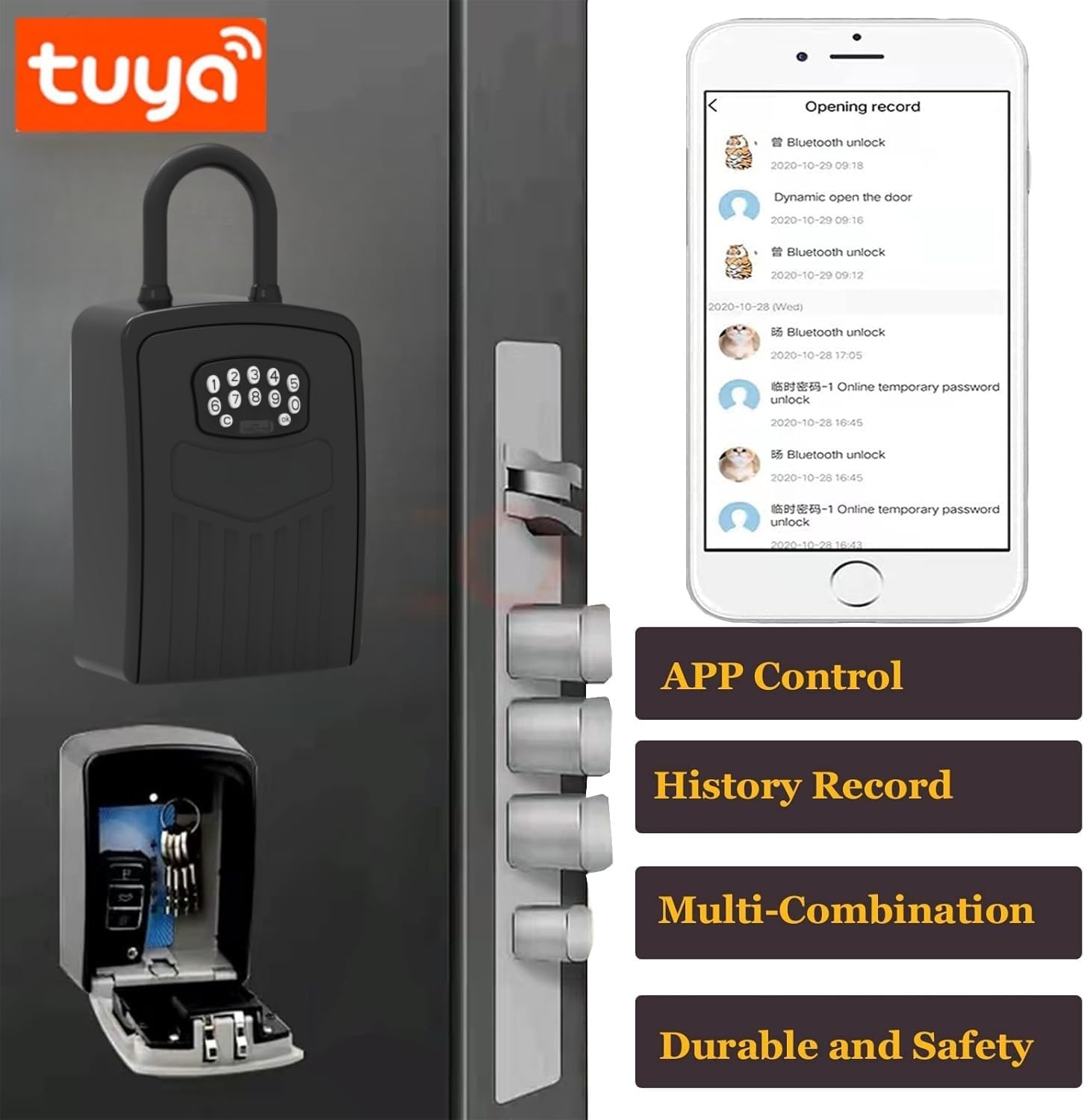
Figure 5.1: App Control and History
This image illustrates the Tuya app interface, which allows users to control the lock box and view a history of all unlocking events, providing a comprehensive record of access.
5.2 Unlocking with Passwords
The lock box supports various password types:
- Traditional Password: A permanent code set via the app. Enter the code on the keypad followed by 'OK'.
- One-Time Password: A temporary code generated by the app for single use.
- Time-Limited Passwords: Codes valid only for a specified duration, ideal for guests or service providers.
All password management is done through the Tuya Smart or Smart Life app. Passwords typically require 8-10 digits for enhanced security.
5.3 Remote Unlocking (with WiFi Gateway)
To unlock the device remotely from outside Bluetooth range, a separate WiFi Gateway (not included) is required. The gateway connects the lock box to your home WiFi network, allowing app control from any location with internet access. Refer to the WiFi Gateway's manual for setup instructions.
5.4 Viewing Operation Logs
The Tuya Smart or Smart Life app records all lock box operations, including unlocks and attempted access. Navigate to the 'History Record' section within the app to view these logs.
6. Maintenance
6.1 Battery Replacement
When the app indicates a low battery level, replace the 4 AAA batteries promptly to ensure continuous operation. Use the emergency Micro USB power cord if the batteries are completely depleted and the box cannot be opened.
6.2 Cleaning
Wipe the exterior of the lock box with a soft, damp cloth. Avoid using abrasive cleaners or solvents that could damage the finish or electronic components.
7. Troubleshooting
- Lock Box Not Opening:
- Ensure batteries are installed correctly and have sufficient charge. Use the emergency Micro USB power cord if needed.
- Verify the entered password is correct. Passwords are typically 8-10 digits.
- If using the app, ensure Bluetooth is active and you are within range.
- Bluetooth Connection Issues:
- Confirm Bluetooth is enabled on your phone.
- Move closer to the lock box. Bluetooth range is limited.
- Restart the app and/or your phone.
- Check battery level of the lock box.
- No Remote Access:
- The Loccess Smart Digital Lock Box (SMKB2-BT) requires a separate WiFi Gateway (not included) for remote access outside of Bluetooth range. This product is primarily Bluetooth-controlled.
- Ensure the WiFi Gateway is properly set up and connected to both the lock box and your home network.
- Keypad Unresponsive:
- Check battery level.
- Clean the keypad surface if there is dirt or debris.
8. Specifications
| Brand | Loccess |
| Model Name | Smart Key Box (SMKB2-BT) |
| Lock Type | Electronic Combination Lock |
| Material | Metal (Zinc Alloy) |
| Dimensions (L x W x H) | 4.13 x 8.07 inches (approximate) |
| Item Weight | 1.43 pounds (650 Grams) |
| Special Features | App Access, Waterproof (IP65) |
| Connectivity Protocol | Bluetooth |
| Control Method | App, Keypad |
| Power Source | 4 x AAA Batteries (not included) |
| Emergency Power | Micro USB Port |
9. Warranty and Support
9.1 Warranty Information
The Loccess Smart Digital Lock Box (Model SMKB2-BT) comes with a 1-year limited warranty from the date of purchase. This warranty covers manufacturing defects under normal use. It does not cover damage caused by misuse, accidents, unauthorized modifications, or improper installation.
9.2 Customer Support
For technical assistance, troubleshooting, or warranty claims, please contact Loccess customer support through the retailer's platform or the contact information provided with your purchase. Please have your model number (SMKB2-BT) and purchase date available when contacting support.


