
1. Introduction
Thank you for choosing the UnionSine HD3510 14TB External Hard Drive. This manual provides essential information to help you set up, operate, and maintain your device effectively. Please read this manual thoroughly before using the product to ensure optimal performance and longevity.

Image: UnionSine HD3510 14TB External Hard Drive, front view.
2. Product Overview
2.1 Key Features
- Large Storage Capacity: Offers 14TB of storage, ideal for PC, TV recording, game storage, and 4K video/image archives. Its vertical design optimizes space.
- High-Speed Data Transfer: Equipped with a Realtek RTL 9200B controller supporting 10 Gbps throughput and a USB-C 3.2 Gen2 high-speed interface. Achieves real read/write speeds of 160 MB/s to 280 MB/s (speeds vary with capacity).
- Broad Compatibility: Compatible with a wide range of devices including TV, PS4, Xbox, Windows, Mac, Linux, and Android systems.
- Enhanced Durability: Features internal shockproof silicone material to prevent impacts and reduce noise, thereby protecting the hard drive and extending its operational life.
- Efficient Heat Dissipation: Designed with three-sided concave cooling holes to rapidly dissipate internal heat generated during continuous high-speed operation, ensuring stable performance and product longevity.
2.2 What's in the Box
- UnionSine HD3510 External Hard Drive
- Power Adapter
- 1.2m Data Cable (USB 3.0)
- User Manual
3. Setup Guide
3.1 Connecting the Hard Drive
- Connect Power: Plug the power adapter into the hard drive's DC IN 12V port and then into a wall outlet.
- Connect Data Cable: Connect one end of the provided 1.2m data cable to the USB 3.0 port on the hard drive.
- Connect to Device: Connect the other end of the data cable to an available USB 3.0 port on your computer, game console (PS4, Xbox), or TV. For optimal performance, use a USB 3.0 or USB 3.2 Gen2 port.
- Power On: Press the power button on the hard drive (if available) or ensure it powers on automatically upon connection. The indicator light should illuminate.

Image: Rear view of the hard drive showing USB 3.2 Gen2 port and power input.

Image: UnionSine HD3510 connected to a laptop, ready for use.
3.2 Initializing and Formatting (Windows/Mac)
Upon first connection, your operating system may prompt you to initialize and format the drive. Follow the on-screen instructions. If not prompted:
- Windows: Go to Disk Management (Right-click "This PC" > "Manage" > "Disk Management"). Locate the new drive, initialize it (GPT for drives larger than 2TB), and then create a new simple volume, formatting it with NTFS.
- Mac: Open Disk Utility (Applications > Utilities > Disk Utility). Select the new drive, click "Erase," choose a name, format (APFS or Mac OS Extended (Journaled)), and scheme (GUID Partition Map).
For other devices like PS4, Xbox, or TV, the device itself will usually guide you through the formatting process if required.
4. Operating Instructions
4.1 Data Transfer
Once connected and recognized by your device, the UnionSine HD3510 functions like any other storage drive. You can drag and drop files, copy and paste, or use backup software to transfer data.
- For optimal transfer speeds, ensure you are using a USB 3.0 or higher port on your host device.
- Avoid disconnecting the drive during data transfer to prevent data corruption.
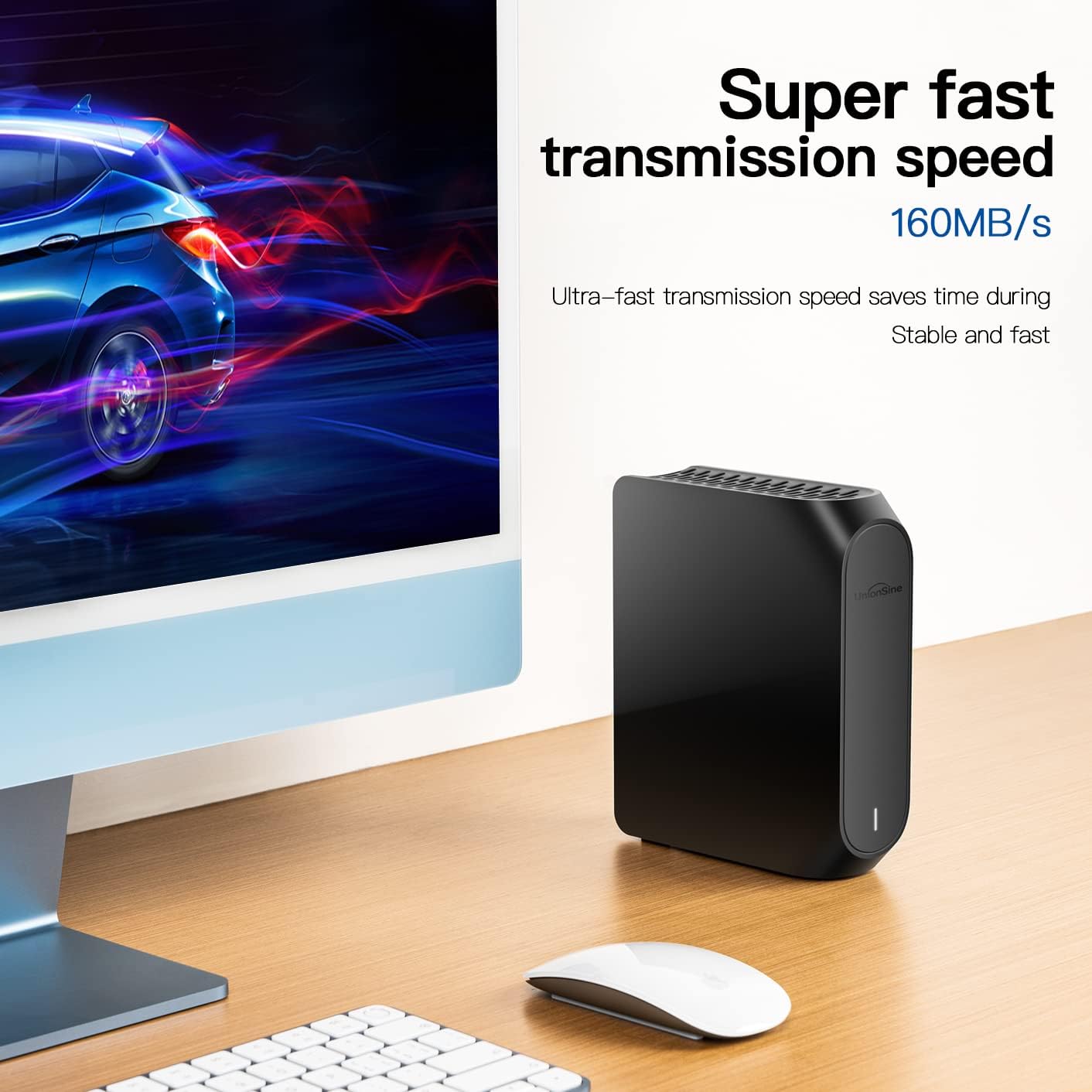
Image: Illustration of high-speed data transmission with the hard drive.
4.2 Usage with Specific Devices
- PC/Mac: Use for general file storage, backups, and expanding system storage.
- Gaming Consoles (PS4/Xbox): Connect to expand game storage. Follow the console's instructions for external storage setup.
- TV: Use for recording TV programs or playing back media files. Refer to your TV's manual for specific external HDD support and formatting requirements.

Image: UnionSine HD3510 positioned next to a TV, illustrating its use for media storage.

Image: UnionSine HD3510 next to a computer monitor, highlighting its mass storage capabilities for personal or office data.
5. Maintenance
5.1 Safe Disconnection
Always safely eject the hard drive from your operating system before physically disconnecting it. This prevents data corruption and ensures the drive's longevity.
- Windows: Right-click the drive icon in "This PC" or the "Safely Remove Hardware and Eject Media" icon in the taskbar, then select "Eject [Drive Name]".
- Mac: Drag the drive icon to the Trash, or click the Eject button next to the drive in Finder.
5.2 Physical Care
- Keep the hard drive in a cool, dry place away from direct sunlight and extreme temperatures.
- Avoid dropping or subjecting the drive to strong impacts, despite its shockproof design.
- Ensure the ventilation holes are not obstructed to maintain optimal heat dissipation.
- Clean the exterior with a soft, dry cloth. Do not use liquid cleaners.

Image: Close-up of the anti-slip pads on the bottom of the hard drive for stability.

Image: Detailed view of the three-sided concave cooling holes on the hard drive.
6. Troubleshooting
6.1 Drive Not Detected
- Check Connections: Ensure the power adapter and USB data cable are securely connected to both the hard drive and your device.
- Try Different Port/Cable: Test with a different USB port on your device or a different USB 3.0 cable to rule out port or cable issues.
- Check Power: Verify the power adapter is working and the hard drive's indicator light is on.
- Initialization/Formatting: For new drives, ensure it has been initialized and formatted as described in Section 3.2.
- Restart Device: Sometimes a simple restart of your computer or console can resolve detection issues.
6.2 Slow Data Transfer Speeds
- USB Port: Ensure you are connected to a USB 3.0 or USB 3.2 Gen2 port on your device. USB 2.0 ports will result in significantly slower speeds.
- Cable Quality: Use the provided high-quality USB 3.0 cable. Lower quality or longer cables can affect performance.
- System Load: High CPU usage or other background processes on your computer can impact transfer speeds.
- Drive Fragmentation: Over time, hard drives can become fragmented, affecting performance. Consider defragmenting the drive (Windows only, not recommended for SSDs).
6.3 Drive Making Unusual Noises
- A certain level of operational noise is normal for mechanical hard drives.
- If you hear loud clicking, grinding, or repetitive noises, safely disconnect the drive immediately and contact customer support. This may indicate a hardware failure.
7. Specifications
| Feature | Specification |
|---|---|
| Model Number | HD3510 |
| Digital Storage Capacity | 14 TB |
| Hard Drive Interface | USB 2.0/3.0 (USB-C 3.2 Gen2 for high speed) |
| Connectivity Technology | USB |
| Special Feature | Portable (Desktop form factor) |
| Hard Drive Form Factor | 3.5 Inches |
| Hard Drive Description | Mechanical Hard Drive |
| Compatible Devices | TV, PS4, Xbox, Windows, Mac, Linux, Android, DVD |
| Installation Type | External Hard Drive |
| Color | Black |
| Rotation Speed | 7200 RPM |
| Read Speed | Up to 160 MB/s |
| Write Speed | Up to 110 MB/s |
| Average Latency | 11 Milliseconds |
| Hardware Connectivity | SATA 6.0 Gbit/s (Internal drive interface) |
| Item Weight | 940 Grams |
Note: Specifications are subject to change without prior notice.
8. Safety Information
- Do not open the hard drive enclosure. This will void the warranty and may cause damage.
- Keep the device away from water, moisture, and extreme temperatures.
- Use only the provided power adapter and data cable. Using incompatible accessories may damage the device.
- Ensure proper ventilation to prevent overheating.
- Dispose of the product and its components responsibly according to local regulations.
9. Warranty and Support
For warranty information and technical support, please refer to the documentation included with your product or visit the official UnionSine website. Keep your purchase receipt as proof of purchase for warranty claims.
Official Website: www.unionsine.com


