
1. Introduction
This manual provides comprehensive instructions for the installation, operation, and maintenance of your ADATA Legend 700 M.2 Solid State Drive. The ADATA Legend 700 is a high-performance storage solution designed for enhanced system responsiveness and faster data transfer speeds, utilizing the PCIe Gen3 x4 interface and NVMe 1.3 protocol.
For optimal performance and longevity of your SSD, please read this manual thoroughly before proceeding with installation or use.
2. Safety Information
Observe the following safety precautions to prevent damage to the product or injury to yourself:
- Always disconnect power from your computer before installing or removing any internal components.
- Wear an anti-static wrist strap or frequently touch a grounded metal object to discharge static electricity, which can damage electronic components.
- Handle the SSD by its edges to avoid touching the gold connectors or components on the circuit board.
- Ensure the SSD is correctly aligned with the M.2 slot before applying gentle, even pressure. Forcing the drive can cause damage.
- Keep the SSD away from liquids, extreme temperatures, and strong magnetic fields.
3. Package Contents
Verify that your package contains the following items:
- ADATA Legend 700 M.2 Solid State Drive (256GB)
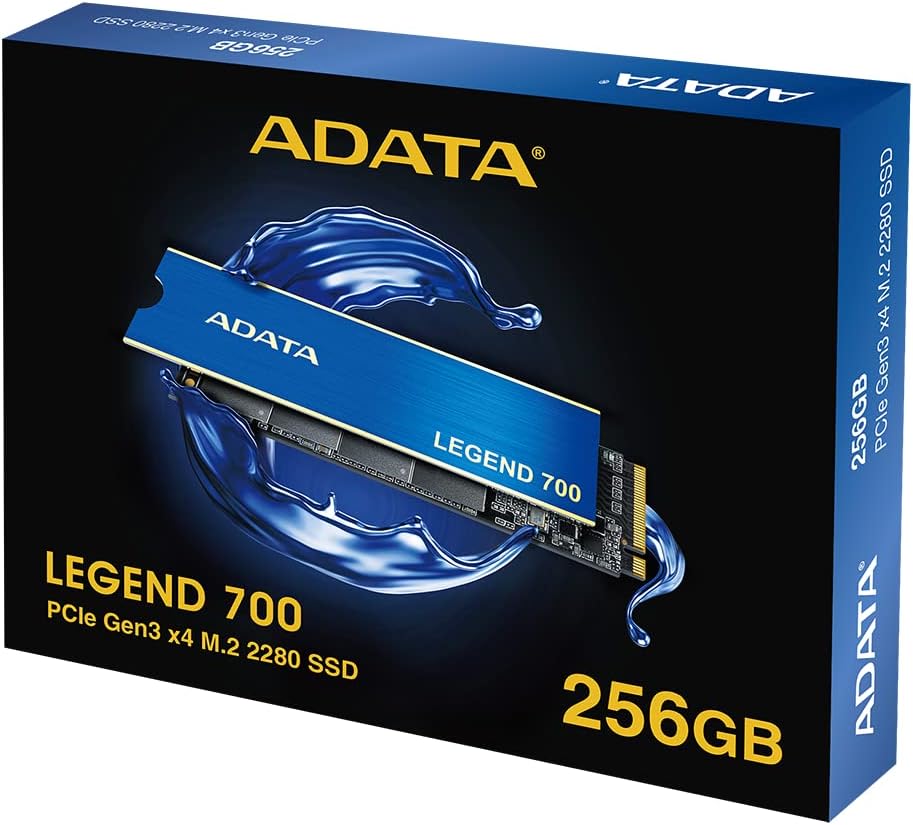
4. Setup and Installation
The ADATA Legend 700 is an M.2 2280 form factor SSD, requiring a compatible M.2 slot on your motherboard or laptop. Ensure your system supports PCIe Gen3 x4 NVMe SSDs.
4.1 Physical Installation
- Prepare Your System: Power off your computer and disconnect the power cable. If installing in a laptop, remove the battery.
- Access the M.2 Slot: Open your computer case or laptop chassis to locate the M.2 slot. Refer to your system's manual for the exact location.
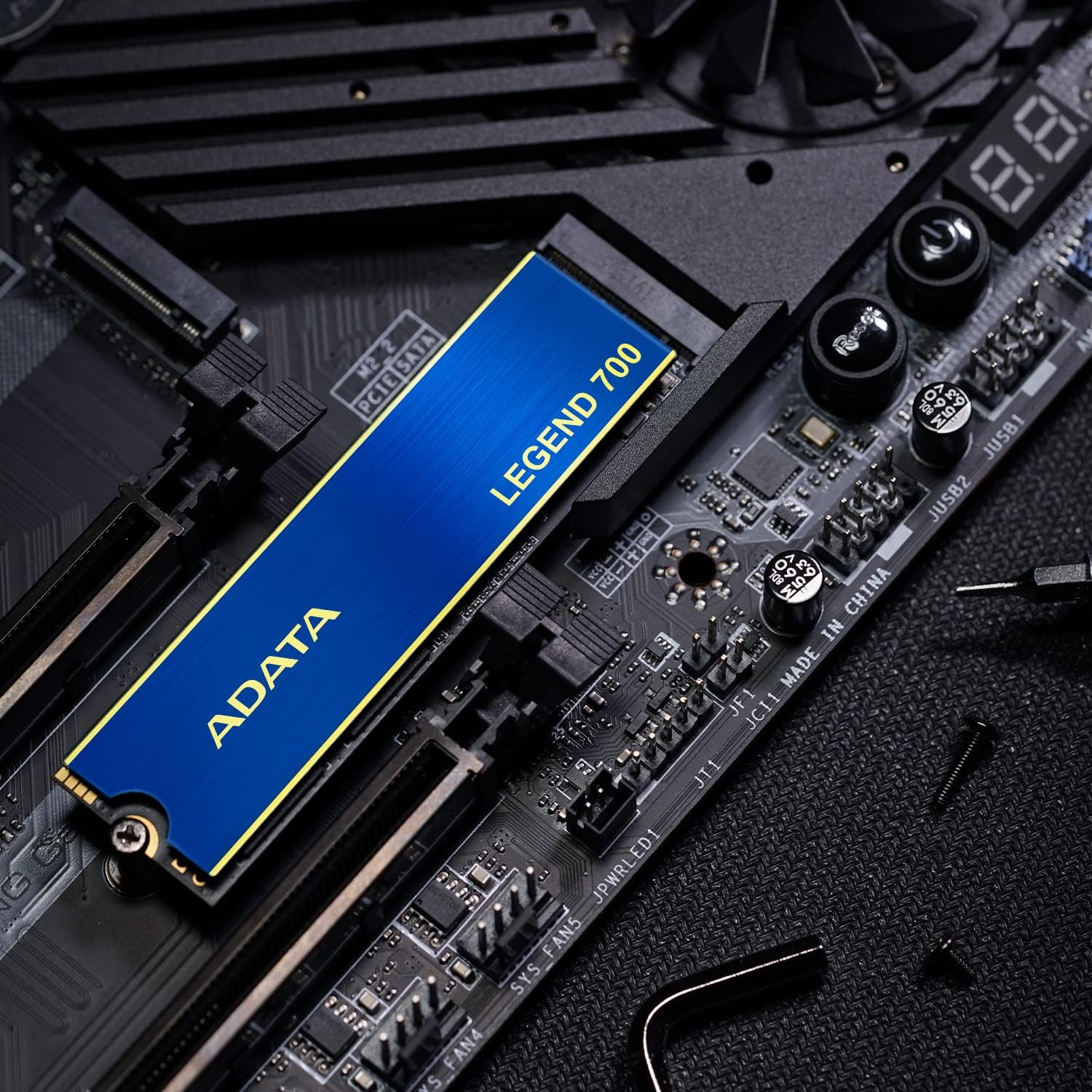
- Insert the SSD: Gently slide the ADATA Legend 700 SSD into the M.2 slot at a 30-degree angle. The gold connectors should be fully seated.
- Secure the SSD: Push the SSD down until it is parallel with the motherboard. Secure it with the M.2 screw provided with your motherboard or laptop.

4.2 Initializing the SSD (Windows)
After physical installation, you may need to initialize and format the SSD before it appears in "My Computer" or "This PC".
- Boot Your System: Power on your computer.
- Open Disk Management: Right-click on the Start button and select "Disk Management".
- Initialize Disk: A dialog box may appear prompting you to initialize the new SSD. Select MBR (Master Boot Record) or GPT (GUID Partition Table) based on your system's requirements (GPT is recommended for modern systems and drives larger than 2TB).
- Create New Simple Volume: Right-click on the unallocated space of the new SSD and select "New Simple Volume". Follow the wizard to assign a drive letter and format the drive (NTFS is recommended for Windows).
For macOS or Linux, refer to your operating system's documentation for disk initialization and formatting procedures.
5. Operating Instructions
The ADATA Legend 700 SSD operates as a standard storage device. Once installed and formatted, it can be used for operating system installation, application storage, or data storage.
5.1 Performance Characteristics
- High Speed: Achieves sequential read/write speeds up to 2,000/1,600 MB/s, significantly faster than traditional hard drives.
- PCIe Gen3 x4 Interface: Utilizes four PCIe lanes for high bandwidth.
- NVMe 1.3 Protocol: Ensures efficient communication with the system.
- SLC Caching: Employs Single-Level Cell caching to boost burst performance.
- Host Memory Buffer (HMB): Leverages the host system's DRAM for improved random read/write performance without dedicated DRAM on the SSD.


5.2 Heat Dissipation
The Legend 700 is equipped with a heat sink to maintain optimal operating temperatures and ensure stable performance, especially during sustained workloads.

6. Maintenance
Solid State Drives require different maintenance practices compared to traditional hard disk drives.
- No Defragmentation: Do not defragment your SSD. This is unnecessary and can reduce the lifespan of the drive.
- TRIM Command: Ensure your operating system has TRIM enabled. TRIM helps the SSD manage its data more efficiently, maintaining performance over time. Most modern operating systems enable TRIM by default for SSDs.
- Firmware Updates: Periodically check the ADATA official website for firmware updates for your Legend 700 SSD. Firmware updates can improve performance, stability, and compatibility.
- Monitor Health: Use S.M.A.R.T. (Self-Monitoring, Analysis, and Reporting Technology) tools to monitor the health and lifespan of your SSD. Many operating systems and third-party utilities offer this functionality.
- Avoid Filling to Capacity: While SSDs can be filled, leaving some free space (e.g., 10-15%) can help maintain optimal performance and longevity.
7. Troubleshooting
7.1 SSD Not Detected
- Check Physical Connection: Ensure the SSD is properly seated in the M.2 slot and the securing screw is in place.
- BIOS/UEFI Settings: Enter your system's BIOS/UEFI setup and verify that the M.2 slot is enabled and configured correctly (e.g., PCIe mode).
- Driver Installation: For some systems, NVMe drivers may need to be installed. Check your motherboard or laptop manufacturer's website.
- Disk Management: If detected by the system but not visible in "My Computer", check Disk Management (Windows) to initialize and format the drive as described in Section 4.2.
7.2 Slow Performance
- Check PCIe Lane Configuration: Ensure the M.2 slot is operating at PCIe Gen3 x4 speed. Some motherboards share PCIe lanes with other components, which can reduce performance.
- TRIM Status: Verify that TRIM is enabled for your SSD.
- Firmware: Ensure your SSD has the latest firmware.
- Overheating: While the Legend 700 has a heatsink, ensure adequate airflow within your system to prevent thermal throttling.
- System Resources: High CPU usage, low RAM, or other background processes can impact storage performance.
8. Specifications
| Feature | Specification |
|---|---|
| Model | ADATA Legend 700 |
| Capacity | 256GB |
| Form Factor | M.2 2280 |
| Interface | PCIe Gen3 x4 |
| NVMe Standard | 1.3 |
| Sequential Read Speed | Up to 2,000 MB/s |
| Sequential Write Speed | Up to 1,600 MB/s |
| NAND Flash | 3D NAND |
| Dimensions (L x W x H) | 80 x 22 x 3.15 mm (3.15 x 0.87 x 0.12 inches) |
| Weight | 0.317 ounces (approx. 9g) |
| Operating Temperature | 0°C to 70°C |
| Storage Temperature | -40°C to 85°C |
| Shock Resistance | 1500G/0.5ms |
| MTBF (Mean Time Between Failures) | Not specified in provided data, typically 1.5-2 million hours for SSDs. |
9. Warranty and Support
ADATA Technology Co., Ltd. provides a limited warranty for its products. The specific terms and duration of the warranty may vary by region and product model. Please retain your proof of purchase for warranty claims.
For detailed warranty information, technical support, driver downloads, and firmware updates, please visit the official ADATA website:
You can also contact ADATA customer service through the contact information provided on their website.


