
1. Introduction
This manual provides detailed instructions for the Akko 5087S TKL Mechanical Keyboard. The 5087S is an 87-key tenkeyless mechanical gaming keyboard designed for a comfortable and versatile typing experience, saving space by omitting the number pad. It features PBT shine-through keycaps, RGB backlighting, hot-swappable switches, and compatibility with both Windows and Mac operating systems.
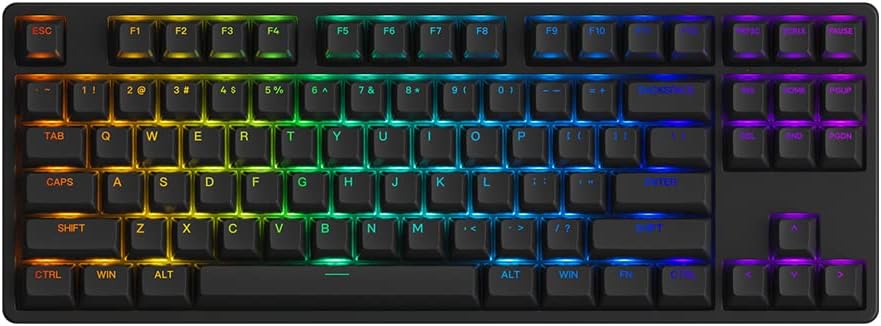
Image 1.1: The Akko 5087S TKL Mechanical Keyboard, showcasing its 87-key layout and vibrant RGB backlighting.
2. Package Contents
Please verify that all items are present in your package:
- Akko 5087S TKL Mechanical Keyboard
- Detachable USB-A to USB-C Cable
- Keycap Puller
- Switch Puller
- Additional Switches (if included with your specific model)
3. Setup
3.1 Connecting the Keyboard
- Locate the USB-C port on the back of the Akko 5087S keyboard.
- Connect the USB-C end of the provided cable to the keyboard.
- Connect the USB-A end of the cable to an available USB port on your computer.
- The keyboard will be automatically recognized by your operating system.
3.2 System Compatibility
The Akko 5087S supports both Windows and Mac operating systems. To switch between modes:
- For Windows mode: Press and hold Fn + Q.
- For Mac mode: Press and hold Fn + O.
4. Operating Instructions
4.1 Key Functions and Remapping
All keys on the Akko 5087S can be re-mapped. For advanced customization and key function re-setting, utilize the Akko Cloud Driver software. This software also supports per-key RGB customization and music rhythm effects.
4.2 RGB Backlighting
The keyboard features multiple built-in RGB backlit effects. You can cycle through different backlight modes using simple keyboard shortcuts. Refer to the keyboard's function layer markings or the Akko Cloud Driver software for specific key combinations to adjust RGB settings.

Image 4.1: Icons representing key features of the Akko 5087S: RGB lighting, hot-swappable switches, USB Type-C connectivity, and N-Key Rollover.
5. Hot-Swappable Switches
The 5087S is equipped with premium 5-pin hot-swappable sockets and a plate foam, allowing users to easily change 3-pin and 5-pin mechanical switches without soldering. The keyboard comes pre-installed with Akko CS Jelly Pink linear switches, known for their smooth feel and a lifespan of up to 60 million keystrokes.
To replace switches:
- Use the included keycap puller to carefully remove the desired keycap.
- Use the included switch puller to gently grip and pull the switch upwards until it detaches from the socket.
- Align the pins of the new switch with the holes in the hot-swappable socket.
- Press the new switch firmly into place until it clicks. Ensure the pins are not bent.
- Re-attach the keycap.
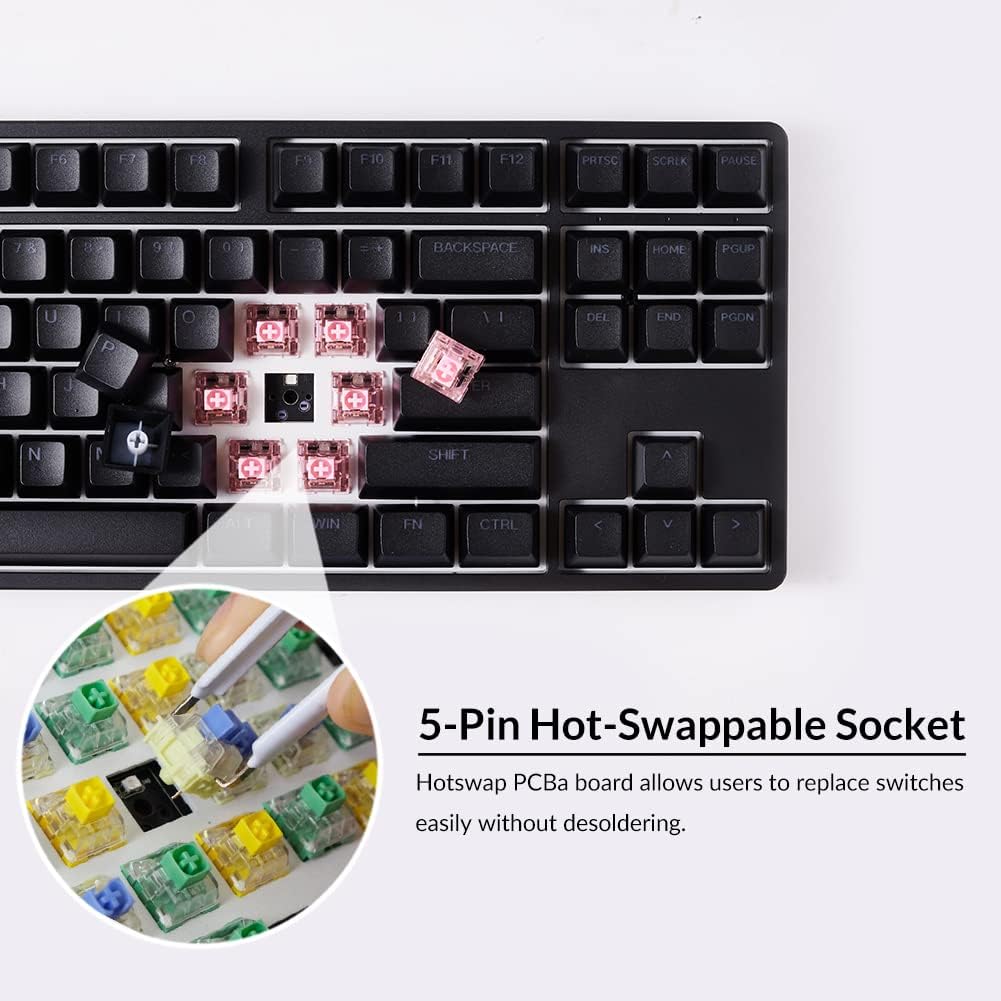
Image 5.1: A close-up view illustrating the 5-pin hot-swappable sockets, allowing for easy switch replacement without soldering.
6. PBT Double-Shot Keycaps
The Akko 5087S features ASA profile, double-shot PBT keycaps. These keycaps are highly durable and resistant to wear, ensuring legends remain vibrant and sharp even after extensive use. PBT material is also resistant to oil and fingerprints, maintaining a consistent typing feel over time.

Image 6.1: PBT Double-shot Keycaps, highlighting their robust construction and the included keycap puller.
7. Adjustable Feet
The keyboard is equipped with two adjustable feet, offering three levels of height to customize your typing angle for improved ergonomics and comfort.

Image 7.1: Illustration of the two adjustable feet providing multiple height options, alongside a diagram of the ASA keycap profile.
8. Maintenance
8.1 Cleaning the Keyboard
- Disconnect the keyboard from your computer before cleaning.
- Use a soft, lint-free cloth lightly dampened with water or a mild cleaning solution to wipe the keycaps and chassis.
- For dust and debris between keycaps, use compressed air or a small brush.
- Avoid using harsh chemicals or abrasive materials, as these can damage the keycaps or finish.
8.2 Keycap and Switch Care
- When removing keycaps or switches, use the provided tools to prevent damage.
- Store spare keycaps and switches in a clean, dry place.
9. Troubleshooting
9.1 Keyboard Not Responding
- Ensure the USB cable is securely connected to both the keyboard and the computer.
- Try connecting the keyboard to a different USB port on your computer.
- Test the keyboard on another computer to rule out system-specific issues.
- If using a USB hub, try connecting directly to the computer.
9.2 RGB Backlighting Issues
- Verify that the keyboard is properly connected and powered.
- Use the keyboard shortcuts to cycle through RGB modes or adjust brightness.
- Install or update the Akko Cloud Driver software to customize RGB settings.
9.3 Keys Not Registering
- Carefully remove the keycap and switch for the affected key.
- Inspect the switch pins for any bends or damage. Straighten bent pins gently if possible.
- Re-insert the switch firmly into the hot-swappable socket.
- If the issue persists, consider replacing the switch with a spare or a new one.
10. Specifications
| Brand | Akko |
| Model Name | 5087S |
| Keyboard Description | 87-Key TKL Wired Mechanical Gaming Keyboard |
| Connectivity Technology | USB Type-C Wired |
| Compatible Devices | PC, laptop, tablet, computer (Windows, Mac) |
| Special Features | RGB Backlit, Hot-swappable Switches |
| Material Type | Polybutylene Terephthalate (PBT) Keycaps |
| Product Dimensions | 36.4 x 13.5 x 3 cm |
| Weight | 1.5 kg |
11. Warranty and Support
For warranty information, technical support, or further assistance, please refer to the official Akko website or contact Akko customer service directly. Keep your purchase receipt for warranty claims.
Official Akko Website: www.akkogear.com


