
Introduction
This manual provides detailed instructions for the JSAUX HB0603 6-in-1 Docking Station. This device is designed to expand the connectivity of your portable gaming console, offering enhanced display output, charging capabilities, and peripheral support. Please read this manual thoroughly before use to ensure proper operation and longevity of your device.
Product Overview
The JSAUX HB0603 is a versatile 6-in-1 docking station engineered for various handheld gaming devices. It integrates essential ports to transform your portable gaming experience into a desktop-like setup.
Key Features:
- HDMI 2.1 Output: Supports 4K resolution at 120Hz for high-fidelity visual output to external displays.
- 100W Power Delivery (PD): Provides rapid charging for your connected handheld device.
- 3x USB 3.0 Ports: Offers high-speed data transfer and connectivity for multiple peripherals.
- Gigabit Ethernet: Ensures stable and fast wired network connection.
Compatibility:
This docking station is compatible with a range of handheld gaming consoles, including:
- Steam Deck (LCD/OLED)
- ROG Ally / Ally X
- Legion Go / Go S
- MSI Claw
Note: Not compatible with ROG XBOX Ally / XBOX Ally X.

Image: The JSAUX 6-in-1 Docking Station connected to a Steam Deck, illustrating its compact design and multiple port connections.
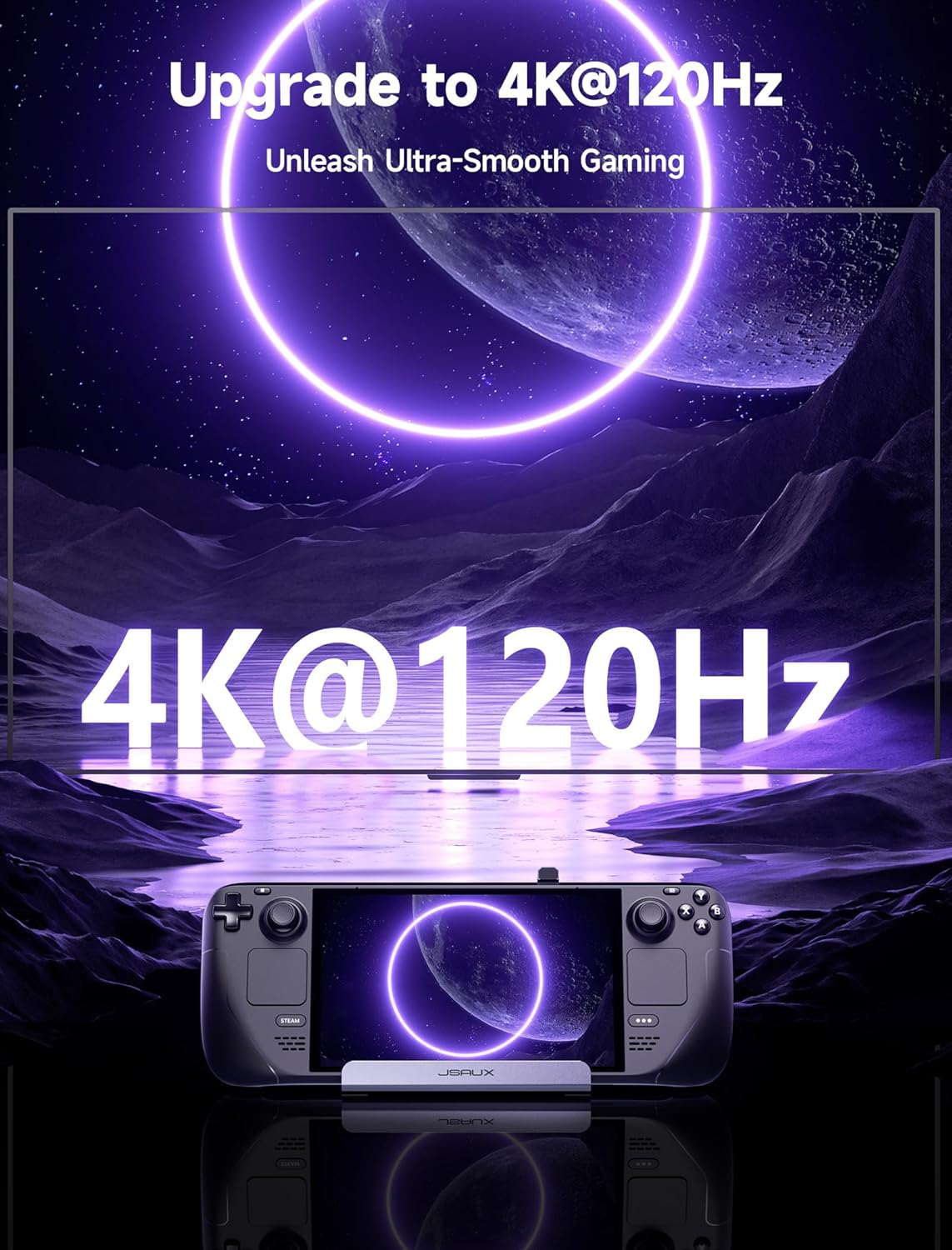
Image: A detailed view of the docking station's ports, clearly labeled for USB-C PD, HDMI 2.1, three USB 3.0 ports, and Gigabit Ethernet.

Image: Visual representation of the docking station's compatibility with various handheld gaming devices.
Setup Instructions
Follow these steps to set up your JSAUX HB0603 Docking Station:
- Connect Power: Connect a compatible USB-C power adapter (100W recommended for optimal performance, especially for ROG Ally's 30W Turbo Mode) to the USB-C PD input port on the docking station.
- Connect to Handheld: Carefully insert the integrated USB-C cable from the docking station into the USB-C port of your Steam Deck, ROG Ally, Legion Go, or MSI Claw. Ensure a secure connection.
- Connect Display (Optional): For external display output, connect an HDMI cable from the HDMI 2.1 port on the docking station to your monitor or TV.
- Connect Ethernet (Optional): For a wired internet connection, connect an Ethernet cable from your router to the Gigabit Ethernet port on the docking station.
- Connect USB Peripherals (Optional): Plug in your USB devices such as a keyboard, mouse, external storage, or game controller into the available USB 3.0 ports.
Your handheld device should now recognize the docking station and its connected peripherals and display. Some devices may require a few moments to detect the external display.
Operating Instructions
Once set up, the JSAUX HB0603 Docking Station operates automatically. Here's how to utilize its features:
HDMI 2.1 Output:
- The HDMI 2.1 port supports resolutions up to 4K at 120Hz. Ensure your external display and HDMI cable also support these specifications for optimal performance.
- Your handheld device should automatically detect the external display. If not, check your device's display settings to enable or extend the display.
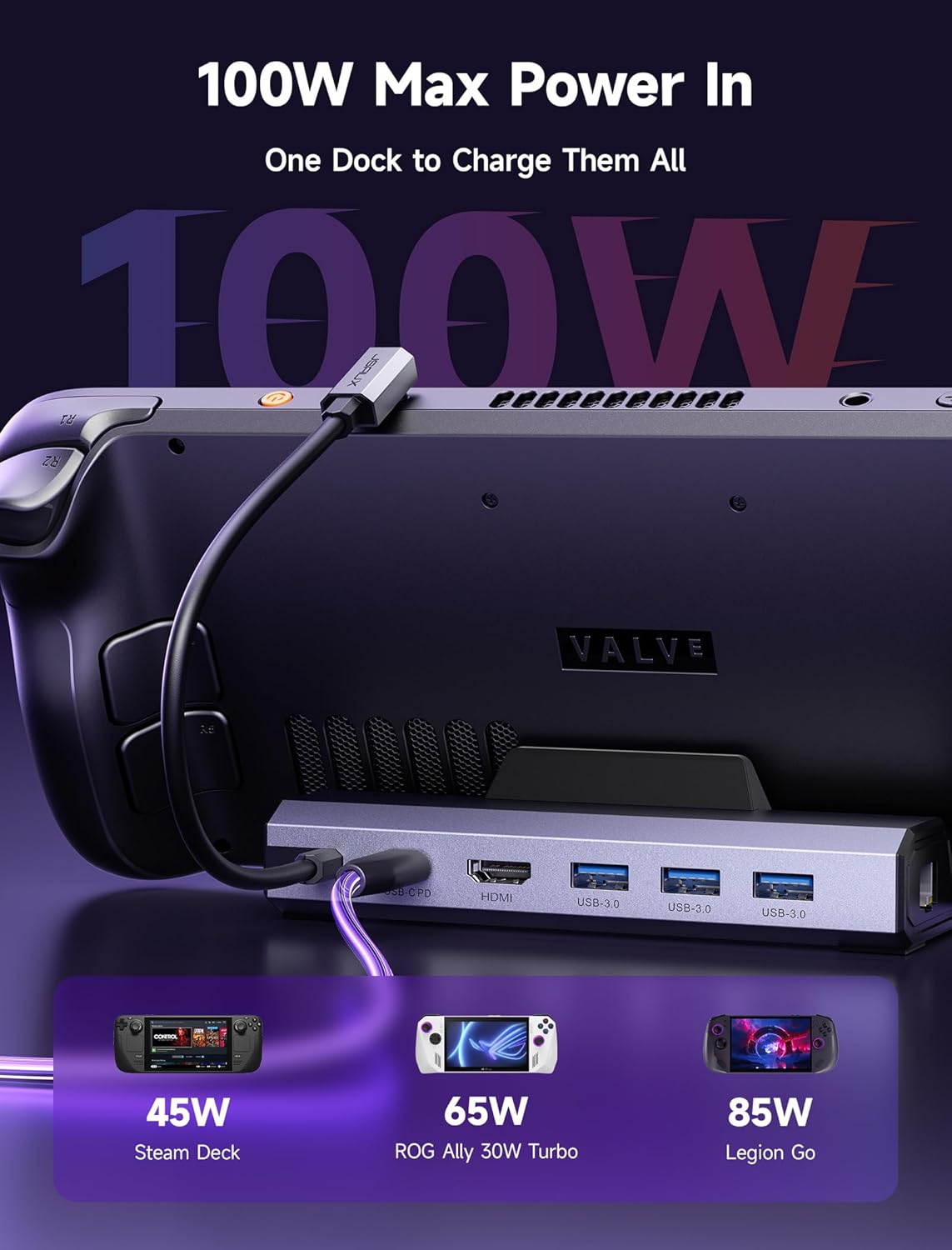
Image: A handheld device connected to an external monitor via the docking station, showcasing 4K@120Hz display capabilities.
USB 3.0 Ports:
- The three USB 3.0 ports provide data transfer speeds of up to 5Gbps.
- Connect various USB peripherals such as external hard drives, USB flash drives, keyboards, mice, and game controllers.
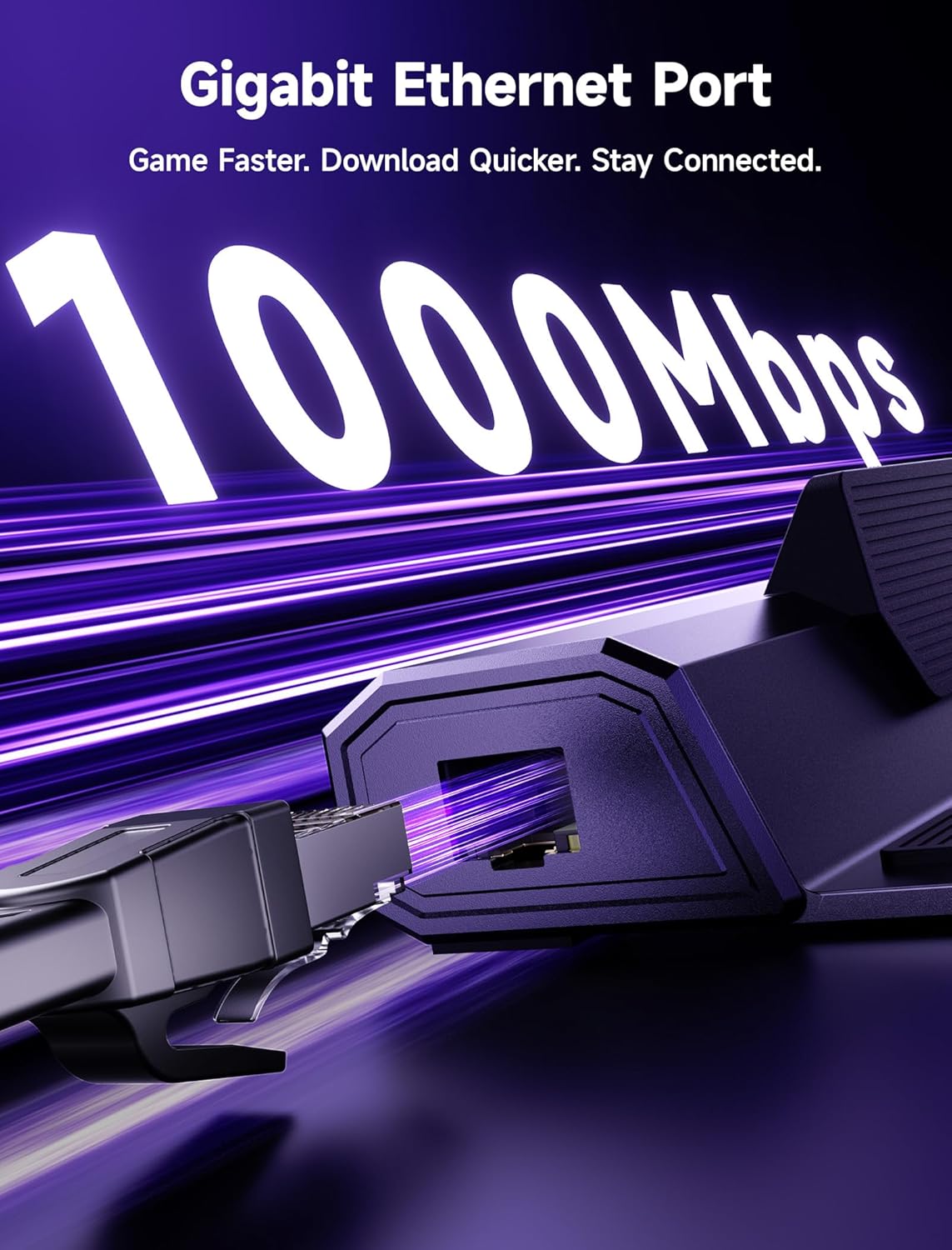
Image: Multiple USB peripherals connected to the docking station, expanding the handheld's functionality.
Gigabit Ethernet:
- The Gigabit Ethernet port provides a stable and high-speed wired internet connection (up to 1000Mbps).
- This is ideal for online gaming, large file downloads, and streaming, reducing latency and improving connection reliability compared to Wi-Fi.

Image: Close-up of the Gigabit Ethernet port, emphasizing its role in providing a stable wired network connection.
100W Power Delivery:
- The USB-C PD port supports up to 100W power input to charge your handheld device while it is docked.
- For ROG Ally users, a 100W charger is recommended to fully support the 30W Turbo Mode.
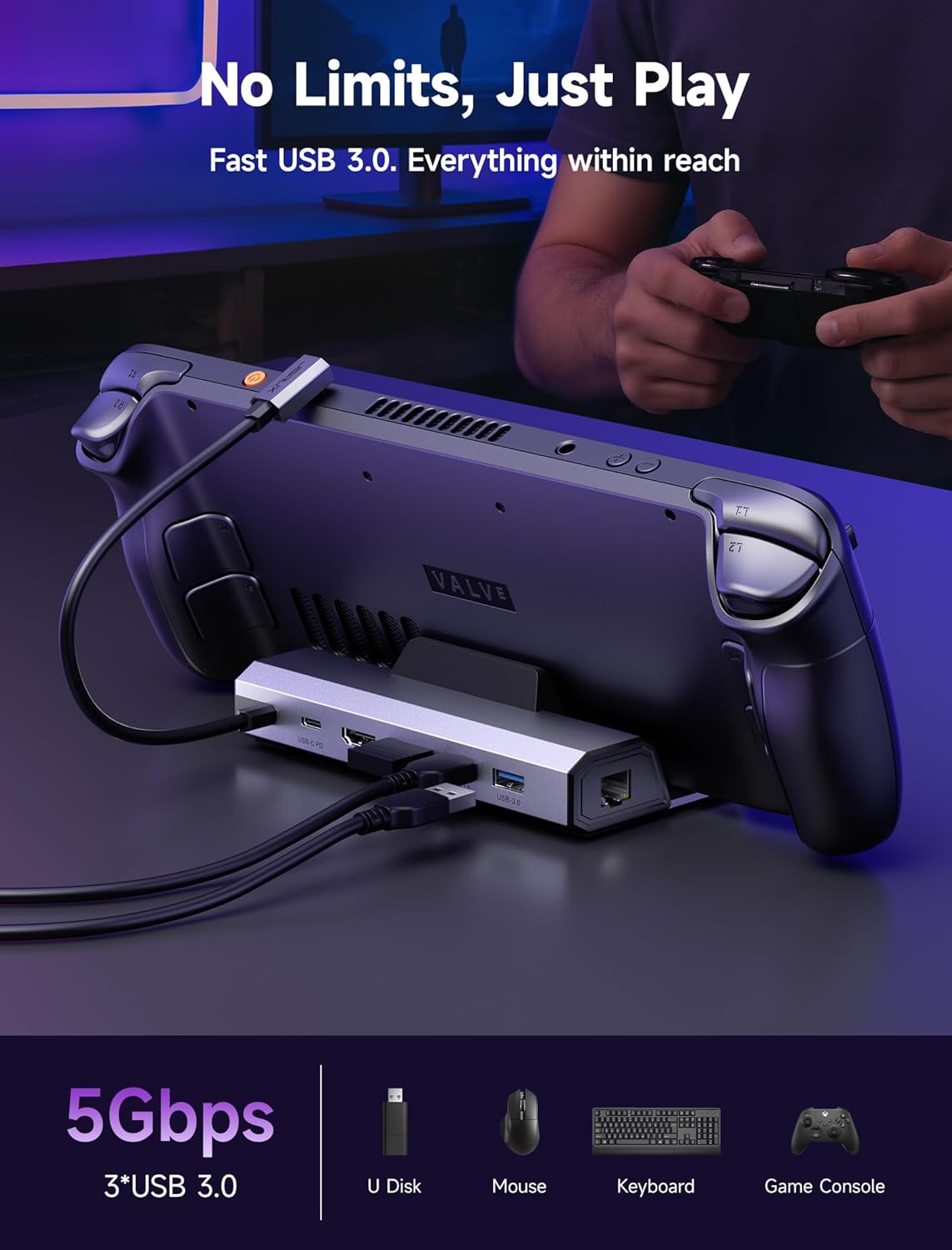
Image: The docking station providing power to a handheld device, highlighting its 100W charging capability.
Maintenance
To ensure the longevity and optimal performance of your docking station, follow these maintenance guidelines:
- Cleaning: Use a soft, dry cloth to wipe the exterior of the docking station. Avoid using liquid cleaners or abrasive materials.
- Storage: Store the docking station in a cool, dry place away from direct sunlight and extreme temperatures when not in use.
- Handling: Avoid dropping or subjecting the docking station to strong impacts. Do not attempt to disassemble the device.
Troubleshooting
If you encounter issues with your JSAUX HB0603 Docking Station, refer to the following common problems and solutions:
| Problem | Possible Cause | Solution |
|---|---|---|
| No display output on external monitor. | Loose HDMI connection, incompatible cable/monitor, incorrect display settings on handheld. | Ensure HDMI cable is securely connected to both the dock and monitor. Verify monitor input source. Check handheld's display settings to ensure external display is detected and enabled. Try a different HDMI cable or monitor. |
| Handheld device is not charging or charging slowly. | Insufficient power adapter, loose USB-C PD connection, handheld software issue. | Ensure a power adapter of sufficient wattage (100W recommended) is connected to the dock's USB-C PD port. Verify all USB-C connections are secure. For ROG Ally, ensure the latest BIOS updates are installed to resolve potential 'not compatible charger' errors and enable 30W Turbo Mode. |
| Ethernet connection is not working. | Loose Ethernet cable, network driver issue, router problem. | Check if the Ethernet cable is securely connected to both the dock and your router. Restart your handheld device and router. Ensure your handheld's operating system has the necessary network drivers. |
| USB peripherals are not recognized. | Loose USB connection, device driver issue, power draw. | Ensure USB devices are firmly plugged into the USB 3.0 ports. Try connecting the device to a different USB port on the dock. If using multiple high-power USB devices, ensure the docking station is receiving adequate power. Check if specific drivers are required for the peripheral on your handheld device. |
Specifications
| Feature | Specification |
|---|---|
| Model Number | HB0603 |
| Product Dimensions | 1.26 x 4.29 x 6.02 inches (3.2 x 10.9 x 15.3 cm) |
| Item Weight | 6 ounces (170 Grams) |
| HDMI Output | HDMI 2.1, 4K@120Hz |
| USB Ports | 3x USB 3.0 (5Gbps) |
| Ethernet Port | Gigabit Ethernet (1000Mbps) |
| Power Delivery Input | USB-C PD, up to 100W |
| Compatible Devices | Steam Deck LCD/OLED, ROG Ally / Ally X, Legion Go / Go S, MSI Claw |
Warranty and Support
The JSAUX HB0603 6-in-1 Docking Station is covered by a standard manufacturer's warranty. For specific warranty terms, duration, and to register your product, please refer to the warranty card included with your purchase or visit the official JSAUX website.
For technical support, troubleshooting assistance beyond this manual, or customer service inquiries, please contact JSAUX customer support through their official website or the contact information provided in your product packaging.