
Powerwave 163395
Powerwave Switch Wireless Controller User Manual
Model: 163395
Introduction
This manual provides detailed instructions for the Powerwave Switch Wireless Controller. Learn how to set up, operate, maintain, and troubleshoot your controller to enhance your gaming experience on Nintendo Switch, PC, Android, and iOS devices.

Front view of the Powerwave Switch Wireless Controller, showcasing its Star White design with blue grips and red shoulder buttons. The controller features standard button layouts including A, B, X, Y buttons, a D-pad, and dual analog sticks.
Product Features
- Wireless Bluetooth Connectivity: Enjoy seamless gaming without cables.
- 3-Speed Dual-Motor Vibration: Experience immersive feedback with adjustable vibration intensity.
- Motion Controls: Enhance gameplay with precise motion sensing capabilities.
- Multi-Platform Compatibility: Works wirelessly with Nintendo Switch, PC, Android, and iOS 13 and above.
- 4 Programmable Macro Buttons: Customize complex inputs and activate them with a single button press.
- Turbo Mode: Enable rapid-fire commands for quick actions in games.
- 8-Colour Rotating LED Lighting Effect: Adds a vibrant visual element to your gaming setup.

Visual representation of the controller's key features, including Wireless Bluetooth, 3-Speed Dual-Motor, PC/Android/iOS13 compatibility, 8-Colour Rotating LED, and Programmable Macro Buttons.
Setup Guide
1. Initial Charging
Before first use, fully charge the controller using the provided USB-C cable. Connect the cable to the controller's USB-C port and the other end to a USB power source (e.g., Nintendo Switch dock, PC, or USB wall adapter). The LED indicators will show charging status.
2. Pairing with Nintendo Switch
- From the Nintendo Switch HOME Menu, select Controllers, then Change Grip/Order.
- On the Powerwave controller, press and hold the HOME button (house icon) for 3-5 seconds until the LED indicators start flashing rapidly.
- Once paired, the corresponding player LED(s) on the controller will light up solid.
3. Pairing with PC, Android, or iOS (Bluetooth)
- Ensure Bluetooth is enabled on your device (PC, Android phone/tablet, iOS device).
- On the Powerwave controller, press and hold the HOME button for 3-5 seconds until the LED indicators flash rapidly.
- On your device, search for new Bluetooth devices. Select "Powerwave Controller" (or similar) from the list to pair.
- Once connected, the LED indicators on the controller will stop flashing and remain solid.
Operating Instructions
Basic Controls
The Powerwave Switch Wireless Controller features standard button layouts for intuitive gameplay. Refer to your game's specific control scheme for optimal use.
Programmable Macro Buttons (M1, M2, M3, M4)
The controller includes four programmable macro buttons on the back (M1, M2, M3, M4) for executing complex command sequences with a single press.
- Entering Programming Mode: Press and hold the Macro button (usually a small button near the M buttons) until the indicator light flashes.
- Recording Macro: Press the desired M button (M1-M4) you wish to program. Then, input the sequence of buttons you want to record (e.g., A, B, X, Y, L, R, ZL, ZR, D-pad directions, analog stick movements).
- Exiting Programming Mode: Press the Macro button again to save the macro and exit programming mode. The indicator light will stop flashing.
- Using Macro: Simply press the programmed M button during gameplay to execute the recorded sequence.
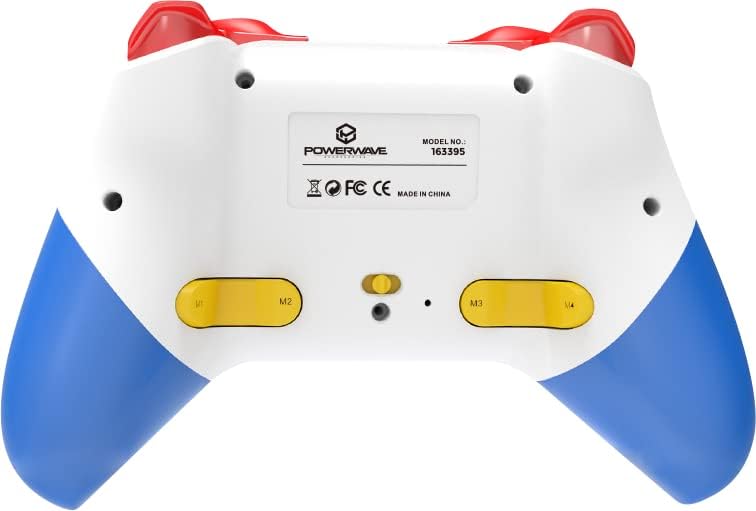
Rear view of the Powerwave Switch Wireless Controller, highlighting the M1, M2, M3, and M4 programmable macro buttons, along with the model number and regulatory markings.
Turbo Mode
Turbo mode allows a button to be pressed repeatedly as long as it is held down, providing a rapid-fire function.
- Activating Turbo: Press and hold the Turbo button (usually marked 'T') and then press the desired action button (e.g., A, B, X, Y, L, R, ZL, ZR). The button will now be in Turbo mode.
- Adjusting Turbo Speed: While holding the Turbo button, move the Right Analog Stick Up or Down to cycle through different turbo speeds (slow, medium, fast).
- Deactivating Turbo: To remove Turbo from a specific button, press and hold the Turbo button and then press the same action button again. To clear all Turbo settings, press and hold the Turbo button for 5 seconds.
Vibration Adjustment
The controller features 3-speed dual-motor vibration. To adjust vibration intensity, press and hold the Vibration button (if available, or a combination like Turbo + D-pad Up/Down) to cycle through intensities (Off, Low, Medium, High).
LED Lighting Effects
The 8-colour rotating LED lighting effect can be toggled or adjusted. Refer to the specific button combination for your controller model, often involving a dedicated LED button or a combination with the Turbo button.
Maintenance
- Cleaning: Use a soft, dry cloth to wipe the controller. For stubborn dirt, slightly dampen the cloth with water. Do not use harsh chemicals or abrasive cleaners.
- Storage: Store the controller in a cool, dry place away from direct sunlight and extreme temperatures.
- Battery Care: To prolong battery life, avoid fully discharging the controller frequently. Charge it regularly, even if not in use for extended periods.
- Avoid Drops: Protect the controller from physical shocks and drops, which can damage internal components.
Troubleshooting
| Problem | Possible Solution |
|---|---|
| Controller does not turn on. | Ensure the controller is fully charged. Connect it to a power source and allow it to charge for at least 30 minutes before attempting to turn it on again. |
| Controller fails to pair with device. |
|
| Input lag or disconnection during gameplay. |
|
| Buttons or analog sticks are unresponsive. |
|
Specifications
- Model Number: 163395
- Product Dimensions: 15 x 6 x 10 cm
- Weight: 212 Grams
- Connectivity: Wireless Bluetooth
- Compatibility: Nintendo Switch, Nintendo Switch Lite, Nintendo Switch OLED, PC, Android, iOS 13+
- Features: 3-Speed Dual-Motor Vibration, Motion Controls, 4 Programmable Macro Buttons, Turbo Mode, 8-Colour Rotating LED Lighting Effect
- Unsupported Functions (Nintendo Switch): HD Rumble, NFC, IR Camera
Warranty and Support
For warranty information and technical support, please refer to the official Powerwave website or contact their customer service. Keep your proof of purchase for any warranty claims.
Powerwave Official Website: www.powerwave.com.au
Related documents163395


Ask a question about this manual
Ask about setup, troubleshooting, compatibility, parts, safety, or missing instructions. Manuals+ will review the question and use this page’s manual context to help answer it.