
1. Introduction
This manual provides detailed instructions for the installation, setup, and operation of your MOES Smart Lock BLE-R2-SLK. This smart lock is designed to upgrade your existing door lock, offering enhanced security and convenience through various unlocking methods and smart home integration.
The MOES Smart Lock allows you to transform a traditional door lock into a smart, secure product in approximately 10 minutes, by replacing only the internal structure while retaining the exterior lock components and lock body.
2. Product Features
- Easy Retrofit Installation: Replaces the internal mechanism of your existing door lock, maintaining the external appearance and lock body.
- Multiple Unlocking Methods: Supports APP unlock, key unlock, BLE automatic unlock, and password unlock via the MOES APP (keypad sold separately).
- Smart Home Integration: Compatible with Alexa and Google Home for voice control.
- Remote Control: With the included MOES Bluetooth Gateway, you can remotely control and operate the lock from anywhere. (Note: Gateway requires a 2.4G Wi-Fi network).
- Low Battery Reminder: The APP sends daily notifications when the battery level drops to 20% or below, prompting timely battery replacement.
- Slim and Compact Design: With a 2.85-inch diameter, it fits most existing door locks, featuring a silver ABS exterior that complements various door panel styles.
3. Package Contents
Verify that all items listed below are included in your package:

Image 3.1: Package Contents. This image displays the MOES Smart Lock, BLE Gateway, AA batteries (x4), Base Plate E1, Power Cord, Lock Adapter, Keyhole Cover, Keyhole Cover Screws (x2), Plate Fixing Screws (x6), Tamperproof Screws (x2), Cylinder, Keys (x2), and a Philips Screwdriver.
- Smart Lock x 1
- BLE Gateway x 1
- AA Battery x 4
- Base Plate E1 x 1
- Power Cord x 1
- Lock Adapter x 1
- Keyhole Cover x 1
- Keyhole Cover Screw x 2
- Plate Fixing Screw x 6
- Tamperproof Screw x 2
- Cylinder x 1
- Key x 2
- Philips Screwdriver x 1
4. Specifications
| Feature | Detail |
|---|---|
| Manufacturer | WENZHOU NOVA NEW ENERGY CO.,LTD |
| Part Number | BLE-R2-SLK |
| Style | Door Lock |
| Number of Pieces | 1 |
| Special Features | Automatic |
| Batteries Included | Yes (4 AA batteries required, included) |
| Model | BLE-R2-SLK |
| Product Dimensions | 72.4mm (2.85 inches) diameter, 67mm (2.64 inches) height (Smart Lock unit) |
| Package Dimensions | 19.9 x 13 x 9.7 cm; 745 g |
| Lock Type | Combination Lock, Keypad Lock (keypad sold separately) |
5. Compatibility and Installation
5.1 Door Lock Compatibility
The MOES Smart Lock is designed to fit most existing door locks. Please refer to the diagram below to ensure your current lock dimensions are compatible.
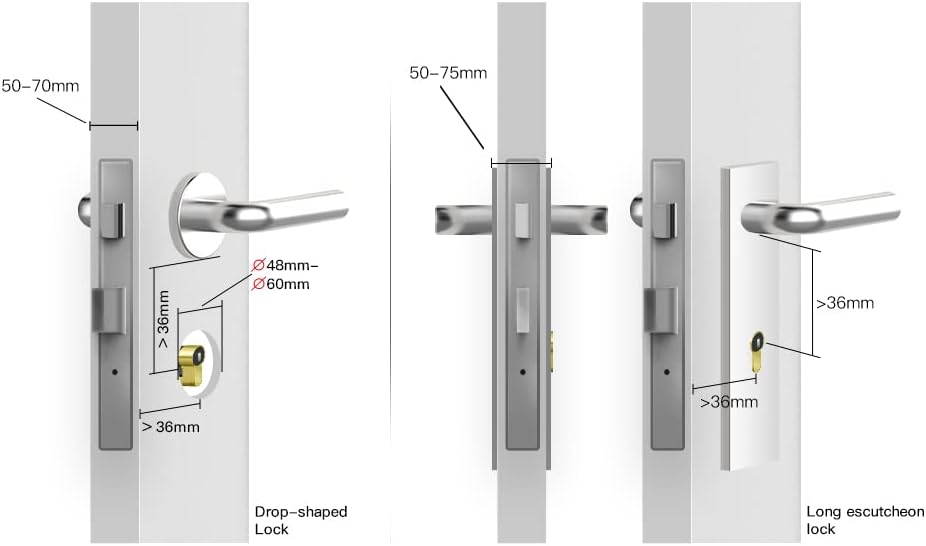
Image 5.1: Door Lock Compatibility. This image shows measurements for compatible door locks, including drop-shaped and long escutcheon locks. Key dimensions include 50-70mm backset, 48-60mm diameter for the handle base, and >36mm clearance from the keyhole to the handle base.
5.2 Installation Overview
The installation process involves replacing the internal mechanism of your existing door lock. A Philips screwdriver is included for this purpose. For detailed step-by-step instructions, please refer to the separate installation guide provided with your product or available online.
The process typically takes around 10 minutes to complete.
6. Setup
6.1 App Configuration
To configure your smart lock, download the MOES APP or Tuya Smart Life APP from your device's app store. Ensure Bluetooth (BLE) is enabled on your phone for initial setup and lock/unlock functionality.

Image 6.1: Fast APP Configuration. This image illustrates the process of quickly configuring the smart lock using the MOES app on a smartphone with Bluetooth enabled for lock/unlock functions.
6.2 BLE Gateway Setup
The MOES Bluetooth Gateway is included to enable remote control functionality. Plug in the gateway and connect it to your 2.4G Wi-Fi network as per the gateway's instructions. This allows you to control the lock even when you are away from home.

Image 6.2: Remote Control via BLE Gateway. This image depicts a user in an office setting remotely controlling the smart lock for their family at home using a BLE gateway.
6.3 Voice Control Integration
Once the lock is set up with the MOES or Tuya Smart Life APP, you can link it to your Alexa or Google Home account for voice control. Follow the instructions within the respective smart home apps to add the MOES Smart Lock as a device.
7. Operating Instructions
7.1 Unlocking Methods
The MOES Smart Lock offers several convenient ways to unlock your door:

Image 7.1: Multiple Unlocking Methods. This image shows four methods to unlock the MOES Smart Lock: using a PIN (with a separately purchased keypad), automatic unlocking via Bluetooth Low Energy (BLE), unlocking through the mobile application, and traditional key unlocking.
- APP Unlock: Use the MOES or Tuya Smart Life APP on your smartphone to unlock the door.
- Key Unlock: The traditional key can still be used as a backup or primary unlocking method.
- BLE Auto-Unlock: Configure the lock to automatically unlock when your paired smartphone is within Bluetooth range.
- PIN Unlock: If you have purchased the optional keypad, you can unlock the door using a numerical PIN.
7.2 Scheduling
You can set schedules within the MOES or Tuya Smart Life APP to automatically lock or unlock your door at specific times. This feature can also trigger other smart devices or scenes.
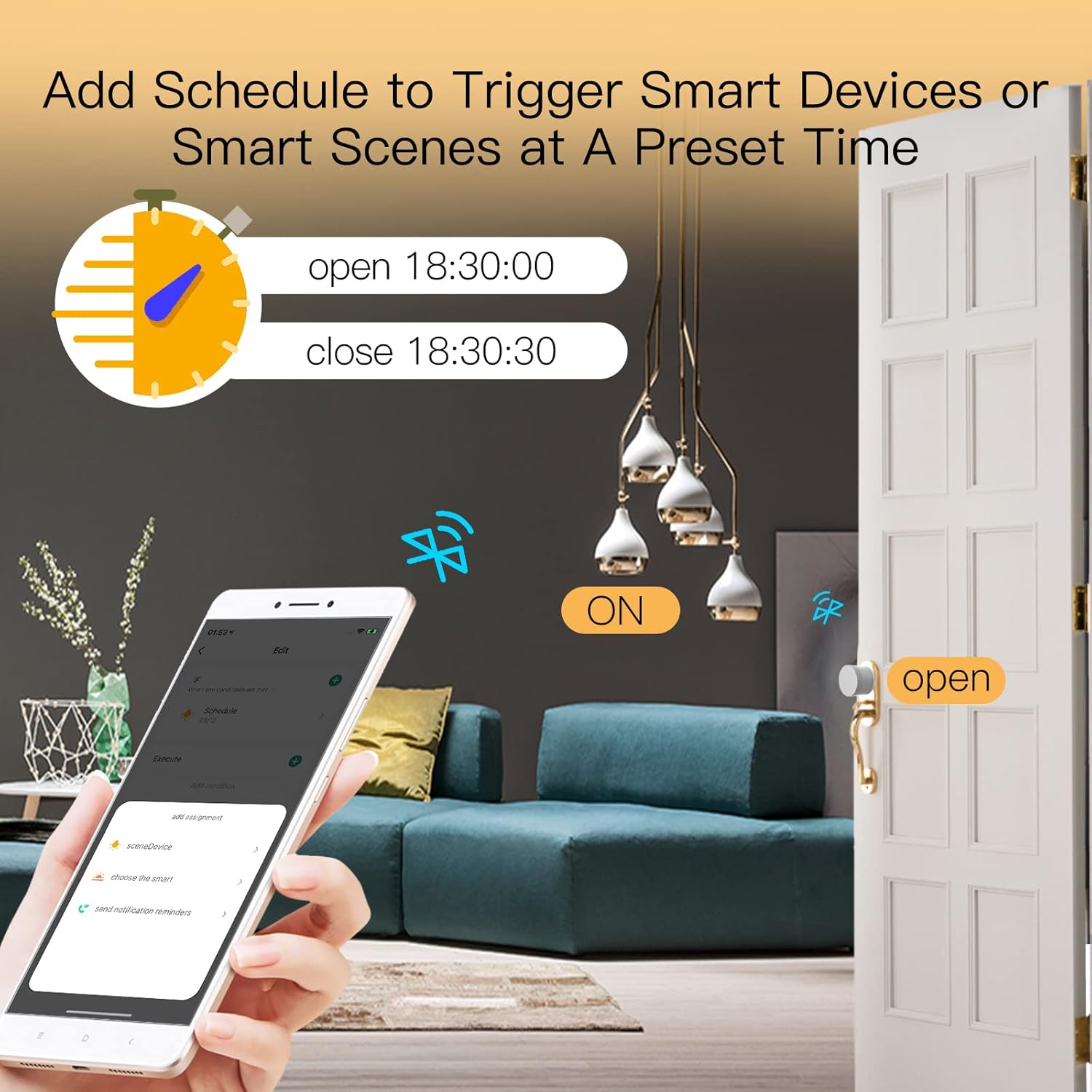
Image 7.2: Scheduling Feature. This image illustrates how to use the mobile application to add a schedule, allowing the smart lock to open and close at preset times, such as 18:30:00 and 18:30:30.
8. Maintenance
8.1 Battery Replacement
The MOES Smart Lock uses 4 AA batteries. The APP will send a low battery notification when the power level drops to 20% or below. It is recommended to replace the batteries promptly to ensure continuous operation.
8.2 Cleaning
To clean the smart lock, use a soft, dry cloth. Avoid using abrasive cleaners or solvents, as these can damage the finish.
9. Troubleshooting
9.1 Resetting the Smart Lock
If you encounter issues or need to reset your smart lock, follow these steps:
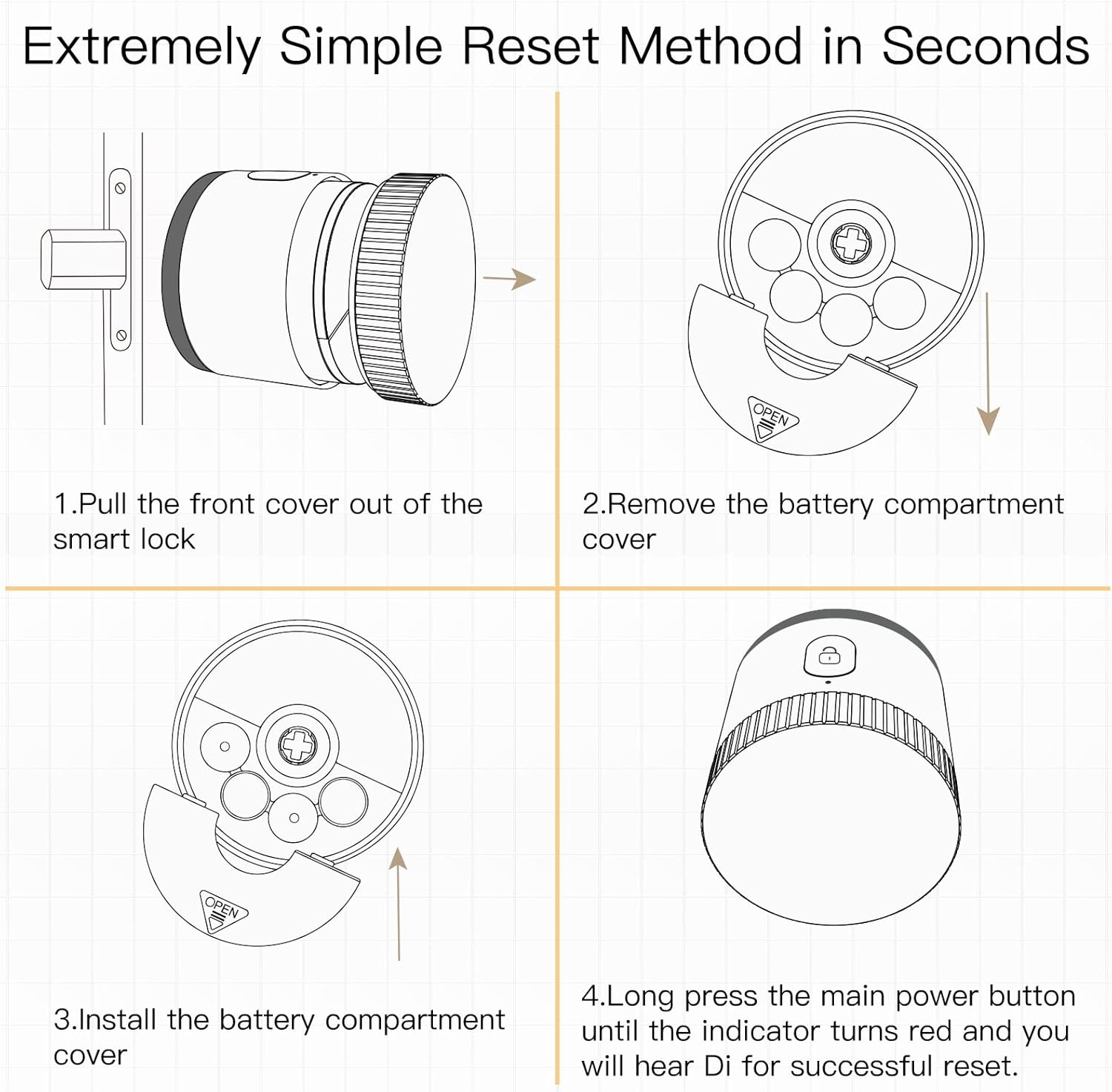
Image 9.1: Reset Method. This image illustrates the simple four-step process to reset the smart lock: 1. Pull the front cover off the smart lock. 2. Remove the battery compartment cover. 3. Install the battery compartment cover. 4. Long press the main power button until the indicator turns red and you hear a "Di" sound for a successful reset.
- Pull the front cover off the smart lock.
- Remove the battery compartment cover.
- Install the battery compartment cover back into place.
- Long press the main power button until the indicator turns red and you hear a "Di" sound. This indicates a successful reset.
9.2 Common Issues
- Lock not responding: Check battery level. Ensure Bluetooth is enabled on your phone for APP control. Verify the BLE Gateway is powered and connected to Wi-Fi for remote control.
- Difficulty pairing: Ensure the lock is in pairing mode (refer to the app's instructions). Keep your phone close to the lock during pairing.
- Voice control not working: Confirm the lock is correctly linked in your Alexa or Google Home app. Check your internet connection.
10. Warranty and Support
For warranty information and technical support, please refer to the documentation included with your purchase or visit the official MOES website. Keep your purchase receipt for warranty claims.


