
Introduction
Thank you for choosing the Varmilo MA Series V2 Summit R2 Mechanical Keyboard. This manual provides essential information for setting up, operating, maintaining, and troubleshooting your new keyboard. Please read this manual thoroughly to ensure optimal performance and longevity of your device.
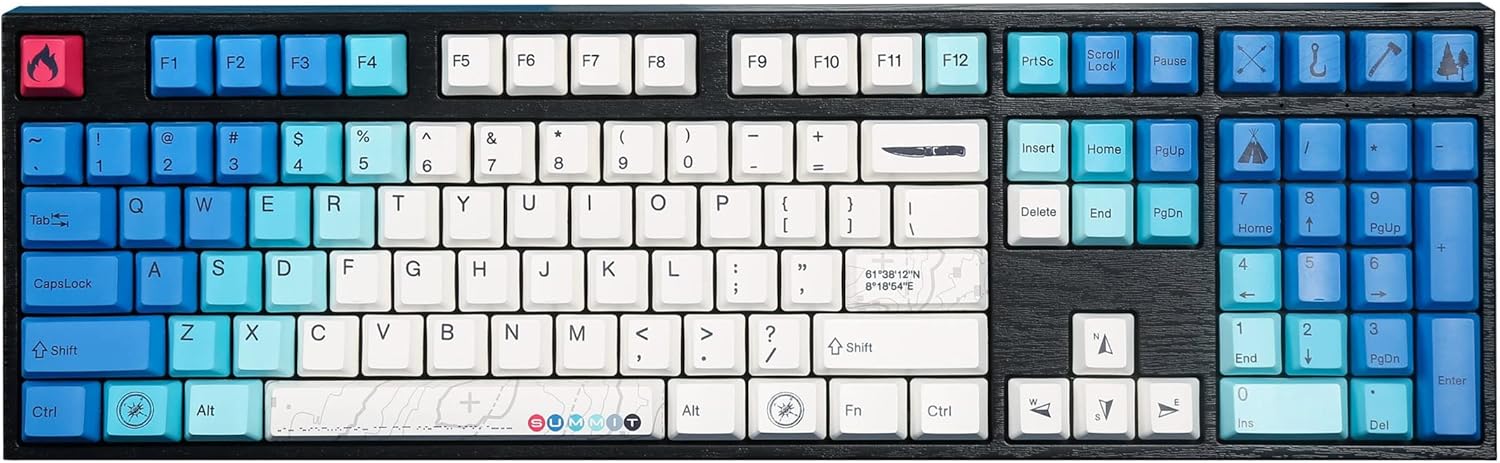
Image: The Varmilo MA Series V2 Summit R2 Mechanical Keyboard, showcasing its full layout and unique keycap design.
Setup
1. Unboxing
Carefully remove the keyboard and all accessories from the packaging. Ensure the following items are present:
- Varmilo MA Series V2 Summit R2 Mechanical Keyboard
- USB-C Cable
- Keycap Puller (if included)
- User Manual (this document)
2. Connecting the Keyboard
- Locate the USB-C port on the back of the keyboard.
- Connect one end of the provided USB-C cable to the keyboard.
- Connect the other end of the USB-C cable to an available USB port on your computer.
- The keyboard is plug-and-play and should be recognized automatically by your operating system.
3. Adjusting Keyboard Angle
The Varmilo MA Series V2 features a double-section kickstand, allowing for two different typing angles. Gently flip out the desired sections of the kickstand located on the underside of the keyboard to adjust its height and angle for ergonomic comfort.

Image: Side profile of the Varmilo keyboard, illustrating the adjustable kickstand in an extended position.
Operating Instructions
1. Basic Key Functions
The keyboard features a standard full-size (104-key) layout. All alphanumeric and standard function keys operate as expected. The Varmilo EC Ivy V2 switches provide a smooth and responsive typing experience.
2. Function (Fn) Key Combinations
The Fn key (typically located near the right Alt key) allows access to secondary functions printed on certain keycaps. Hold down the Fn key and press the desired function key simultaneously.
- Fn + F1-F12: Multimedia controls (e.g., volume, play/pause, stop).
- Fn + Arrow Keys: LED brightness or effect control (refer to specific keycap legends).
- Fn + Win: Lock/Unlock Windows key.

Image: A close-up view of the right side of the Varmilo keyboard, highlighting the special function keys and their legends.
3. LED Backlighting Control
The keyboard features White LED backlighting. Use the Fn key combinations to adjust the brightness and switch between various lighting effects. Specific key legends will indicate the corresponding functions for LED control.
Maintenance
1. Cleaning the Keyboard
To maintain the keyboard's appearance and functionality:
- Disconnect the keyboard from your computer before cleaning.
- Use a soft, lint-free cloth slightly dampened with water or a mild cleaning solution to wipe the keycaps and casing.
- For dust and debris between keycaps, use compressed air.
- Avoid using harsh chemicals, abrasives, or solvents, as these can damage the PBT keycaps and finish.
2. Keycap Removal and Replacement
The keyboard features durable Dye Sub PBT keycaps. If you need to remove keycaps for deep cleaning or customization:
- Use the provided keycap puller (if applicable) or a similar tool.
- Gently attach the keycap puller to the keycap and pull straight up to remove it. Avoid twisting or excessive force.
- To replace, align the keycap with the switch stem and press down firmly until it clicks into place.

Image: A collection of individual Varmilo keycaps, including special design keycaps, demonstrating their PBT material and dye-sublimated legends.
Troubleshooting
If you encounter issues with your Varmilo keyboard, please refer to the following common solutions:
- Keyboard Not Responding:
- Ensure the USB-C cable is securely connected to both the keyboard and the computer.
- Try connecting the keyboard to a different USB port on your computer.
- Test the keyboard on another computer to rule out system-specific issues.
- Restart your computer.
- LEDs Not Working or Incorrect:
- Ensure the LED brightness is not set to the lowest level using Fn key combinations.
- Check if any specific lighting modes are active that might turn off certain LEDs.
- Keys Not Registering:
- Remove the keycap and inspect the switch for any obstructions.
- Clean around the switch stem with compressed air.
Factory Reset
If issues persist, a factory reset may resolve them. Consult the Varmilo official website or support for specific reset procedures for your model, as these can vary.
Specifications
The following are the technical specifications for the Varmilo MA Series V2 Summit R2 Mechanical Keyboard:
| Feature | Detail |
|---|---|
| Brand | Varmilo |
| Model | MA Series V2 Summit R2 |
| Layout | Full-size (104 + 4 keys) |
| Switch Type | Varmilo EC Ivy V2 Mechanical Switches |
| Keycap Material | Dye Sub PBT |
| Connectivity | USB-C |
| Backlighting | White LED |
| Material | Polybutylene Terephthalate, Silicone |
| Power Source | USB Powered |
| Compatible Devices | Computer (via USB-C) |
Warranty and Support
Varmilo products are manufactured to high-quality standards. For information regarding warranty coverage, technical support, or service inquiries, please visit the official Varmilo website or contact their customer support directly. Keep your purchase receipt as proof of purchase for warranty claims.
Official Varmilo Store: Varmilo Store on Amazon