
1. Introduction
This manual provides detailed instructions for the setup, operation, maintenance, and troubleshooting of your AULA F2088 Typewriter Style Mechanical Gaming Keyboard. Please read this manual thoroughly before using the product to ensure optimal performance and longevity.
2. Package Contents
Verify that all items are present in the package:
- AULA F2088 Mechanical Gaming Keyboard
- Detachable Magnetic Wrist Rest
- USB Cable
- Keycap Puller
- User Manual (this document)
3. Product Overview
The AULA F2088 keyboard combines a retro typewriter aesthetic with modern mechanical gaming features. It is designed for durability and user comfort.

Image 3.1: Overview of the AULA F2088 Mechanical Gaming Keyboard.
Key Features:
- Typewriter Style Round Keycaps: Double-shot injection molded keycaps provide clear backlighting and durability. The stepped floating keycap design aims to reduce typing fatigue.
- Mechanical Blue Switches: Offers a tactile and audible click feedback for each keystroke, suitable for gaming and typing.
- Multimedia and Backlight Control Knob: A dedicated knob for quick access to media functions and backlight adjustments.
- Metal Panel Construction: The keyboard panel is made from aluminum alloy for enhanced durability and scratch resistance.
- Detachable Magnetic Wrist Rest: Provides ergonomic support to alleviate wrist pressure during extended use.
- 104-Key Anti-Ghosting: Ensures simultaneous keystrokes are registered accurately.

Image 3.2: The detachable magnetic wrist rest provides ergonomic support.

Image 3.3: Close-up view of the mechanical blue switches, highlighting their tactile and clicky nature.

Image 3.4: The keyboard features an ergonomic design with an adjustable kickstand for comfortable typing angles.
4. Setup Instructions
Follow these steps to set up your AULA F2088 keyboard:
- Connect the USB Cable: Plug the USB connector of the keyboard into an available USB port on your computer.
- Attach Wrist Rest (Optional): Align the magnetic wrist rest with the front edge of the keyboard until it snaps into place.
- Driver Installation: The keyboard is plug-and-play. No additional drivers or software are typically required for basic functionality. Your operating system should automatically detect and install the necessary drivers.
- Adjust Kickstands: Flip out the adjustable kickstands on the underside of the keyboard to set your preferred typing angle.
5. Operating Instructions
5.1 Basic Keyboard Functions
The AULA F2088 functions as a standard 104-key keyboard. All keys perform their labeled functions. The 'Fn' key can be used in combination with other keys for additional features, typically indicated by secondary legends on the keycaps.
5.2 Backlight Control
The keyboard features a multicolor LED backlight with various effects and customization options.

Image 5.1: The keyboard features bright multicolor backlighting with various modes.
- Switching Modes: The dedicated control knob (typically located in the upper right corner) can be used to cycle through 19 different pre-set lighting effects.
- Adjusting Brightness: Rotate the control knob to adjust the backlight brightness.
- Adjusting Speed: Some lighting effects allow for speed adjustment via the control knob.
- Custom Backlight: The keyboard supports creating 3 customized backlight profiles. Refer to the software (if applicable) or specific key combinations for detailed customization.
5.3 Multimedia Control Knob
The control knob serves a dual purpose, managing both backlight effects and multimedia functions.

Image 5.2: The control knob allows switching between multimedia and lighting control modes.
- Switching Modes: Long press the control knob for three seconds to toggle between multimedia mode and lighting control mode.
- Multimedia Mode: In multimedia mode, the knob controls media volume. Dedicated buttons (M1, M2, M3) typically provide quick access for music play, pause, and track switching.
- Lighting Control Mode: In lighting control mode, the knob adjusts backlight effects, brightness, and speed.
5.4 Anti-Ghosting and N-Key Rollover
The AULA F2088 features anti-ghosting technology to ensure accurate registration of multiple simultaneous key presses.

Image 5.3: Illustration of the anti-ghosting feature, showing multiple key presses being registered simultaneously.
- 6-Key Rollover (Default): Press Fn + PRTSC to activate 6-key rollover, allowing up to 6 keys to be registered simultaneously.
- N-Key Rollover: Press Fn + SCRLK to activate N-key rollover, allowing all keys to be registered simultaneously without conflict.
5.5 Macro Programming
The keyboard supports macro programming for customized settings, enhancing gaming and productivity.
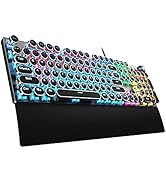
Image 5.4: Example of a macro programming interface, showing options for customized settings and light effect control.
To utilize macro programming, specific software may be required, which can typically be downloaded from the AULA official website. The software allows you to:
- Create and save up to 3 configurations.
- Customize macro settings for individual keys.
- Adjust light effect brightness.
- Perform a one-button factory reset.
6. Maintenance
Proper maintenance ensures the longevity and performance of your keyboard:
- Cleaning Keycaps: Use the provided keycap puller to carefully remove keycaps. Clean them with a soft, damp cloth. For the keyboard base, use a soft brush or compressed air to remove dust and debris.
- Avoid Liquids: Do not expose the keyboard to liquids. In case of spills, immediately disconnect the keyboard and allow it to dry completely before reconnecting.
- Storage: Store the keyboard in a dry, cool environment away from direct sunlight and extreme temperatures.
7. Troubleshooting
If you encounter issues with your AULA F2088 keyboard, refer to the following common solutions:
| Problem | Possible Solution |
|---|---|
| Keyboard not responding | Ensure the USB cable is securely connected to both the keyboard and the computer. Try a different USB port. Restart your computer. |
| Backlight not working or incorrect | Check if the backlight is turned off or set to minimum brightness using the control knob. Ensure you are in the correct lighting control mode (long press the knob for 3 seconds to switch). |
| Keys not registering or double-typing | Ensure N-key rollover is activated (Fn + SCRLK). Clean under the keycaps for any debris. If the issue persists, contact customer support. |
| Multimedia keys not functioning | Ensure the control knob is in multimedia mode (long press the knob for 3 seconds to switch). Check your computer's sound settings. |
| Macro programming issues | Verify that the macro software is correctly installed and updated. Refer to the software's specific instructions for macro setup. |
8. Specifications
Detailed technical specifications for the AULA F2088 Mechanical Gaming Keyboard:
- Model: F2088
- Brand: AULA
- Connectivity: USB Wired
- Keyboard Type: Mechanical Gaming Keyboard
- Switch Type: Blue Mechanical Switches
- Keycap Style: Retro Typewriter Round Keycaps
- Backlighting: Rainbow LED, 19 pre-set effects + 3 customizable
- Anti-Ghosting: 104-Key Anti-Ghosting (N-Key Rollover)
- Special Features: Multimedia & Backlight Control Knob, Detachable Magnetic Wrist Rest, Metal Panel
- Product Dimensions: Approximately 17.13 x 4.84 x 1.52 inches (43.5 x 12.3 x 3.86 cm)
- Item Weight: Approximately 1.5 pounds (0.68 kg)
- Compatibility: Windows 7/8/10/XP/Vista, Linux, Mac OS systems
9. Warranty and Support
For warranty information and technical support, please refer to the official AULA website or contact your retailer. Keep your purchase receipt for warranty claims.


