
Introduction
This manual provides detailed instructions for the Varmilo VA Series V2 Koi Full Size Mechanical Keyboard. It covers setup, operation, maintenance, and technical specifications to ensure optimal performance and longevity of your device.
The Varmilo VA Series V2 Koi keyboard features thick dye-sub PBT keycaps, a full-size (104+4) form factor, and USB Type-C connectivity. It incorporates the original Varmilo Koi colorway design.
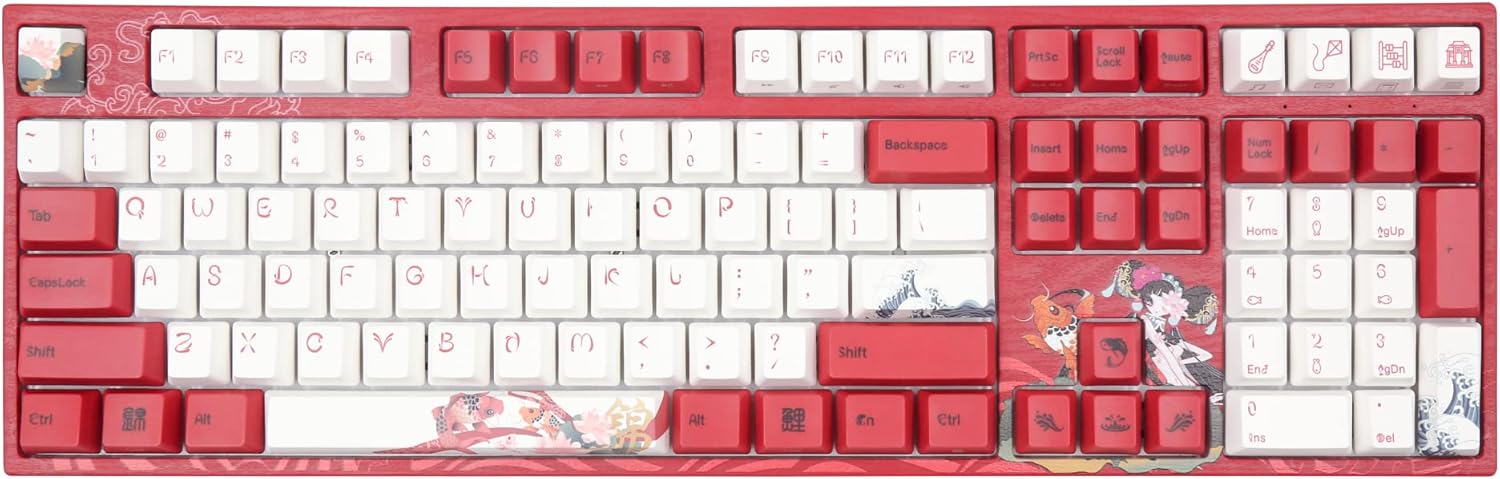
Image: The Varmilo VA Series V2 Koi Full Size Mechanical Keyboard, showcasing its distinctive red and white keycaps with Koi fish and wave art.
Setup
1. Unboxing and Contents
Carefully remove the keyboard from its packaging. Ensure all components are present. The package should include:
- Varmilo VA Series V2 Koi Mechanical Keyboard
- USB Type-C Cable
2. Connecting the Keyboard
- Locate the USB Type-C port on the back of the keyboard.
- Connect one end of the provided USB Type-C cable to the keyboard.
- Connect the other end of the USB cable to an available USB port on your computer.
- The keyboard is plug-and-play and should be recognized automatically by your operating system.
The keyboard features cable grooves on the bottom case, allowing the USB cable to exit from the left, right, or middle for organized cable management.
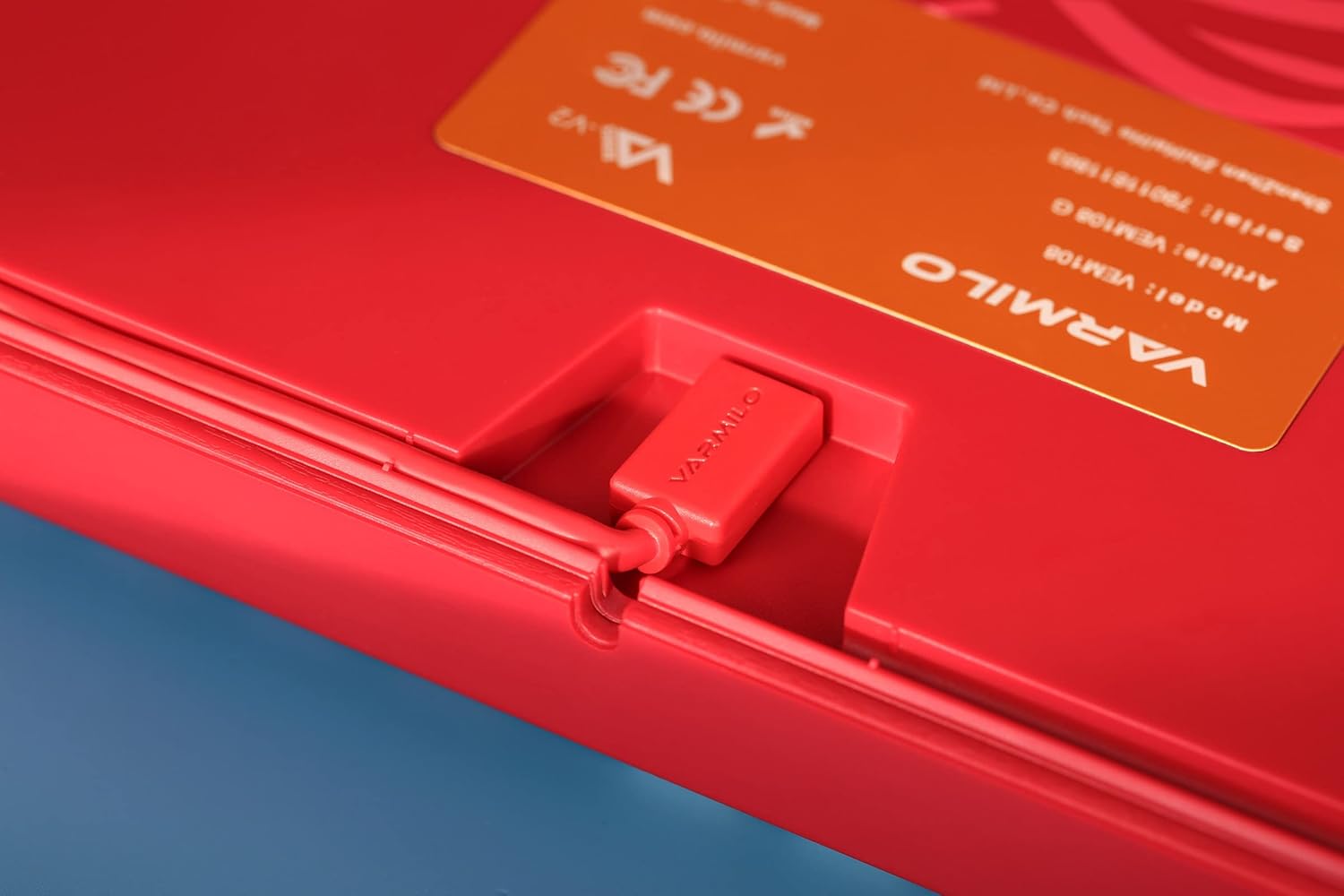
Image: A close-up view of the Varmilo keyboard's USB-C port and the integrated cable groove on the underside, designed for flexible cable routing.
3. Adjusting Kickstands
The keyboard is equipped with double-section kickstands on the underside. These can be adjusted to two different heights to suit your ergonomic preference.

Image: The bottom view of the Varmilo keyboard, showing the double-section kickstands and the wave-patterned design on the base.
Operating the Keyboard
Keycap Features
The keyboard utilizes thick dye-sublimated PBT keycaps, known for their durability and resistance to shine over time. The legends are embedded into the plastic, ensuring they will not fade with prolonged use.
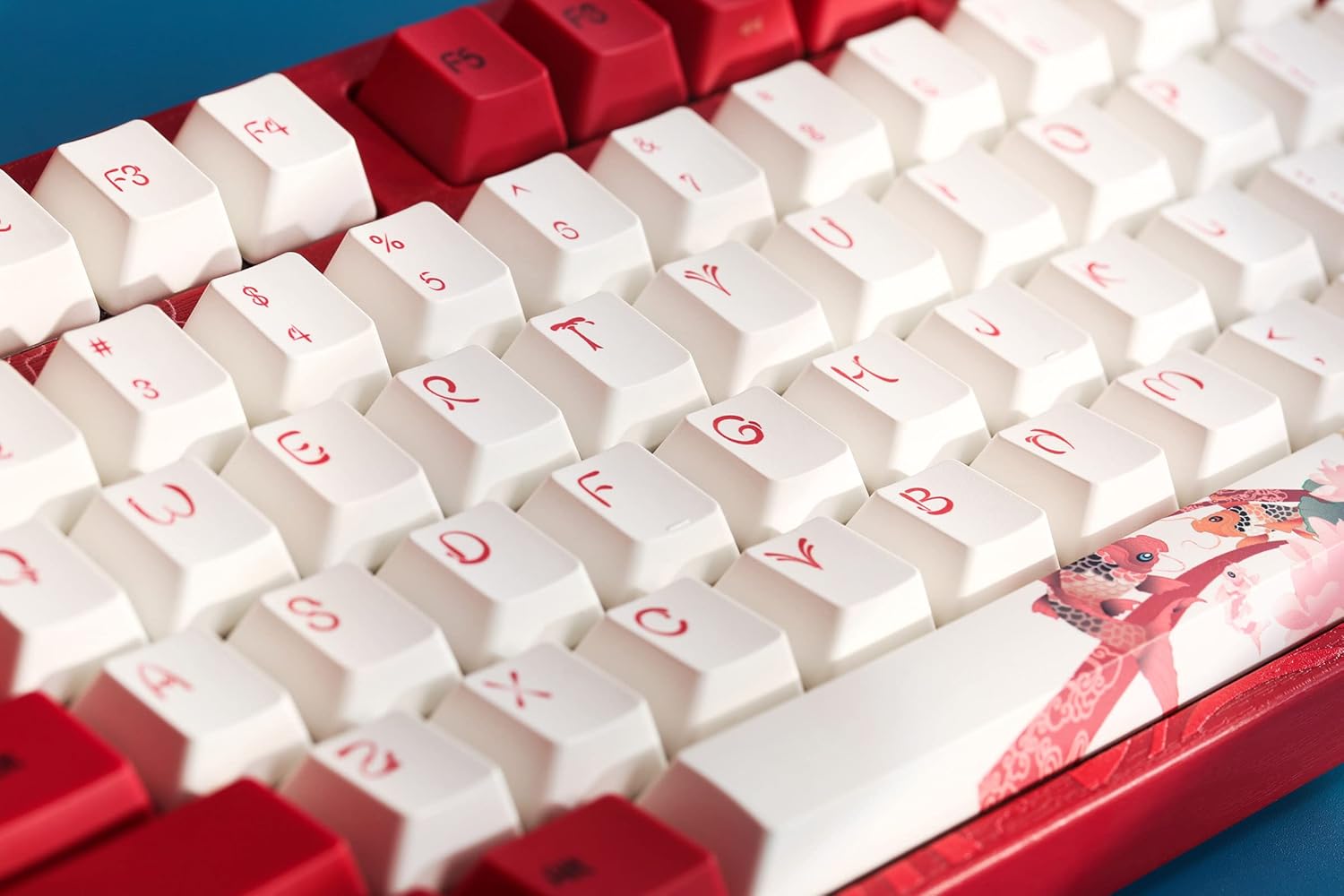
Image: An angled close-up of the Varmilo keyboard's keycaps, highlighting the PBT material and the clear, durable legends.
Switch Type
This specific model is equipped with Cherry MX Blue mechanical switches, which provide a tactile bump and an audible click for a distinct typing experience.
Indicator Lights
All indicator lights are positioned on the top right of the keyboard to minimize distractions during use.
Special Keycaps
The keyboard features unique keycaps with artistic designs, such as those depicting Koi fish and traditional Chinese elements.

Image: A close-up of the Varmilo keyboard's special keycaps, featuring intricate Koi fish and character designs on the bottom right cluster.
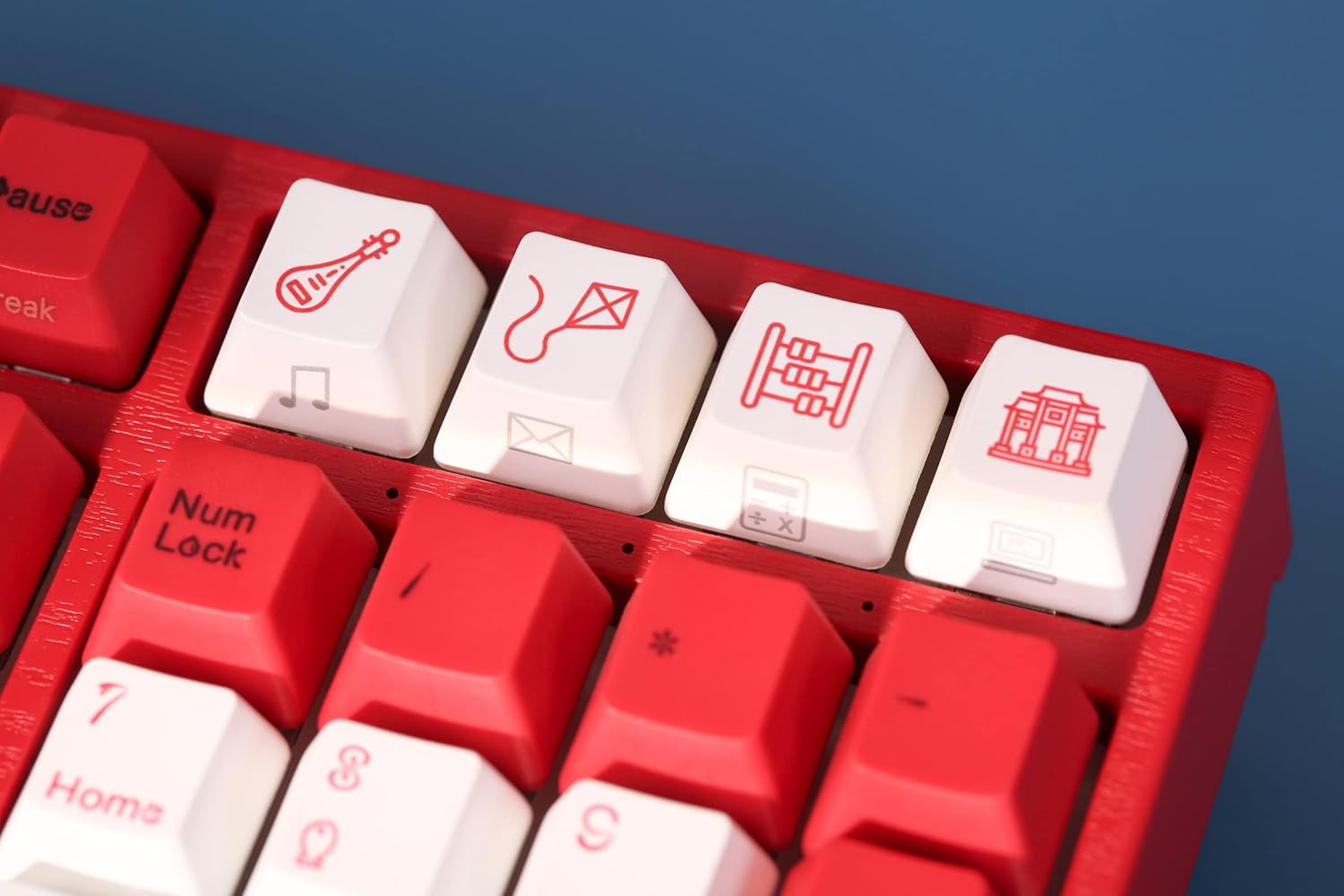
Image: A close-up of the Varmilo keyboard's special keycaps, showing unique icons like a musical instrument, a kite, and an abacus on the top right function row.
Product Overview Video
For a visual overview of the Varmilo Koi Mechanical Keyboard, please watch the video below.
Video: An official product video showcasing the Varmilo Koi Mechanical Keyboard, highlighting its design and features.
Maintenance
Cleaning
To maintain the appearance and functionality of your keyboard, regular cleaning is recommended:
- Dust Removal: Use a can of compressed air to remove dust and debris from between the keycaps.
- Surface Cleaning: Gently wipe the keycaps and keyboard frame with a soft, lint-free cloth slightly dampened with water or a mild, non-abrasive cleaning solution. Avoid excessive moisture.
- Deep Cleaning (Keycaps): For thorough cleaning, keycaps can be carefully removed using a keycap puller (not included) and washed with mild soap and water. Ensure keycaps are completely dry before reattaching.
Avoid using harsh chemicals or abrasive materials, as these can damage the keycaps and keyboard finish.
Troubleshooting
Keyboard Not Responding
- Check Cable Connection: Ensure the USB Type-C cable is securely connected to both the keyboard and the computer. Try unplugging and re-plugging the cable.
- Try a Different USB Port: Connect the keyboard to a different USB port on your computer to rule out a faulty port.
- Test on Another Computer: If possible, test the keyboard on another computer to determine if the issue is with the keyboard or your system.
- Restart Computer: A simple computer restart can often resolve connectivity issues.
Keys Not Registering
- Clean Under Keycaps: Small debris or dust under a keycap can sometimes prevent it from registering. Refer to the Maintenance section for cleaning instructions.
- Software Interference: Ensure no conflicting software or drivers are installed that might interfere with keyboard input.
Specifications
| Brand | Varmilo |
| Model | VA Series V2 Koi |
| Form Factor | Full-size (104+4 keys) |
| Switch Type | Cherry MX Blue (Clicky) |
| Keycap Material | Thick Dye-sub PBT |
| Connectivity | USB Type-C |
| Included Components | USB Cable |
| Material | Polybutylene Terephthalate, Silicone |
| Color | Cherry MX Blue (referring to switch type, not keyboard color) |
| First Available | July 21, 2022 |
Support
For further assistance, technical support, or warranty inquiries, please refer to the official Varmilo website or contact your retailer. Keep your purchase receipt for warranty claims.