
Introduction
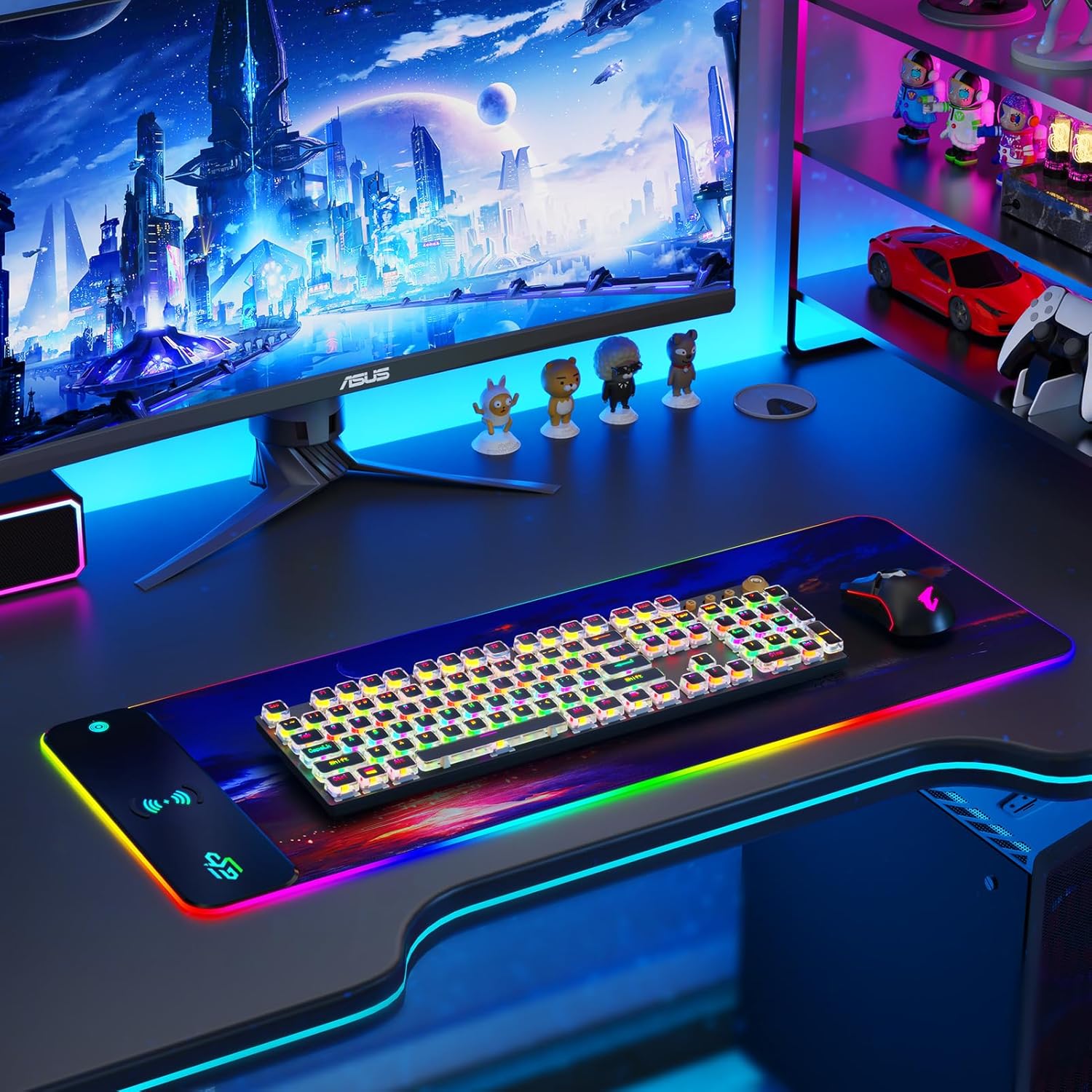
This manual provides essential information for the proper setup, operation, and maintenance of your GIM Wireless Charging RGB Gaming Mouse Pad 15W. Please read these instructions carefully before use to ensure optimal performance and safety.
Safety Information
- Do not expose the mouse pad to extreme temperatures or direct sunlight.
- Keep the mouse pad away from water and other liquids, despite its water-resistant surface.
- Avoid placing metal objects, magnets, or credit cards on the wireless charging area as this may interfere with charging or damage the device.
- Use only the provided USB-C cable for power.
Package Contents
- GIM Wireless Charging RGB Gaming Mouse Pad 15W
- USB-C Power Cable
Setup
- Unroll the Mouse Pad: Carefully unroll the GIM Wireless Charging RGB Gaming Mouse Pad onto a flat, clean desk surface. Allow some time for it to flatten completely.
- Connect Power: Insert the provided USB-C cable into the port on the mouse pad's control module. Connect the other end of the USB-C cable to a compatible USB power source (e.g., computer USB port, USB wall adapter).
- Power Adapter Note: For optimal 10W/15W wireless fast charging, a 9V 2A power adapter (not included) is recommended.
Operating Instructions
RGB Lighting Control
- Change Lighting Modes: Lightly press the one-touch switch button on the control module to cycle through 10 different RGB lighting modes, including 7 static and 3 dynamic effects.
- Turn On/Off: Press and hold the one-touch switch button for 3 seconds to turn the RGB lighting on or off.
- Memory Function: The mouse pad remembers your last selected lighting mode when powered off and will resume it upon restart.


Wireless Charging
- Place Device: Position your Qi-enabled smartphone or other compatible device directly on the wireless charging area of the mouse pad. Ensure the device is centered for optimal charging.
- Charging Indicators: The LED indicator on the control module will show the charging status:
- BLUE: Standby mode
- RED: Device is charging
- GREEN: Device is fully charged
- RED FLASHING: Charging error (e.g., foreign object detected, device not compatible, or improperly placed).
- Compatibility: Compatible with smartphones supporting wireless charging (e.g., iPhone 8/X/XR/XS/11/11 Pro/12/12 Pro/12 Pro Max/13/13 Pro/13 Pro Max, Samsung Galaxy 10/S9/S8 Plus, Galaxy Note 9/8, and all other Qi-enabled devices).
- Important: Avoid placing metal cases, grips, stands, magnets, or credit cards between your device and the charging pad, as this will prevent charging.

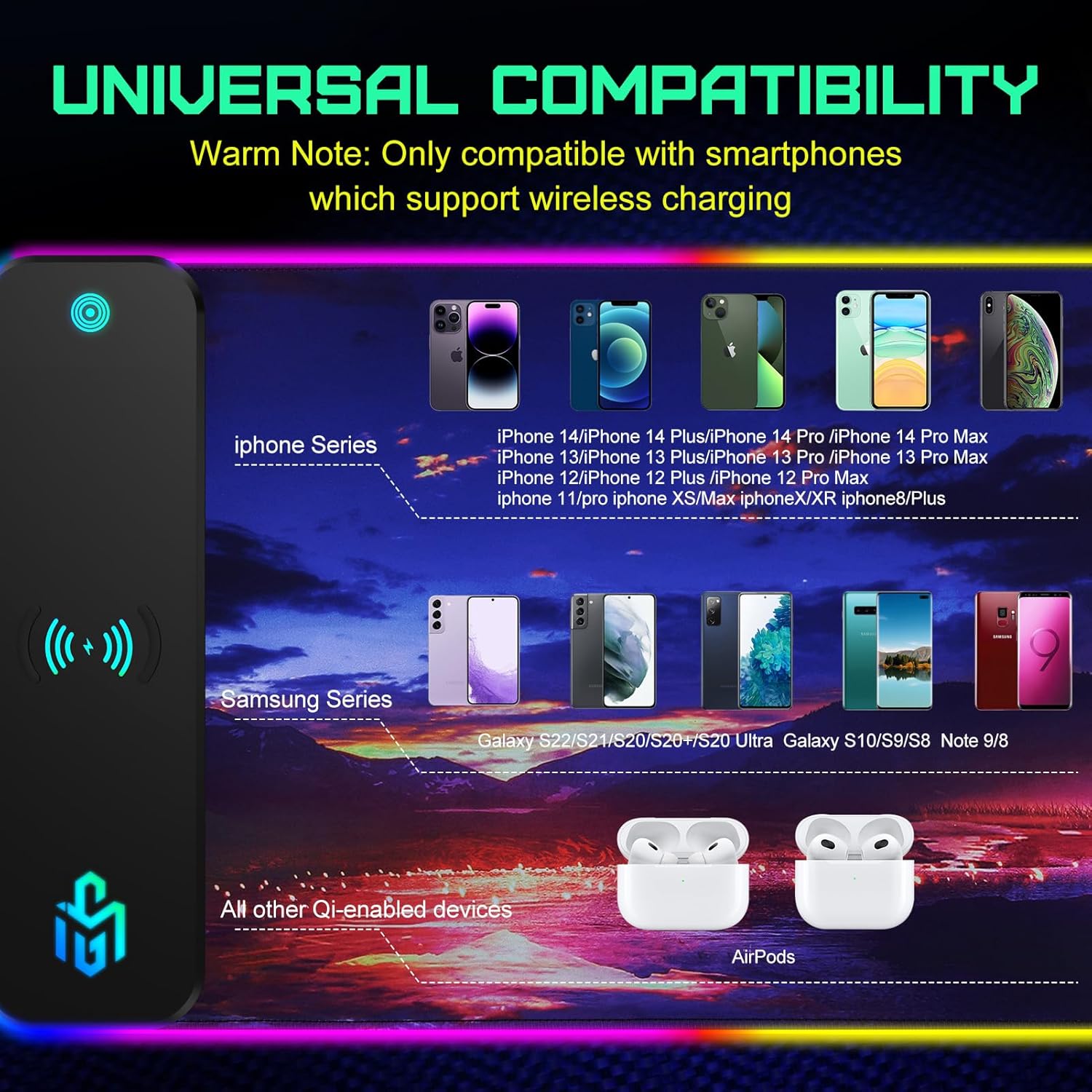
Official product video demonstrating the wireless charging capabilities of the GIM RGB Mouse Pad.
Maintenance
- Cleaning: The mouse pad features a water-resistant surface. For spills, gently wipe with a damp cloth. For general cleaning, use a soft, dry cloth. Do not use harsh chemicals or abrasive cleaners.
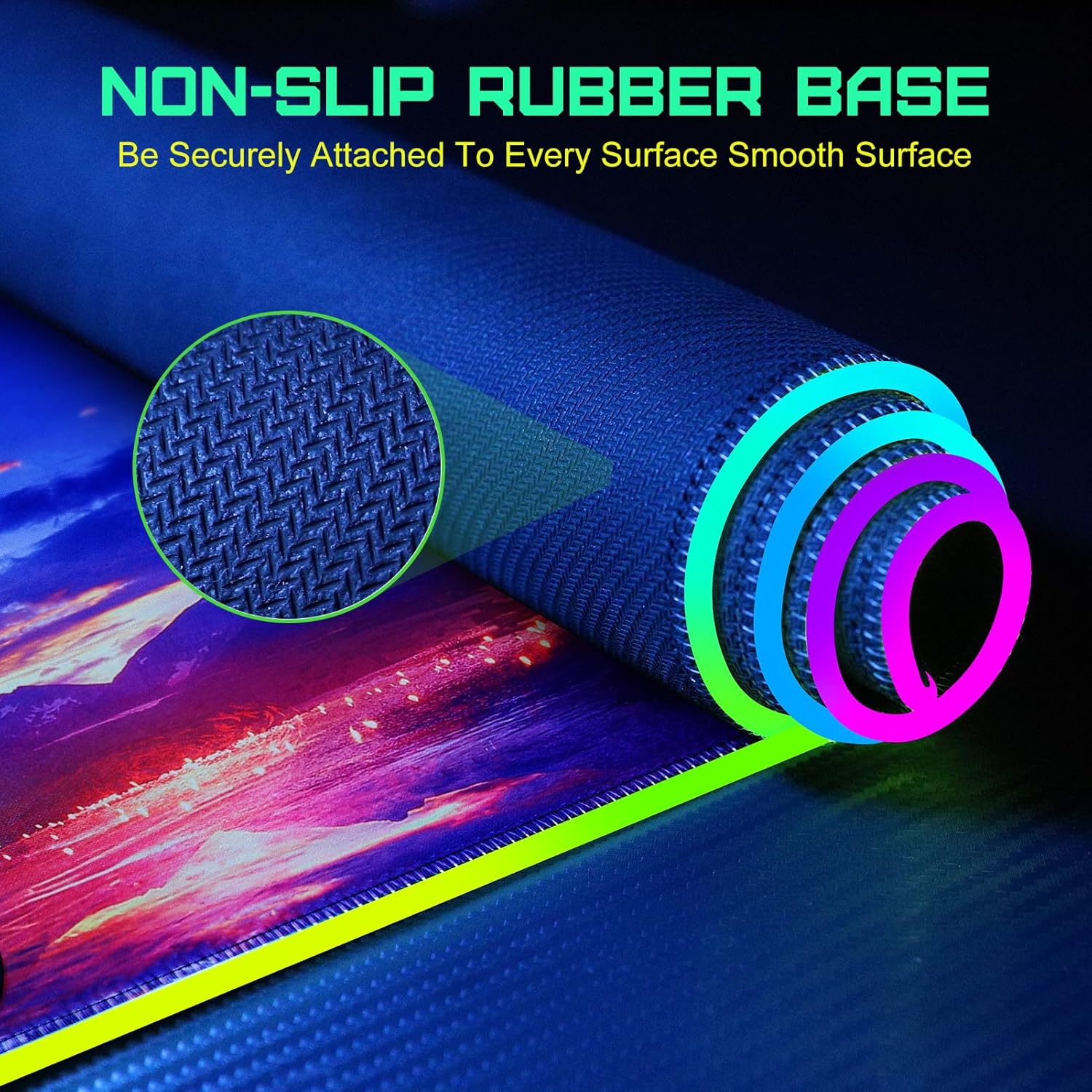
- Storage: When not in use, the mouse pad can be rolled up for easy storage.
Troubleshooting
| Problem | Possible Cause | Solution |
|---|---|---|
| Device not charging / Red flashing indicator | Device improperly placed, incompatible device, foreign object, or thick case. | Ensure device is centered on the charging area. Remove any metal objects, magnets, or thick cases. Verify device is Qi-enabled. |
| RGB lights not working | No power, or lights are turned off. | Check USB-C cable connection. Press and hold the one-touch switch for 3 seconds to turn lights on. Briefly press to cycle modes. |
| Mouse pad not lying flat | Recently unrolled. | Allow some time for the mouse pad to naturally flatten on a desk surface. |
Specifications
| Feature | Detail |
|---|---|
| Brand | GIM |
| Model | Wireless Charging RGB Gaming Mouse Pad 15W |
| Dimensions (LxWxH) | 31.5 x 11.81 x 0.16 inches (800x300x4MM) |
| Item Weight | 1.9 pounds |
| Material | Rubber |
| Wireless Charging Output | 10W (up to 15W with compatible adapter) |
| RGB Lighting Modes | 10 (7 static, 3 dynamic) |
| Special Features | Non-slip base, Water-resistant surface, Memory function for RGB lights |
| Hardware Platform | PC |
Warranty and Support
GIM products come with a 12-month technical support warranty. For any technical assistance or customer service inquiries, please contact GIM Electronic support. Our team is available for 7*24 hours customer service to assist you.
For more information, visit the GIM Store on Amazon.